A repeating Planner reminder is useful only when it is quiet, predictable, and easy to act on. If the flow posts one message per task, the Teams channel becomes noise. If it posts when there are no overdue tasks, people learn to ignore it.
Build the flow around one daily summary. The flow should run on a schedule, read tasks from one plan, keep only open items with due dates before today, and post a compact Teams message with a link back to Planner. That design is easier to test and easier for the team to trust.
Design the reminder before opening Power Automate
Decide the plan, channel, owner, and reminder time before building the flow. A daily reminder in a project channel works well for active work. A weekly reminder may be better for a management plan with fewer due dates. The point is to pick a cadence people expect.
Keep the first version narrow. Use one plan, one Teams channel, and one reminder format. After the team trusts the output, you can expand to more plans or route reminders by bucket.
Decide where the message should land
Post to a channel where the responsible team already discusses the work. Avoid sending overdue tasks to a broad company channel. The message should help the owners act, not embarrass people who cannot change the task.
Build the recurrence and Planner query
Start with a scheduled cloud flow and choose the reminder cadence. The Power Automate recurrence trigger is meant for this kind of repeated run, and it keeps the flow independent from manual clicks.
If the schedule setup is new to you, use the recurrence setup walkthrough before adding Planner and Teams actions. It is easier to fix a timing mistake before the flow has conditions and message formatting.
Add a Planner action that lists tasks from the selected plan. The exact connector labels can vary, but the important fields are the plan identifier, task status, due date, title, and task link. Keep a sample run history open so you can see the field names your tenant returns.
Filter overdue work without noisy messages
The flow should ignore completed tasks and keep only tasks with a due date earlier than today. Be careful with blank due dates. A task with no due date is not overdue; it is unscheduled. Treating blank dates as overdue creates false reminders.
Use a condition or filter step that checks three things:
- The task is not completed.
- The task has a due date.
- The due date is before the start of the current day in the timezone you use for the team.
Store the matching tasks in one summary string or array. That makes the Teams message predictable and prevents the flow from sending several separate posts.
Format one Teams post people can act on
The Teams message should be short enough to scan from a phone. Include the plan name, task title, due date, assignee when available, and a link back to Planner. Do not paste every field from the task card. A reminder is a prompt to act, not a full report.
A useful message looks like this:
- Header: Overdue Planner tasks found.
- Body: one bullet per overdue task.
- Footer: link to open the plan.
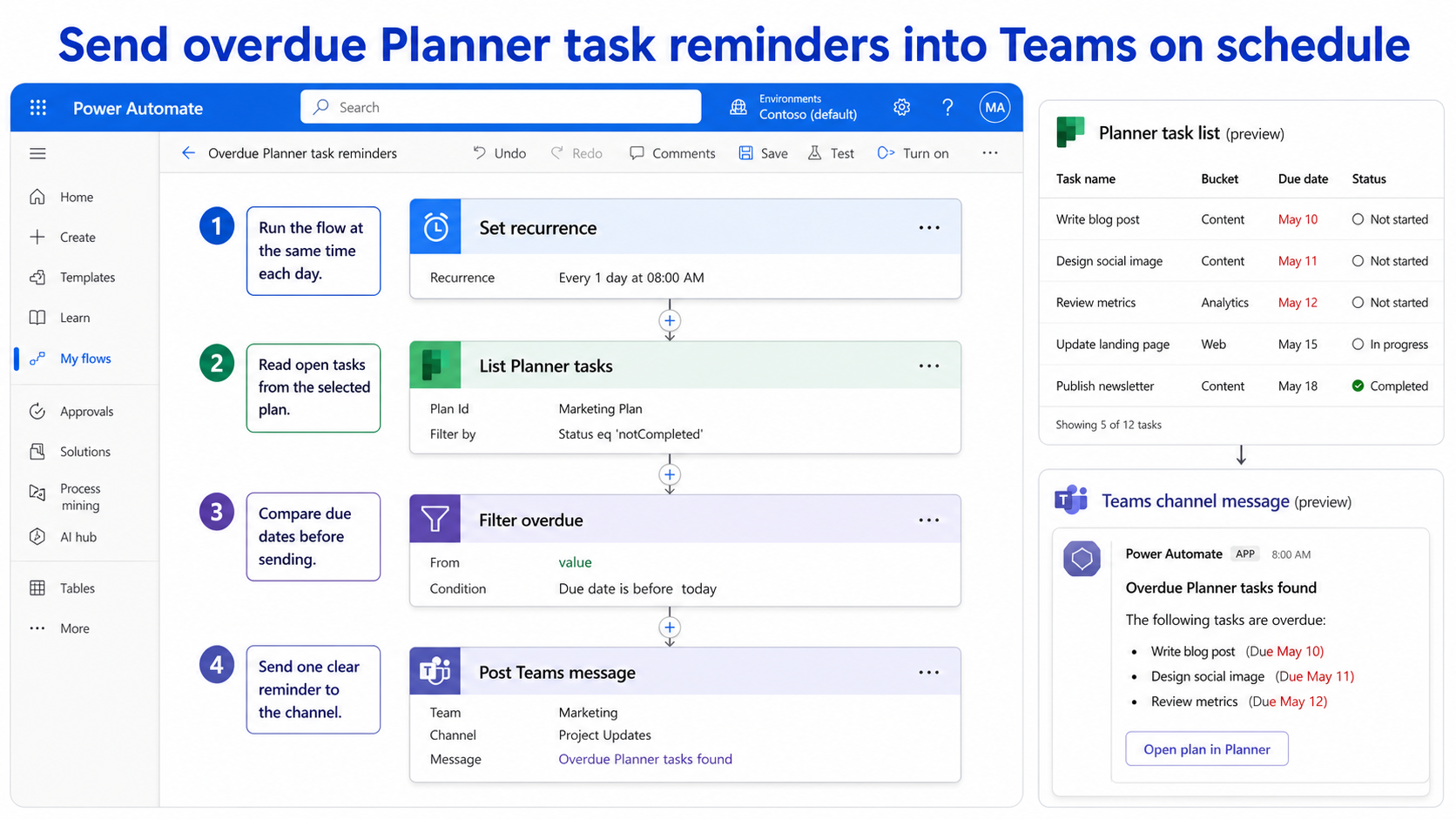
Add a guard before the Teams action so the flow posts only when the overdue list is not empty. That one condition prevents the most annoying version of this automation: a daily message that says nothing happened.
Failure points to test before turning it on
Test with one fake overdue task, one future task, one completed overdue task, and one task without a due date. The flow should include only the fake overdue task. If it includes the completed task or blank due-date task, fix the filter before you turn on the schedule.
Connection problems are easier to solve before you add more logic. If the Planner connector cannot see the plan or the Teams action cannot post to the channel, review the connector setup checks and confirm the flow owner has access to the plan and destination team.
Keep the first run quiet
Trigger the flow manually while the Teams action points to a private test channel, or temporarily send the message only to yourself if your setup allows it. After the summary looks right, change the destination to the real channel and let the next scheduled run post normally.
Common questions before you turn on the flow
Can Power Automate send Planner reminders repeatedly?
Yes. A scheduled cloud flow can run on a recurrence and check Planner tasks each time. The key is to filter the task list and send one summary, not a separate message for every task.
Should I mention task owners in the Teams message?
Mentioning owners can help, but it can also make the channel noisy. Start with task names, due dates, and assignees as text. Add mentions later only if the team agrees that direct notifications are useful.
What happens when there are no overdue tasks?
The flow should post nothing. A quiet successful run is better than a daily empty reminder. You can still review run history in Power Automate if you need proof that the flow ran.
Can this handle several Planner plans?
Yes, but build the single-plan version first. Multi-plan flows need clearer naming, owner rules, and error handling so the Teams message does not mix unrelated tasks.
Keep the flow small at first
The best reminder flow is boring. It runs at the expected time, posts only when action is needed, and gives people enough detail to open Planner and finish the work. Once that is stable, you can add refinements such as bucket grouping, owner routing, or an escalation channel.