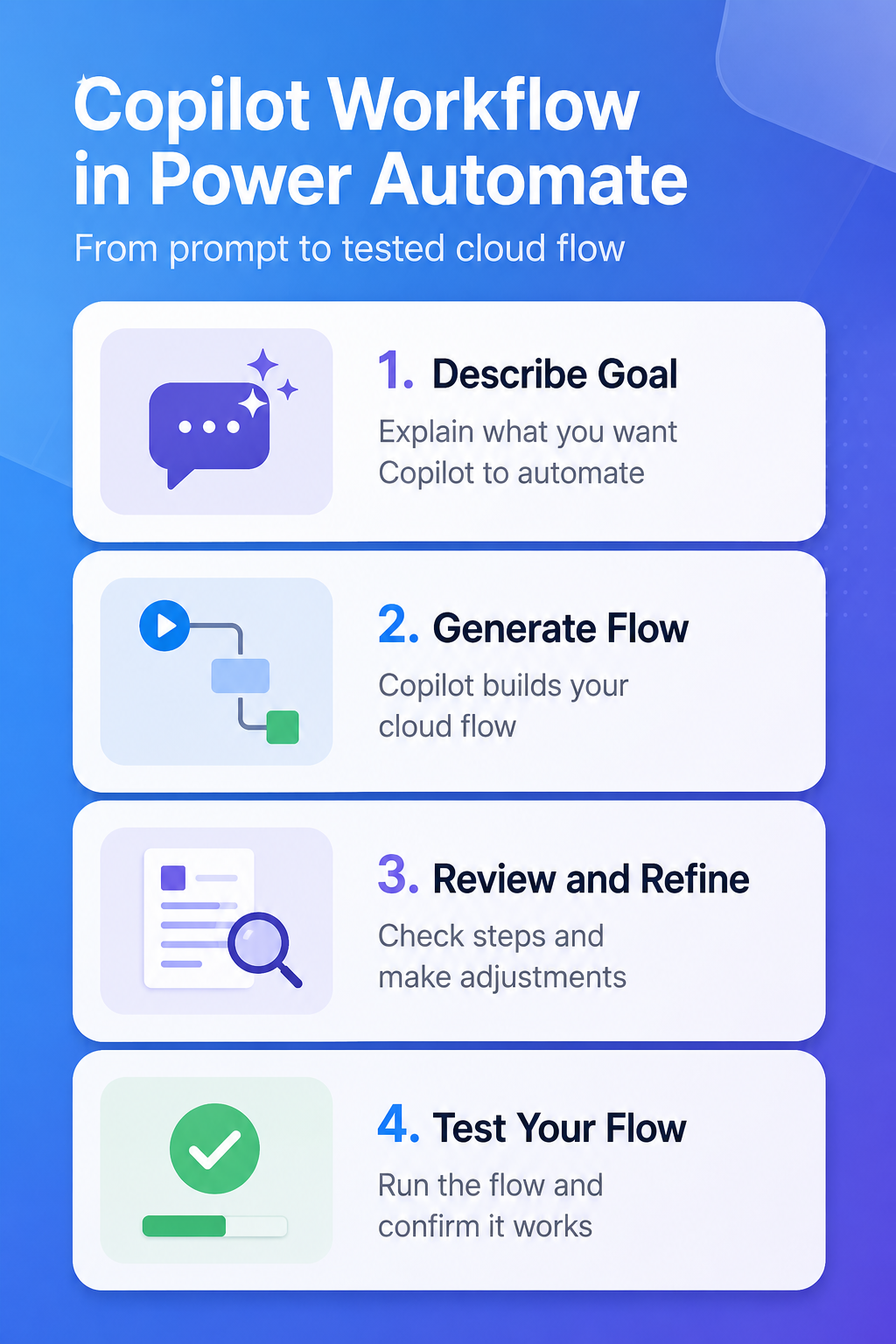
Copilot can turn a natural-language request into a draft cloud flow, but it still needs a human reviewer. The practical way to use Copilot to create a cloud flow with natural language is to describe the trigger, app, condition, and outcome clearly, then inspect every suggested step before the flow touches real data. Microsoft Learn positions Copilot as a starting point for creating and editing flows, not as a replacement for testing connectors, trigger logic, and permissions.
Prepare the flow request clearly
Describe trigger and final outcome
Start with the event that should launch the flow and the result you expect. A prompt such as “When a new SharePoint list item is created, send an approval to the manager and email the requester after approval” gives Copilot a trigger, app, decision, and output. A vague prompt such as “automate approvals” leaves too much room for the wrong connector or missing condition.
My prompts work better when I name the source app and the final notification.
If you are new to the manual flow designer, this guide to build an automated flow gives useful context before you rely on Copilot’s draft.
Include app names and constraints
Mention the exact Microsoft 365 app, list, mailbox, channel, or folder when it changes the design. Copilot can suggest a reasonable structure, but it cannot know your governance rules, naming conventions, or which connection account your team approves. Include constraints such as “only for high priority items,” “skip archived folders,” or “use my shared mailbox” when they matter.
Use this prompt structure:
- State the trigger in one sentence with the source app and event.
- Add the condition that decides whether the flow continues.
- Name the action that should happen after the condition is met.
- Mention the recipient, destination, or record that should be updated.
Keep the first version small
- Ask Copilot for the smallest flow that proves the business rule. If the final process needs approvals, notifications, SharePoint updates, and Teams posts, start with the trigger and one outcome.
- After that works, add the next branch or action.
- This keeps troubleshooting simple because you know which change introduced a problem. BTW – It also helps you spot when Copilot inserted an action that sounds plausible but does not match your data source.
Review Copilot suggested cloud flow
Inspect every trigger and action
- After Copilot drafts the flow, open each trigger and action before saving it as production work.
- Confirm the connector, connection, site, list, mailbox, field names, and dynamic content.
- Microsoft’s getting-started guidance for logic flows still applies: a cloud flow is a set of connected triggers and actions, and each one must match the real service you want to automate.
- Do not accept a draft because the step names look right. Expand the cards and confirm the configured values.
Replace guesses with real fields
Copilot may create a useful skeleton while leaving fields incomplete or generic. Replace placeholder values with actual SharePoint columns, Outlook recipients, Teams channels, or Dataverse rows. If the draft uses a condition, verify that the comparison uses the right dynamic content and operator.
For more Copilot-specific editing examples, use the guide to adjust Copilot actions after the first draft exists.
Confirm connection ownership early
The flow will run through the connections selected in its actions. Confirm whether each action uses your account, a service account, or a shared connection approved by your organization. This is especially important for flows that send email, post to Teams, or update SharePoint records on behalf of a team.
When Copilot creates a working draft under your personal connection, decide whether that is acceptable before colleagues depend on it. Ownership and connection decisions are harder to clean up after a flow becomes business-critical.
Test and improve natural prompts
Run with safe sample data
Use a test SharePoint item, test email, or nonproduction record for the first run. Watch the run history, expand every action, and verify that the trigger input, condition result, and final action match your intent. If the first run fails, change one thing at a time so you know whether the issue came from the prompt, a connection, or the data.
When a draft surprises me, the run history usually explains whether Copilot guessed wrong or my prompt was incomplete.
Refine prompts with exact changes
Instead of starting over, ask Copilot for a narrow edit such as “add a condition that continues only when Status equals Approved” or “change the email recipient to the Created by Email value.” Narrow edits reduce the chance of disrupting a working trigger. Still inspect the updated action after Copilot applies the change.
Natural language is useful, but it is not a contract. Treat each prompt result as a proposed edit that needs review.
Publish only after owner review
Before turning on a Copilot-created flow for a team, review the trigger frequency, connector permissions, notification audience, and failure path. Add a clear owner and decide who receives failure notifications. A flow that starts from a good prompt can still cause noise if it emails the wrong group or updates too many records.
For business processes, document the prompt intent and the final trigger logic in your team notes. That gives the next owner context when the flow needs maintenance.
Power Automate Copilot questions answered
Can Copilot create a complete Power Automate flow?
Copilot can draft cloud flows from natural language and help edit them, but you still need to review connectors, fields, conditions, and permissions. Treat the output as a starting point. Testing with safe sample data is still required before real use.
What should I include in a flow prompt?
Include the trigger, source app, condition, target action, recipient or destination, and any important constraint. The more specific your prompt is, the less Copilot has to infer. Avoid internal shorthand that only your team understands.
Is Copilot better than the standard designer?
Copilot is faster for creating a first draft or making a narrow edit, while the designer is still where you validate details. Most reliable workflows use both. Prompt for structure, then inspect and test in the designer.
Copilot is most useful when you give it a clear business rule and keep authority over the final configuration. Prompt for the draft, verify the flow, and let test runs decide whether the automation is ready.