Power Automate turns repetitive manual work into hands-off workflows that run on autopilot. Whether you need to automate tasks like saving email attachments, routing approval requests, or syncing data between applications, Power Automate handles the heavy lifting. This guide covers the complete configuration process from prerequisites through advanced settings that keep your automated flows running reliably.
Prerequisites for Power Automate Setup
Confirm these requirements before building your first flow:
- Microsoft 365 subscription with Power Automate included (Business Basic or higher). Free plans work for basic flows, but premium connectors require a paid license.
- Web browser access to flow.microsoft.com or the Power Automate desktop application installed on Windows 10 or Windows 11. Desktop flows handle local file operations that cloud flows cannot reach.
- Permissions on the services you want to connect. Each connector requires its own authorization—confirm you have admin or contributor access to SharePoint, Outlook, Teams, or whichever application your workflow targets. Missing configure automate permission access is the top reason first-time flows fail during the connection step.
Configure Power Automate Task Workflows
Create the flow around one event
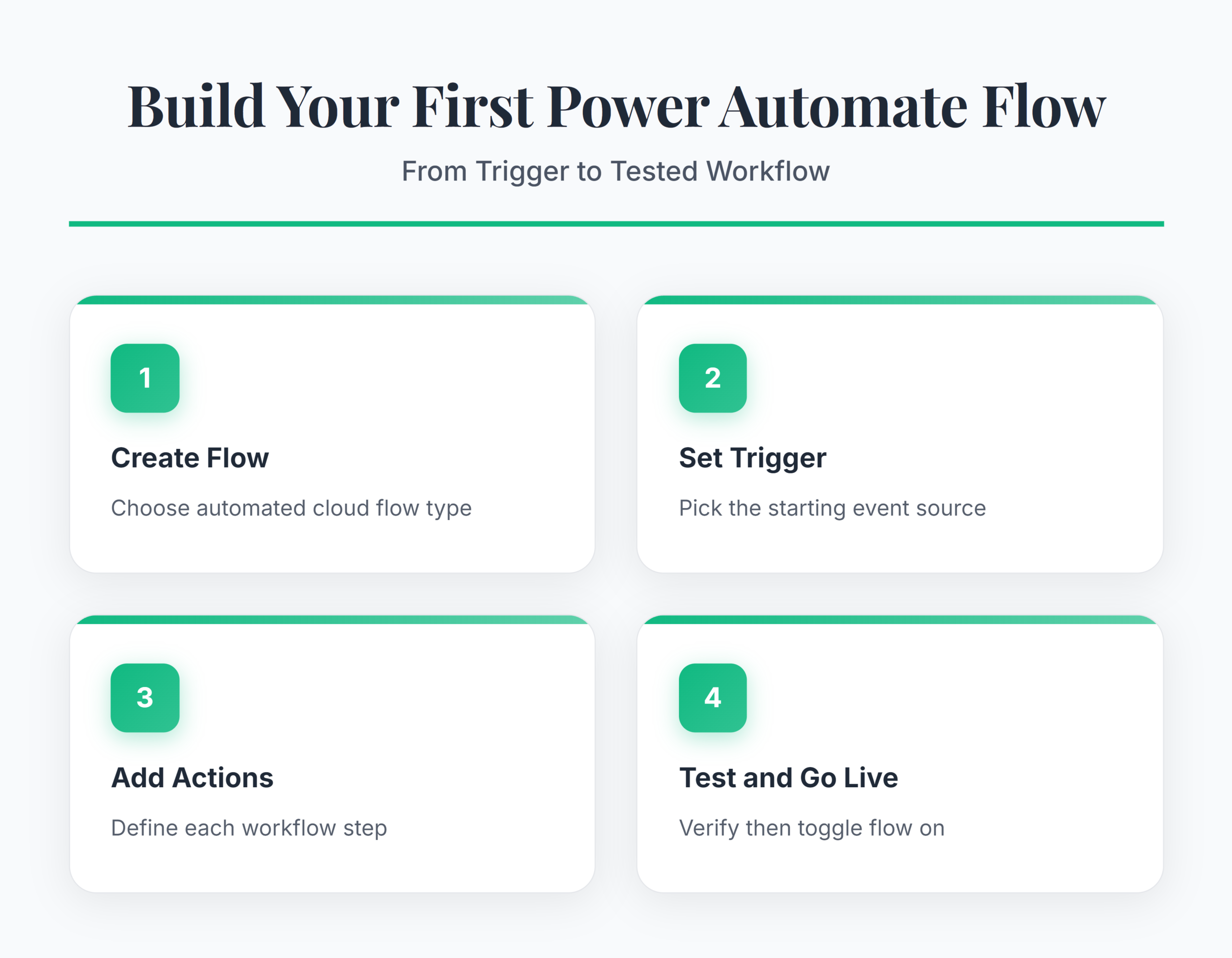
Open Power Automate and confirm that the environment shown in the header contains the connections and data you intend to use. Select My flows, choose New flow, and then select Automated cloud flow. Give the flow a name that describes its result, such as “Save invoice attachments to OneDrive.”
Search for the event that should start the workflow and select its trigger. An Outlook email, a new SharePoint item, or a OneDrive file can all be useful starting points. For a document or list-based process, this practical SharePoint example shows how the trigger fits into a complete workflow. Select Create, then fill every required trigger field before adding actions.
Add actions and map the right values
Select the plus sign below the trigger and choose Add an action. In the classic designer, select + New step. Search by connector or action name, choose the operation you need, and sign in if Power Automate requests a connection.
Use dynamic content to carry values from the trigger or an earlier action into later fields. For example, an email attachment name can become the file name in OneDrive. Check each token’s source when several actions expose similarly named fields. If an essential value is unavailable, choose another trigger or add an action that retrieves it; do not type a fixed value that will fail on the next run.
Save, test, and inspect the result
Select Save, then Test, and perform the real event that should start the flow. Send a sample email, create a list item, or upload a file with realistic values. Open the resulting run and inspect the inputs and outputs for every step instead of relying only on green status icons.
If a step fails, read its error details and check the selected environment, connection, permissions, and required fields. Correct the failing card, save again, and repeat the test. Once the run produces the expected destination item, keep the flow enabled and review its history after the first few live events. When the run exists but a card fails, use the failed-run diagnostic path before rebuilding the flow.
Schedule flow to run automatically in Power Automate
Use these steps to create a scheduled cloud flow that starts at a fixed time. Before you begin, sign in at make.powerautomate.com, select the correct environment, and confirm that you can access every service and specific data source the flow will use.
-
Open the scheduled flow form
In the left navigation, select My flows. Select New flow, and then select Scheduled cloud flow. Enter a clear, descriptive Flow name, such as Send weekly status report.
-
Set the first run
Under Starting, select the date and local time for the first run. Choose a future time so you can finish and test the flow before the schedule begins. Verify the date, AM or PM setting, and year.
-
Define the recurrence
Under Repeat every, enter a number and select Minute, Hour, Day, Week, or Month. For a weekday report, enter 1 and select Week. Select Create to open the designer.
-
Configure the exact time
Select the Recurrence trigger. In the new designer, use the Parameters pane. In the classic designer, select Show advanced options. Set Time zone first. For a weekly flow, choose the required values under On these days, At these hours, and At these minutes. For a daily flow, set the hour and minute. Do not leave the time zone at UTC unless UTC is intentional.
-
Add the scheduled work
Select the plus sign below Recurrence, and then select Add an action. Choose the required connector and action. Complete every required field, sign in when prompted, and use dynamic content for values returned by earlier actions. Add filters or conditions if the flow should process only specific records.
-
Save and verify the flow
Select Save, and then select Test. Choose Manually, run the trigger, and confirm that every action succeeds. Open Run history and inspect each action’s inputs and outputs. Keep the flow turned on. After the scheduled time passes, confirm that a new run appears and that the expected email, file, message, or record was created correctly. If no run appears, recheck the start date, time zone, recurrence values, environment, and flow status before relying on the automation.
Check environment and connection ownership
Before troubleshooting a flow action, confirm that you are editing the flow in the correct Power Automate environment. A flow can appear missing or inactive when the environment picker is set to another workspace, even though the automation still exists. Environment selection also affects which Dataverse tables, connections, and solution-aware components are available.
Connection ownership is the next check. Shared cloud flows can have multiple owners, but a connector action may still run under a specific connection created by one owner. If that person changes a password, loses access, or leaves the organization, the flow can fail although the design looks unchanged. Open the flow details, review connections, inspect recent run history, and replace expired or owner-specific connections before rebuilding the workflow.
Advanced Power Automate Flow Options
Set Up Power Automate Conditions
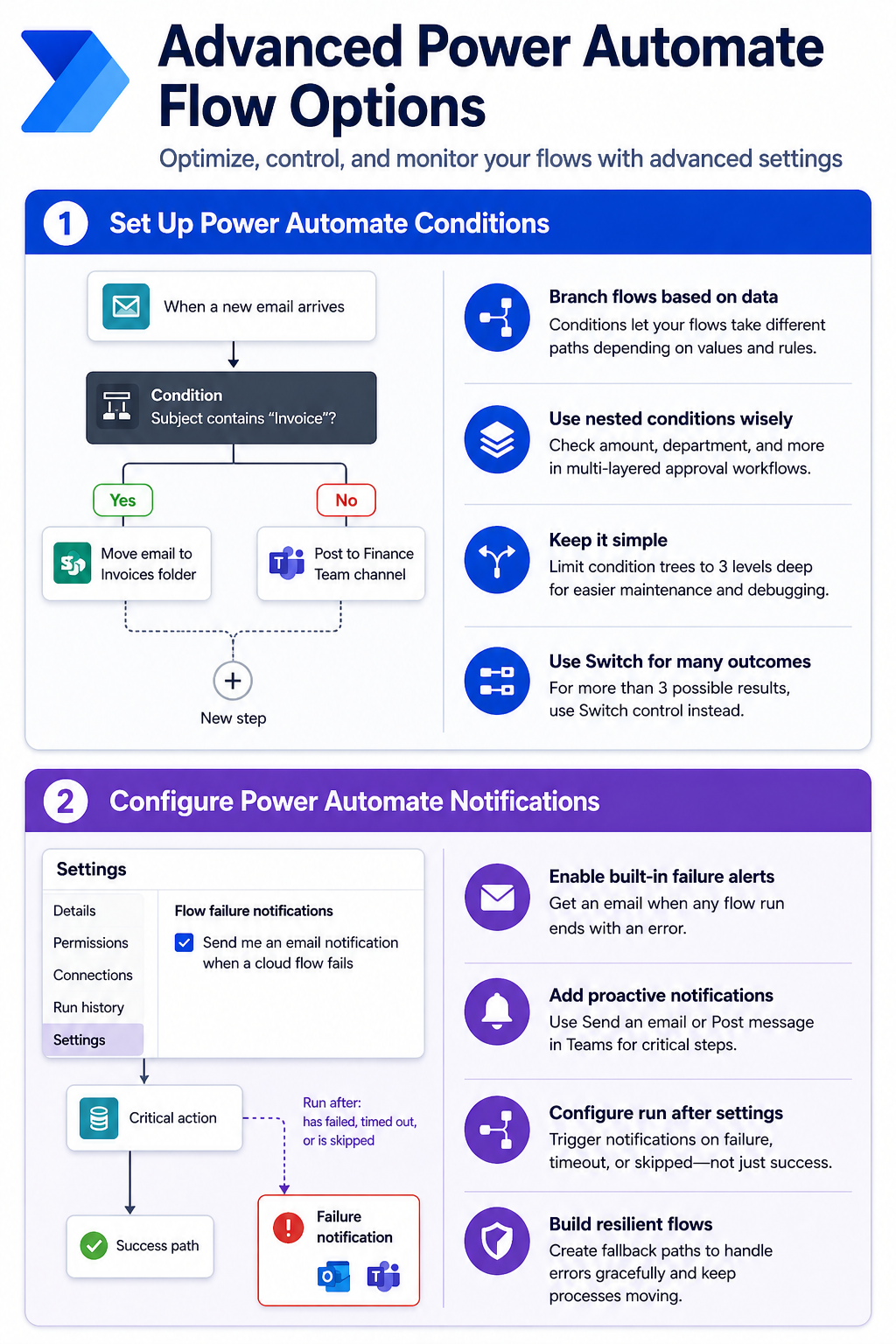
Conditions let your flows branch into different paths based on data values. Add a Condition control from the + New step menu and build your expression using dynamic content. A common pattern checks whether an email subject contains a specific keyword, then routes the message to different folders or Teams channels based on the result.
Nested conditions handle multi-layered logic—an approval workflow might check the request amount first, then verify the requester’s department before routing to the correct approver. You can set up advanced approvals in Power Automate when your business process requires multi-stage sign-off chains. Keep condition trees under three levels deep. Deeply nested branches become impossible to debug when something breaks, so use Switch controls for scenarios with more than three possible outcomes instead.
Configure Power Automate Notifications
Flow failure notifications prevent silent breakdowns in your automation. Navigate to Settings on the flow details page and enable Send me an email notification when a cloud flow fails. This built-in alert fires whenever any run terminates with an error status, giving you a chance to fix automate notifications before downstream processes notice the gap.
For proactive monitoring, add a Send an email or Post message in Teams action inside a parallel branch that runs after critical steps. Configure the “run after” settings on this notification action to trigger on failure, timeout, or skipped conditions—not just success. This approach catches partial failures that the built-in notification misses. Pair notifications with the Configure run after option on downstream actions to create fallback paths that handle errors gracefully instead of stopping the entire workflow cold.
Q&A
Why is Power Automate not working?
The most common cause is an expired or revoked connection. Open the flow, check each connector for warning icons, and re-authenticate any flagged connections. Throttling limits also trigger failures—Power Automate enforces per-user and per-flow API call limits that cause “429 Too Many Requests” errors during peak usage. This affects automate not working on Windows 11 the same way it does on web.
How do you fix Power Automate not working?
Start with the run history on the flow details page. Click the failed run, identify the red-marked step, and read the error output. Most failures resolve by refreshing connection credentials, correcting field mappings, or increasing action timeout values. To fix automate not working permanently, add error-handling branches that log failures instead of letting the flow stop silently.
Which Power Automate checks fix broken flows fastest?
Start with the failed run, not the flow design screen. Open the latest run, identify the first failed or skipped step, and compare its inputs with the value the action expected. Then confirm the flow is turned on, the trigger condition still matches real data, and every connection used by the failed action belongs to an account that still has access.
For recurring issues, add a failure branch that records the flow name, run link, failed step, and error message in a list or sends it to the owner. That gives you evidence to fix the cause instead of rebuilding a flow that only needed a refreshed connection, a corrected field mapping, or a schedule time zone adjustment.