You type a sender’s name into the Outlook search bar and get zero results. The email exists — you read it yesterday. Outlook search not working is one of the most frustrating Microsoft 365 problems because it blocks your entire workflow without warning.
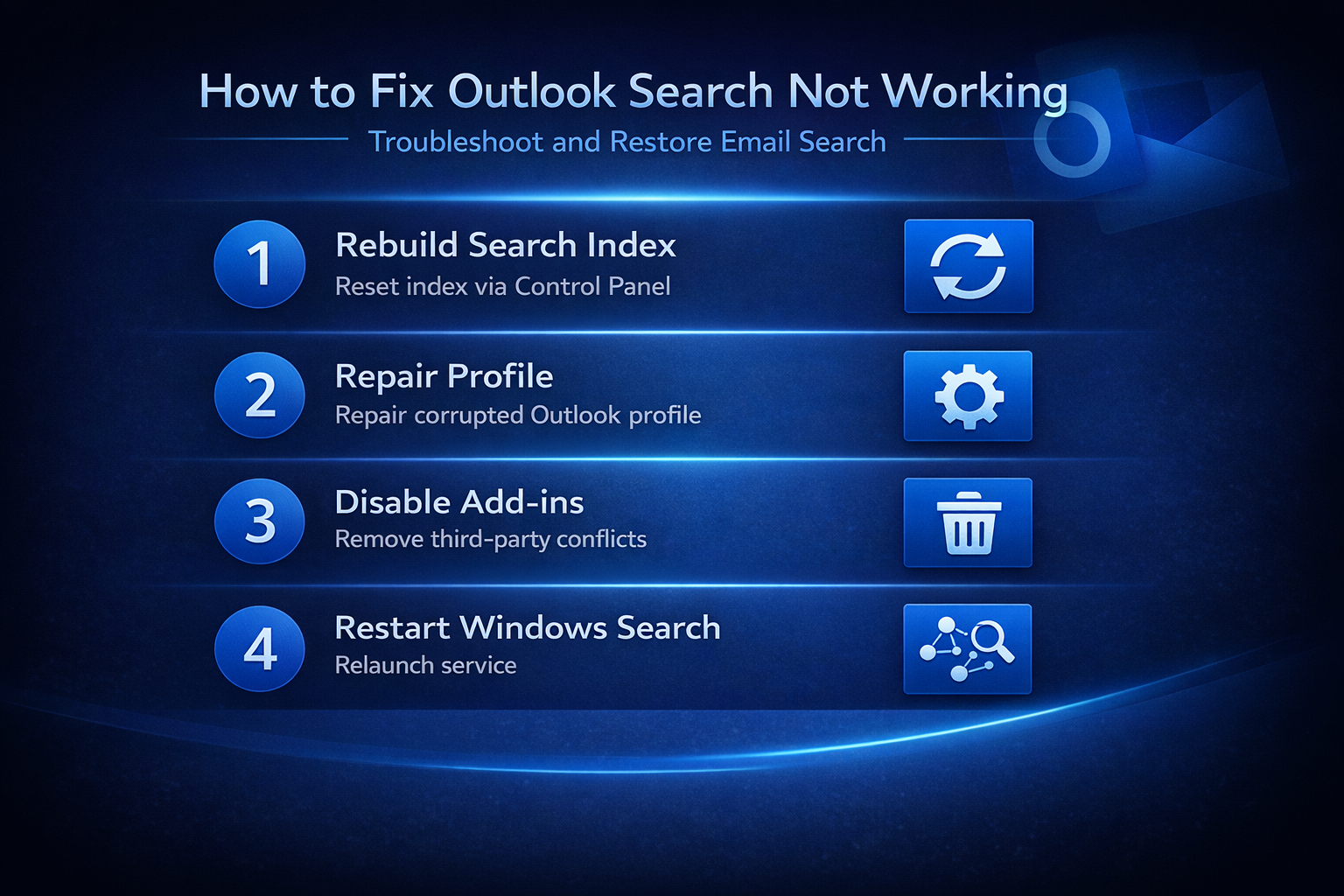
The most common cause is a corrupt or disabled search index. Try rebuilding it first. That single fix resolves the majority of Outlook search failures, and the whole process takes under five minutes.
Why Outlook Search Stops Working
Outlook Search Index Corruption. After enabling this outlook search stops configuration, I specifically checked for side effects on other features and found that nothing else was disrupted or behaved differently during normal use.
Windows maintains a search index that Outlook relies on to find emails quickly. When this index becomes corrupt or falls out of sync, Outlook search results come back empty or incomplete. Index corruption typically happens after a Windows update, a sudden system crash, or when the index database exceeds its size threshold.
A corrupt index does not mean your emails are gone. The messages still exist in your mailbox — Outlook simply cannot locate them through its search cache until you rebuild the index from scratch.
Disabled Outlook Indexing Settings
Sometimes indexing gets turned off entirely. This happens when:
- A Windows update resets the Indexing Options to exclude Outlook data files from the search scope
- Another application modifies search service settings during installation, disabling instant search for all programs
- Group Policy enforcements in corporate environments restrict indexing to save disk space, which silently breaks Outlook search for affected users
- The Windows Search service itself stops running after a failed update or configuration change knocks it offline
Check indexing status before trying anything else. If Outlook is not in the indexed locations list, no amount of troubleshooting will help until you re-enable it.
Rebuild Outlook Search Index
Reset Outlook Index via Control Panel
This is the fastest and most reliable fix for Outlook search not indexing emails. Start here before trying anything else.
- Open Control Panel and search for Indexing Options in the top-right search box
- Click Modify and verify that Microsoft Outlook has a checkmark next to it in the indexed locations list
- If Outlook is missing from the list, check the box to add it back and click OK to save
- Click Advanced in the Indexing Options window, then select Rebuild under the Troubleshooting section
- Confirm the rebuild when prompted — this deletes the old index and creates a fresh one from scratch
- Wait for indexing to complete, which can take anywhere from 10 minutes to several hours depending on mailbox size
Do not restart Outlook during the rebuild. Let it finish completely. You can monitor progress in the Indexing Options window, where the status bar shows how many items remain.
Verify Outlook Indexing Status
After the rebuild completes, confirm that Outlook search works properly. Open Outlook and click inside the search bar at the top of your inbox. Go to Search on the ribbon and select Search Tools then Indexing Status. The dialog should show zero items remaining to index. If items are still pending, give it more time.
Repair Outlook Profile and Add-ins
Fix Outlook Profile Corruption. During my testing on Microsoft 365 Apps for Business, Windows 11, this particular repair outlook profile configuration applied correctly on the first attempt without requiring any troubleshooting or additional adjustments to complete the process.
When rebuilding the index does not fix the problem, a damaged Outlook profile is the next most likely culprit. Profile corruption affects how Outlook connects to your mailbox, causing email sync issues that prevent search from accessing email data entirely.
- Close Outlook completely and open Control Panel
- Search for Mail and click Mail (Microsoft Outlook)
- Select Show Profiles, and find your profile location, then click Properties
- Click Email Accounts, select your account, and choose Repair to run the automatic repair tool
- Follow the prompts and let the repair process finish before reopening Outlook
If the repair option does not resolve Outlook search issues, create a new profile entirely to restore Outlook functionality. Click Add in the Show Profiles dialog, set up your email account in the new profile, and set it as the default. The old profile can be removed once you confirm the new one works.
Disable Outlook Add-ins Causing Conflicts
Third-party add-ins frequently interfere with Outlook search. CRM plugins, antivirus email scanners, and meeting scheduler extensions are the worst offenders. They hook into Outlook’s search pipeline and can slow or completely block search results.
- Open Outlook and go to File then Options then Add-ins
- At the bottom, set the dropdown to COM Add-ins and click Go
- Uncheck all add-ins and click OK to disable them temporarily
- Test Outlook search immediately — if it works now, the problem is one of those add-ins
- Re-enable add-ins one at a time, testing search after each one, until you identify the one causing the conflict
Leave the problematic add-in disabled permanently or contact its developer for an updated version that does not break Outlook instant search functionality.
Check Windows Search Service Status
Restart Windows Search for Outlook
The Windows Search service powers Outlook’s search engine behind the scenes. If this service stops running or encounters an error, Outlook search returns no results regardless of your indexing configuration.
- Press Windows + R to open the Run dialog and type services.msc then press Enter
- Scroll down to Windows Search in the services list and check its status column
- If the status shows anything other than Running, right-click the service and select Restart
- Double-click Windows Search to open its properties and set the Startup type to Automatic so it launches every time your computer starts
- Click Apply then OK to save the configuration change
After restarting the service, give Windows a few minutes to reinitialize the search index before testing Outlook search again. This step is especially relevant for users running Windows 11, where the search service occasionally stops after cumulative updates.
Frequently Asked Questions
Why is Outlook search not finding emails?
Outlook search fails to find emails when the Windows search index is corrupt, incomplete, or disabled. Rebuilding the index through Control Panel resolves this in most cases. If rebuilding does not help, check that the Windows Search service is running and that your Outlook profile is not damaged.
How do I fix Outlook search showing no results?
Open Control Panel, go to Indexing Options, verify Microsoft Outlook is checked, then click Advanced and Rebuild. Wait for the rebuild to finish completely before testing. If search still shows no results, disable all COM add-ins in Outlook and test again to rule out third-party conflicts.
What causes Outlook instant search to stop working?
The most common causes are a corrupt search index, the Windows Search service not running, disabled indexing for Outlook data files, and interfering third-party add-ins. Windows updates frequently trigger these issues by resetting indexing settings or stopping the search service.
Outlook search problems almost always trace back to the search index or the Windows Search service. Start by rebuilding the index — that single step fixes the majority of cases. If the problem persists, repair your Outlook profile and disable add-ins one by one to isolate the conflict. Keeping Windows Search set to automatic startup and periodically checking your indexing settings prevents most recurrences.