“I’ve been waiting for an important email from my client, but it’s not showing up in Outlook on my laptop even though I can see it on my phone. Why isn’t Outlook syncing my emails automatically across all my devices?” This frustrating scenario affects countless Microsoft 365 users who rely on seamless email synchronization for their daily productivity and business communications.
Sync Outlook across devices and resolve syncing issues
Email synchronization problems in Outlook can severely impact business operations and personal productivity workflows. When Outlook 365 not syncing emails occurs, users often miss critical communications, experience duplicate messages, or face inconsistent folder structures across their devices. This comprehensive tutorial addresses the most effective methods to restore automatic email synchronization in both classic and new Outlook applications.
The solution involves systematically checking account configurations, verifying server settings, clearing cached data, and implementing proper sync protocols. We’ll cover troubleshooting steps for Exchange Online accounts, IMAP configurations, and hybrid environments where Outlook doesn’t sync automatically. Prerequisites include administrative access to your device, active Microsoft 365 subscription, and basic familiarity with Outlook settings navigation.
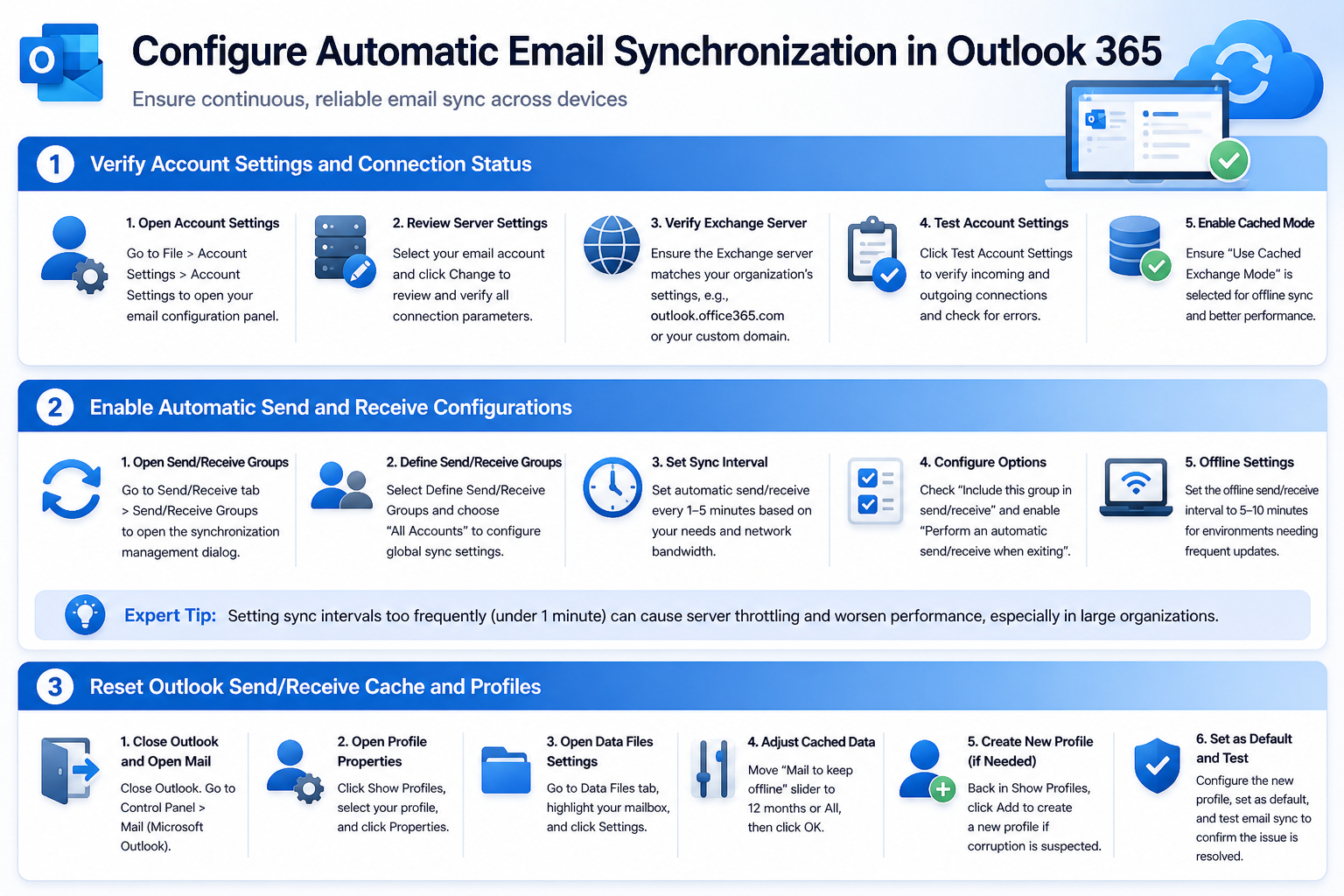
Configure automatic email synchronization in Outlook 365
Verify account settings and connection status
- Navigate to File menu in Outlook and select Account Settings, then choose Account Settings from the dropdown menu to access your email configuration panel.
- Click on your primary email account in the list and select Change to review the server settings and ensure all connection parameters are correctly configured.
- Verify that the Exchange server name matches your organization’s settings, typically appearing as outlook.office365.com for Microsoft 365 Business accounts or your custom domain server.
- Test the account settings by clicking Test Account Settings button, which will verify both incoming and outgoing server connections and display any authentication errors.
- Ensure the Use Cached Exchange Mode checkbox is selected, as this enables offline synchronization and improves performance when Outlook 365 not syncing automatically occurs.
Enable automatic send and receive configurations
- Access the Send/Receive tab in the Outlook ribbon and click Send/Receive Groups to open the synchronization management dialog box.
- Select Define Send/Receive Groups option and choose All Accounts from the list to configure global synchronization settings for all connected email accounts.
- Set the Schedule an automatic send/receive every option to 1-5 minutes depending on your business requirements and network bandwidth considerations for optimal performance.
- Check the Include this group in send/receive option and ensure Perform an automatic send/receive when exiting is enabled to maintain synchronization consistency.
- Configure the When Outlook is offline section by selecting the appropriate send/receive interval, typically 5-10 minutes for business environments requiring frequent updates.
Expert Tip: Setting sync intervals too frequently (under 1 minute) can cause server throttling and actually worsen synchronization performance, especially in large organizations.
Reset Outlook Send receive cache and profiles
- Close Outlook completely and navigate to Control Panel, then select Mail (Microsoft Outlook) to access the mail setup configuration panel.
- Click Show Profiles button and select your current Outlook profile, then choose Properties to access advanced configuration options for cache management.
- Select Data Files tab and highlight your primary mailbox, then click Settings to open the Microsoft Exchange dialog box for cache configuration.
- Move the Mail to keep offline slider to 12 months or All to ensure complete email synchronization, then click OK to apply changes.
- Return to the main profile dialog and click Add to create a new Outlook profile if corruption is suspected in your current configuration.
- Configure the new profile with identical server settings and set it as default, then test email synchronization to determine if the issue resolves.
Sync Behavior Differences: Classic vs. New Outlook
The classic Outlook desktop client and the new Outlook for Windows handle synchronization differently. Classic Outlook relies on Cached Exchange Mode and local OST files, while new Outlook uses a cloud-first sync model similar to Outlook on the Web. If you switch between the two clients, expect a brief re-sync period as the local cache rebuilds.
New Outlook does not expose Send/Receive Groups or manual sync interval controls. Instead, it syncs continuously in the background when an active internet connection is detected. If new Outlook stops receiving emails, the fix is typically found in Settings > Accounts > Email accounts rather than in any Send/Receive configuration.
Frequently Asked Questions
Does Outlook sync differently on Windows 10 vs. Windows 11?
The sync engine itself is identical, but Windows 11 includes updated credential handling through Windows Hello and the Web Account Manager. On Windows 10, token refresh issues are more common after extended idle periods. If sync drops after the device wakes from sleep on Windows 10, navigate to Device Manager, locate your network adapter, and disable the Allow the computer to turn off this device to save power option under Power Management.
Why does Outlook on mobile sync faster than on desktop?
Mobile Outlook apps use the Microsoft Exchange ActiveSync protocol with push notifications, meaning the server delivers messages instantly. Desktop Outlook in Cached Exchange Mode polls the server on a scheduled interval. Setting your Send/Receive interval to 1 minute closes most of this gap without triggering server throttling.
How do I force a full re-sync without deleting my profile?
Close Outlook, then locate and rename your OST file. The default path is:
%LOCALAPPDATA%\Microsoft\OutlookRename the OST file by appending .old to the filename. Outlook will generate a fresh OST and perform a complete mailbox sync on next launch. This preserves your profile configuration while eliminating any cache corruption.
Can a VPN cause Outlook sync failures?
Yes. Split-tunnel VPN configurations sometimes block traffic to Microsoft 365 endpoints. Confirm that outlook.office365.com and autodiscover.outlook.com are excluded from VPN routing, or contact your network administrator to whitelist Microsoft 365 IP ranges.
Troubleshooting for new Outlook not automatically receiving
Repair Office 365 installation and update components
- Open Windows Settings and navigate to Apps section, then locate Microsoft 365 Apps for Business or Office 365 in your installed applications list.
- Click the three-dot menu next to the Office installation and select Advanced options to access repair and reset functionality for the entire suite.
- Choose Quick repair first, which maintains your settings and cached data while fixing common synchronization issues without requiring internet connectivity during the process.
- If quick repair doesn’t resolve the Outlook not syncing automatically problem, select Online repair which downloads fresh installation files and resets all configurations.
- Restart your computer after the repair completes and launch Outlook to test whether email synchronization has been restored across all connected accounts.
Configure Windows Credential Manager and authentication
- Press Windows key + R and type “credential manager” to open the Windows Credential Manager application for managing stored authentication information.
- Navigate to Windows Credentials section and locate any entries related to your Office 365 or Exchange Online accounts that might contain outdated authentication tokens.
- Remove all Outlook-related credentials by clicking each entry and selecting Remove, which forces Outlook to request fresh authentication when next launched.
- Launch Outlook and allow it to prompt for credentials, ensuring you enter your current Microsoft 365 username and password exactly as configured in your tenant.
- Enable multi-factor authentication if required by your organization and complete the verification process to establish secure, persistent connections for automatic synchronization.
Isolate the mailbox from the Outlook client
Open the mailbox in Outlook on the web and compare the same folder and message. If the web mailbox is current but one device is stale, the server has the data and the problem is local to that client, profile, cache, or connection. If the web mailbox is also missing messages, check service health, mailbox rules, forwarding, retention, and sender delivery before repairing Outlook.
Confirm that every device uses the same account and folder. Focused Inbox, conversation view, filters, Archive, and shared-mailbox folders can make synchronized mail look absent. Search for a known subject in All folders and inspect Deleted Items and Junk before resetting anything.
Test one synchronization boundary at a time
In classic Outlook, check the status bar and use Send/Receive for a controlled test. In new Outlook or mobile Outlook, refresh the folder and confirm the account is connected. Avoid applying classic Outlook cache instructions to new Outlook, because the clients store and synchronize data differently.
If only a shared mailbox is affected, compare the primary mailbox and shared mailbox separately. Remove and re-add the shared mailbox only after confirming permissions with the administrator. Recreating the whole Outlook profile is a later step because it can remove local settings and trigger a lengthy mailbox download.
Protect unsynchronized work
Before repairing a profile or removing an account, check Outbox, Drafts, local-only folders, and any data files. Copy important unsent content to an approved location. Do not delete OST or profile data as a first response; an offline item may exist only in that local cache.
Record the affected folders, last successful synchronization time, Outlook client, account type, network, and whether Outlook on the web works. For intermittent failures, include the exact error and time so the administrator can correlate service or authentication logs.
After a repair, send a uniquely titled message from another account and confirm receipt on the web and each device. Then reply from the affected client. This two-way test proves both download and upload synchronization instead of relying on a changing unread count.
Troubleshooting common Outlook email sync problems
- Authentication errors preventing sync: Clear stored credentials in Windows Credential Manager and re-authenticate with current Microsoft 365 credentials to resolve expired token issues.
- Cached Exchange Mode causing delays: Disable and re-enable Cached Exchange Mode in Account Settings to refresh the local mailbox database and restore synchronization.
- Firewall blocking Outlook connections: Configure Windows Defender Firewall to allow Outlook.exe through both private and public networks for uninterrupted server communication.
- Corrupted Outlook profile preventing sync: Create a new Outlook profile through Control Panel Mail settings and reconfigure all email accounts to eliminate profile corruption issues.
- Large mailbox size affecting performance: Reduce the offline sync period to 6 months or enable server-side archiving to improve synchronization speed and reliability.
- Third-party antivirus interference: Temporarily disable email scanning features in your antivirus software to determine if security software is blocking Outlook synchronization processes.
- Network connectivity issues: Test internet connection stability and consider switching to a wired connection if wireless networks are causing intermittent synchronization failures.