Microsoft Copilot can catch grammar mistakes, rewrite clumsy sentences, and suggest better phrasing right inside the apps you already use. If you have been relying on the classic spell-check alone, you are leaving the best grammar correction tools on the table. Here is how to let Copilot check grammar in Word, Outlook, and Teams so every message and document reads the way you intended.
Enable Copilot Grammar Suggestions
Before Copilot can flag errors, the feature needs to be active in your Microsoft 365 tenant. Most organizations with a Copilot license have it turned on by default, but a quick check saves troubleshooting later.
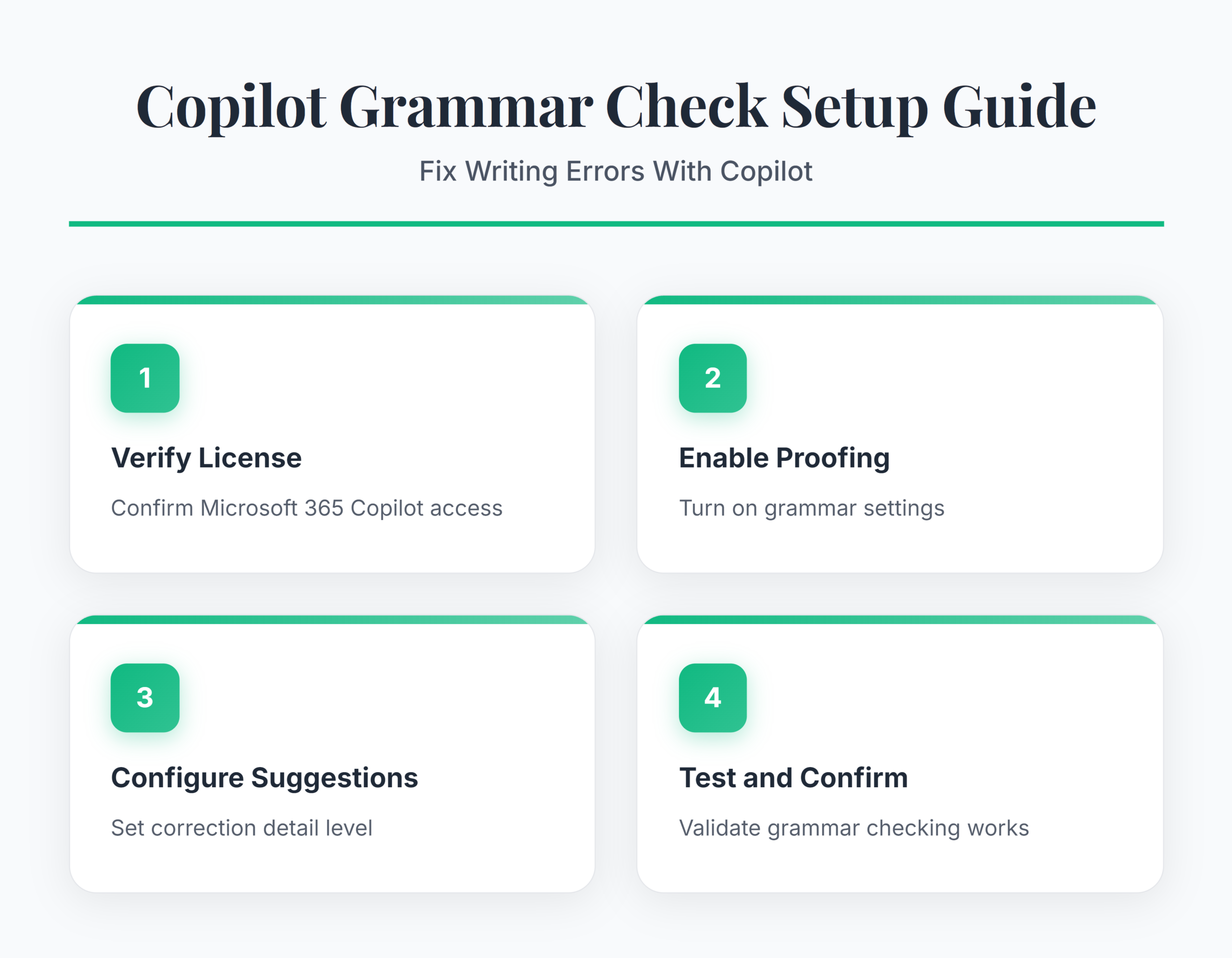
Confirm Your Copilot License
Open any Microsoft 365 app and look for the Copilot icon in the ribbon or toolbar area. If you see it, your admin has already enabled the AI writing assistant for your account. When the icon is missing, contact your IT team and ask them to verify your Copilot license assignment in the Microsoft 365 admin center. A valid license is the single requirement that unlocks grammar checking, text analysis, and every other Copilot writing feature.
Turn on Copilot in Word
Word gives Copilot the most room to work with grammar correction. Open a document and select the Copilot button in the Home tab. The side panel appears on the right. Type a prompt such as “Review this paragraph for grammar issues” and Copilot highlights problem areas with suggested fixes. Accept changes one at a time or apply them all at once. I recommend reviewing each suggestion individually the first time so you understand what Copilot flags versus what the classic proofing tools catch. For more details on getting started, learn how to set up Copilot in Word documents.
Activate Copilot in Outlook
Copilot works inside the Outlook compose window. Start a new email or reply, then select the Copilot icon above the message body. Choose Draft with Copilot or highlight existing text and ask Copilot to “Fix grammar and improve clarity.” Copilot rewrites the selection and presents a comparison so you can accept or discard the edit. This is especially useful for long email threads where tone can drift. To explore more advanced editing features, you can rewrite emails with Copilot.
Copilot Grammar Checking in Word
Word is where most people first encounter Copilot grammar checking features, and it handles the heaviest lifting.
- Open your document and place the cursor in the section you want reviewed.
- Click the Copilot button, then type “Check this section for grammar and style.”
- Copilot returns inline suggestions with underlines and a brief explanation for each change.
- Hover over each suggestion to see why Copilot flagged it, then click Accept or Ignore.
Copilot does a pretty good job here: it goes beyond basic subject-verb agreement. It catches passive voice overuse, awkward phrasing, and inconsistent tense across paragraphs. That deeper style checking is what separates it from the built-in Editor pane, which mostly handles spelling and simple grammar rules. If you write reports or proposals, this layer of text analysis saves a full proofreading pass.
Batch Review an Entire Document
For longer documents, ask Copilot to “Review this entire document for grammar errors.” It processes the file section by section and returns a summary of changes at the end. Accept the batch or step through each one. Batch review works best after your content is mostly final because Copilot evaluates sentence flow across the whole document rather than isolated paragraphs.
Rewrite Suggestions vs. Grammar Fixes
Copilot offers two kinds of feedback. Grammar fixes correct clear errors such as missing commas, wrong verb forms, or dangling modifiers. Rewrite suggestions restructure sentences for clarity or conciseness without changing meaning. You can tell Copilot to focus on grammar only by prompting “Fix grammar mistakes only, do not rewrite for style.” That keeps your voice intact while still catching real errors.
Check Grammar With Copilot in Emails
Copilot Grammar Check in Outlook
Before sending any important email, highlight the full message body, click Copilot, and select Review. Copilot scans for grammar errors and flags tone issues that spell-check ignores entirely. In my experience, Copilot catches at least two or three mistakes per long email that the standard proofing tools miss, especially around comma splices and pronoun agreement.
Copilot Writing Assistant in Teams
Teams chat messages tend to be short, but Copilot still helps. In the compose box, click the Copilot icon and choose Rewrite. Copilot adjusts grammar and tone for professional communication. This is the fastest grammar correction path because you do not need to open a separate panel. One click, review the suggestion, and send.
- Select the text in the Teams compose box.
- Click the Copilot icon that appears above the message.
- Choose Rewrite and pick the tone you want: professional, casual, or concise.
- Review the revised text and press Send if it looks right.
Copilot Grammar Tools Troubleshooting
Sometimes Copilot grammar suggestions do not appear or behave unexpectedly. These common issues have straightforward fixes.
Copilot Icon Missing From Ribbon
This usually means the Copilot add-in is disabled. Go to File >> Options >> Add-ins, find Microsoft Copilot in the list, and re-enable it. Restart the app afterward. If it still does not show, your organization may need to assign the license through the admin portal.
Suggestions Not Matching Your Language
Copilot defaults to the proofing language set in your Microsoft 365 profile. Open File >> Options >> Language and confirm the correct language is listed as your primary editing language. Mismatched language settings cause Copilot to flag correct sentences as errors, which quickly becomes frustrating.
Protect meaning while using Copilot for grammar edits
A reliable writing review procedure begins with a controlled test and a clear success condition. Record the current state, account, device or file involved, and the exact symptom before making changes. Apply one material change at a time so the outcome is reversible and useful evidence is preserved.
Run the focused check
Give Copilot the audience, tone, locale, and constraints before requesting a revision. Ask it to preserve names, figures, citations, legal terms, and product terminology rather than issuing a broad rewrite command.
Review changes with Word’s Editor, Track Changes, or a side-by-side comparison. Grammar suggestions can alter emphasis or certainty, so verify every number, commitment, and technical instruction against the source.
Verify and document the outcome
For sensitive documents, follow the organization’s approved Microsoft 365 account and data-handling rules. Keep the original version, accept edits selectively, and ask a subject expert to review domain-specific language before publishing.
For a managed work environment, check whether the behavior is controlled by policy, licensing, permissions, retention, or a staged feature rollout. A missing or locked control may be intentional. Do not bypass governance locally. Capture the application and operating-system versions, account type, relevant timestamps, and non-sensitive screenshots. This evidence helps support teams identify whether the remedy belongs on the device, in the user profile, in Microsoft 365 administration, or with another service owner.
Repeat the original action after the change and confirm the result from the perspective of another affected user when appropriate. If the test fails, restore the previous state before trying the next option. Keep the final working configuration and the reason for it in the team documentation.
Before closing the case, restart or refresh the affected client and perform the test once more. A result that survives a new session is stronger than a temporary improvement. Note any remaining limitation and the person responsible for follow-up.
Quick Copilot Grammar Answers
How does Copilot check grammar?
Copilot uses a large language model to analyze your text for grammar errors, style issues, and unclear phrasing. It compares your sentences against patterns in professionally edited writing and flags anything that deviates. In my testing, it catches nuanced errors like misplaced modifiers and tense inconsistencies that traditional spell-check skips entirely.
Can Copilot fix writing errors automatically?
Copilot suggests fixes but does not apply them automatically. You review each suggestion and accept or reject it. This keeps you in control of your writing voice while still benefiting from AI-powered grammar correction. I have found that accepting grammar fixes but reviewing rewrite suggestions gives the best balance between speed and personal style.
Is Copilot grammar checking free?
Basic writing suggestions through Microsoft Editor are free with any Microsoft 365 account. The full Copilot grammar checking experience, including rewrite suggestions and deep style analysis, requires a Microsoft Copilot license, which is a paid add-on to most Microsoft 365 plans.
Copilot grammar checking works best when you build it into your routine rather than treating it as a last-minute safety net. Run a quick review before every important email and do a full document scan before sharing reports. The few seconds it takes saves you from errors that spell-check alone would never catch.