“I need to know my computer’s specifications for a software upgrade, but I can’t find where Windows 11 displays this information. The old Control Panel seems different, and I’m not sure which method gives me the most complete hardware details.”
Understanding your hardware requirements
Knowing your PC specifications becomes essential when installing new software, troubleshooting performance issues, or planning hardware upgrades. Windows 11 provides several built-in tools to access detailed system information, from basic overview screens to comprehensive hardware databases.
We will demonstrate five different methods to view your computer specifications in Windows 11. You will learn to access system information through Settings, System Information utility, Device Manager, Command Prompt, and PowerShell. Each method provides different levels of detail, allowing you to choose the most appropriate approach for your specific needs.
We will assume that you have administrative access to your Windows 11 computer and basic familiarity with navigating the operating system interface.
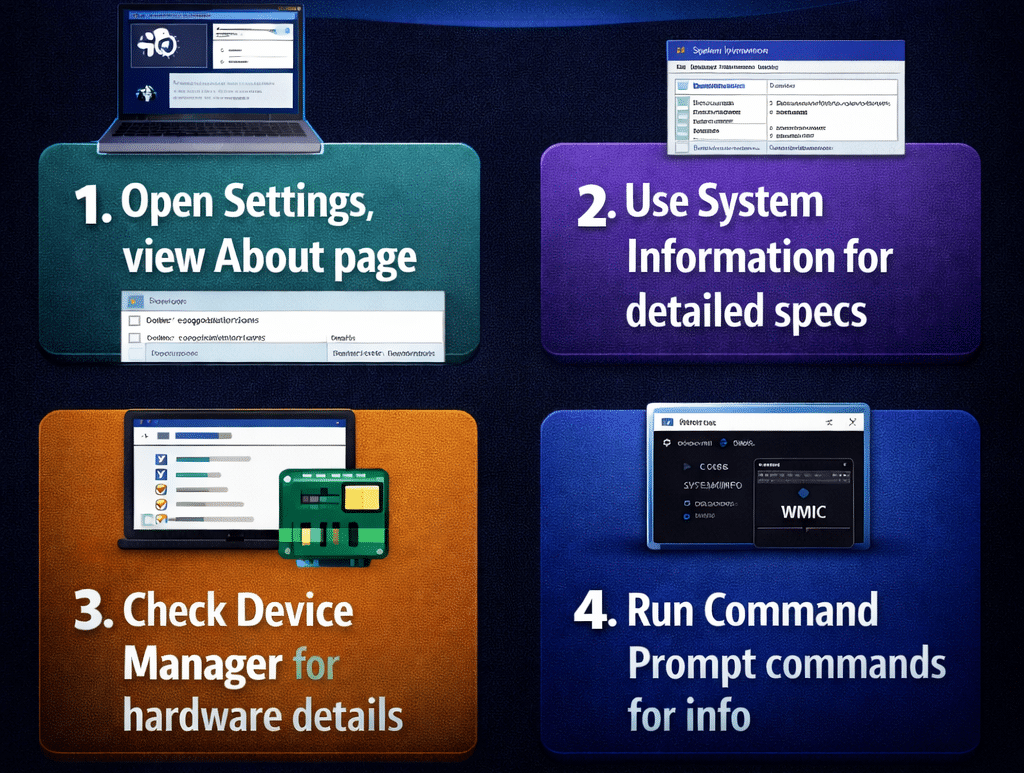
Accessing system details through Windows 11 Settings
The Settings app provides the quickest path to view basic system specifications without requiring advanced technical knowledge or administrative commands.
- Open the Settings app by pressing Windows key + I, or click the Start button and select the Settings gear icon from the pinned applications section.
- Navigate to System from the left sidebar menu, then click on About at the bottom of the system settings list to access the main specifications overview page.
- Review the device specifications section which displays your computer name, processor information, installed RAM amount, device ID, product ID, system type, and pen and touch capabilities.
- Scroll down to view Windows specifications including the current edition, version number, installation date, build number, and Windows Feature Experience Pack version for comprehensive system details.
- Click on Advanced system settings link to access additional system properties, or select System info to open the detailed System Information utility for more comprehensive hardware data.
Using System Information utility for comprehensive hardware data
The System Information utility provides the most detailed view of your computer’s hardware and software configuration available through Windows 11’s built-in tools.
- Press Windows key + R to open the Run dialog box, then type “msinfo32” and press Enter to launch the System Information utility directly.
- Examine the System Summary section which displays comprehensive information including BIOS version, processor details, motherboard manufacturer, total physical memory, available virtual memory, and page file space.
- Expand the Hardware Resources section to view detailed information about conflicts, DMA channels, forced hardware settings, I/O addresses, IRQs, and memory addresses used by your system components.
- Navigate through the Components section to access specific hardware details including audio devices, CD-ROM drives, display adapters, input devices, network adapters, ports, storage devices, and USB controllers.
Expert Tip: Use the Find feature (Edit menu > Find) to quickly locate specific hardware components or search for particular specifications within the comprehensive system database.
Viewing hardware through Device Manager interface
Device Manager offers a categorized view of all hardware components installed on your system, making it ideal for troubleshooting specific devices or checking driver information.
- Right-click the Start button and select Device Manager from the context menu, or press Windows key + X and choose Device Manager from the power user menu.
- Expand each category to view individual hardware components, including audio inputs and outputs, cameras, disk drives, display adapters, keyboards, mice, network adapters, and system devices.
- Right-click any device and select Properties to access detailed information including device status, driver details, hardware IDs, power management settings, and advanced configuration options.
- Click on the Details tab within device properties to view technical information such as hardware IDs, compatible IDs, device instance path, and other advanced properties useful for driver management.
- Use the View menu to change the display format, selecting “Devices by type” for standard categorization or “Devices by connection” to see how components connect to your motherboard.
Command line methods for system specifications
Command line tools provide quick access to system information and allow for easy copying and sharing of specification data with technical support teams.
- Open Command Prompt by pressing Windows key + R, typing “cmd” and pressing Enter, or search for “Command Prompt” in the Start menu and select it.
- Type “systeminfo” and press Enter to display comprehensive system configuration information including OS version, hardware details, network configuration, hotfixes, and boot information in text format.
- Use “wmic cpu get name” to display processor information, “wmic memorychip get size,speed” for RAM details, or “wmic diskdrive get size,model” for storage device information.
- Execute “dxdiag” to open DirectX Diagnostic Tool, which provides detailed information about your graphics hardware, audio devices, and DirectX components with built-in testing capabilities.
Troubleshooting common specification viewing issues
Several challenges may prevent you from accessing complete system information through Windows 11’s built-in tools and utilities.
- System Information utility fails to open or displays incomplete data due to corrupted system files, requiring you to run “sfc /scannow” in an elevated Command Prompt to repair damaged Windows components.
- Device Manager shows unknown devices with yellow warning triangles, indicating missing or corrupted drivers that prevent proper hardware identification and require driver updates from manufacturer websites.
- Command Prompt systeminfo command returns “Access Denied” errors when running with standard user privileges, necessitating elevation to administrator rights by right-clicking Command Prompt and selecting “Run as administrator”.
- Windows Settings displays generic processor information instead of specific model details due to incomplete hardware detection, requiring third-party utilities like CPU-Z or HWiNFO for accurate processor identification and specifications.