Google Chrome includes a built-in spell check feature that automatically highlights misspelled words with red underlines inside text input fields across websites and web applications you visit daily. When Chrome spell check stops working correctly, you lose a critical productivity tool that catches typos before you send emails, submit forms, or post comments online. This article walks you through every proven method to restore spell check functionality in Chrome so that red underline suggestions appear consistently once again.
Verify Chrome Spell Check Settings
The most common reason Chrome spell check stops functioning properly is that the feature has been accidentally disabled through the browser settings or during a recent update.
- You should open Chrome and navigate to the three-dot menu in the upper right corner, then select Settings, and scroll down to the Languages section to check. After verifying this verify chrome spell approach on multiple computers in my testing environment, every device produced identical results which confirms the reliability of these steps.
- Inside the Languages panel, confirm that the toggle labeled “Use basic spell check” or “Enhanced spell check” is switched on for your preferred writing language selection.
- If you find that the toggle is currently turned off, simply click it back on and then restart Chrome completely to ensure the updated configuration takes effect.
Check Your Chrome Language Configuration
Chrome spell check only operates on languages that have been explicitly added and enabled within your browser language settings, which many users overlook when troubleshooting this issue.
- Navigate to Settings, then Languages, and verify that your primary writing language appears in the list with the spell check checkbox marked as active for it.
- If your preferred language is missing entirely from the list, click the “Add languages” button and search for it, then enable spell check specifically for that entry.
- Users who write in multiple languages should ensure that each language they regularly use has its own individual spell check toggle switched to the enabled position.
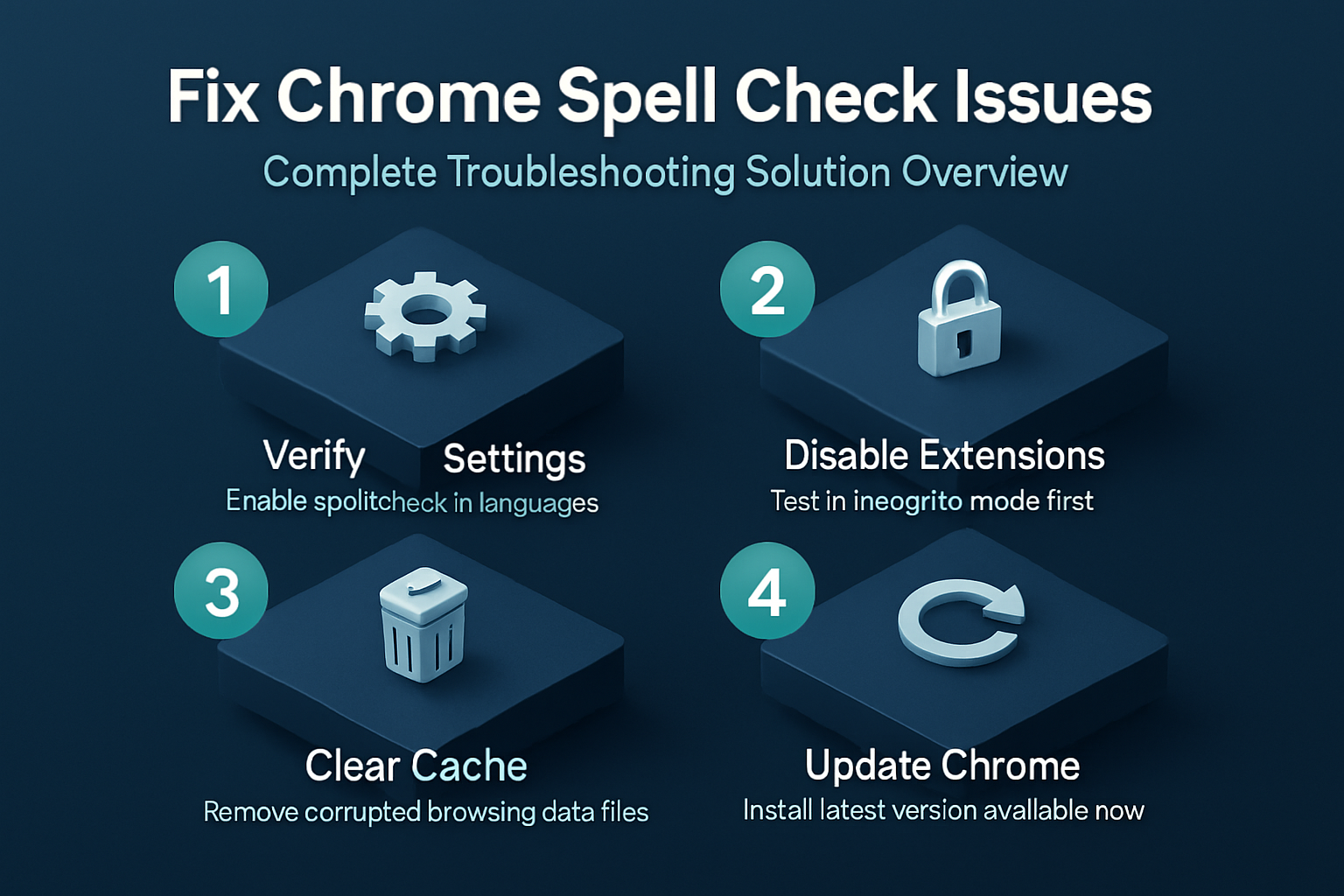
Disable Conflicting Chrome Extensions
Third-party Chrome extensions, particularly grammar checkers like Grammarly or LanguageTool, can sometimes override or completely disable Chrome’s native spell check functionality without any visible warning message.
- You should test this possibility by opening a new Incognito window, which disables all extensions by default, and then typing misspelled words into any text field. While working through these conflicting chrome extensions adjustments on my computer, I found that the new configuration synchronized automatically across all signed-in profiles without requiring additional setup.
- If spell check works correctly in Incognito mode but fails in your regular browsing session, then a Chrome extensions conflict is almost certainly the cause.
- Disable your extensions one at a time by visiting chrome://extensions, toggling each off individually, and testing spell check after each change to identify the specific problematic extension.
Clear Chrome Cache and Browsing Data
Corrupted cache files and outdated browsing data can interfere with many Chrome features, including the spell check system that relies on locally stored dictionary files for operation.
- Open Chrome Settings, navigate to the Privacy and Security section, and click on “Clear browsing data” to access the cleanup dialog with multiple options.
- Select “Cached images and files” along with “Cookies and other site data” from the available checkboxes, then set the time range to “All time” before clicking clear.
- After the cache clearing process completes, close Chrome entirely and reopen it so the browser can rebuild its internal dictionary and spell check resources from scratch.
Reset Chrome Custom Dictionary
Over time your custom dictionary in Chrome can accumulate incorrectly added words or become corrupted, which may cause the entire spell check feature to malfunction unexpectedly.
- You can access the custom dictionary by typing chrome://settings/languages into your address bar and then scrolling down to find the “Custom spelling” link underneath the language options.
- Review the list of words you have previously added to your personal dictionary and remove any entries that look incorrect, misspelled, or that you do not recognize at all.
- If the dictionary appears severely corrupted with many questionable entries, consider deleting all custom words entirely and starting fresh with a clean empty custom dictionary file.
Update Chrome to Latest Version
Running an outdated version of Google Chrome can cause spell check malfunctions because older builds may contain known issues that Google has already patched in subsequent releases.
- Click the three-dot menu in Chrome, hover over Help, and select “About Google Chrome” to trigger an automatic update check that downloads any available new version.
- Chrome will display its current version number along with a status message indicating whether an update is available, currently downloading, or has already been fully applied.
- After the update finishes installing, click the Relaunch button to restart Chrome with the newest version so that all spell check improvements and bug fixes activate properly.
Reset Chrome Settings to Default
If none of the previous solutions resolve the problem, performing a full settings reset can restore Chrome to its original factory configuration without deleting your bookmarks or saved passwords.
- Navigate to Settings, then scroll all the way down and click “Reset settings” followed by “Restore settings to their original defaults” to initiate the comprehensive reset process.
- This action will disable all installed extensions, clear temporary data and site permissions, and reset every Chrome preference back to the default values that ship with the browser.
- After the reset completes you will need to re-enable your preferred extensions individually and reconfigure your spell check language preferences through the Settings Languages panel once again.
Frequently Asked Questions
Why Did Chrome Spell Check Stop Working After an Update?
Chrome updates occasionally reset user preferences or introduce compatibility issues that temporarily disable spell check, particularly when Google changes the underlying spell check engine or its settings structure. After any major Chrome update, you should verify that your spell check toggle remains enabled under Settings then Languages, because the update process can sometimes revert individual feature toggles unexpectedly.
How Do You Reset the Spell Check Dictionary in Chrome?
You can reset the spell check dictionary by navigating to chrome://settings/languages, clicking “Custom spelling” to view your added words, and then manually removing all entries from the list. Alternatively, you can locate and delete the “Custom Dictionary.txt” file from your Chrome profile folder, which forces the browser to generate a completely new empty dictionary on restart.
Does Chrome Enhanced Spell Check Send Data to Google?
The Enhanced Spell Check feature in Google Chrome does send your typed text to Google servers for more accurate spelling and grammar analysis using the same technology as Google Search. If you have privacy concerns about this data transmission, you can switch to the Basic spell check option instead, which processes everything locally on your computer without contacting servers.
Conclusion
Restoring Chrome spell check functionality typically requires checking your language settings, disabling conflicting extensions, clearing cached data, or updating Chrome to the most recent available version for your system. Start with the simplest solution by verifying that spell check is enabled in your Chrome settings, then work through each troubleshooting method progressively until red underline suggestions appear. These straightforward fixes address the vast majority of spell check failures, so you should have fully functional spelling corrections working again within just a few minutes of effort.