Copilot suddenly stops responding, throws a “network connection error,” or just spins without loading results. The root cause is almost always a DNS resolution failure, a proxy misconfiguration, or a firewall rule blocking Microsoft’s cloud endpoints. These fixes take under ten minutes and resolve the error permanently for most Windows 11 users.
Resolve Copilot Network Failures Quickly
Flush and Reset Your DNS Cache
Windows caches DNS lookups locally, and stale entries frequently block Copilot from reaching Microsoft servers. Open Command Prompt as administrator and run ipconfig /flushdns. You should see a confirmation that the resolver cache was flushed successfully. Follow that with ipconfig /registerdns to force Windows to re-register all DNS records with your configured server.
After flushing, test whether Copilot reconnects immediately. If the error persists, switch your DNS to a public provider:
- Open Settings >> Network & internet >> Wi-Fi (or Ethernet) >> Hardware properties
- Scroll to DNS server assignment and click Edit
- Set preferred DNS to
8.8.8.8and alternate to8.8.4.4
Switching from your ISP’s DNS to Google or Cloudflare (1.1.1.1) eliminates a common failure point where ISP resolvers lag behind Microsoft’s endpoint updates. Restart your browser after the change since DNS updates do not apply to existing connections.
Verify Proxy and Firewall Settings
Corporate networks and VPN software frequently intercept traffic to Microsoft 365 endpoints, which breaks Copilot’s WebSocket connection. Open Settings >> Network & internet >> Proxy and confirm that Automatically detect settings is toggled on. If a manual proxy is configured, verify that *.microsoft.com and *.copilot.microsoft.com appear in the bypass list.
For Windows Firewall, open Windows Security >> Firewall & network protection >> Allow an app through firewall. Confirm that your browser (Edge or Chrome) and Microsoft 365 Apps have both private and public checkboxes enabled. Third-party firewalls like Norton or Bitdefender sometimes block Copilot traffic silently. Check their activity logs for blocked connections to substrate.office.com or copilot.microsoft.com. Add these domains to your firewall’s allowlist if they appear blocked.
If you also experience latency after the connection establishes, you may want to fix Copilot slow response issues since network and performance problems often share the same underlying cause.
Reset the Windows Network Stack
When DNS and proxy fixes do not resolve the error, a full network stack reset clears corrupted TCP/IP settings and Winsock catalog entries. Open Command Prompt as administrator and run these commands in sequence:
netsh winsock reset— restores the Winsock catalog to its default statenetsh int ip reset— resets TCP/IP stack parametersipconfig /releasefollowed byipconfig /renew— forces a fresh DHCP lease
Restart your computer after running all four commands. Windows rebuilds the network stack during reboot, which clears any corrupted state that was interfering with HTTPS connections to Microsoft endpoints. This reset does not remove saved Wi-Fi passwords or VPN configurations, so you will not need to re-enter credentials afterward.
Confirm Microsoft Service Endpoint Access
Copilot depends on several cloud endpoints that occasionally experience regional outages. Open Edge or Chrome and navigate to https://copilot.microsoft.com directly. If the page loads but Copilot inside Word or Teams fails, the problem is application-specific rather than network-wide.
Check the Microsoft 365 Service Health dashboard at admin.microsoft.com >> Health >> Service health for any active incidents affecting Copilot. You can also run Test-NetConnection -ComputerName copilot.microsoft.com -Port 443 in PowerShell to verify that port 443 is reachable. A successful test returns TcpTestSucceeded: True. If that test fails, your network is actively blocking outbound HTTPS to Microsoft, and you need to escalate to your network administrator.
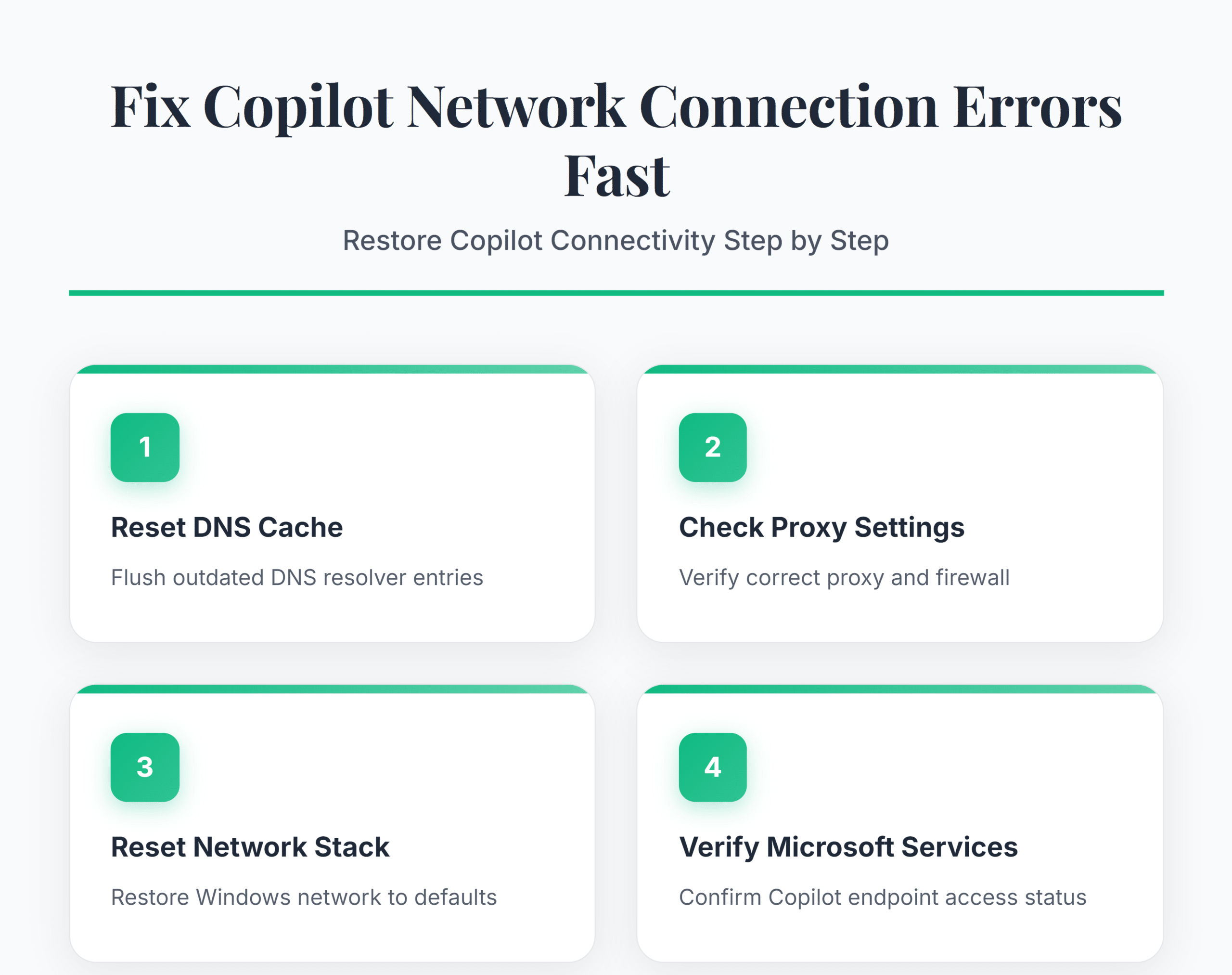
Copilot Connection Edge Cases on Windows
Fix Copilot Errors Behind Corporate VPNs
Split-tunnel VPN configurations sometimes route Microsoft traffic through the VPN tunnel while the tunnel itself blocks non-standard WebSocket connections. Ask your IT department whether the VPN uses split tunneling and whether Microsoft 365 URLs are routed directly. If you control the VPN client, check for a setting labeled Direct access or Bypass for Microsoft 365 and enable it. Disconnecting the VPN temporarily confirms whether it is the cause — if Copilot works immediately after disconnect, the VPN configuration needs adjustment.
Resolve Copilot Errors After Windows Update
Major Windows updates occasionally reset network adapter settings or re-enable the built-in proxy auto-detection in ways that conflict with existing configurations. If Copilot stopped working right after an update, open Device Manager >> Network adapters, right-click your active adapter, and select Uninstall device. Check the box to delete the driver, then restart. Windows reinstalls the driver automatically, which clears any corrupted adapter state the update introduced.
You may also want to sign out of Microsoft Copilot and sign back in after a major update, since authentication tokens can become invalid when Windows changes underlying security configurations.
Clear Microsoft 365 App Connection State
When Copilot fails only inside desktop apps like Word or Teams but works in the browser, the app’s cached connection state is likely corrupted. Close all Microsoft 365 apps. Open File Explorer, paste %localappdata%\Microsoft\Office\16.0 in the address bar, and delete the TokenBroker folder. Reopen Word or Teams and sign in again when prompted. This forces a fresh authentication handshake and re-establishes the connection path Copilot uses within desktop apps.
Common Questions
Why does Copilot show a network connection error?
Copilot requires a stable HTTPS connection to Microsoft cloud endpoints. DNS resolution failures, proxy misconfigurations, firewall rules blocking `copilot.microsoft.com`, or VPN tunnel restrictions prevent Copilot from reaching its backend servers. Flushing DNS and verifying firewall allowlists resolves the error in most cases.
How do I fix Copilot network errors permanently?
Switch to a reliable public DNS provider like Google (`8.8.8.8`) or Cloudflare (`1.1.1.1`), ensure your firewall allows traffic to `*.microsoft.com`, and reset the Windows network stack with `netsh winsock reset`. These changes survive reboots and prevent the error from recurring after Windows updates.
Does a VPN cause Copilot connection errors?
Yes. VPNs that route all traffic through a tunnel can block the WebSocket connections Copilot depends on. Check whether your VPN supports split tunneling for Microsoft 365 traffic. Enabling direct access for Microsoft endpoints lets Copilot bypass the VPN tunnel while keeping other traffic protected.
Copilot network errors come down to three things: DNS, firewall rules, and proxy settings. Fix those in order, and the connection restores itself without reinstalling anything.