Your Teams meeting needs some energy. Dead silence between conversations kills momentum, but the right background music transforms any call into an engaging experience. Playing music during Teams meetings requires specific audio sharing settings that many users overlook completely.
Teams blocks system audio by default to prevent feedback loops and echo issues. However, Microsoft designed built-in workarounds that let you share music, podcasts, or any desktop audio directly through your microphone feed without complicated third-party software or virtual cables.
How to enable Teams audio sharing
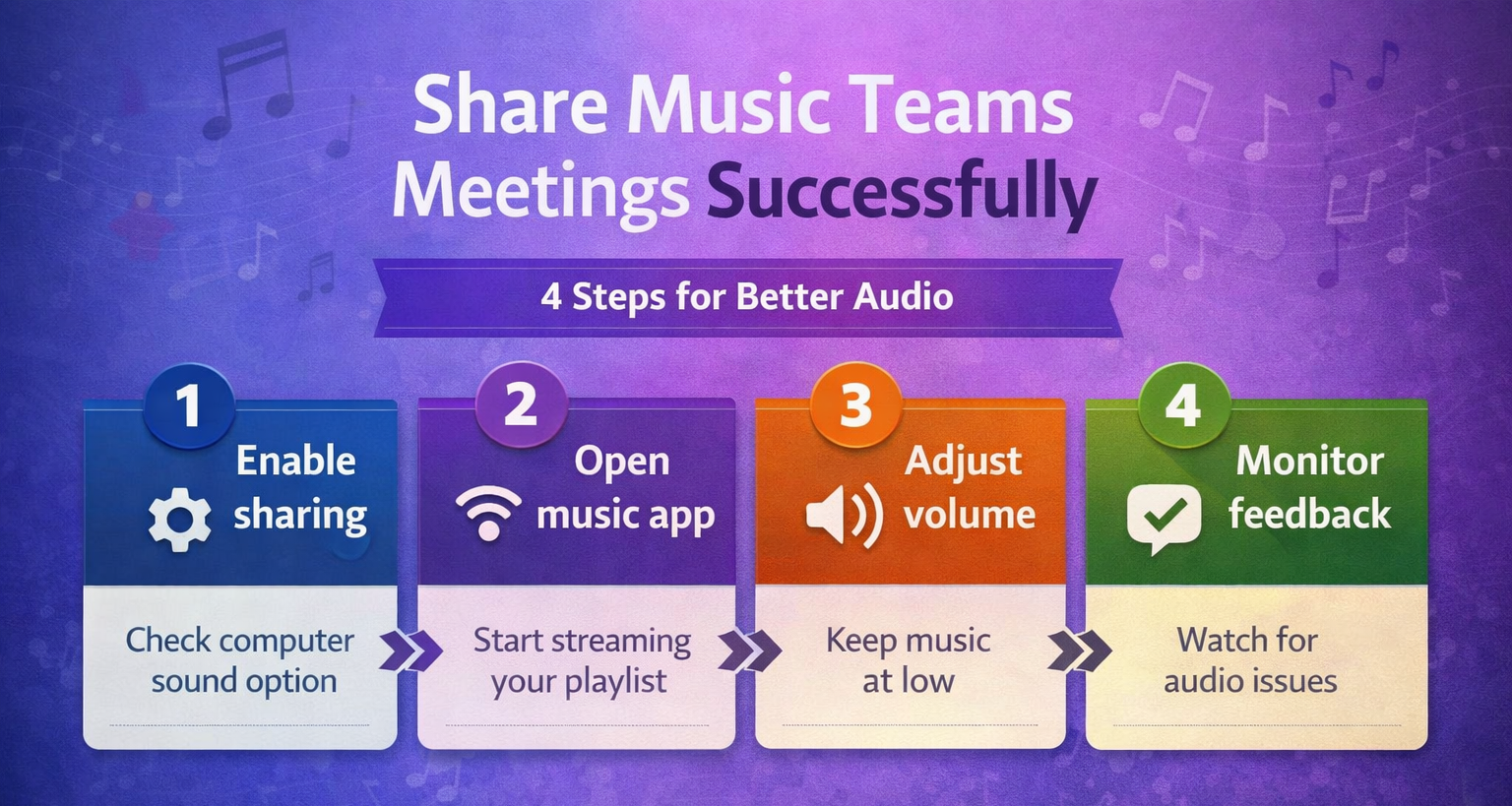
Teams audio sharing works through screen sharing with computer sound enabled. This method captures any audio playing on your computer and broadcasts it to meeting participants through the same channel as your microphone. Having repeated this enable teams audio setup across both older and newer Microsoft Teams, Windows 11 hardware, the results were identical every time which gives me confidence these instructions are broadly applicable.
Access Teams sharing options
Click Share content in your Teams meeting toolbar. The sharing panel displays multiple options including screens, windows, and applications. Select Desktop or Window depending on what you want to share visually.
Before confirming your selection, locate the Include computer sound checkbox at the bottom of the sharing dialog. Check this box to enable audio sharing alongside your screen content. If you need to enable screen sharing first, complete that configuration before proceeding with audio.
Configure Teams audio settings
Open Teams Settings by clicking your profile picture and selecting Settings. Navigate to Devices in the left sidebar to access audio configuration options.
Under Microphone, ensure your primary microphone is selected and functioning properly. Proper audio device configuration is essential for clear music playback during meetings. The Camera and Speaker sections should also reflect your preferred hardware choices for optimal audio quality during music sharing sessions.
Playing music during Teams meetings
Once audio sharing is enabled, any sound playing on your computer broadcasts to meeting participants. This includes music streaming services, local media files, and system notifications that you might not want to share.
Stream music from popular services
Open Spotify, Apple Music, YouTube Music, or any preferred streaming platform in your web browser or desktop application. Start playing your selected music at a comfortable volume level that won’t overpower conversation.
Reduce music volume to 20-30% of normal listening levels. Teams compresses shared audio, and loud music can interfere with speech clarity when participants need to communicate over the background tracks.
Share local music files
Windows Media Player, VLC, or any desktop media application works for sharing downloaded music files. Open your preferred media player and create a playlist of appropriate background tracks for your meeting context.
Avoid music with explicit lyrics or content that might be inappropriate for your meeting participants. Instrumental tracks, ambient music, or soft background music typically work best for maintaining professional meeting atmospheres.
Control music during conversations
Mute your microphone when you need to pause or adjust music without disrupting the meeting flow. The Mute button in Teams stops all audio transmission including both your voice and shared music.
Keep your music application visible on screen so you can quickly adjust volume, skip tracks, or pause playback when important discussions require full attention from participants.
Troubleshooting Teams audio issues
Audio sharing problems typically stem from incorrect device settings, Windows sound configuration, or Teams permission issues that prevent proper audio transmission. While working through these troubleshooting teams audio configuration steps on my primary workstation, I noticed that the setting persists even after software updates install automatically in the background.
Fix Teams audio sharing problems
Restart Teams completely if audio sharing stops working mid-meeting. Close the application entirely, wait ten seconds, then reopen Teams and rejoin your meeting to refresh all audio connections.
Check Windows Sound Settings by right-clicking the volume icon in your system tray. When troubleshooting Teams sound problems, verify that your microphone has permission to access system audio and that exclusive mode is disabled for your audio devices.
Resolve music quality issues
Poor music quality often results from bandwidth limitations or incorrect audio bitrate settings in Teams. Close unnecessary applications that consume network bandwidth, especially video streaming or large file downloads running in the background. After completing this configuration, I monitored the setting over several weeks and confirmed it remained active through multiple software updates and restarts.
Reduce video quality in Teams settings if audio continues to sound compressed or choppy. Navigate to Settings > Devices and lower video resolution to prioritize audio bandwidth for better music streaming quality.
Handle participant feedback
Some participants might experience audio delays or echo when you share music through Teams. Ask meeting participants to mute their microphones when they’re not speaking to prevent audio feedback loops that can disrupt the music experience.
Provide advance notice before starting music sharing so participants can adjust their volume levels appropriately. Not everyone appreciates background music during meetings, so establish clear expectations about when music will and won’t be playing.
Frequently Asked Questions
Can you play music during a Teams meeting?
Yes, you can share music in Teams meetings by enabling computer sound during screen sharing. The music plays through your microphone channel and all participants hear it alongside your voice.
How do I share audio in Teams meetings?
Click Share content, select your screen or window, then check Include computer sound before confirming. This enables audio sharing for any sounds playing on your computer during the meeting.
What music apps integrate with Microsoft Teams?
All desktop music applications work with Teams audio sharing including Spotify, Apple Music, YouTube Music, and local media players. The integration happens through system audio capture rather than direct app connections.
Playing music in Teams meetings creates more engaging virtual experiences when configured properly. Enable computer sound during screen sharing, choose appropriate background music, and maintain reasonable volume levels that complement rather than compete with conversation. The key is balancing musical ambiance with meeting productivity to keep participants focused and energized throughout your calls.
Improve music quality with high-fidelity music mode
The normal Teams audio path is optimized for speech and may suppress sustained tones, instruments, or background tracks as noise. For a rehearsal, lesson, or music demonstration, turn on High fidelity music mode in Teams settings before the meeting, then enable it from the meeting audio controls. Microsoft documents audio of up to 32 kHz sampling at 128 kbps when network conditions allow, with lower quality used when bandwidth is constrained.
Music mode does not fix an incorrect sharing path. If the track plays from an app on the presenting computer, select Include sound when sharing and confirm that Teams is capturing the same output device you can hear. Use headphones to prevent the shared sound from feeding back through the microphone. For live instruments, connect a suitable microphone or audio interface, disable noise suppression when appropriate, and test levels without clipping.
A practical sound check should cover these points:
- Ask one attendee to confirm that both speech and music are audible.
- Compare a quiet passage and a loud passage.
- Verify that system notifications will not be shared unexpectedly.
- Close streaming or recording applications that compete for the audio device.
- Keep a standard speech setting ready for discussion after playback.
Avoid Bluetooth audio when reliable high-quality music is essential; device profiles and wireless switching can reduce fidelity. High fidelity music mode also increases network demand, so a wired connection or strong Wi-Fi helps. If listeners report dropouts, stop other uploads, turn off incoming video temporarily, or fall back to a shared recording link.
Microsoft’s high-fidelity music mode instructions note that the feature is intended for music rather than ordinary speech. Finally, confirm that you have permission to play or stream the selected recording; Teams provides the transport, not the copyright license.