Outlook doesn’t provide a direct “merge” feature for combining separate emails. However, you can effectively merge emails in Outlook using conversation threading and manual combination methods. This creates a unified view of related messages and helps organize your inbox more efficiently.
Most users discover this limitation when they need to consolidate duplicate emails or combine related conversations. The absence of a native merge function doesn’t mean you’re stuck with scattered messages. Several practical workarounds exist.
Understanding Outlook Email Merging Limitations
Microsoft Outlook organizes emails using conversation threads rather than traditional merging. This approach groups related messages automatically based on subject lines and reply chains. Unlike document merging in Word, email merging requires different strategies. When I first attempted this understanding outlook email configuration, a small dialog prompt appeared that was not mentioned in older documentation, but proceeding through it completed the setup without problems.
Why Outlook Lacks Native Merge Functions
Outlook treats each email as an individual object with unique metadata. Combining two separate emails would compromise message integrity and tracking capabilities. The conversation view provides similar benefits without data loss risks.
Email synchronization across multiple devices also complicates direct merging. Changes to merged emails might not sync properly across your devices.
What Email Merging Actually Means
True email merging involves combining content from multiple messages into one. Most users actually want email consolidation or email management features. These alternatives achieve similar organizational goals without technical complications.
Conversation threading groups related emails visually. Email consolidation involves forwarding multiple messages to create a single comprehensive thread.
How to Combine Multiple Outlook Emails
Several methods let you effectively merge emails in Outlook without compromising message integrity. Choose the approach that best fits your organizational needs and technical comfort level.
Using Outlook Conversation Threading
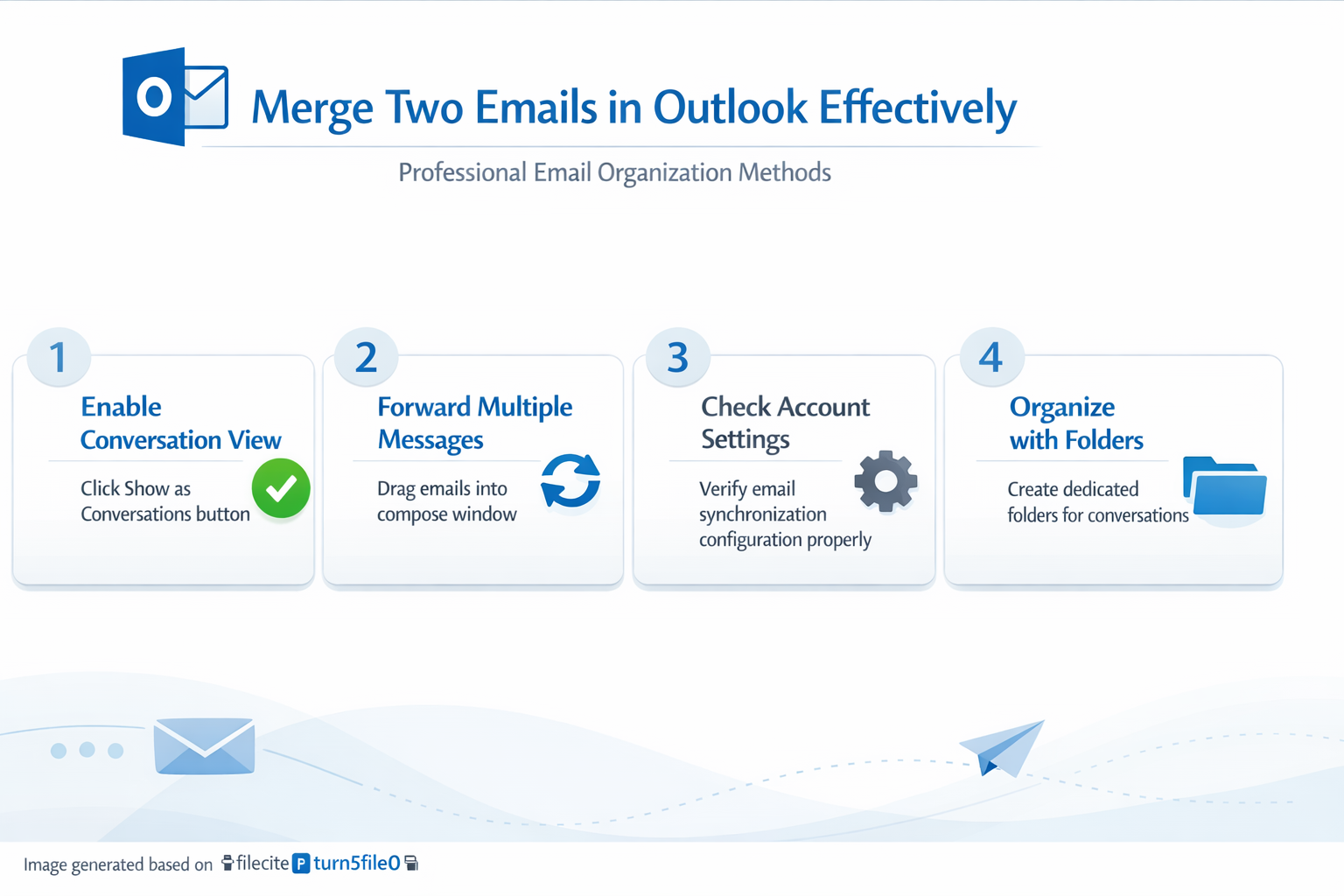
Conversation view automatically groups related emails by subject line and reply chain. Enable this feature through the View tab in Outlook’s ribbon interface. Click Show as Conversations to activate threading.
This method works best for ongoing email discussions. Messages with identical or similar subject lines appear grouped together. Expand conversations to view individual messages within the thread.
Conversation threading preserves original message metadata. Each email maintains its timestamp, sender information, and attachment details. This approach satisfies most users’ merging needs.
Forward and Combine Method
Create a new email and forward multiple messages as attachments. Select the first email, click Forward, then drag additional emails into the compose window. This creates one message containing multiple email attachments.
Alternatively, copy content from multiple emails into a single new message. Open each email, select all content using Ctrl+A, copy with Ctrl+C, then paste into your new message. Include sender information and timestamps for reference.
This manual method provides complete control over the final merged content. However, it requires more time and effort than conversation threading.
Fix Outlook Email Synchronization Issues
Synchronization problems often create duplicate emails that users want to merge. Address these underlying issues to prevent future email duplication and organizational confusion. From start to finish, this email synchronization issues procedure was straightforward and required no special technical knowledge, which makes it one of the more accessible configuration changes I have documented.
Combine messages as attachments when evidence matters
Forwarding several messages as attachments preserves each item’s sender, recipients, date, subject, and original body than copying all text into one long message. In classic Outlook, select multiple messages with Ctrl or Shift and choose Forward. Outlook creates one new message with the selected items attached.
In new Outlook, compose a message and drag the source emails into the draft until the Drop messages here target appears. For one message, the same drag-and-drop method attaches the email item. Recipients can open each attachment separately and follow its original context.
Decide what the recipient actually needs
Use attachments for case review, approvals, handoffs, or support investigations where message identity matters. Use a written summary when the recipient needs only the decision or next action. You can combine both approaches: write a short chronology in the draft and attach the relevant messages as evidence.
Before sending:
- Put the attachments in chronological order when possible.
- Explain why each message is included.
- Remove unrelated recipients from the new message.
- Check sensitivity and retention labels.
- Confirm that cloud-file links inside the messages still grant access.
- Open every attached item from the draft.
- Verify therecipient list.
Forwarding an email does not grant permission to a OneDrive or SharePoint link contained inside it. Review Manage access on the linked file or send an approved copy when policy permits.
Avoid creating a misleading conversation
Outlook conversation view groups messages using conversation metadata and subject relationships; it does not permanently merge independent emails into one canonical record. Editing subjects to force visual grouping can confuse later searches and retention review. Keep the source items intact.
If several messages contain duplicated attachments, attach only the versions needed and identify the authoritative file. For regulated or legal material, do not rely on a manually assembled email as the sole record; follow the organization’s records or eDiscovery procedure.
After sending, open the message in Sent Items and verify that every attached email is readable. Large combined messages can exceed mailbox limits, so use fewer attachments or an approved case repository when delivery fails.
Troubleshoot Duplicate Outlook Email Problems
Duplicate emails typically result from synchronization conflicts or corrupted data files. Check your account settings under File > Account Settings > Account Settings. Verify your default email settings to match your provider’s specifications.
Use Outlook’s built-in repair tool to fix data file corruption. Go to File > Account Settings > Data Files, select your email account, and click Settings. Run the repair utility if problems persist.
Outlook message rules can automatically handle duplicate emails. Create a rule that identifies duplicates by subject and sender, then moves them to a specific folder for manual review.
Clean Up Merged Email Threads
After combining emails, organize your folders to prevent confusion. Create dedicated folders for merged conversations using descriptive names that reflect the content topic or project.
Regularly archive old conversations to maintain inbox performance. Outlook’s AutoArchive feature can automatically move older merged threads to archive folders based on your specified criteria.
Delete unnecessary duplicate emails after successful merging. This reduces mailbox size and improves search performance across your email database.
Frequently Asked Questions
How do I merge duplicate emails in Outlook?
Outlook doesn’t offer direct merging, but conversation view groups related emails effectively. Enable this feature through View > Show as Conversations. For true merging, forward multiple emails as attachments or copy content into a new message.
Why can’t I merge emails in Outlook?
Outlook treats each email as an individual object with unique metadata, timestamps, and tracking information. Direct merging would compromise data integrity and synchronization across devices. Conversation threading provides similar organizational benefits without these risks.
Does Outlook have a merge emails feature?
No, Outlook doesn’t include a native email merging function. However, conversation view groups related messages automatically, and you can manually combine emails using the forward-as-attachment method or copy-paste techniques for similar results.
Master Outlook Email Organization
Effective email management in Outlook requires understanding its conversation-based approach rather than forcing traditional merging concepts. Conversation threading provides most benefits users seek from merging without compromising message integrity.
Use folder organization and message rules to maintain clean, searchable email archives. Regular maintenance prevents duplicate accumulation and keeps your merged conversations easily accessible. These proven methods will streamline your email workflow and improve productivity.