How to configure Microsoft Teams screen sharing permissions?
“Our team meetings are becoming less productive because only certain people can share their screens. How can I enable screen sharing controls so everyone can present their work when needed?” This common workplace scenario highlights the importance of properly configuring Microsoft Teams screen sharing permissions to support effective collaboration across your organization.
Microsoft Teams screen sharing settings and permissions
Screen sharing restrictions in Microsoft Teams are caused from default organizational policies that limit who can present content during meetings. These settings exist to maintain meeting security and prevent disruptions, but they can inadvertently hinder collaboration when team members need to share presentations, documents, or demonstrate processes.
We will show you how to allow screen sharing on Teams through both meeting-level controls and administrative policies. You’ll learn to configure permissions that let people share screen on Teams while maintaining appropriate security measures. The guide will cover both immediate meeting adjustments and long-term organizational settings that determine how to let someone share screen on Teams across your entire tenant.
Allow others share screen on Teams through meeting controls
Immediate meeting permission adjustments
• Navigate to your active Teams meeting and locate the meeting controls toolbar at the bottom of your screen, then click the three-dot menu labeled “More actions” to access additional meeting options.
• Select “Meeting options” from the dropdown menu to open the meeting configuration panel where you can modify participant permissions and screen sharing capabilities for the current session.
• Locate the “Who can present” section within the meeting options panel and change the setting from “Only organizers and co-organizers” to “Everyone” to enable screen sharing microsoft teams for all participants.
• Click “Save” to apply the changes immediately, allowing any meeting participant to share their screen without requiring additional permissions or approval from the meeting organizer.
• Return to the main meeting interface and verify that participants can now access the “Share content” button in their meeting toolbar, confirming that screen sharing permissions have been successfully enabled.
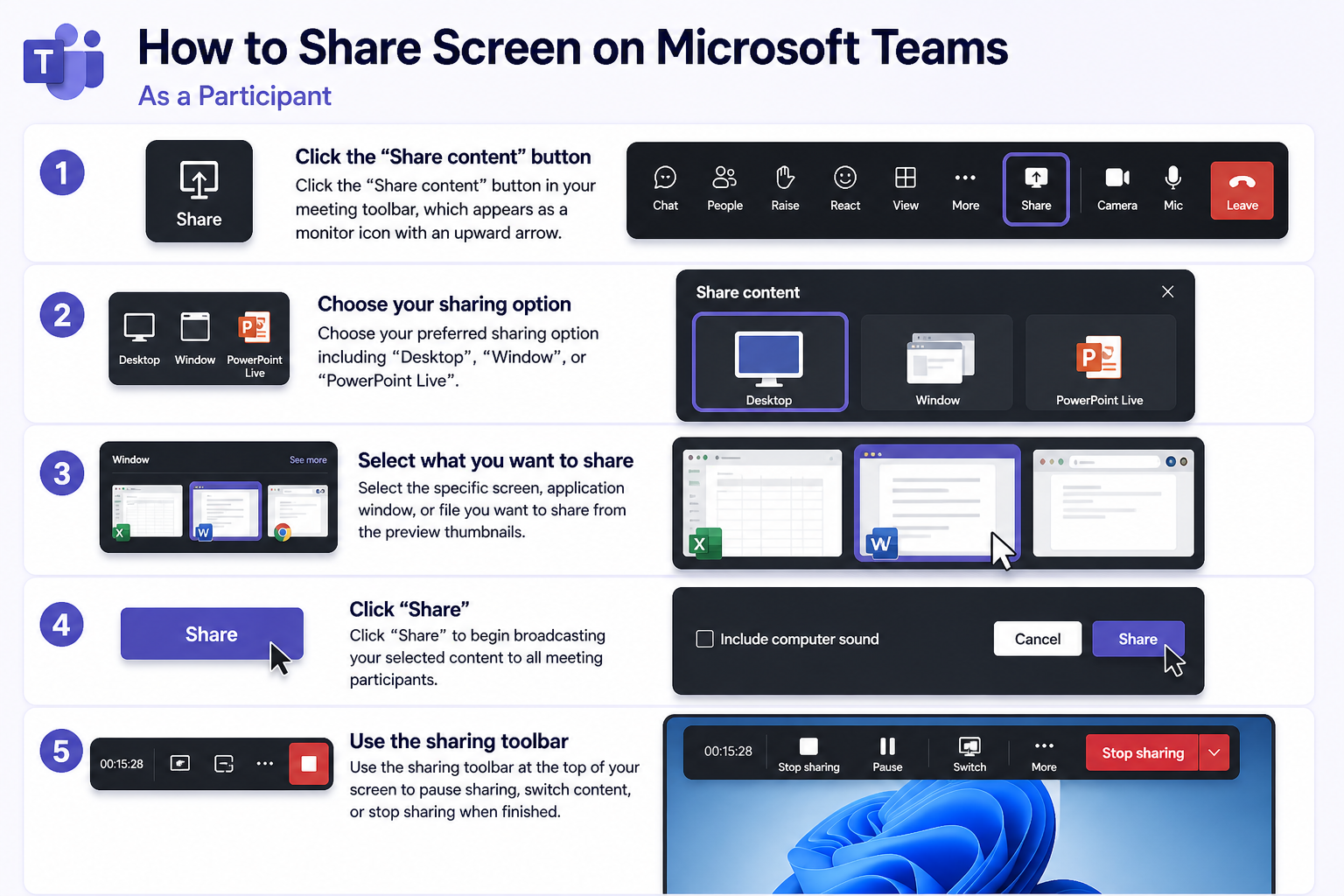
How to share screen on Microsoft Teams as a participant
• Click the “Share content” button in your meeting toolbar, which appears as a monitor icon with an upward arrow, to open the screen sharing selection menu.
• Choose your preferred sharing option from the available selections including “Desktop” for full screen sharing, “Window” for specific application sharing, or “PowerPoint Live” for presentation files.
• Select the specific screen, application window, or file you want to share from the preview thumbnails displayed in the sharing menu, ensuring you choose the correct content before proceeding.
• Click “Share” to begin broadcasting your selected content to all meeting participants, with your shared screen becoming the primary focus of the meeting interface for all attendees.
• Use the sharing toolbar that appears at the top of your screen to control your presentation, including options to pause sharing, switch between shared content, or stop sharing entirely when finished.
Administrative policy configuration for organization-wide settings
• Access the Microsoft Teams admin center through your web browser by navigating to admin.teams.microsoft.com and signing in with your administrator credentials to manage tenant-wide policies.
• Navigate to “Meetings” in the left sidebar menu, then select “Meeting policies” to view and modify the screen sharing and presentation settings that apply across your organization.
• Click on the specific policy you want to modify, typically “Global (Org-wide default)” for organization-wide changes, or create a new custom policy for specific user groups or departments.
• Scroll to the “Content sharing” section within the policy settings and locate the “Screen sharing mode” dropdown menu to configure how to allow screen sharing on Teams at the organizational level.
• Change the screen sharing mode from “Disabled” or “Single application” to “Entire screen” to provide maximum flexibility for users who need to share comprehensive content during meetings.
• Enable the “Allow a participant to give or request control” toggle to permit collaborative screen sharing where participants can request control of shared content from the presenter.
• Set “Allow an external participant to give or request control” based on your organization’s security requirements, typically disabled for external meetings but enabled for internal collaboration scenarios.
• Click “Save” at the bottom of the policy configuration page to apply your changes, noting that policy updates may take several hours to propagate across your Microsoft Teams tenant.
Expert Tip: Create separate meeting policies for different user groups to balance collaboration needs with security requirements, allowing more permissive screen sharing for internal teams while maintaining restrictions for external meetings.
Frequently Asked Questions
Can I restrict screen sharing to specific file types or applications?
Teams policies do not support application-level restrictions. The “Single application” mode allows users to choose any window, but administrators cannot whitelist or blacklist specific programs. For content control, consider using sensitivity labels in Microsoft 365 that prevent sharing of classified documents during meetings.
How do I enable screen sharing for channel meetings versus private meetings?
Channel meetings inherit permissions from both the meeting policy and the channel’s privacy settings. For standard channels, all team members can present by default. Private channels require explicit membership, and the meeting organizer must still configure “Who can present” settings independently of channel access.
Why can some users share PowerPoint files but not their desktop?
This indicates the meeting policy has “Screen sharing mode” set to “Single application” rather than “Entire screen.” Users can share PowerPoint through the PowerPoint Live feature, which operates separately from desktop sharing. Modify the policy’s Content sharing section to expand permissions.
What happens to active screen shares when I change meeting policies mid-meeting?
Policy changes do not affect meetings already in progress. Active screen shares continue until the presenter stops sharing. New permission restrictions only apply when users attempt to initiate new sharing sessions or when subsequent meetings begin under the updated policy.
Identify which control is blocking screen sharing
A participant can share only when the meeting role and organization policy allow it. During the meeting, open People, locate the participant, and review the assigned role. Promote a trusted attendee to presenter when they need to share, then return the person to attendee afterward if broader meeting controls are unnecessary.
Presenter status can allow more than screen sharing. Depending on meeting settings, presenters may manage participants or use other meeting controls. Do not promote everyone automatically for a large or external meeting. Choose specific presenters in Meeting options before the call when possible.
Test the sharing surface
Ask the presenter to select Share and choose one screen, application window, PowerPoint Live, whiteboard, or other supported source. Sharing a window limits exposure, while sharing a screen can reveal notifications and unrelated applications. The presenter should close confidential content and verify the attendee view from a test participant.
On macOS or a browser, operating-system or site permissions can block capture even when the Teams role is correct. Confirm the Teams client, browser permission, and system screen-recording access. Mobile sharing availability and controls can differ from desktop.
Distinguish meeting settings from admin policy
If the organizer cannot promote a participant or sharing remains unavailable across multiple meetings, check the user’s assigned Teams meeting policy. Admin policy can restrict screen sharing, external presenters, or available sharing modes. A user cannot override a disabled tenant capability from the meeting controls.
Create a new internal test meeting with the same organizer and participant accounts. If sharing works there, compare the original meeting type, template, sensitivity label, and roles. Channel, webinar, town hall, and externally hosted meetings can behave differently.
For support, record the organizer, participant tenant, meeting type, assigned role, client, operating system, and whether the Share control is missing or produces an error. That evidence identifies a role problem, local capture permission, or organization policy without granting unnecessary presenter access.
Solving Microsoft Teams screen sharing settings issues
• Screen sharing button remains grayed out despite policy changes: Verify that the meeting policy has been properly assigned to the affected users through the Teams admin center user management section, as policy assignments can take up to 24 hours to take effect across the organization.
• Participants receive “You don’t have permission to share” error messages: Check the specific meeting options by clicking the three-dot menu during the meeting and ensuring “Who can present” is set to “Everyone” rather than restricted to organizers only.
• External participants cannot share screens even with proper permissions: Confirm that your organization’s external access policies allow screen sharing for guest users by navigating to “External access” settings in the Teams admin center and enabling appropriate sharing permissions.
• Screen sharing works inconsistently across different meeting types: Review your meeting policy assignments to ensure consistent settings between scheduled meetings, instant meetings, and channel meetings, as different meeting types may inherit different policy configurations by default.