Understanding why wifi keeps disappearing Windows 11
“My Windows 11 laptop was working perfectly yesterday, but today I can’t find any wifi options anywhere. The wifi symbol is completely gone from my taskbar, and when I go to Settings, there’s no wifi section at all. I have an important presentation in two hours and need to get online immediately. What happened to my wireless connection?”
Confirm whether Windows can see the adapter
A vanished Wi-Fi control is different from a normal connection failure. If Wi-Fi networks are visible but one will not connect, start with router or password checks. If Quick Settings shows no Wi-Fi control and Settings lacks a Wi-Fi entry, Windows may not be detecting an active wireless adapter. Open Device Manager and expand Network adapters before resetting anything. A down arrow means the adapter can be enabled; a warning icon points to a driver or device error; no adapter suggests a missing driver, disabled hardware, or a device that is not responding.
Turn Airplane mode off and check the laptop’s wireless key or physical switch. If Ethernet or USB tethering works, use that temporary connection to download the correct wireless driver from the PC manufacturer’s support page. Keep the installer available locally before removing a damaged driver.
Diagnosing when wifi completely disappeared Windows 11 systems
When Wi-Fi completely disappears from Windows 11—not just fails to connect, but vanishes altogether—it usually points to a corrupted driver, a disabled network adapter, or a conflict introduced by a recent system update. In these cases, Windows isn’t merely losing connection; it’s unable to recognize the wireless hardware at all.
This step-by-step guide will walk you through restoring Wi-Fi functionality by addressing driver issues, detecting missing adapters, and repairing system configurations. You’ll work through scenarios ranging from the missing Wi-Fi toggle to a completely undetected adapter, ensuring your connection returns no matter what caused the failure. To complete the process, you’ll need administrator privileges and a working wireless card. The fixes use built-in tools such as Device Manager, Network Settings, Command Prompt, and Windows Update.
Match the repair to what Windows reports
Treat Device Manager as the decision point. When the adapter appears normally, run the Network and Internet troubleshooter in Get Help and test Wi-Fi again. When it is disabled, enable it and restart Windows. When Windows reports a device error, note the code from Properties before updating or reinstalling the manufacturer driver. If the adapter is absent, choose View > Show hidden devices, then Action > Scan for hardware changes. A hidden, grayed adapter can indicate an old driver record rather than active hardware.
Use Network reset only after these checks because it removes installed network adapters and restores networking settings to defaults. VPN clients, Hyper-V virtual switches, and custom network profiles may need to be configured again. After the restart, return to Device Manager and confirm the wireless adapter is listed without an error symbol. Then open Settings > Network & internet and verify that the Wi-Fi page and available networks have returned. If the adapter remains absent after installing the correct driver, check the PC maker’s diagnostics or firmware settings before assuming Windows alone is responsible.
Restoring wifi function disappeared Windows 11 configurations
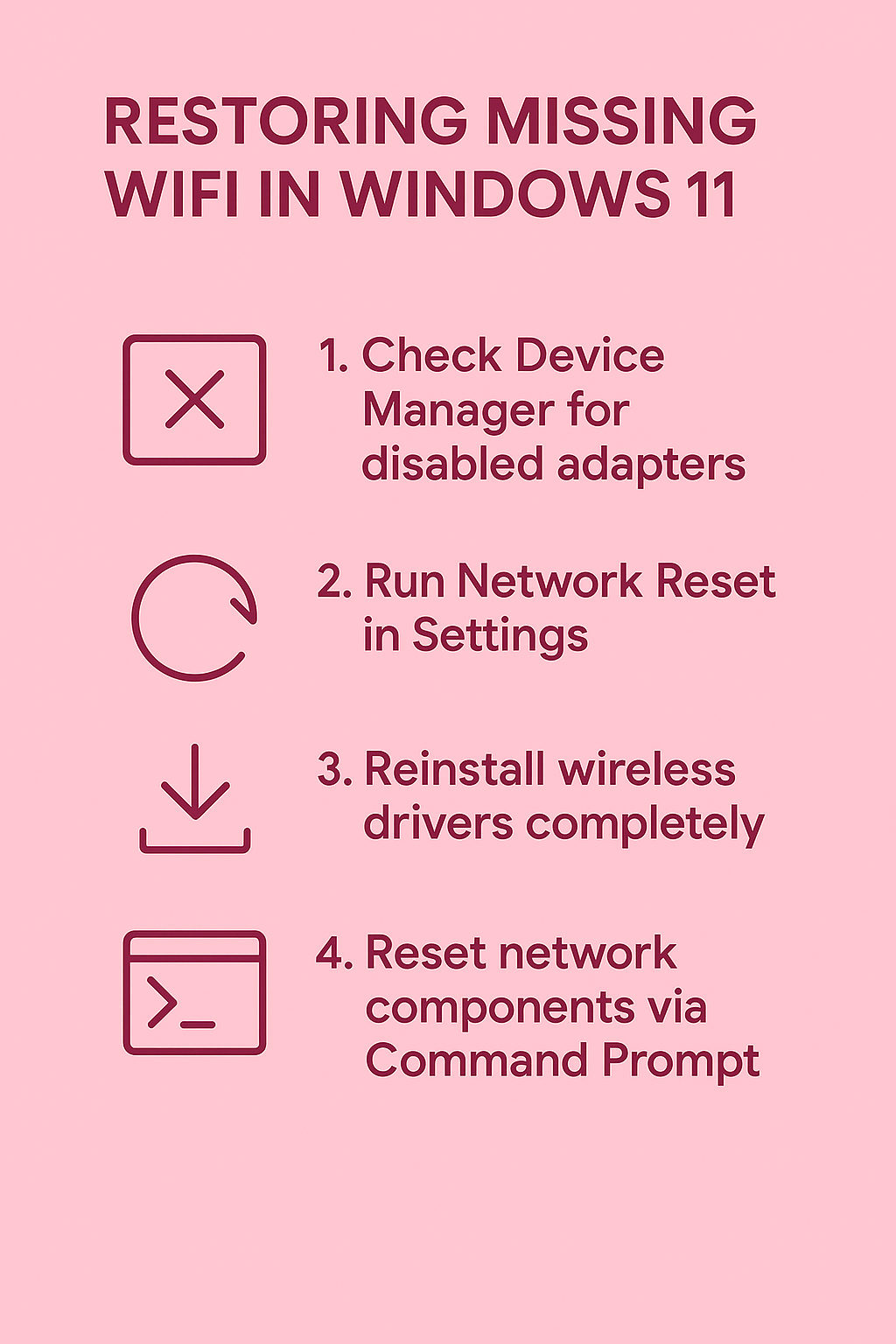
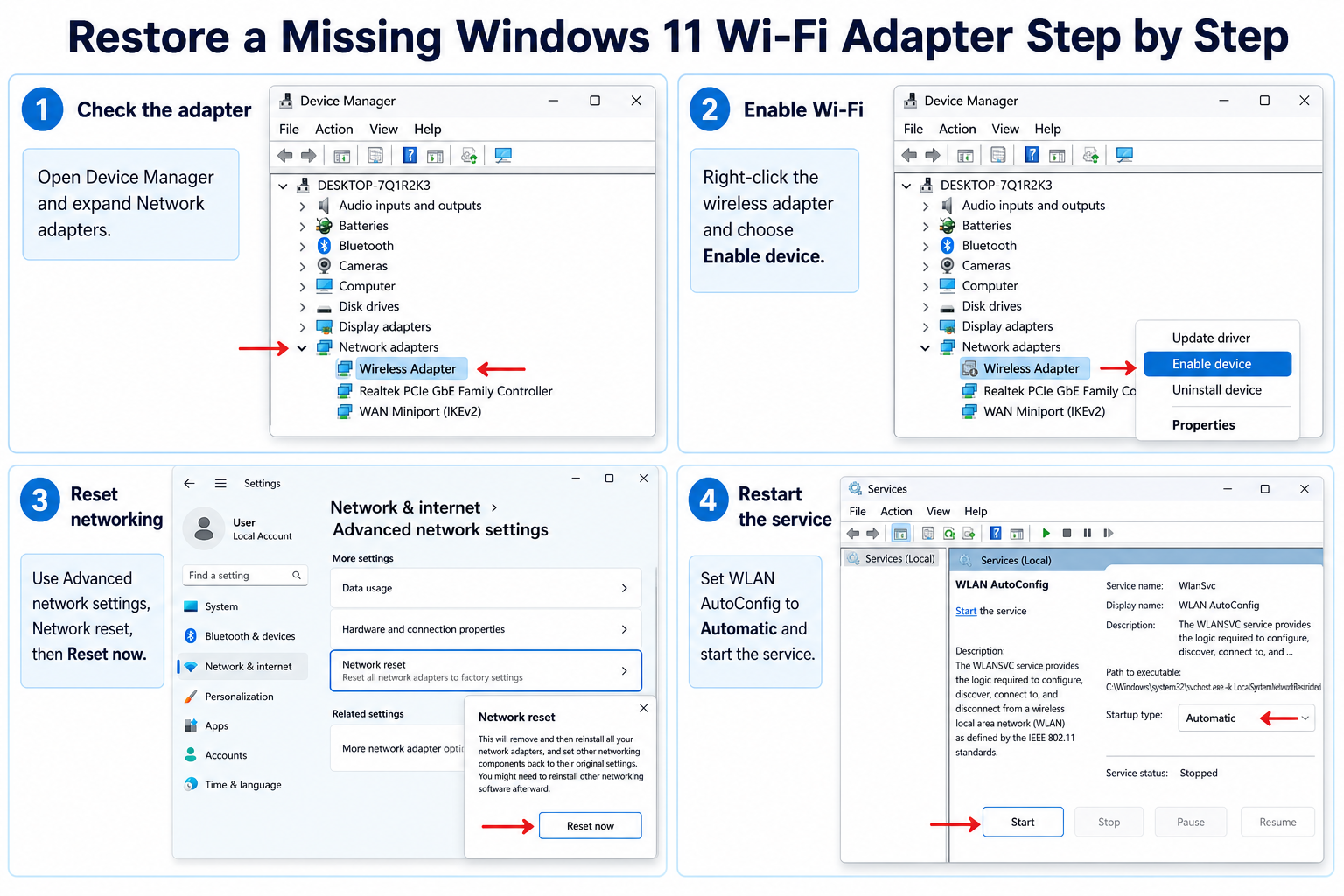
Checking Device Manager for missing adapters
- Open Device Manager by right-clicking the Start button and selecting “Device Manager” from the context menu that appears.
- Expand the “Network adapters” section by clicking the arrow next to it to reveal all installed network hardware components.
- Look for your wireless adapter, which typically contains words like “Wireless,” “WiFi,” “802.11,” or your manufacturer’s name such as Intel, Realtek, or Broadcom.
- If you see a yellow warning triangle next to the wireless adapter, right-click it and select “Update driver” to automatically search for updated drivers.
- If the wireless adapter appears with a red X or down arrow, right-click it and select “Enable device” to reactivate the disabled hardware.
- When no wireless adapter appears in the list, click “View” in the menu bar and select “Show hidden devices” to reveal disabled or problematic hardware.
- Right-click any grayed-out wireless adapters and choose “Enable device” to restore functionality to previously disabled network hardware.
Resolving wifi toggle missing Windows 11 interface issues
- Navigate to Settings by pressing Windows key + I, then click on “Network & internet” in the left sidebar menu.
- If the WiFi option is missing from the Network & internet page, click on “Advanced network settings” at the bottom of the page.
- Select “Network reset” from the advanced options, which will reinstall all network adapters and reset networking components to default configurations.
- Restart your computer after the network reset completes, allowing Windows to automatically detect and configure your wireless hardware during the boot process.
- Open the Action Center by clicking the notification icon in the system tray, then look for the WiFi quick toggle button.
- If the WiFi toggle is grayed out or missing, right-click on the taskbar and select “Taskbar settings” to customize quick action buttons.
- Click “Edit quick actions” and ensure the WiFi toggle is enabled and positioned where you can easily access it.
Expert Tip: Network reset is a powerful tool that removes all network adapters and reinstalls them with default settings, often resolving complex connectivity issues that other methods cannot fix.
Fixing wifi setting disappeared Windows 11 problems
- Press Windows key + X and select “Windows PowerShell (Admin)” to open an elevated command prompt with administrative privileges.
- Type “sfc /scannow” and press Enter to run the System File Checker, which will scan for and repair corrupted system files affecting network functionality.
- After the SFC scan completes, run “DISM /Online /Cleanup-Image /RestoreHealth” to repair the Windows image and fix deeper system corruption issues.
- Restart your computer and check if the WiFi settings have returned to the Network & internet section in Windows Settings.
- Open Device Manager again and click “Action” in the menu bar, then select “Scan for hardware changes” to force Windows to detect missing network adapters.
- If WiFi settings remain missing, navigate to Services by typing “services.msc” in the Start menu search box and pressing Enter.
- Locate “WLAN AutoConfig” in the services list, right-click it, and select “Properties” to access the service configuration options.
- Set the startup type to “Automatic” and click “Start” if the service is not running, ensuring Windows can properly manage wireless connections.
Recovering Windows 11 lost wifi adapter functionality
Reinstalling network drivers completely
- Download the latest wireless driver from your computer manufacturer’s website using another device or ethernet connection for internet access.
- In Device Manager, right-click your wireless adapter (if visible) and select “Uninstall device” to completely remove the current driver installation.
- Check the box that says “Delete the driver software for this device” to ensure complete removal of potentially corrupted driver files.
- Restart your computer, and Windows will attempt to automatically install generic drivers for your wireless hardware during the boot process.
- If automatic installation fails, manually install the downloaded driver by running the installer file you obtained from the manufacturer’s support website.
- Alternatively, right-click the wireless adapter in Device Manager and select “Update driver,” then choose “Browse my computer for drivers.”
- Navigate to the folder containing your downloaded driver files and allow Windows to install the manufacturer-specific drivers for optimal compatibility.
Addressing wifi symbol missing Windows 11 taskbar
- Right-click on an empty area of the taskbar and select “Taskbar settings” from the context menu that appears.
- Scroll down to the “Notification area” section and click on “Turn system icons on or off” to access icon visibility controls.
- Ensure the “Network” toggle is set to “On” to display network connectivity icons in the system tray area.
- If the network icon still doesn’t appear, click on “Select which icons appear on the taskbar” to customize notification area contents.
- Toggle the network icon off and on again, then restart Windows Explorer by opening Task Manager and restarting the “Windows Explorer” process.
- Press Ctrl + Shift + Esc to open Task Manager, find “Windows Explorer” in the processes list, and click “Restart” to refresh the taskbar.
- Check if the WiFi symbol has returned to the notification area after the Explorer process restarts and the taskbar refreshes.
Important Tip: Sometimes, mainly after system updates are installed, the network icon is hidden in the overflow area of the notification tray, accessible by clicking the up arrow next to the system clock.
Prove whether Windows lost Wi-Fi hardware or only its controls
Treat this as a short decision process rather than a long reset checklist. Check Device Manager and Network Connections before resetting the network stack. The first result should determine the next action.
Preserve a trustworthy baseline
Test airplane mode, hardware switches, and dock state. Record the adapter model and driver before uninstalling it. Use a disposable example when the action could alter shared data or notify other people.
Before deeper repair, download the approved driver through another device if connectivity is unavailable. Do not delete profiles, credentials, or source records merely to make an error disappear.
Test the reader’s real workflow
Avoid deleting every network adapter when only Wi-Fi is missing. Escalate hardware that disappears across restarts and operating systems. Repeat the test after reopening the client and, when relevant, after synchronization or refresh.
If it still fails, note the exact error, product version, account, device, and time. Compare one other supported client only when that comparison answers a specific question. Treat grayed-out organization settings as an administrator boundary.
The final check should be performed by the person or role that normally uses the feature. Their result may expose permissions or cached state that an owner cannot see. Remove private information from evidence, revert changes that did not help, and preserve the working configuration for future recovery. Recheck the result after the next sign-in or scheduled cycle when timing can affect it. Keep a concise note of the successful condition so it can be restored later. Verify that the change did not alter unrelated files, permissions, or settings. Recheck the result after the next sign-in or scheduled cycle when timing can affect it. Keep a concise note of the successful condition so it can be restored later. Verify that the change did not alter unrelated files, permissions, or settings.
Troubleshooting persistent lost wifi symbol on Win11
- Verify that your wireless hardware switch or function key combination is enabled, as many laptops have physical switches that can disable WiFi completely.
- Check Windows Update for pending driver updates by going to Settings > Windows Update and clicking “Check for updates” to download latest hardware drivers.
- If WiFi functionality remains missing after driver updates, consider performing a system restore to a point before the WiFi problems began occurring.
- Run the built-in Network Troubleshooter by going to Settings > System > Troubleshoot > Other troubleshooters and selecting “Network Adapter” to automatically diagnose issues.
- When troubleshooters fail to resolve the problem, check if airplane mode is accidentally enabled by looking for the airplane icon in quick settings.
- Disable and re-enable the wireless adapter in Device Manager by right-clicking it and selecting “Disable device,” waiting ten seconds, then selecting “Enable device.”
- Reset network settings through Command Prompt by running “netsh winsock reset” and “netsh int ip reset” commands with administrative privileges.
- If all software solutions fail, the wireless hardware itself may have failed and require professional diagnosis or replacement by a qualified technician.