How to Create an Approval Workflow in Power Automate (Teams and Email) usually starts as a simple request: someone submits an item, a manager approves it, and the requester gets a clear answer. The part that gets messy is not the approval itself, but the handoff between Teams, Outlook, and the system where the request began. A dependable flow needs one approval action, one condition, and separate notifications for approved and rejected outcomes.
Microsoft’s approval flow pattern uses the Start and wait for an approval action, then branches on the approver response. That gives you a cleaner build than trying to simulate approvals with plain messages, because Power Automate tracks the approval request and response as structured data.
Plan the approval data first
Choose the request trigger carefully
Start with the business event that actually creates the request. For a lightweight internal workflow, that might be a SharePoint item, Microsoft Forms response, Dataverse row, or another automated cloud flow trigger. If you are still setting up your first flow shell, use a basic automated cloud flow pattern before you add approvals; this build a starter flow guide pairs well with the approval setup.
The trigger must provide enough fields for the approver to make a decision without opening three other apps. Include the request title, requester name, amount or date range, business reason, and a direct item link when available. My approval flows became easier to maintain once the trigger item carried every review field.
Prepare approver and requester fields
Do not hard-code the approver until you know the process will stay that simple. A manager email field, department owner lookup, or Office 365 Users profile step gives you more flexibility than typing one address into every approval card. The Assigned to field accepts an email address, so your job is to make that address reliable before the approval action runs.
For the requester, capture the email address separately from the display name. Email actions and Teams messages need the address, while the approval details should show the friendly name. This prevents the common problem where the approval looks right in testing but cannot notify the original submitter.
Write approval details people understand
The approval title should read like a task, not a system event. Use a short format such as “Approve travel request for Megan Bowen” or “Review software purchase for Contoso Finance.” The details field can include Markdown, so use line breaks and labels for the values that matter.
Keep the details stable and avoid dumping every dynamic value into the card. Approvers respond faster when they see the reason, deadline, amount, requester, and item link in a predictable order. If the request has attachments, include a link to the source record rather than trying to recreate the entire record inside the approval message.
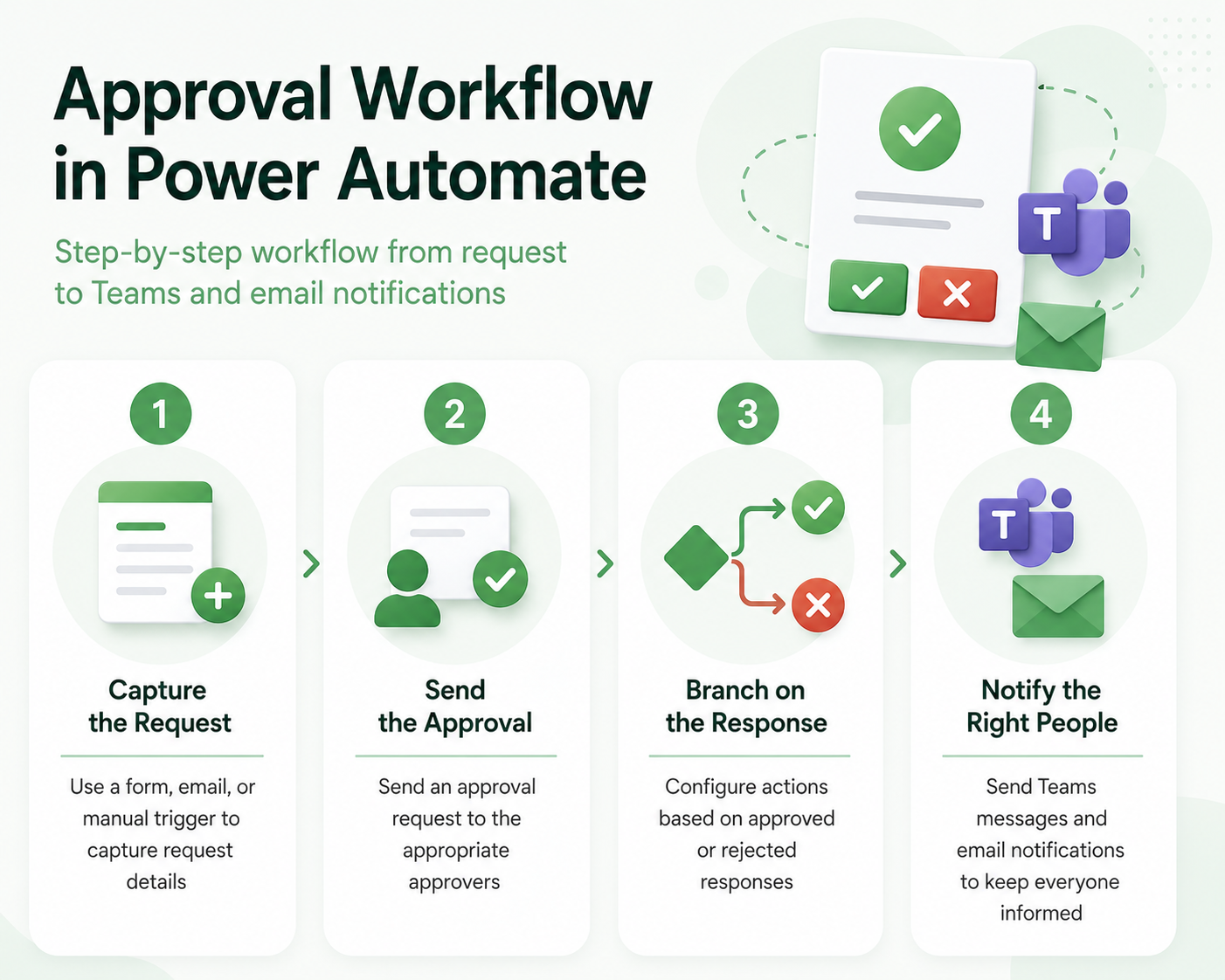
Build the Power Automate approval flow path
Add the approval action correctly
In Power Automate, open the flow designer after your trigger and any lookup steps. Select New step, search for approval, and choose Start and wait for an approval.
Then, pick the approval type that matches your process, then fill in Title, Assigned to, and Details with dynamic content from the trigger or profile actions.
This action pauses the flow until the approver responds or the action times out according to the service behavior. That is the main reason to use it instead of a Teams adaptive card alone. Power Automate stores the approval outcome, comments, approver name, and response data for later actions.
Branch on the approval response
Add a Condition directly after the approval action. In the left value, choose the approval response dynamic value; set the operator to is equal to; type `Approve` in the comparison value. Put approved actions in the If yes branch and rejected actions in the If no branch.
For approved requests, update the source item before you send the final message. This keeps the system of record accurate even if a later notification action fails. For rejected requests, capture comments where your team can find them, because rejection comments are often the most useful part of the process.
Notify Teams without replacing email
Teams is useful for visibility, but email is still the safer audit-friendly notification for many approval workflows. Add a Teams action after the item update, such as posting a channel message or chat message with the request title, decision, and link back to the item. If you need a separate Teams-first workflow pattern, this send Teams updates tutorial covers the messaging side.
Use Teams for operational awareness and Outlook for the person who needs the final result. In my testing, split notifications made failures easier to troubleshoot because each branch had one clear audience. Avoid posting sensitive approval details in a broad channel unless the request data is already visible to that group.
Troubleshoot approval workflow failures quickly
Approval email never reaches approvers
First confirm that the approval action created a request in the approval center. Microsoft states that approvers can respond from email, the approvals center in Power Automate, or the Power Automate app, so missing email does not always mean the approval failed.
Not that if the request appears in the approval center, check the approver address, mailbox filtering, and whether the notification went to a different account.
If the approval does not appear at all, open the run history and inspect the action before the approval card. Lookup failures, blank assigned-to fields, or invalid dynamic content usually stop the request before Power Automate can send anything.
Teams messages post the wrong result
Wrong Teams results usually mean the message action sits outside the condition branch or uses the wrong dynamic value. Keep approved Teams actions inside If yes and rejected Teams actions inside If no. Give each message a different subject line so testing does not blur the two branches.
Also watch for parallel branches that update the same item or post similar messages. Approval workflows should feel boring: one decision, one status update, and one notification path for each outcome. When a process needs multiple approvers, build that deliberately instead of adding extra message actions around a single response.
Source item status does not update
When the source item does not update, check the required fields on the update action. SharePoint update actions often require values such as site address, list name, ID, and title, even if you only care about the approval status field. Missing required fields can make the final update fail after the approval itself succeeded.
Use plain status values such as Approved, Rejected, and Pending approval. They are easier to filter later and less fragile than long sentence-style statuses. Store approver comments in a separate text column so reporting can distinguish the decision from the explanation.
Keep Teams and email notifications tied to one approval record
Use a narrow comparison to find the failing layer before applying a repair. Store outcome and comments in the source rather than only in messages. Record the account, device or client, and exact symptom so every later test uses the same starting point. Avoid combining resets, reinstalls, and permission changes because a successful result would not identify which action mattered.
Test the most likely boundary
Handle timeout, cancellation, reassignment, and duplicate trigger events. Use non-sensitive sample data and a standard user account whenever possible. If the sample succeeds, compare its location, ownership, policy, and data shape with the failing item rather than widening the repair to the whole application.
Test each branch with separate requester and approver accounts. Preserve the original file, configuration, or identifier until the result is confirmed. A locked option or organization message is evidence of an administrative boundary, not an invitation to bypass policy.
Escalate with useful evidence
undefined. Close and reopen the relevant app, then repeat the ordinary workflow. Check a second client or observer only when it answers a specific question about synchronization, permissions, hardware, or service availability.
When results differ, note the app version, account type, time, network, and exact error. That information separates a device problem from account, data, permission, or service behavior and gives support a focused case. Remove personal names, addresses, document text, and tokens from screenshots before sharing them.
Have another authorized user repeat the shortest safe test if shared access is involved. Their result may expose owner-only privileges, stale state, or an assumption about storage. Keep the known-good configuration available until the change survives a restart, refresh, or normal work cycle, and reverse experimental settings that did not help. Check the outcome again after the next scheduled synchronization when timing can affect the feature.
Power Automate approval questions answered
Can approvers respond from Microsoft Teams?
They can work with approvals through Microsoft 365 experiences, but the most reliable documented response locations are the email inbox, the Power Automate approvals center, and the Power Automate app. Teams can still receive notifications or workflow messages. Treat Teams as an extra communication channel unless your specific Teams approval experience is part of the design.
Should I use approvals instead of email?
Use the approval action when you need a tracked decision, comments, and a structured outcome for later steps. Email-only workflows are fine for informal alerts, but they do not give the same clean response object. The approval action also makes testing easier because each run shows where the decision was received.
Why does my approval flow stay running?
An approval flow stays running while Start and wait for an approval waits for a response. That is expected behavior, not a failure by itself. If it waits too long, confirm the assigned approver is correct and add reminder or escalation logic in a separate controlled branch.
A good approval workflow is not a pile of notifications. Build the decision path first, update the source record second, then let Teams and email tell the right people what changed.