Your AirPods show up on your iPhone but refuse to appear in Bluetooth settings on your Windows PC or Mac. This typically happens when stale pairing data, outdated Bluetooth drivers, or a stuck Bluetooth service prevent the device from broadcasting its availability. The fix airpods not working process usually takes under five minutes once you identify the right step. Here is how to restore visibility and get them connected.
Fix AirPods Bluetooth Discovery Issues
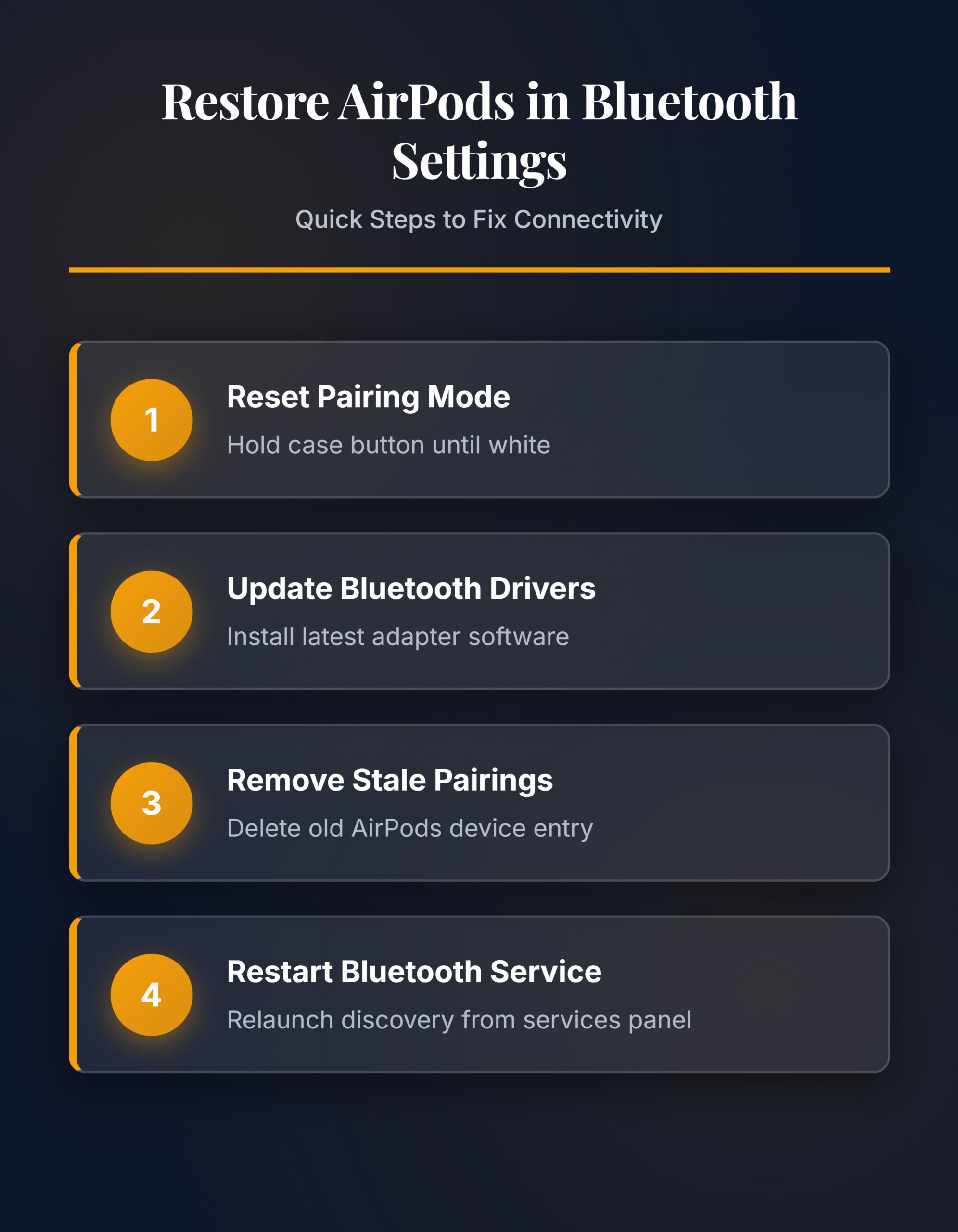
Reset AirPods to Pairing Mode
Open the AirPods case lid and keep both earbuds inside. Press and hold the Setup button on the back of the case until the status light flashes white. This white flash confirms the AirPods entered pairing mode and are broadcasting to nearby devices.
If the light flashes amber instead of white, the AirPods need a charge before they can pair. Place them on a charger for at least ten minutes, then try the reset again. A common gotcha: holding the button too briefly triggers a standard reset without entering discovery mode. Hold it for a full fifteen seconds until you see that white pulse.
Update Bluetooth Drivers on Windows
Outdated Intel or Realtek Bluetooth drivers are the most frequent cause of AirPods not working on Windows 11 machines. Updating them takes just a few clicks:
- Right-click the Start button and open Device Manager
- Expand the Bluetooth section and right-click your Bluetooth adapter
- Select Update driver then choose Search automatically for drivers
If Windows reports the driver is already current, visit the adapter manufacturer’s website and download the latest package manually. If you need to fix Bluetooth not working on Windows 11 more broadly, a manual driver install almost always resolves the issue. Restart your PC after installing—skipping the restart leaves the old driver loaded in memory and your AirPods still won’t appear.
Remove and Re-Pair Your AirPods
Stale pairing records block fresh connections because the PC tries to authenticate with outdated keys that no longer match the AirPods. Clearing the old entry forces a clean handshake:
- Open Settings >> Bluetooth & devices on Windows 11
- Find any previous AirPods entry and click the three-dot menu
- Select Remove device to delete the stale record
- Put your AirPods back into pairing mode using the case button
- Click Add device >> Bluetooth and select your AirPods from the list
If you previously paired these AirPods with multiple devices, the AirPods may connect to another device first. Disable Bluetooth on your phone temporarily while establishing the Windows pairing to avoid this conflict.
Restart the Bluetooth Support Service
The Bluetooth Support Service manages all device discovery and pairing on Windows. When it hangs or crashes, no Bluetooth devices appear in settings regardless of driver status.
- Press Win + R, type
services.msc, and press Enter - Scroll to Bluetooth Support Service and right-click it
- Select Restart and then set Startup type to Automatic
A stopped Bluetooth Support Service is especially common after waking from sleep mode. If the service fails to restart, check that your Bluetooth adapter is physically enabled. Some laptops have a hardware switch or function key combination that disables the radio entirely—look for an airplane mode toggle on the keyboard.
Disable AirPods Power Management
Windows aggressively suspends Bluetooth adapters on laptops to extend battery life, which kills AirPods visibility after a few minutes of idle time. Open Device Manager, expand Bluetooth, and double-click your adapter. Switch to the Power Management tab and uncheck Allow the computer to turn off this device to save power.
This setting resets after major Windows updates, so revisit it if your AirPods stop appearing after a system update. On desktop PCs with USB Bluetooth dongles, also check the USB root hub’s power management settings. Windows can suspend the entire USB port, taking the dongle offline even though the Bluetooth configuration looks correct.
AirPods Not Working on Windows 11
Fix AirPods After Windows Update
Windows updates occasionally replace Bluetooth drivers with generic Microsoft versions that lack full support for Apple’s pairing protocol. Open Device Manager and check whether your adapter now shows a Microsoft driver instead of the manufacturer’s original. If it does, download and reinstall the correct driver from Intel, Realtek, or your laptop manufacturer’s support page.
Resetting the Bluetooth stack can also help. Run netsh winsock reset in an elevated command prompt and restart your PC. This clears corrupted network and Bluetooth configuration data that accumulates during major updates. You can also troubleshoot Windows 11 audio problems if the AirPods pair but produce no sound after the update.
Resolve AirPods Notifications Not Working
AirPods connect to Windows but system notifications play through the laptop speakers instead. This fix airpods notifications issue traces back to sound routing configuration:
- Open Settings >> System >> Sound and set your AirPods as the default output device
- Go to Settings >> System >> Notifications and confirm notification sounds are enabled
- Check individual app notification settings under Notifications >> App settings
Some apps override the system default sound output. Toggling the AirPods between Stereo and Hands-Free mode in the sound settings can also resolve the airpods notifications not working problem by switching the audio profile Windows uses for system alerts.
FAQ
Why are my AirPods not showing in Bluetooth settings?
Stale pairing data, outdated Bluetooth drivers, or a stopped Bluetooth Support Service prevent your AirPods from appearing. Reset the AirPods to pairing mode by holding the case button until the light flashes white, then update your Bluetooth drivers and remove any old pairing entries before trying again.
How do I fix AirPods not working on Windows permanently?
Update your Bluetooth adapter driver from the manufacturer’s website, disable Bluetooth power management in Device Manager, and set the Bluetooth Support Service to Automatic startup. These three changes address the root causes and survive restarts, unlike temporary workarounds that break after the next Windows update.
Can AirPods connect to Windows and iPhone at the same time?
AirPods maintain pairing records for multiple devices but only actively connect to one at a time. If your AirPods keep connecting to your iPhone instead of your PC, temporarily disable Bluetooth on the iPhone while establishing the Windows connection. After pairing succeeds, the AirPods prioritize the last-connected device.
Most AirPods Bluetooth visibility issues trace back to stale pairings or power management settings. Work through the reset and driver update steps first—they resolve the problem in the majority of cases without deeper troubleshooting.