How to Set Up a Scheduled Flow to Run Daily in Power Automate is usually a short build, but the details around start time, time zone, and testing decide whether the flow is reliable. A scheduled cloud flow uses a recurrence trigger, so it runs because the clock says so, not because a file, message, or list item changed. That makes it useful for daily reports, cleanup jobs, reminders, and checks that should happen even when nobody opens the app.
Plan the daily recurrence trigger
Choose the right scheduled trigger
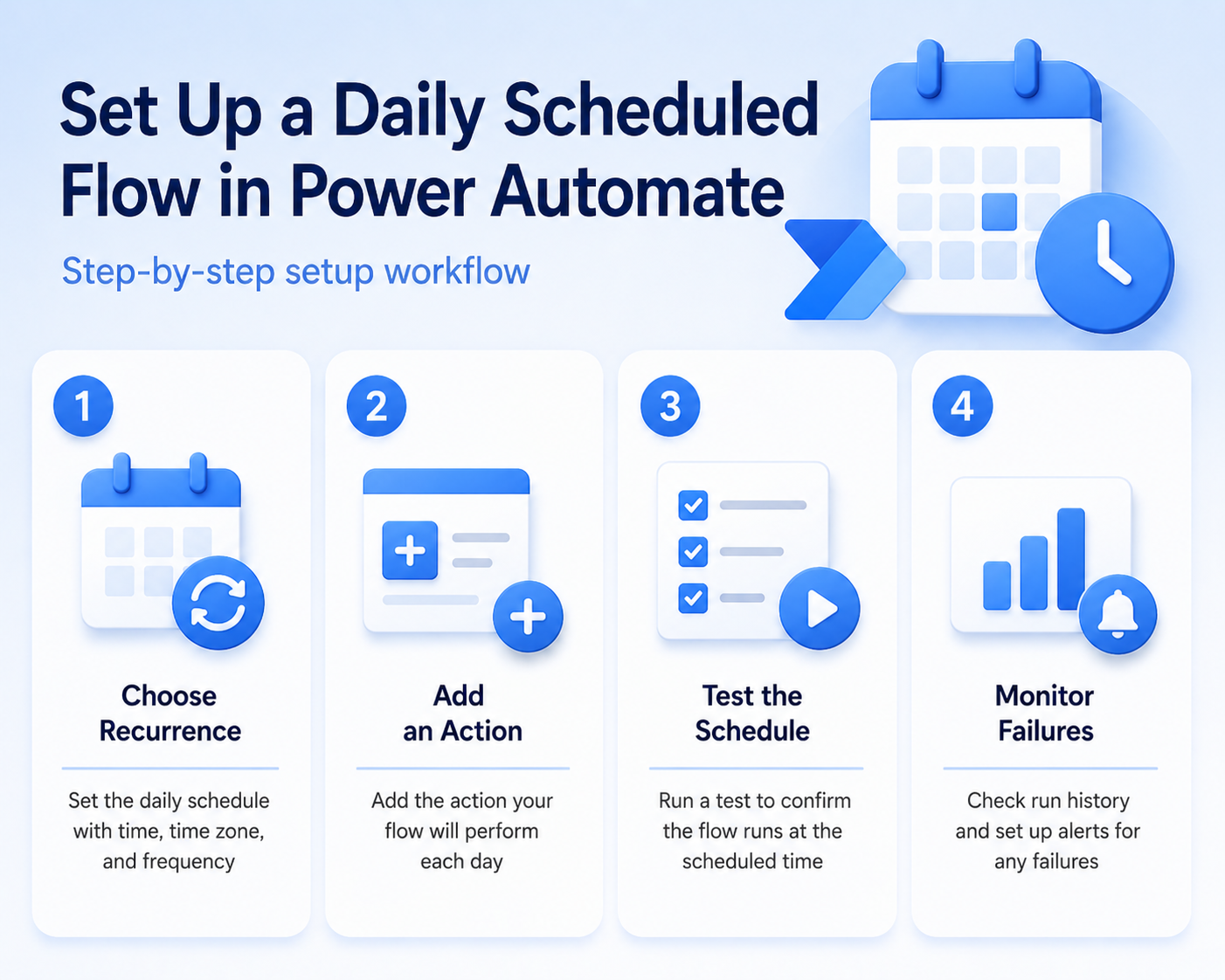
Open Power Automate and create a scheduled cloud flow rather than an automated cloud flow. In the new flow dialog, give the flow a clear name, set the first run time, and choose a daily recurrence. Microsoft documents scheduled cloud flows as the option for tasks that run once a day, once an hour, once a minute, on a specific date, or after a defined delay.
I usually name the flow after the business result, not the connector, because run history is easier to scan later. For example, “Send overdue task digest” is better than “Daily SharePoint flow.” If you are still learning the basic designer, start with this create cloud automation walkthrough before adding production logic.
Set start time and time zone
The first run time matters because Power Automate uses it as the anchor for the recurrence. Pick the local time when the downstream system is ready, not simply midnight. A daily report that reads a SharePoint list may be safer at 07:00 after overnight imports finish, while a reminder flow may belong at 08:30 when users are already online.
Check the time zone field before saving. If you leave it ambiguous, daylight saving changes or tenant defaults can make the flow look late even though the recurrence is behaving as configured. For business-critical reminders, add the intended time zone to the flow description so another owner understands the design.
Add one action at first
Keep the first version small. Add one action that proves the schedule is working, such as sending yourself an email, posting a Teams test message, or writing one row to a log list. After the schedule proves reliable, add the real business steps.
- Use one simple action so the first test isolates the recurrence trigger.
- Save the flow before adding conditions, loops, or connector-heavy work.
- Run a manual test only to validate action logic; wait for one scheduled run before calling the timing finished.
Build the daily flow actions
Connect to the business system
After the recurrence trigger is configured, add the connector that contains the data or action you need. For a SharePoint reminder flow, read the list with a filter query. For an email digest, collect the items first, compose a short summary, and then send the message. For Teams notifications, post one clear message instead of a stream of small alerts.
If the daily job depends on SharePoint data, confirm the list, library, and permissions before you trust the schedule. The setup pattern in this SharePoint flow guide is a good reference when the recurrence will read or update list items.
Filter before looping through records
A daily scheduled flow can become slow if it pulls every item and filters later in the flow. Filter at the connector whenever possible. Use a SharePoint filter query, an Excel table key, or a connector search action so the flow receives only the records it needs for that day.
My first performance check is always the number of records returned by the first data action. If that number is much higher than the number of records mentioned in the final notification, the flow is doing unnecessary work. Keep the recurrence simple and push filtering toward the data source.
Make the output easy to verify
Add a clear output action that helps you confirm what happened. A daily email should include the date range, number of records found, and any skipped condition. A Teams message should name the source and include a link to the item, report, or list. A maintenance flow should update a log row so you can prove it ran even when there was nothing to send.
Do not rely only on green checkmarks in run history. The flow can run successfully and still send an empty or misleading message if the filter is wrong. Add enough output detail to validate the business result without opening every action.
Test and monitor scheduled runs
Save and test the first run
After saving the flow, use Test to confirm the actions work with known sample data. Then wait for the scheduled recurrence to fire once at the intended time. Manual tests are useful, but they do not prove that the time zone, recurrence interval, and owner connection will behave correctly without you.
When the first scheduled run completes, open run history and expand the trigger. Confirm the start time, duration, and each action result. If the flow did not run, check whether it is turned on, whether the owner connection is valid, and whether the start time is still in the future.
Add failure visibility for owners
Scheduled flows are easy to forget because they run quietly. Add a failure path or at least owner coverage so someone sees problems. If the flow sends a daily report, a missed run is often more damaging than a visible error.
- Add co-owners for flows that support a team process.
- Use a notification action when a scope fails.
- Keep a short run log when the flow updates records or sends reports.
For low-risk personal reminders, run history may be enough. For business flows, build a small alert path before the flow becomes invisible infrastructure.
Adjust recurrence without rebuilding
If the daily time is wrong, edit the recurrence trigger instead of rebuilding the flow. Change the start time, frequency, interval, or time zone, then save and test again. Avoid making schedule changes at the same time as business logic changes, because it becomes harder to know which edit fixed or broke the flow.
If a daily job starts taking longer over time, inspect the data action first. Growth in SharePoint items, Excel rows, mailbox messages, or API calls usually explains the slowdown better than the recurrence trigger itself.
Make recurring flows safe to rerun
A dependable scheduled automation fix starts with a reproducible test, not a long list of unrelated changes. Preserve the current configuration, note the time and exact symptom, and change one variable at a time. That approach makes the result reversible and gives an administrator useful evidence if the issue needs escalation.
Run a focused validation
Configure the Recurrence trigger with an explicit time zone and start time. Check daylight-saving behavior for local-time business processes, and avoid assuming that a UTC value will remain aligned with the same local hour throughout the year.
Design each run to be idempotent. Store a processed identifier, query only records that still need work, or use an update flag so a retry does not send a second message or create a duplicate file. Limit concurrency when downstream order matters.
Confirm the result
After saving, test the flow and inspect trigger inputs, action outputs, and duration in run history. Add a failure or timeout branch that notifies an owner with the flow name and run link. Review connections and owner assignments before an employee or service account leaves.
Repeat the original action after every material change and record what improved. If the test fails, restore the previous state before trying the next step. This keeps the troubleshooting path clear and avoids creating a second problem while resolving the first.
For a managed work device, also check whether the setting is enforced by organizational policy. A control that is unavailable, returns after sign-in, or behaves differently for another account may be intentional rather than broken. Do not bypass that policy locally. Instead, capture the device name, Windows or application version, account type, network used, and screenshots of the relevant setting. Share only non-sensitive evidence with support. This information lets the administrator reproduce the condition, compare policy assignments, and decide whether the solution belongs on the device, in the user profile, or in the Microsoft 365 administration layer.
Scheduled flow questions answered
Can Power Automate run once daily?
Yes. Create a scheduled cloud flow and set the recurrence to every one day. Choose a precise start time and time zone so the run aligns with the business process instead of the tenant default.
Why did my scheduled flow not run?
The common causes are a disabled flow, a future start time, an invalid owner connection, a time zone mismatch, or a failed trigger. Open run history first. If no run exists, inspect the recurrence trigger and flow status before editing later actions.
Should daily flows use manual testing?
Manual testing is useful for action logic, but it does not prove the recurrence schedule. Use a manual test to validate the connector steps, then let the daily schedule fire once and verify the real run history.
A daily scheduled flow should be boring after the first run: clear recurrence, small data set, useful output, and a visible failure path. Get those pieces right before adding more actions.