When you need to fix Power Automate flow not triggering automatically, start by proving whether the trigger never fired or whether it fired and then skipped the run. Those two symptoms look similar in the Power Automate portal, but they point to different fixes. A broken connection, disabled flow, DLP policy, trigger condition, environment admin mode, or polling delay can all stop an automated cloud flow before the first action runs.
Use the flow details page and run history as the source of truth. Do not rebuild the flow until you have checked the trigger registration and the connection it uses.
Check flow status and history
Confirm the flow is turned on
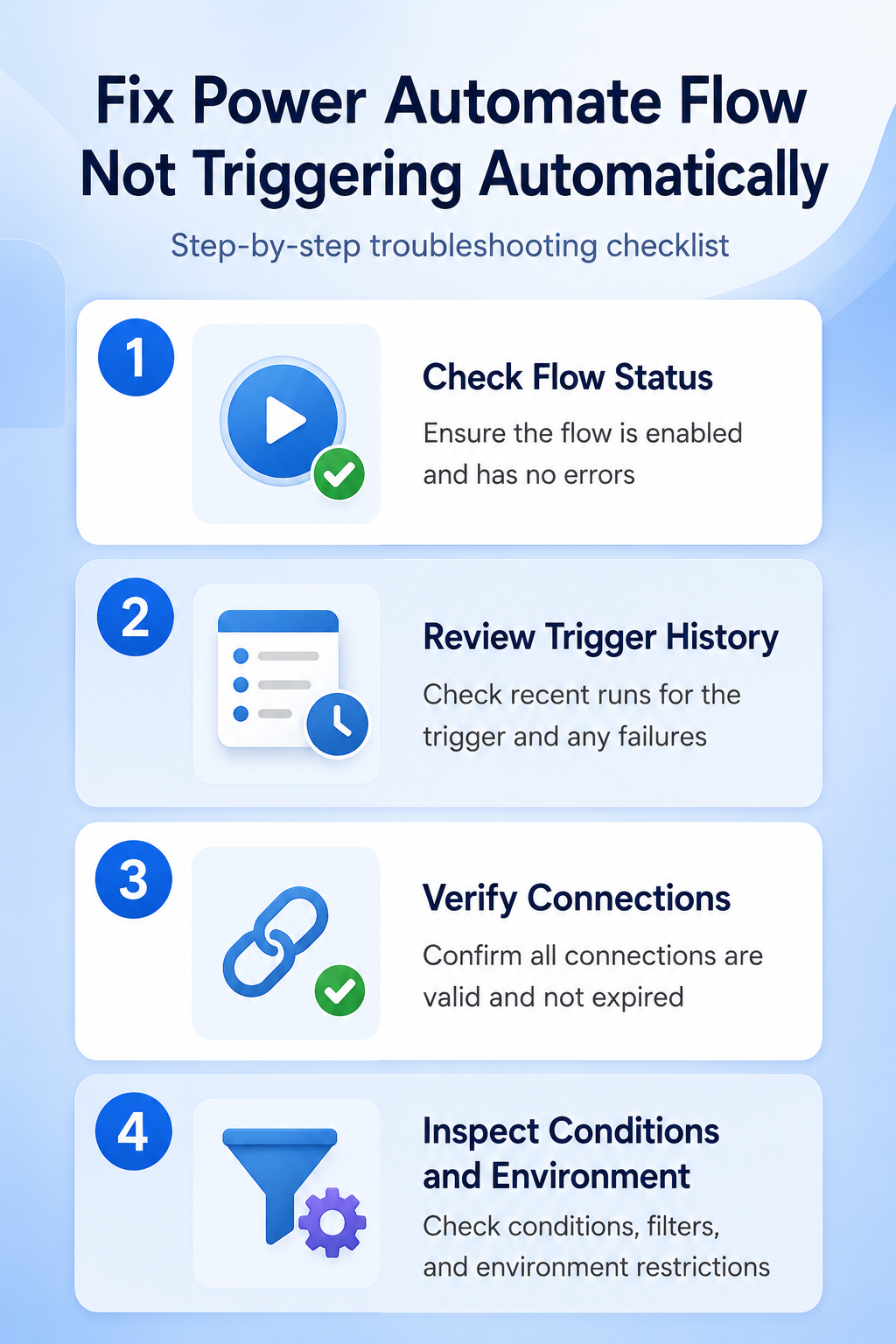
Open Power Automate and go to My flows. Select the automated cloud flow and check the status in the upper-right corner of the details page. If the flow is Off, turn it on and trigger the event again. If it immediately turns off or shows Suspended, Power Automate is protecting the flow after repeated failures or policy problems.
The first quick win is checking the right environment. Power Automate stores flows by environment, so a flow can look missing or inactive if the environment picker is set to the wrong workspace. My test flows have failed silently when I was checking the wrong environment picker. Once you are in the correct environment, open the flow details before editing anything.
Read skipped trigger checks carefully
Open the run history and change the view to All runs if needed. No recent runs usually means the trigger did not fire. Runs marked as skipped or cancelled mean Power Automate evaluated the trigger, then decided not to continue.
For a skipped trigger, open the run details and inspect the trigger check. Microsoft documents TriggerConditionNotMet as the case where the trigger condition evaluates to false, often because the payload field is blank, renamed, missing, or filtered out. Temporarily remove the trigger condition, create a known test event, and inspect the trigger output before you rewrite the expression.
Repair trigger configuration in Power Automate
Review trigger inputs and conditions
Edit the flow and select the first card, which is the trigger. Confirm the mailbox, SharePoint site, folder, list, form, calendar, Dataverse table, or schedule is the one where the test event happened. A flow tied to the wrong folder or site will stay quiet even when the rest of the design is correct.
Open the trigger Settings and review Trigger conditions. If the field is empty, the trigger should fire whenever the connector event matches the trigger type. If conditions exist, test them against one real event. A common mistake is comparing a status, folder path, or email sender value that changed after the flow was built.
Reconnect broken connector accounts first
Go to Data >> Connections and look for warning icons or failed status on the connections used by the trigger. Select the connection status link and sign in again. Password changes, expired tokens, revoked consent, and conditional access changes can all break a trigger without changing the flow design.
If the trigger card shows a warning, switch it to a fresh connection, save the flow, and then switch back only if needed. After a trigger registration problem is fixed, make a small edit, save the flow, undo the edit, and save again. That forces Power Automate to re-register the trigger instead of waiting on stale configuration.
When the first run appears but later actions fail, use the run details to read error details before changing the trigger.
Fix environment and license blockers
Check DLP and environment mode
If the flow violates a data loss prevention policy, Power Automate can suspend it so the trigger no longer fires. Edit the flow and save it; the flow checker usually reports the blocked connector combination. Ask an environment admin to confirm whether the connectors belong in compatible business or non-business groups.
Environment admin mode can also stop background processes, including cloud flows. In the Power Platform admin center, an admin should open the environment details and confirm that administration mode is disabled for production use. That check matters most after maintenance windows, sandbox testing, or tenant policy changes.
Allow for polling trigger delays
Not every automated trigger is instant. Webhook triggers respond when a service pushes an event, while polling triggers wake up on a schedule and check for new work. License plan, connector throttling, and service limits can add delay, so create one clean test event and wait long enough before assuming the trigger is broken. If the run starts but remains active until it fails, switch to the long-running flow timeout checklist because trigger troubleshooting no longer matches the symptom.
For scheduled flows, open the recurrence trigger and verify the time zone, start time, frequency, and interval. A recurrence set to the wrong time zone can appear broken when it is actually waiting for the next valid window. The quickest comparison is to run a manual test and see whether the flow starts immediately.
Use a tiny test flow when the original design is crowded. Create a starter trigger that watches the same mailbox, list, or folder, then add one simple notification action. If that test works, the source system and account are fine, and the original flow likely has a condition, connection, concurrency, or policy issue. For a clean baseline, you can create a starter automation and compare its trigger settings.
Power Automate trigger questions answered
Why is my automated flow skipped
The trigger fired, but Power Automate decided the run did not meet the trigger condition or filter. Check the trigger output and compare it with the condition expression. Removing the condition for one controlled test is often faster than guessing.
Can a disabled connection stop triggers
Yes. If the connection used by the trigger cannot authenticate, Power Automate may fail to register or run the trigger. Reconnect the account under Data >> Connections, then save the flow so trigger registration refreshes.
Should I recreate the whole flow
Not first. Recreating a flow can hide the original cause and create duplicate runs later. Fix the status, connection, trigger settings, DLP policy, and environment mode before you copy or rebuild the flow.
A quiet automated flow is usually fixable once you separate “the event never reached the trigger” from “the trigger rejected the event.” Work through status, history, connection, condition, policy, and polling checks in that order before rebuilding.