A Flow Run Failed error in Power Automate means the trigger or one of the actions could not complete for that specific run. The worst response is to rebuild the whole flow before reading the run details. Power Automate usually shows the failing card, status code, connection problem, or skipped dependency if you start from run history and work forward.
Find the failed Power Automate run
Open run history before editing
Open Power Automate, go to My flows, select the affected cloud flow, and review Run history. Choose the most recent failed run, then expand the trigger and each action until you find the first red card. That first failure is the root cause more often than the final failed step.
Microsoft’s failure notification guidance makes the same distinction: a later action may show failed because an earlier required action failed first. Do not chase the last red card until you have checked whether it is a cascade failure. My first pass is always chronological, because the earliest failed action usually tells the truth.
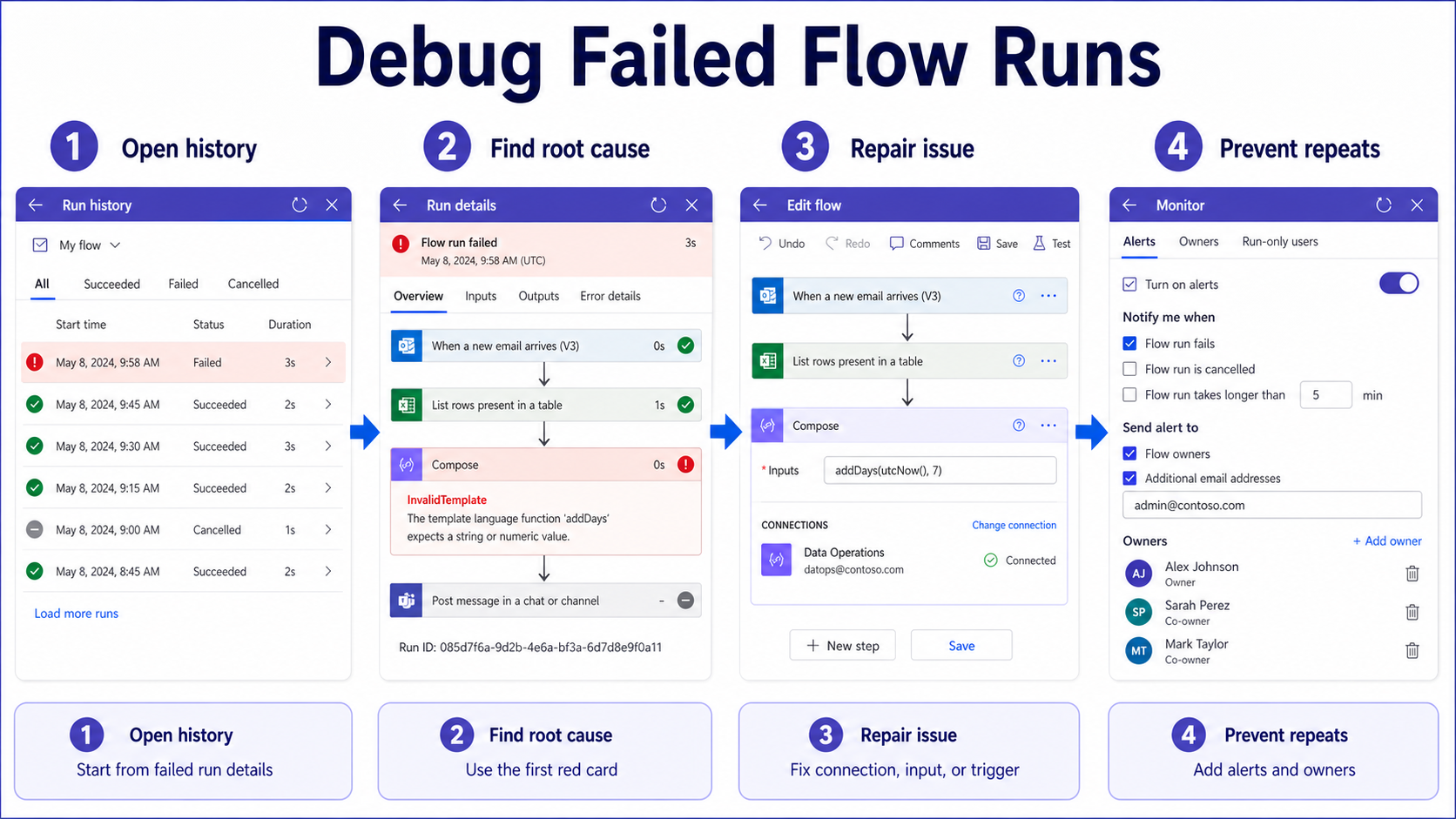
Read the first failed action
Expand the failed card and read the error message, status code, and inputs. If the action uses dynamic content, inspect whether a required value is blank, malformed, or different from what you expected. Many “flow failed” problems are not platform failures; they are missing fields, renamed SharePoint columns, invalid email addresses, expired connections, or conditions that no longer match real data.
Copy the error text into your notes before making changes. If you change several cards at once and the next run behaves differently, you will lose the clean comparison between the original failure and your repair.
Separate trigger errors from actions
If the run never appears, or Power Automate shows a trigger warning, troubleshoot the trigger before editing later steps. A flow that never starts may have a broken connection, disabled trigger, invalid folder or list path, trigger condition, licensing issue, or environment mismatch. Microsoft documents trigger errors separately because a trigger failure prevents downstream actions from running at all.
When the problem is that the flow saved but does not run, use the trigger-focused checks in repair flow triggers before changing action logic. If a run exists and one action failed, stay in the run details and fix that action first.
Repair common cloud flow failures
Refresh connector connections before retesting
Broken or expired connections are one of the most common causes of failed cloud flows. Open Data >> Connections or the flow details page, find the connector used by the failing card, and reauthenticate it. If your organization changed passwords, Conditional Access rules, DLP policies, or account status, the connection may look present but still fail when the flow runs.
After refreshing the connection, run the same test event again. Do not edit the whole flow yet. A clean retest tells you whether the issue was authentication or whether the action logic also needs attention.
Fix invalid inputs and conditions
If the failed card complains about a missing property, invalid template expression, null value, or bad request, compare the action inputs with the trigger output. A field that existed during design may be blank in real data. A SharePoint column may have been renamed. An email action may be receiving a display name where it expects an address.
- Add a condition before using optional fields in a message, update, or approval.
- Use a default value when a field is allowed to be blank.
- Confirm array outputs before using the first item in later actions.
- Test with one record that has complete data and one record with missing optional data.
These small tests expose the difference between bad flow design and bad sample data.
Use run after for errors
Power Automate’s Configure run after setting lets an action run after the previous action succeeds, fails, is skipped, or times out. Use it carefully for notification, logging, or cleanup steps. For example, you can send yourself an alert when an update action fails, but you should not let a business update continue as if nothing happened.
For more robust flows, group related actions into a Scope and create a catch path that runs when the scope fails. Microsoft recommends this pattern for error handling because it keeps normal work and failure handling separate. When a flow handles an important process, the setup pattern from create a first flow is only the base; production flows also need controlled failure behavior.
Prevent repeated failed flow runs
Enable alerts and owner coverage
Power Automate can send per-run failure alerts for known fixable problems and weekly failure digests for broader failure visibility. Confirm that the flow has the right owner and co-owners so alerts reach someone who can fix the process. Microsoft notes that per-run alerts go to owners and co-owners, not automatically to tenant admins.
That ownership detail matters in small teams. I add at least one backup owner to flows that send business messages, because silent failures are usually ownership failures first.
Watch throttling and service limits
Some failed runs come from connector throttling, temporary service issues, or timeouts. A single 5xx-style failure may clear on retry, while repeated 4xx-style errors usually need a user fix such as a corrected connection, valid input, or supported request. Microsoft’s trigger troubleshooting guidance uses the same broad split: user-fixable client errors versus transient service errors. When the first failed card returns 403, use the focused checklist for permission and connection failures before adding retries.
If an action supports retry policy, prefer exponential retry for transient failures. Do not use retries to hide bad input. Retrying an invalid email address or missing SharePoint item only creates more failed runs.
Keep run history evidence available
Power Automate run history is time-limited by default, and Microsoft documents that flow run data may no longer appear after the retention window. If a flow supports an important process, capture failure examples, error messages, and sample inputs before they disappear. Screenshots and copied error text are often enough for a lightweight support note.
For recurring failures, keep a simple log with the run time, failed action, error message, change made, and retest result. That discipline prevents the same failed run from being “fixed” several different ways by different owners.
Flow failure questions answered
Why does my flow say failed?
Your flow says failed when the trigger or at least one action did not complete successfully. Open the failed run and find the first red card. Later failed or skipped cards may only be consequences of that earlier failure.
Why did Power Automate skip actions?
An action is often skipped because a previous action failed or a condition evaluated differently than expected. Expand the previous cards in run history and check their outputs. If skipped behavior is intentional, review Configure run after so the flow handles failure paths clearly.
Do failed flows send email alerts?
Power Automate can send per-run failure alerts for some known fixable failures and weekly digests for broader visibility. Alerts depend on settings and ownership, and not every failure produces an immediate email. Use run history or admin monitoring when you need a complete view.
Treat the Flow Run Failed message as the starting point, not the diagnosis. Read the first failed card, repair the connection or input that actually broke, and then add alerting so the same issue is easier to catch next time.