Microsoft Outlook offers multiple calendar sharing permission levels that control exactly what other people can see and do with your schedule in the Microsoft 365 calendar. Understanding Outlook calendar permissions edit vs delegate differences helps you assign the right access level so colleagues can collaborate on scheduling without overstepping their intended role, especially when you link your Outlook calendar to Microsoft Teams. This article breaks down every permission level, walks you through configuration steps, and helps you decide which option works best for your specific calendar sharing needs.
How Outlook calendar sharing permission levels work?
Outlook organizes calendar sharing into five distinct permission levels that range from basic free-busy visibility all the way up to full delegate permissions with send-on-behalf capabilities. The first three levels are view-only options that let recipients see your calendar with increasing amounts of detail about each appointment, meeting, or event on your schedule. The top two levels, Can edit and Delegate, grant write access that allows the recipient to create, modify, or delete events directly on your shared calendar without intervention. Choosing the correct Outlook calendar sharing permission levels from the start prevents unauthorized changes while still enabling the team collaboration your workflow requires across your organization.
What the Outlook calendar edit permission allows
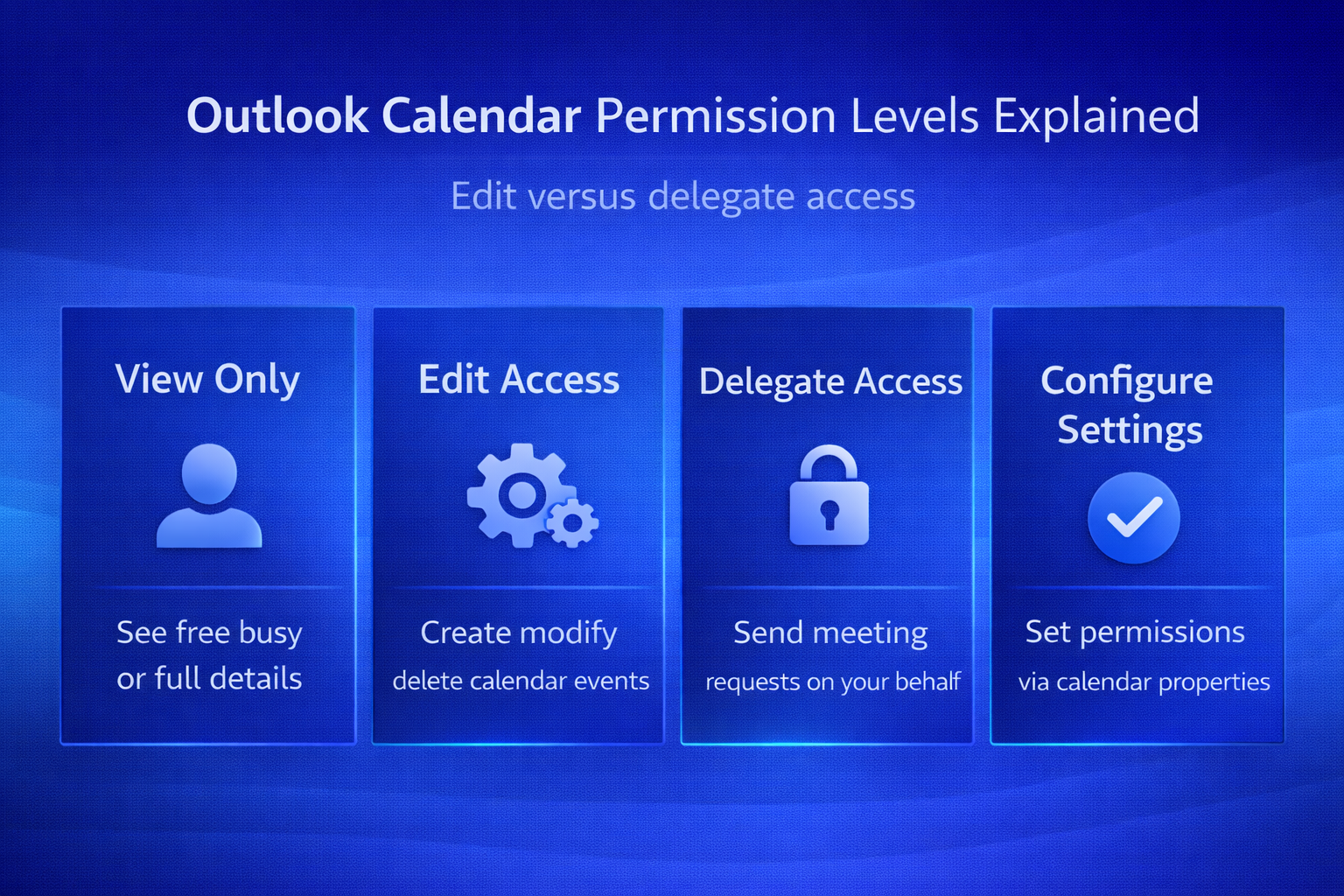
When you assign someone the Outlook calendar edit permission, that person gains the ability to create new events, modify existing appointments, and delete calendar items directly within your schedule. Editors can view all details of every event on your calendar, including private appointments, attendee lists, and meeting notes. However, an editor cannot send meeting invitations or respond to meeting requests on your behalf, which means all outgoing correspondence still originates from your own Outlook mailbox account. This permission level works well for administrative assistants, project coordinators, or team members who need to manage your calendar without representing you in external communications.
What Outlook calendar delegate access includes
Delegate access represents the highest calendar sharing permission level in Microsoft Outlook because it includes everything the edit permission offers plus the critical ability to act on your behalf. A delegate can send meeting requests, respond to invitations, and manage scheduling communications as though the messages originated directly from the calendar owner’s Microsoft 365 mailbox account. Outlook even provides a dedicated option that lets you forward all meeting-related messages automatically to your delegate so they never miss an incoming scheduling request or update.
Note: The Outlook calendar delegate access level is specifically designed for executive assistants, office managers, and trusted colleagues who handle your entire scheduling workflow, particularly when managing two or more shared accounts on Outlook.
Key differences between edit and delegate permissions
The fundamental difference between editor and delegate in Outlook calendar comes down to one critical capability: whether the person can send and receive meeting communications on your behalf. Both permission levels allow creating, modifying, and deleting calendar events, and both provide full visibility into all appointment details including those events you have marked as private. Delegates receive the additional ability to process meeting requests, send invitations using your name, and manage RSVPs that appear to come from your Outlook mailbox directly. Organizations that require a clear chain of communication for executive scheduling should always choose delegate permissions over simple edit access for their primary scheduling support staff.
When to choose edit over delegate
Select the edit permission when a colleague needs to add events to your calendar or adjust meeting times but should never communicate with external contacts on your behalf. Project managers frequently use edit access so team leads can block shared working sessions, update project milestones, and reorganize scheduling conflicts without generating any outgoing email traffic. The edit permission provides a safe middle ground between full delegate access and view-only permissions that balances calendar management capability with communication boundary controls in your organization.
When to choose delegate over edit
Choose the delegate permission when your scheduling assistant needs to send meeting invitations, accept or decline requests, and propose new meeting times using your name and identity. Executive assistants almost always require Outlook calendar delegation settings at the delegate level because their core responsibility includes managing every aspect of incoming and outgoing scheduling communications. The delegate option also allows you to configure automatic forwarding of meeting-related messages so your assistant receives copies of every invitation, cancellation, and update that arrives in your mailbox.
How to configure edit and delegate permissions in Outlook
Open Microsoft Outlook on your desktop, navigate to the Calendar view, then right-click your calendar name in the left navigation panel and select Properties from the context menu. Click the Permissions tab at the top of the dialog box, then use the Add button to search for and select the person who needs shared calendar access. Choose either Can edit or Delegate from the permission level dropdown menu, then click OK to apply the changes and begin sharing your calendar immediately. For the new Outlook for Windows application, go to Settings, select Calendar, click Shared calendars, and use the sharing interface to assign your desired permission level, which also helps when you set up multiple calendars in new Outlook.
Configure delegate settings for meeting forwarding
After assigning delegate permissions, click File, then Account Settings, and select Delegate Access to configure additional options that control how Outlook handles meeting-related messages and notifications. Enable the option labeled Delegate receives copies of meeting-related messages sent to me so your delegate can process every incoming invitation, cancellation, and scheduling update without delay. You can also choose whether delegates see your private appointments by toggling the corresponding checkbox, which gives you granular control over exactly what personal calendar information your delegate accesses.
Grant Outlook calendar access with the least authority needed
Start with a reversible check that separates configuration from missing data. Use edit permission when someone only needs to change calendar items. Do not combine several repairs at once; a successful result would not reveal which change mattered.
Isolate the failing layer
Use delegate access only when the person must process meeting requests on the owner’s behalf. Decide whether delegates may view private items separately. Use a non-sensitive sample and the normal user account so owner or administrator privileges do not hide the problem.
Test from the delegate’s account after permissions propagate. Preserve the original state until the new result survives a restart or synchronization cycle.
Verify normal use
Document who can send on behalf and who can only edit. Remove access promptly when responsibilities change. Compare the outcome with the expected business workflow, not only a one-time technical test.
Record the application version, account type, device, time, and exact error if behavior still differs. That evidence helps support distinguish a local cache, profile, permission, data, policy, hardware, or service problem. Remove names, addresses, file content, and credentials from screenshots before sharing them.
Have another authorized user repeat the shortest safe test when shared access is involved. Reverse experimental settings that did not help, and keep a note of the final working condition for the next update or device change. Recheck the result after the next sign-in or scheduled cycle when timing can affect it. Keep a concise note of the successful condition so it can be restored later. Verify that the change did not alter unrelated files, permissions, or settings. Recheck the result after the next sign-in or scheduled cycle when timing can affect it. Keep a concise note of the successful condition so it can be restored later. Verify that the change did not alter unrelated files, permissions, or settings.
Frequently asked questions
What is the difference between edit and delegate permissions in Outlook calendar?
Both permission levels allow creating, modifying, and deleting events on a shared calendar, but only delegates can send meeting requests and respond to invitations on your behalf. Choose edit when you need calendar management without external communication capability, and select delegate when your assistant must handle all scheduling correspondence using your identity.
Can a delegate send meeting requests on behalf of the calendar owner?
Yes, an Outlook calendar delegate can send meeting invitations, accept or decline requests, and propose new meeting times that appear to originate from the calendar owner’s mailbox. This capability is the primary reason organizations assign delegate access rather than simple edit permissions for executive assistants who manage complex scheduling workflows daily.
How do I change calendar permissions in new Outlook?
Open the new Outlook for Windows application, click the Settings gear icon, navigate to Calendar, then select Shared calendars to view and modify all current sharing arrangements. From this interface you can add new recipients, change existing permission levels between view-only, edit, and delegate options, or remove calendar sharing access for anyone who no longer requires it.
Choose the right permission level for your scheduling needs
Selecting between Outlook calendar edit and delegate permissions determines whether your colleague can simply manage events or fully represent you in all scheduling communications across your organization. Start with the edit permission if you only need someone to add and modify calendar entries, then upgrade to delegate access when meeting request management becomes a necessary responsibility. Review your Outlook calendar delegation settings periodically and configure your working hours to ensure every person with shared calendar access holds the appropriate permission level.