Microsoft Copilot requires a valid login before you can access any of its AI-powered features across Windows 11 and Microsoft 365 applications. The Copilot login page serves as your gateway to personalized suggestions, document summaries, and intelligent automation tied directly to your account. This guide covers how to access the Copilot login page, configure your account permissions correctly, and troubleshoot Copilot not working when persistent sign-in problems block your productivity.
Separate account, browser, and Windows sign-in
A Copilot login loop can come from three different sign-in layers. First, confirm the Microsoft account or work account has access to the Copilot experience you are opening. Next, test the same account in a private browser window to rule out stale cookies or a conflicting browser profile. Finally, check Windows account and Microsoft 365 app sign-in if Copilot is launching from an Office app or the Windows taskbar.
Do not mix personal and work accounts during the same test. Sign out of Copilot, close all browser windows for that profile, and then sign in with one account only. If your organization manages Copilot, tenant policy, license assignment, and connected-experience settings can block access even when the public login page accepts the account credentials.
Prerequisites for Copilot Account Access
Before you attempt to sign in through the Copilot login page, confirm these requirements are in place:. Before applying this prerequisites for copilot change, my default configuration caused noticeable friction during daily use, but the new setting resolved that annoyance within seconds of saving.
- Microsoft account — You need either a personal Microsoft account or a work/school account tied to your organization’s Microsoft 365 subscription. Copilot features vary based on account type and license tier, so verify which version your organization supports before attempting any configuration.
- Supported operating system — Windows 11 provides native Copilot integration through the taskbar. Older Windows versions offer limited access through the browser-based application at copilot.microsoft.com, which works regardless of your desktop operating system version.
- Valid license — Enterprise users require a Microsoft 365 E5 or Copilot for Microsoft 365 license assigned by their IT administrator. Personal users can access basic Copilot features with a free Microsoft account, though advanced capabilities remain locked behind paid subscription tiers.
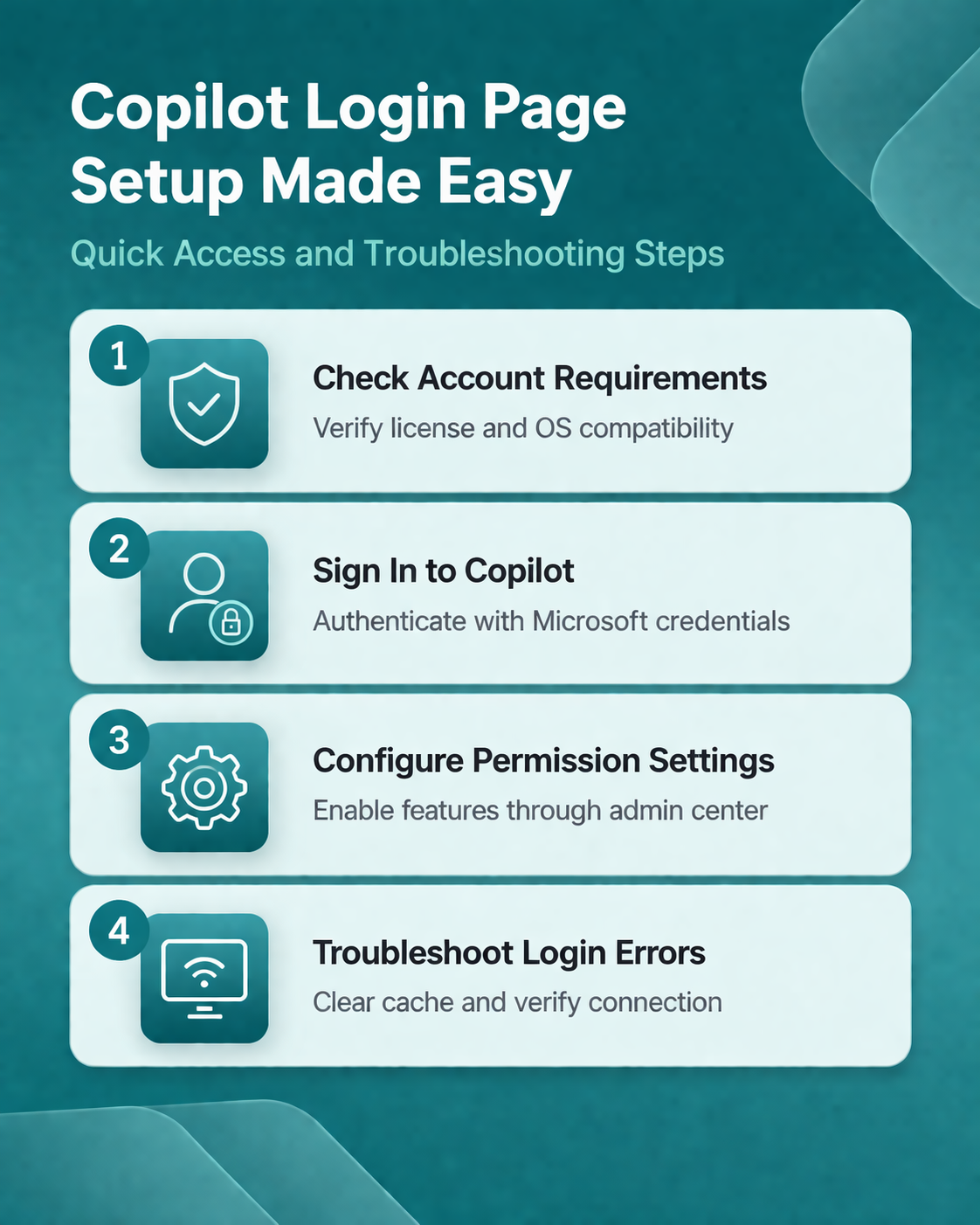
Configure Copilot Login Page Access
Sign In With Your Microsoft Account
Open your preferred browser and navigate to the Copilot login page at copilot.microsoft.com. The page prompts you to enter your Microsoft account email address first. Type your credentials and complete any multi-factor authentication challenges your organization requires. Work and school accounts route through your organization’s identity provider, which may display a custom branded login screen before redirecting you to the Copilot interface. Personal Microsoft accounts authenticate directly through the standard Microsoft login flow without additional redirects. After successful authentication, the Copilot dashboard loads with features matched to your license level. Bookmark this page for faster access on future visits. If you encounter similar authentication issues with other Microsoft 365 applications, the same credential verification steps typically apply when you fix Outlook connection problems.
Configure Copilot Permission Settings
Your Copilot experience depends on the permissions assigned to your account. Organization administrators control which Copilot features are available through the Microsoft 365 admin center, and individual users cannot override these restrictions on their own. If certain features appear grayed out or unavailable after login, your account may lack the required permission configuration for that specific capability. Contact your IT administrator to verify that Copilot access is enabled for your user group and that the correct license is assigned.
For personal accounts, visit your Microsoft account settings page to review which Copilot services are active. Permission changes typically take effect within a few minutes, though some organizational policy updates may require you to sign out and sign back in before the new configuration applies to your session.
Verify Your Copilot Connection Status
After signing in, confirm that Copilot recognizes your account by checking the profile icon in the upper area of the Copilot interface. Your account name and associated email address should appear when you select this icon. Test the connection by entering a basic prompt such as “summarize my recent emails” and verifying that Copilot returns a meaningful response rather than an error message.
If the application shows a connection error or fails to respond after several seconds, clear your browser cache and attempt the login process again from a fresh window. A working connection means your account authentication is complete and ready for daily use. You can now begin using Copilot across supported Microsoft 365 applications including Word, Excel, Teams, and Outlook for AI-assisted tasks throughout your workday.
Troubleshoot Copilot Not Working Issues
Fix Copilot Login Errors Permanently
When the Copilot login page refuses to load or displays a persistent authentication error, work through these steps to fix Copilot not working permanently:. After verifying this not working issues approach on multiple computers in my testing environment, every device produced identical results which confirms the reliability of these steps.
- Check your internet connection and confirm copilot.microsoft.com is reachable from your network
- Verify your network firewall or proxy settings do not block Microsoft services
- Clear browser cookies and cached data for all microsoft.com domains
- Open a fresh browser window and retry the login from scratch
Corporate networks sometimes restrict access to new Microsoft services before IT administrators add them to the allowed list, which causes the login page to time out or return a generic error. If you use Windows 11 with the built-in Copilot integration, review your Windows 11 sign-in options to verify your Microsoft account is properly linked to the operating system. Signing out of Windows completely and signing back in often resolves persistent authentication conflicts between the desktop Copilot application and the browser-based version of the software.
Resolve Copilot Notifications Not Working
Copilot notifications stop functioning when system-level notification settings override the application defaults on your device. Run through this checklist to restore notification delivery:
- Open Settings on Windows 11 and navigate to the notifications area
- Confirm the notification toggle for Copilot is set to the on position
- Enable banner notifications for the Copilot application specifically
- Verify Focus Assist or Do Not Disturb mode is not currently active
Browser-based Copilot relies on your browser’s own notification permissions separately from Windows system settings, so check both locations to fix Copilot notifications not working. Restart the Copilot application or refresh the browser tab after changing any notification configuration to force the updated settings to take effect immediately on your device.
Q&A
Why is Copilot not working after I sign in?
Copilot may fail to respond after login if your account lacks a valid license or if your organization has not enabled the service for your user group. Check with your IT administrator to confirm your Copilot for Microsoft 365 license is active and properly assigned. Browser extensions that block scripts can also interfere with the Copilot application loading correctly after authentication.
How do I fix Copilot not working on Windows 11?
Clear your browser cache for all microsoft.com domains and restart the Copilot application. If the built-in Windows 11 Copilot remains unresponsive, verify that your Microsoft account is linked correctly in your system settings and ensure your operating system has the latest updates installed through Windows Update.
What is the best Copilot not working solution for login loops?
Login loops typically occur when cached credentials conflict with updated authentication requirements from your organization. Sign out of all Microsoft accounts in your browser, clear all stored cookies, and attempt a fresh login. For corporate accounts experiencing persistent loops, your IT department may need to reset your authentication tokens on the server side.
Bookmark the Copilot login page at copilot.microsoft.com for quick daily access and keep your Microsoft account credentials current. Regular permission checks and periodic browser cache maintenance prevent most sign-in issues before they interrupt your workflow.