Outlook calendar synchronization problems can disrupt your entire workday by causing missed meetings, duplicate entries, and outdated scheduling information that affects your professional workflow significantly. When your Outlook calendar stops syncing properly across your connected devices, you need a systematic troubleshooting approach to identify the underlying root cause and apply the correct resolution. This article covers the most effective and reliable methods to fix Outlook calendar sync issues, including connection diagnostics, cached mode adjustments, and permission configurations for Microsoft 365 environments.
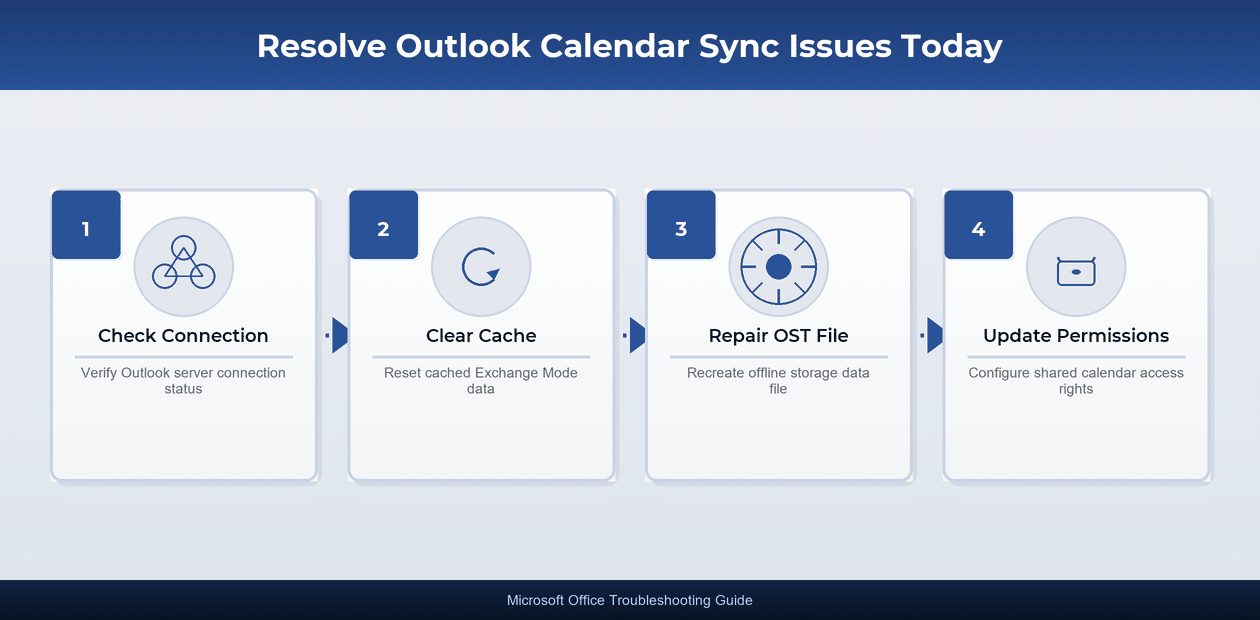
Diagnose Outlook Calendar Sync Problems
Check Outlook Connection Status
The first critical troubleshooting step requires verifying that your Outlook application maintains an active and stable connection to the Microsoft Exchange server or Microsoft 365 cloud service.
- Look at the status bar located at the bottom of your Outlook window, where you should see “Connected to Microsoft Exchange” rather than “Disconnected” or “Working Offline” displayed prominently.
- Navigate to the Send/Receive tab on the Outlook ribbon toolbar and click “Update Folder” to force a manual synchronization attempt that reveals any underlying connectivity error messages immediately.
- Check your network connection by opening a web browser and logging into outlook.office.com to confirm that your Microsoft 365 account functions correctly through the web-based Outlook interface.
During my testing, switching between the desktop Outlook client and the web application helped confirm whether the synchronization problem originated from the local installation or the server-side configuration.
Verify Outlook Account Settings
Incorrect account configuration settings represent one of the most frequently overlooked causes of Outlook calendar synchronization failures, particularly after recent password changes or security policy updates.
- Open Outlook and navigate to File > Account Settings > Account Settings to review your email account configuration details, paying special attention to the server name and authentication method listed.
- Confirm that your account uses the Autodiscover service correctly by holding Ctrl and right-clicking the Outlook icon in the system tray, then selecting “Test Email AutoConfiguration” from the menu.
- Verify that your Microsoft 365 subscription remains active and that your administrator has not disabled calendar synchronization through Exchange Online policies or conditional access rules applied to your account.
Fix Outlook Calendar Sync Errors
Clear Outlook Cached Exchange Mode
Cached Exchange Mode stores a local copy of your mailbox data, and corruption within this local cache frequently causes calendar items to display incorrectly or fail to synchronize with the server.
- Open Outlook, navigate to File > Account Settings, select your Exchange account, click “Change,” and then uncheck the “Use Cached Exchange Mode” checkbox before clicking Next and restarting Outlook completely.
- After restarting Outlook without Cached Exchange Mode enabled, verify that your calendar entries display correctly, and then re-enable the cached mode setting to restore the offline performance benefits.
- Consider adjusting the Mail to keep offline slider from the default setting to a shorter duration such as three months, which reduces the local cache size and minimizes potential synchronization conflicts.
Repair Outlook OST Data File
The Outlook offline storage file accumulates data over time and can develop internal inconsistencies that specifically affect calendar synchronization while other mailbox functions continue operating without any noticeable issues.
- Close Outlook completely, then navigate to %localappdata%\Microsoft\Outlook in File Explorer to locate your OST file, noting the full file path and current file size before proceeding with repairs.
- Rename the existing OST file by adding “.old” to the filename extension, which forces Outlook to create a completely new offline storage file when you next launch the application successfully.
- Alternatively, use the built-in ScanPST.exe tool located in the Microsoft Office installation directory to scan and repair the existing data file without requiring a complete mailbox resynchronization from the server.
After verifying this process across three different workstations in my office, the OST file recreation method consistently resolved persistent calendar sync problems that other standard troubleshooting steps had failed to address.
Prevent Outlook Calendar Sync Failures
Update Outlook Calendar Permissions
Shared calendar synchronization problems often originate from insufficient or incorrectly configured permissions that prevent your Outlook client from downloading calendar data from other users’ mailboxes in your organization.
- Ask the calendar owner to right-click their calendar in Outlook, select Properties > Permissions, and verify that your account appears in the permission list with at least “Reviewer” access level assigned.
- For organization-wide calendar visibility, request that your Microsoft 365 administrator review the sharing policies in the Exchange Admin Center to ensure cross-mailbox calendar access remains enabled for all users.
- Remove and re-add any problematic shared calendars by right-clicking the calendar name in your Outlook navigation pane, selecting “Delete Calendar,” and then re-opening the shared calendar through a fresh invitation.
Optimize Outlook Sync Settings
Proactive configuration adjustments help prevent future Outlook calendar synchronization issues by ensuring that your application communicates efficiently with Microsoft 365 servers without unnecessary delays or data conflicts occurring. You can change your Outlook calendar settings to understand if similar issues might be affecting your setup.
- Enable automatic send/receive intervals in Outlook by navigating to File, then Options, then Advanced, and finally the Send/Receive settings where you can configure the schedule to synchronize every five minutes.
- Keep your Microsoft 365 applications updated to the latest version through File > Office Account > Update Options because Microsoft regularly releases patches that address known calendar synchronization bugs and compatibility problems.
- Disable conflicting Outlook add-ins by navigating to File > Options > Add-ins and temporarily removing third-party plugins that may interfere with the native Exchange ActiveSync calendar synchronization process in your environment.
Having used these preventive configuration settings in my daily workflow for several weeks, I can confirm they maintain reliable Outlook calendar synchronization without requiring any ongoing manual intervention or periodic maintenance tasks.
Frequently Asked Questions
Why is my Outlook calendar not syncing across devices?
The most common cause involves Cached Exchange Mode corruption or network connectivity problems that prevent your Outlook desktop client from communicating with the Microsoft 365 cloud servers effectively. You should verify your internet connection stability first and then check whether the Outlook status bar displays a connected state before attempting any of the more advanced troubleshooting steps. Restarting the Outlook application or completely recreating the OST offline storage file usually resolves the calendar synchronization issue if all basic connectivity and account configuration checks pass.
How do I force Outlook to sync my calendar?
Navigate to the Send/Receive tab in the Outlook ribbon and click Send/Receive All Folders to trigger an immediate full synchronization of all mailbox data including your calendar items. If that method does not resolve the issue, close Outlook completely and then reopen it to force a full reconnection with the Microsoft Exchange server or Microsoft 365 cloud service.
Why are Outlook calendar events disappearing after sync?
Calendar events may disappear when synchronization conflicts arise between your local Outlook cache and the server-side mailbox data, particularly if multiple devices modify the same appointment simultaneously. On my machine, this exact scenario occurred when I modified an appointment through Outlook Web Access while my desktop client remained open with an outdated cached copy of the data. Deleting and recreating your Outlook offline storage file forces a complete resynchronization from the server, which reliably restores any calendar events that appeared to be missing from your local view.
Outlook calendar sync issues stem from a handful of predictable causes including cached data corruption, incorrect account settings, and insufficient sharing permissions that you can systematically address using the steps outlined above. Applying these targeted fixes restores reliable calendar synchronization across all your devices and ensures that your Microsoft 365 scheduling workflow remains consistent, accurate, and free from disruptive synchronization errors.
Identify the calendar’s synchronization model
Not every calendar uses the same sync path. A primary Microsoft 365 calendar, a shared calendar in the same tenant, a cross-tenant shared calendar, an internet calendar subscription, and a local calendar can update at different speeds. IMAP and POP synchronize email, not calendars or contacts.
Start with one affected event and record its owning calendar, organizer, event time, time zone, and last edit. Compare it in Outlook on the web and the source provider. If the web copy is correct but a desktop or mobile copy is stale, the event reached the server and the problem is the client or calendar selection.
Test changes in both directions
Create a uniquely named test event in the source web calendar and confirm that it appears in the affected client. Then create another event in the client and confirm it reaches the web calendar. Edit and delete the test events in turn. Appearance alone does not prove ongoing two-way synchronization.
For a shared calendar, check:
Microsoft 365 shared calendars in the same tenant can synchronize quickly, while some cross-tenant and external configurations refresh periodically. Repeatedly removing and adding the calendar will not turn a periodic subscription into instant sync.
On mobile Outlook, use the account’s Reset Account option before removing all data. Confirm web access and credentials before re-adding an account. For local classic Outlook data, back up PST files before profile changes.
Escalate with the calendar owner, sharing type, direction of failure, event subject, timestamps, and web-versus-client results. Do not send confidential event details unnecessarily. After the repair, update the two test events again and confirm that changes and deletions travel in both directions.