Integrate Power Automate and SharePoint when a list item, library file, approval, or status change needs to start a repeatable process. The connection works well, but only when the trigger, SharePoint connector action, and account permissions match the real business event. Most broken flows I review were built from the right idea with the wrong trigger scope.
The safest setup is to start from the SharePoint event, keep the flow payload narrow, and test it with the same permissions your team will use. That gives you a flow that reacts to list and file changes without firing too often or failing silently.
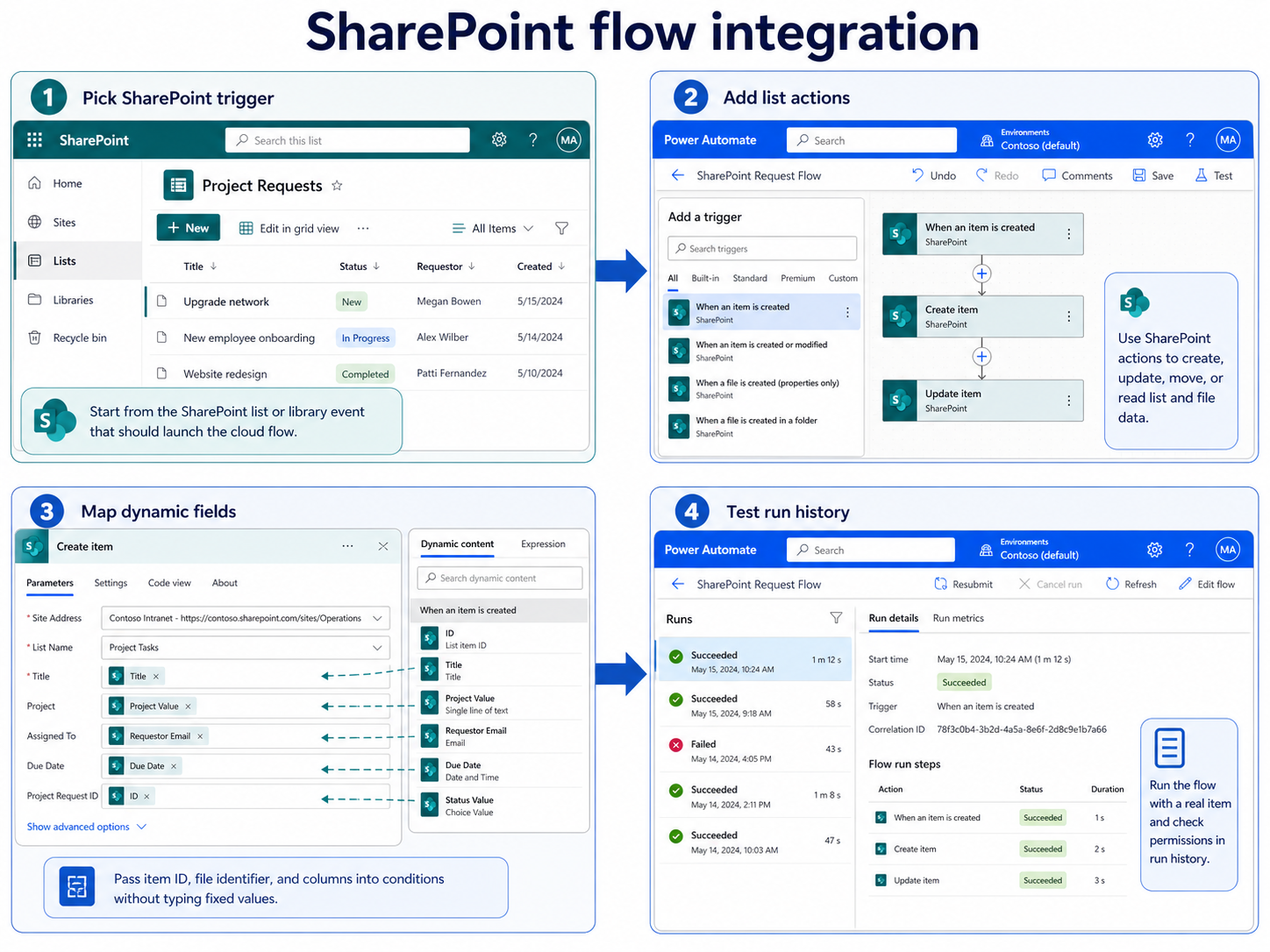
Plan the SharePoint automation path
Choose list or library triggers
Start by deciding whether the flow should watch a SharePoint list item, a document library file, a selected item, or a selected file. Microsoft lists SharePoint triggers for item creation, item modification, file creation, file modification, deletion, and selected-item runs, so the connector can support both automatic and manual workflows. Use automatic triggers when the process should run every time content changes, and selected-item triggers when a user should choose exactly when to run the flow.
The trigger choice matters more than the first action. A document approval flow usually belongs on a library trigger, while a status-routing flow usually belongs on a list trigger. My cleanest builds start with the SharePoint event, not the action list.
If you still need a beginner connector walkthrough before this design step, use this guide to start with list automation. For this integration, keep the flow focused on the business signal: new request, changed status, uploaded file, approved document, or selected item.
Confirm the connector permissions first
SharePoint and Power Automate rely on the user connection behind the flow. Microsoft notes that users who view or run flows from SharePoint lists and libraries need consistent Conditional Access behavior between SharePoint and Power Automate. If your organization has MFA, device compliance, or Terms of Use policies, mismatched policy targeting can create authentication errors even when the flow logic is correct.
Check the owner account, run-only users, and any service account before you build deeply nested conditions. A flow that can read the list but cannot update the library will fail at the first SharePoint action that needs the missing permission. For team-owned processes, use a stable owner connection or a service account approved by your admin team, then document who can edit and run the flow.
Build actions that handle changes
Create the cloud flow shell
In Power Automate, create an automated cloud flow when SharePoint should launch the process, or an instant cloud flow when a user should trigger it from a selected item or file. Pick the SharePoint connector and choose the trigger that matches your content type. For lists, common starting points are When an item is created or When an item is created or modified. For libraries, use file-based triggers such as When a file is created or When a file is created or modified where available.
Set the Site Address and list or library name explicitly. If the site does not appear in the picker, paste the SharePoint site URL instead of choosing a similar site from recent connections. This prevents the quiet failure where the flow is technically valid but watching the wrong workspace.
Map SharePoint dynamic content carefully
After the trigger, add SharePoint actions that do the real work: Get item, Get items, Get file content, Update item, Create file, Move file, or Grant access to an item or a folder. Microsoft documents more than 40 SharePoint actions in Power Automate, including list operations, file operations, folder actions, permissions, metadata, and HTTP requests. Use the specific connector action before reaching for a raw HTTP request.
Map dynamic content from the trigger instead of typing list IDs, file names, or column values manually. For list flows, the item ID usually becomes the key that later actions use. For library flows, the file identifier is often safer than a display name because files can be renamed while the identifier stays tied to the selected file.
When the flow starts to repeat routine routing or approvals, it can also help to reduce repetitive approvals before you add more connectors. Keep one flow responsible for one clear outcome whenever possible.
Add conditions for noisy updates
The SharePoint modified triggers can fire more often than users expect. Metadata updates, file property changes, and workflow updates can all look like changes depending on the trigger and library configuration. Add a condition early in the flow to check whether the changed value is the one that should actually launch the downstream work.
For example, route an approval only when Status changes to Ready for review, not whenever any column changes. For file libraries, filter by folder, content type, or status column before sending messages or moving files. This keeps your flow from sending duplicate notifications after a harmless metadata edit.
Test reliability before sharing flows
Review run history and retries
Test with a real SharePoint item or file, then open the flow run history. Check the trigger output first, then inspect each SharePoint action in order. If the dynamic content is blank, the trigger did not supply the value you expected. If the first failed action is an update, move, or permission action, the connection probably lacks access to the target item or library.
My fastest troubleshooting path is comparing the owner run with a normal user run. If the owner succeeds and the user fails, the design might be fine but the run permissions are wrong. Share the flow with the right run-only users, Microsoft Entra group, or service account pattern, then test again with a non-owner account.
Avoid deprecated SharePoint trigger patterns
Do not build new flows around deprecated SharePoint triggers or actions when a supported alternative exists. Microsoft marks folder-specific file created or modified triggers as deprecated and recommends supported property-based alternatives for newer designs. Deprecated actions might still appear in old flows, but they should not be the foundation for a new integration.
Also watch for connector limitations before you assume a flow is broken. Microsoft notes that some SharePoint connector behaviors depend on versioning, list or library templates, lookup columns, and whether a move or sync operation actually changes metadata. If your flow watches for changes, verify that the SharePoint operation you care about produces the kind of change the trigger can detect.
SharePoint and Power Automate linking questions
Can SharePoint link to and trigger Power Automate automatically?
Yes. SharePoint triggers can start a Power Automate cloud flow when a list item or library file is created, modified, deleted, or manually selected, depending on the trigger. Choose the narrowest trigger that matches the business event so the flow does not run on unrelated edits.
Which SharePoint trigger should I use?
Use a list trigger for rows, requests, issues, and status columns. Use a document library or file trigger for uploaded documents, file metadata, approvals, and file movement. Use a selected-item or selected-file trigger when a user should control when the flow runs.
Do users need matching flow permissions?
Yes. Users need permission to the SharePoint content and permission to run the flow or use the connection pattern you configured. If Conditional Access policies differ between SharePoint and Power Automate, users can see authentication errors even when the trigger and action setup is correct.
Start with a narrow SharePoint trigger, map dynamic values instead of fixed text, and test the flow with a real user before you share it broadly. That is the difference between a useful SharePoint integration and a flow that only works for its creator.