Connecting Power Automate to Power BI usually means one of two things: you want a button inside a report that runs a flow, or you want a cloud flow that calls Power BI actions such as refreshing a semantic model. The setup is straightforward once you choose the right connection path. The mistake I see most often is starting in Power Automate when the flow actually needs report context from Power BI.
Choose the right Power BI connection
Use the Power Automate visual
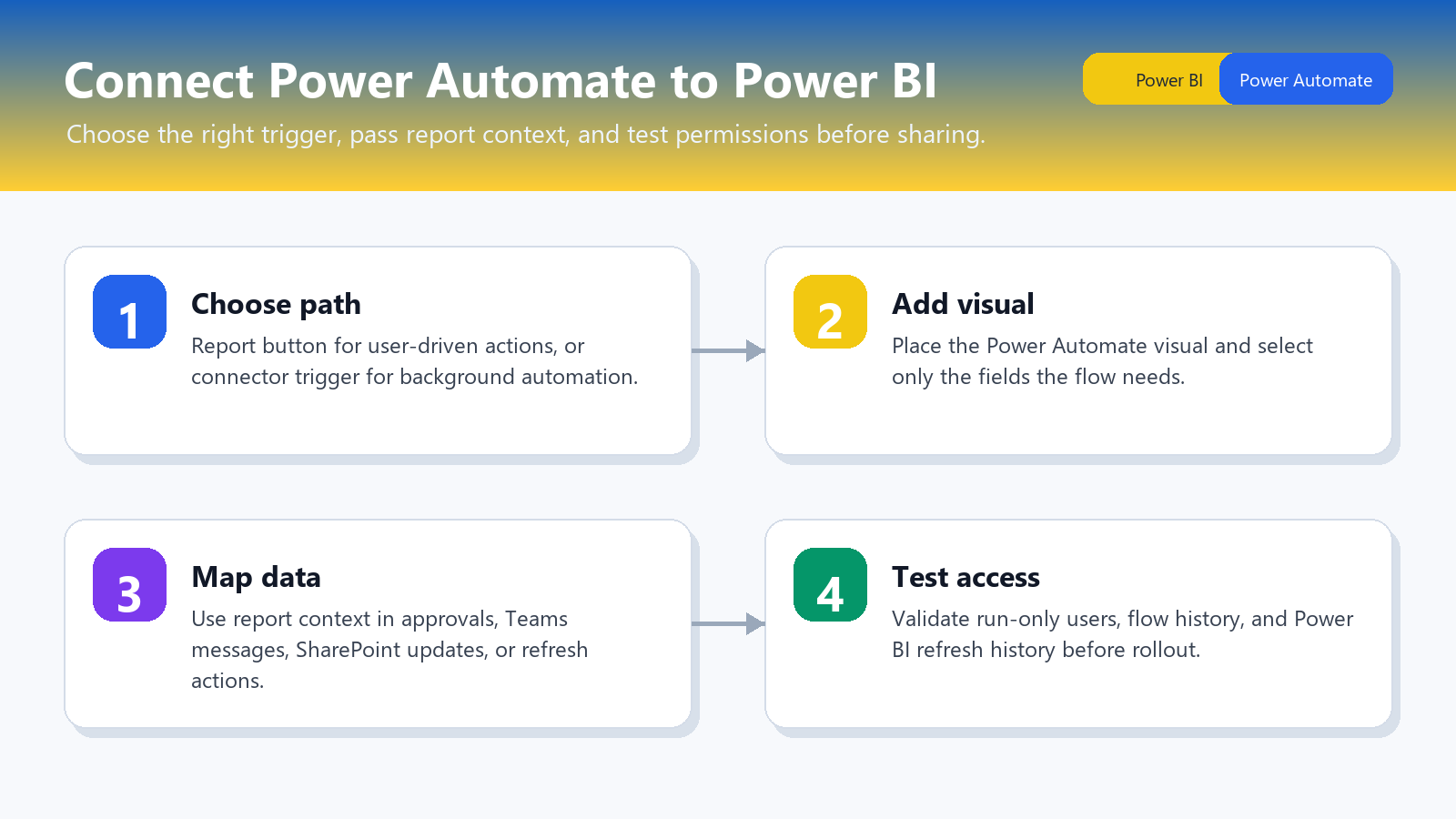
Use the Power Automate visual when a report reader should click a button in Power BI and trigger a flow from the report page. Microsoft documents this as a Power BI visual that can pass contextual data from the report into the flow, based on the filters and fields the user has selected. That makes it the best route for approvals, notifications, record updates, and handoff workflows that depend on the current report context.
The visual works in both Power BI Desktop and the Power BI service, but the flow is meant to run from the report context. My usual rule is simple: if the user action starts on the report canvas, build from the visual, not from a blank flow. It saves you from wondering later why the flow cannot see the fields you expected.
Use the Power BI connector
Use the Power BI connector in Power Automate when the automation should run without a report button. Common examples include refreshing a semantic model on a schedule, responding to a data alert, or adding automation around report operations. Microsoft lists Power BI connector triggers such as a Power BI button click and data-driven alert triggers, plus actions that can work with Power BI content.
This option is better for background automation because the flow owns the trigger. If you are already building broader Microsoft 365 workflows, it also fits naturally with related actions and conditions. For a general flow-building pattern, you can build reliable automation flows before adding the Power BI-specific action.
Build the flow from Power BI
Add the visual to your report
Open the report in Power BI Desktop or the Power BI service, then add the Power Automate visual from the Visualizations pane. In Power BI Desktop, you can also use Insert >> Power Automate from the ribbon. Resize the button area before you configure the flow so the user sees a clear action target on the report page.
Add only the fields the flow actually needs into the visual data well. Microsoft notes that selected Power BI data is included in the flow input only when the flow actively uses it, so do not treat the visual as a full export of the report page. Keep the payload narrow: account, product, region, status, or whatever value the automation needs to act on.
Pass report fields into automation
With the visual selected, choose More options >> Edit to configure the button. Create a new flow or choose an existing flow that was designed for this Power BI button trigger. If the flow needs dynamic values, map the Power BI fields from the trigger body into later actions such as email, Teams messages, approvals, SharePoint list updates, or Power BI refresh actions.
This is where context matters. A report filtered to one customer should send one customer value, not a vague screenshot description or a manually typed name. When a user changes slicers or selects a different row before pressing the button, the flow can receive that selected context and act on it.
Save and test the button
Save the flow, return to the report, and test the button before sharing the report. Microsoft recommends testing from the report itself because a Power BI button flow runs in the report context. In edit mode, use the report button test path, then open the flow run history to confirm the trigger values, conditions, and actions behaved as expected.
If your flow refreshes a semantic model, remember that Power BI refresh behavior depends on the model type. Import models refresh stored data, while DirectQuery reports query the source during interaction. If users mainly need confidence that the report is current, it can help to show report refresh timing directly on the page.
Fix common Power BI connection issues
Check permissions before sharing reports
A Power BI report reader still needs permission to run the connected flow. After the button works for you, review the flow run-only users or sharing settings. If the button appears but fails for another user, permissions are the first thing to check.
The same applies to downstream services. A flow that sends Teams messages, writes to SharePoint, or refreshes Power BI content must run with an account that has access to those targets. My fastest troubleshooting check is comparing a failed user run with a successful owner run and looking for the first connector action that returns an authorization error.
Confirm refresh actions match models
Power Automate can help trigger a Power BI refresh, but it cannot fix every refresh limitation. Power BI data refresh has different behavior for Import, DirectQuery, Live connection, Direct Lake, and Push semantic models. Microsoft also warns that schema changes, dynamic data sources, gateway access, and capacity limits can affect whether refresh succeeds.
If a flow says it started the refresh but the report still looks stale, separate the flow problem from the Power BI model problem. Check the flow run history first, then check the semantic model refresh history in Power BI. That tells you whether Power Automate failed to call Power BI or Power BI accepted the request and then hit a data, gateway, or model issue.
Design Power BI-triggered flows for permission-aware users
Start by preserving the working state and defining one repeatable test. Verify users have access to the report, flow, connections, and destination. Record the account, device or client, and exact symptom so every later test uses the same starting point. Avoid combining resets, reinstalls, and permission changes because a successful result would not identify which action mattered.
Establish a reliable baseline
Handle empty filter context and multiple selected rows explicitly. Use non-sensitive sample data and a standard user account whenever possible. If the sample succeeds, compare its location, ownership, policy, and data shape with the failing item rather than widening the repair to the whole application.
Record the triggering user and business item identifier when auditing matters. Preserve the original file, configuration, or identifier until the result is confirmed. A locked option or organization message is evidence of an administrative boundary, not an invitation to bypass policy.
Confirm the result from the user’s view
undefined. Close and reopen the relevant app, then repeat the ordinary workflow. Check a second client or observer only when it answers a specific question about synchronization, permissions, hardware, or service availability.
When results differ, note the app version, account type, time, network, and exact error. That information separates a device problem from account, data, permission, or service behavior and gives support a focused case. Remove personal names, addresses, document text, and tokens from screenshots before sharing them.
Have another authorized user repeat the shortest safe test if shared access is involved. Their result may expose owner-only privileges, stale state, or an assumption about storage. Keep the known-good configuration available until the change survives a restart, refresh, or normal work cycle, and reverse experimental settings that did not help. Check the outcome again after the next scheduled synchronization when timing can affect the feature.
Power Automate and Power BI questions
Can Power Automate refresh Power BI?
Yes. Power Automate can use Power BI connector actions to trigger refresh operations for supported Power BI content. The practical limit is not only the flow action; the semantic model must also support the refresh scenario, and the account used by the flow needs permission.
Do report users need flow access?
Yes, users who press a Power Automate button in a Power BI report need permission to run that flow. Share run-only access directly or through a Microsoft Entra group, then test with a non-owner account before distributing the report broadly.
Can I trigger flows from dashboards?
The report-button experience is built around the Power Automate visual in Power BI reports. Data alerts can trigger Power Automate from supported Power BI alert scenarios, but that is a different pattern from placing a flow button on a report page.
Start with the user action you want: report button, data alert, scheduled refresh, or background workflow. Once that decision is clear, connecting Power Automate to Power BI is mostly a matter of choosing the right trigger and testing the permissions with a real report user.