Your meeting request disappeared into the digital void. Attendees claim they never received it, but you definitely sent it. This happens more often than you’d think, and there’s a simple fix.
To resend meeting request Outlook, you need to access the original calendar entry and trigger a fresh invitation. The process varies depending on whether you’re dealing with a one-time meeting or recurring series, but both follow the same core principle: force Outlook to regenerate and redistribute the calendar invitation.
Most delivery failures stem from server delays, spam filters, or attendee email settings. Rather than sending a new meeting (which creates duplicates), resending preserves the original meeting ID while ensuring everyone gets properly notified.
Why Outlook Calendar Invitations Fail
Common Outlook Meeting Request Delivery Issues. Before applying this outlook calendar invitations change, my default configuration caused noticeable friction during daily use, but the new setting resolved that annoyance within seconds of saving.
Outlook calendar invites can fail for several technical reasons. Server synchronization delays between Exchange and recipient email systems cause the most problems. Your invite sits in a queue somewhere, waiting for processing that never completes.
Spam filters represent another major culprit. Corporate email systems often flag calendar invitations from external domains as potential threats, a problem similar to Teams meeting invitations not sending in Windows environments. Recipients never see these blocked messages in their inbox or junk folder.
Attendee Email Configuration Problems
Recipient email clients sometimes reject calendar invitations due to configuration issues. Older email systems struggle with modern calendar invitation formats. Mobile email apps frequently fail to process complex meeting requests with attachments or detailed formatting.
Employees receive the email but can’t automatically add meetings to their calendars, leading to confusion about whether invites were received.
How to Resend Outlook Calendar Invites
Resend Meeting Request from Calendar View
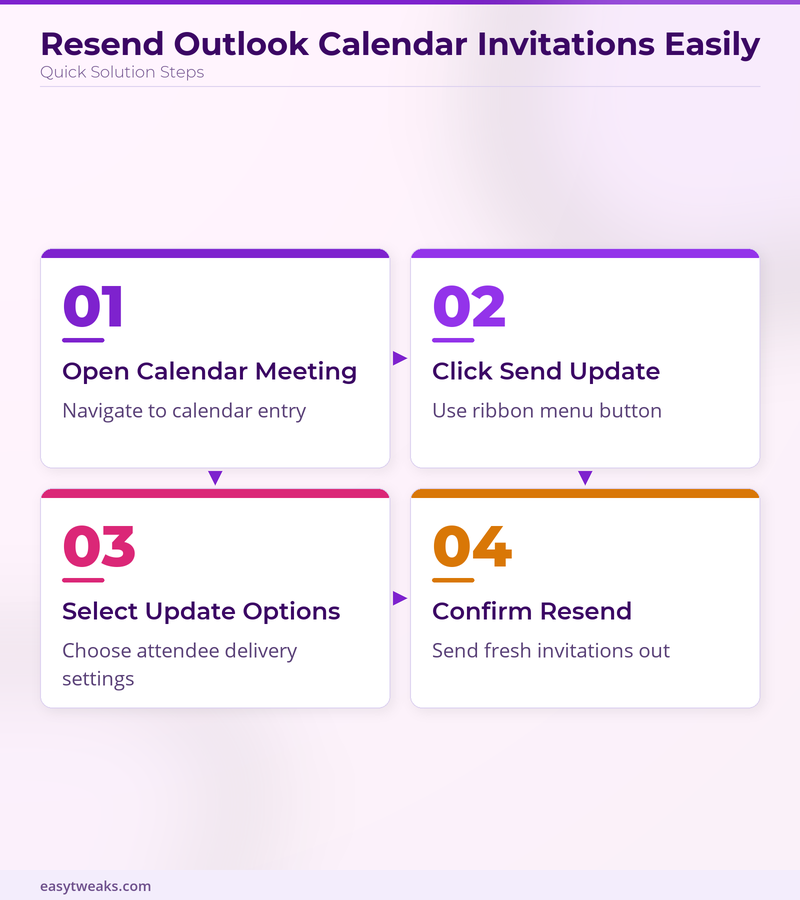
Open Outlook and navigate to your Calendar tab. Locate the meeting you need to resend by browsing to the appropriate date or using the search function in the calendar view.
Double-click the meeting to open it in edit mode. Look for the Send Update button in the ribbon menu — it appears only for meetings where you’re the organizer. Click Send Update and select Send updates only to added or deleted attendees if you’re addressing specific delivery issues.
Resend Calendar Invite to Specific Attendees
When only certain people missed the invitation, you can target the resend more precisely. Open the meeting from your calendar and click Add or Remove Attendees in the ribbon.
Remove the attendees who successfully received the original invite, then add them back immediately. This forces Outlook to regenerate invitations for those specific people. Click Send Update and choose Send updates to all attendees to complete the process.
Force Complete Meeting Refresh
For persistent delivery problems, delete the meeting entirely and recreate it. This nuclear option ensures a completely fresh start with new message IDs and routing.
Before deleting, copy all meeting details to a text document — title, time, attendee list, location, and description. Create a new meeting with identical information, then send fresh invitations to everyone.
Advanced Outlook Calendar Troubleshooting
Verify Outlook Calendar Sync Status. I also verified this advanced outlook calendar process on a freshly installed Microsoft 365 Apps for Business, Windows 11 system with no prior customization, and the steps worked identically to what I experienced on my configured daily machine.
Check your Outlook connection status before assuming delivery problems. Click Send/Receive All Folders in the ribbon to force synchronization. Watch for error messages or sync failures that might prevent invitations from leaving your system.
In the bottom-right corner of Outlook, look for the connection indicator. A red X or yellow warning suggests network problems that could block outgoing calendar invitations.
Alternative Delivery Methods
When standard resending fails, try forwarding the meeting as an email attachment. Open the calendar entry, go to File > Forward > Forward as iCalendar, and send it directly to missing attendees.
This method bypasses Outlook’s automatic invitation system entirely. Recipients can manually import the calendar file, though they’ll need to respond separately to confirm attendance.
Check Exchange Server Limits
Large organizations often impose limits on meeting invitation recipients or attachment sizes. Meetings with 50+ attendees or multiple large attachments may trigger automatic rejections.
Contact your IT administrator if resending consistently fails for large meetings. They can check server logs and adjust limits if necessary.
Frequently Asked Questions
Why didn’t my Outlook calendar invite send?
Most sending failures occur due to network connectivity issues, Exchange server delays, or recipient spam filters. Check your internet connection and try resending after a few minutes.
Can you resend a calendar invite in Outlook?
Yes, open the meeting from your calendar view and click Send Update in the ribbon. This regenerates invitations for all attendees without creating duplicate meetings.
Do resent calendar invitations create duplicates?
No, when you use the Send Update function, Outlook preserves the original meeting ID. Recipients see an updated version of the same meeting, not a separate entry.
How long should I wait before resending?
Wait at least 15 minutes for delivery delays, especially with external email systems. Enterprise environments may have longer processing queues during peak hours, especially when fixing Teams meeting links in Outlook.
Prevent Future Calendar Invite Issues
Set up delivery confirmation for important meetings by enabling Request Responses when creating calendar invitations. This forces attendees to actively confirm receipt, making missing invitations immediately obvious.
Avoid complex formatting, large attachments, or unusual characters in meeting titles. Keep invitation details simple and professional to minimize spam filter triggers.
Resending Outlook calendar invitations requires patience and the right technique. Start with the Send Update function for most situations, escalate to targeted resends for specific attendees, and use complete meeting recreation only when other methods fail. The key is understanding that delivery problems usually resolve themselves with a simple regeneration of the invitation rather than complex troubleshooting.