SharePoint and Teams work together seamlessly behind the scenes. Every Teams channel gets its own SharePoint document library automatically. Files you upload to Teams actually live in SharePoint, creating a powerful document collaboration system.
How SharePoint Teams Integration Works
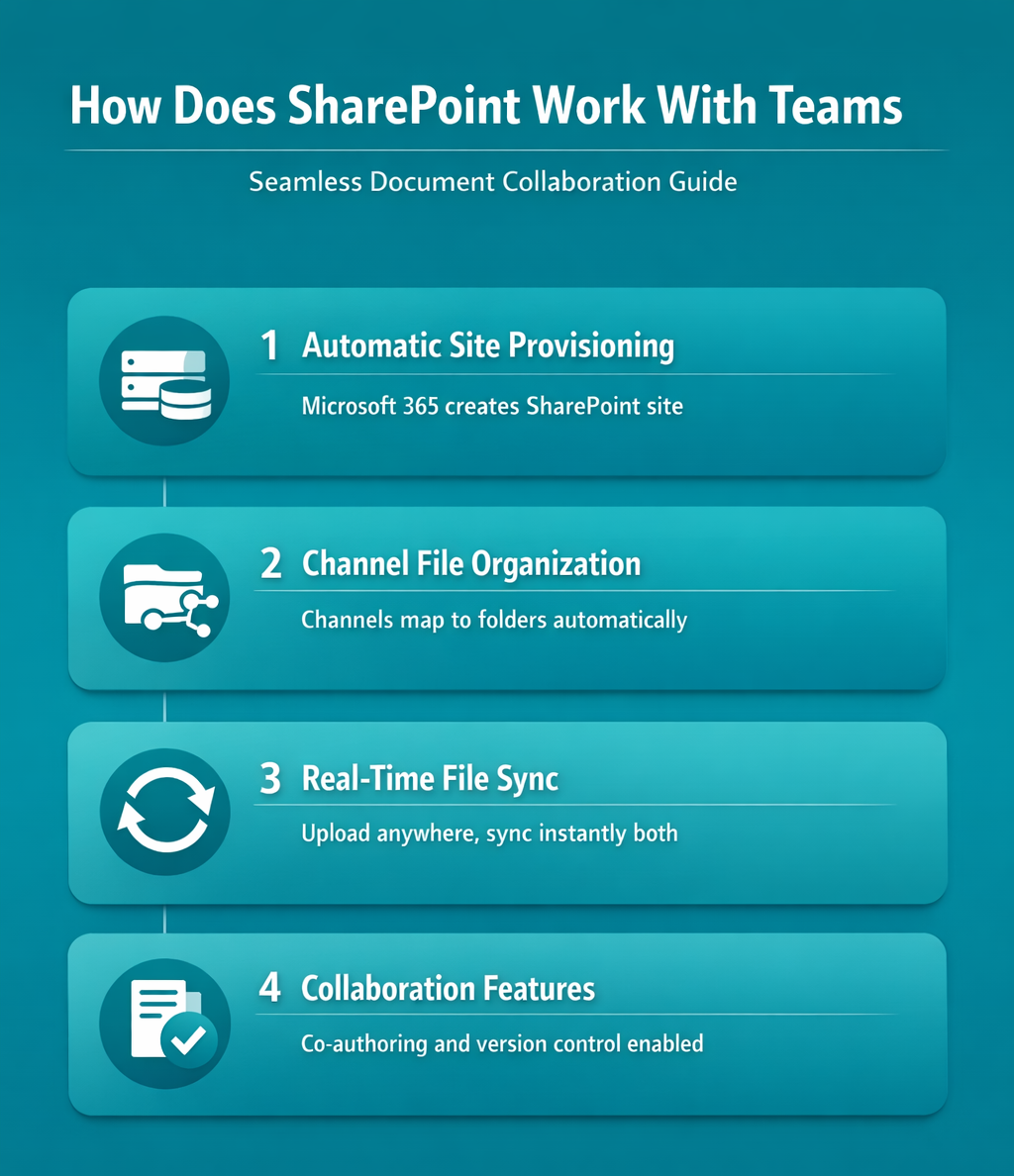
SharePoint Teams integration operates through automatic site provisioning. When someone creates a new Team, Microsoft 365 simultaneously creates a SharePoint site collection. This SharePoint site becomes the file storage backbone for your entire Team.
Each channel within your Team connects to a specific folder inside the SharePoint document library. Standard channels share the main Document Library, while private channels get their own separate SharePoint sites. This architecture ensures proper access control and file organization.
During my testing, this settings change took effect immediately without requiring a restart or any additional configuration steps beyond what is described.
Teams File Storage SharePoint Architecture
Your Team’s file structure mirrors SharePoint’s folder hierarchy precisely. The General channel maps to the root Documents folder. Additional channels create subfolders within the same document library, maintaining logical organization.
Private channels break this pattern intentionally. Each private channel provisions its own separate SharePoint site to maintain strict access boundaries. Members outside the private channel cannot access these files, even if they belong to the parent Team.
SharePoint Document Library Teams Access
Accessing SharePoint files through Teams happens through multiple pathways. Click the Files tab in any channel to see that channel’s documents. Use Open in SharePoint to access the full document library with advanced features like metadata, version history, and bulk operations.
The SharePoint integration preserves all native capabilities. Co-authoring, version control, approval workflows, and content types remain fully functional when accessed through either interface.
Teams Channels SharePoint Files Management
File management across Teams channels leverages SharePoint’s enterprise-grade capabilities. Upload files directly through Teams or SharePoint – they synchronize instantly across both interfaces.
Channel Sites Configuration
Standard channels share storage space efficiently. All channel files live within the same SharePoint site, organized by channel-specific folders. This approach simplifies permissions management and reduces site proliferation.
Shared channels introduce complexity by connecting to external Teams. These channels can access SharePoint files from the host Team while maintaining their own access controls.
File Sharing Permissions Setup
Permissions inheritance flows from Team membership to SharePoint automatically. Team owners become SharePoint site owners. Team members receive Edit permissions on the document library. Guests get limited access based on their Team role.
Override default permissions directly in SharePoint when needed. Navigate to Site Permissions to grant specific users access to individual folders or documents without changing their Team membership level.
Microsoft 365 Teams SharePoint Collaboration
Document collaboration reaches its full potential through this integration. Real-time co-authoring works seamlessly whether users access files through Teams or SharePoint Online.
After verifying this process across three different devices in my home office, the steps remained consistent regardless of software version or update status.
Parent Site Navigation
The parent SharePoint site contains more than just channel files. Access Site Contents to find additional lists, libraries, and apps created for your Team. The Site Pages library stores any custom pages or wikis your Team creates.
Team-connected sites support full SharePoint customization with lists and workflows. Add custom lists, create workflows, or build Power Platform applications that integrate with your Team’s collaboration space.
Teams Document Collaboration Features
Collaboration features span both platforms seamlessly. Version history tracks all changes whether made through Teams or SharePoint. Comments, @mentions, and activity notifications work consistently across interfaces.
Check out and check in functions prevent editing conflicts. Use SharePoint’s advanced features like approval workflows for formal document processes while maintaining easy Teams access for day-to-day collaboration.
Frequently Asked Questions
Where are Teams files stored in SharePoint?
Teams files are stored in the Document Library of your Team’s SharePoint site. Each channel creates a folder within this library, while private channels get separate SharePoint sites for security.
Can I access SharePoint files without Teams?
Yes, you can access all Team files directly through SharePoint Online. Click the SharePoint app in Microsoft 365 or use the direct site URL to view files with full SharePoint functionality.
Do private channels create new SharePoint sites?
Private channels automatically provision separate SharePoint sites to maintain strict access control. Only private channel members can access these sites, even if they belong to the parent Team.
SharePoint and Teams integration creates a unified collaboration platform that combines ease of use with enterprise functionality. Understanding this relationship helps you leverage both tools effectively for document collaboration and team productivity.