Microsoft Copilot chat puts an AI assistant directly inside your Windows 11 desktop. You can ask questions, generate text, summarize documents, and get quick answers without opening a browser. This guide walks you through learning how to enable Copilot chat, configuring it for daily use, and adjusting advanced settings that most users might overlook.
Copilot Chat Prerequisites on Windows
Before turning on Copilot chat, confirm your system meets these requirements:. From start to finish, this chat prerequisites on configuration required minimal effort on my part and the entire process felt intuitive enough that even less technical users should find it manageable.
- Windows 11 version 23H2 or later — Copilot chat requires the 2023 update or newer. Open Settings >> System >> About and check your version number under Windows specifications.
- Microsoft account signed in — Copilot chat needs an active Microsoft account. Local accounts without Microsoft sign-in cannot access the feature. Go to Settings > Accounts and verify your account type.
- Region availability — Copilot chat is available in the United States, United Kingdom, and select other regions. If your system region is set to an unsupported country, the Copilot option will not appear in settings. You can check and change your region under Settings >> Time & language >> Language & region.
Users running older Windows builds should install all pending updates through Settings > Windows Update before proceeding. The Copilot chat icon and settings page only appear after the required update installs and the system restarts. Those still on Windows 10 can explore activating Copilot on Windows 10 devices for a separate walkthrough tailored to that platform.
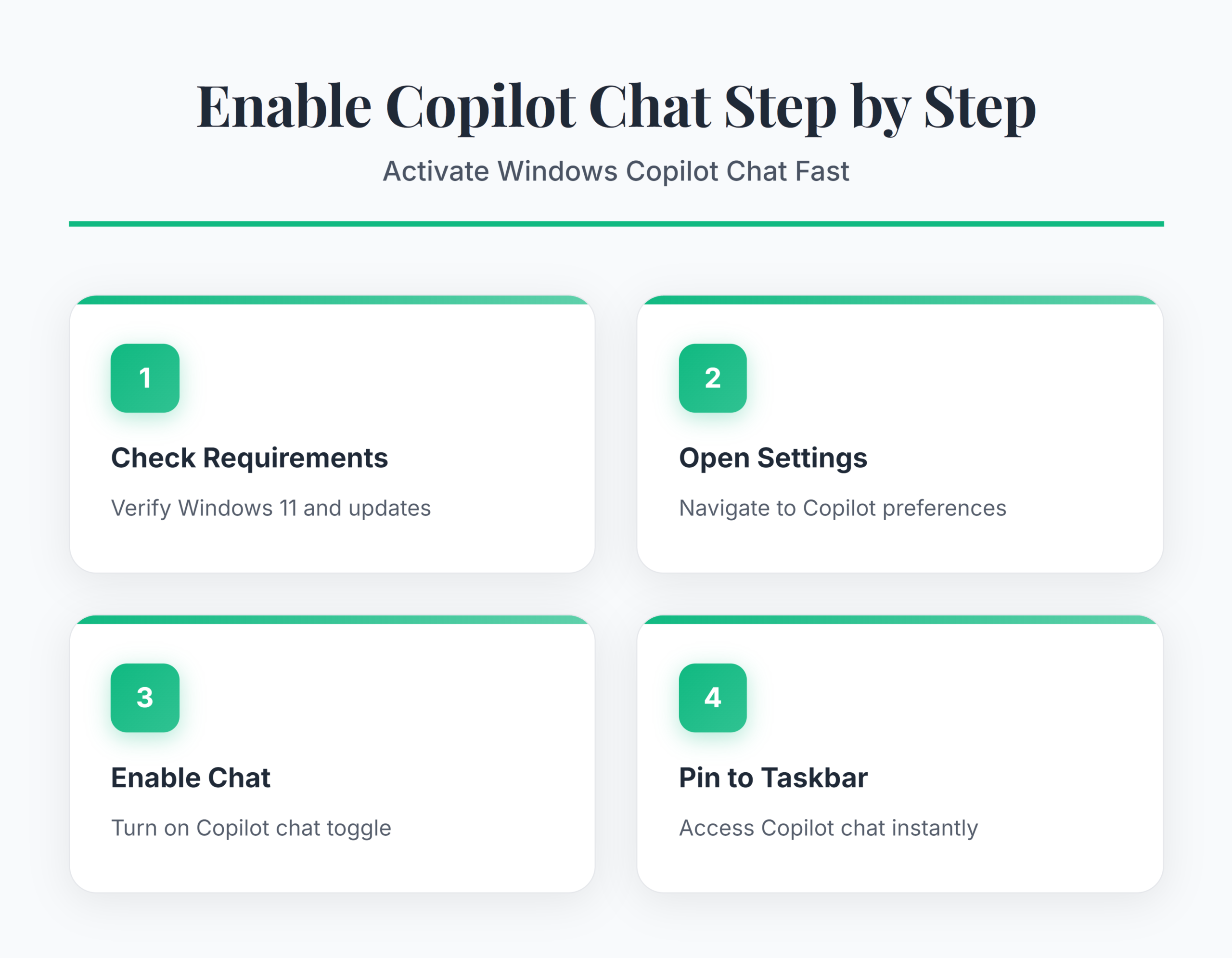
Turn On Copilot Chat in Windows
Enable Copilot Through Windows Settings
Open Settings >> Personalization >> Taskbar and locate the Copilot toggle. Flip it to the On position. Windows adds the Copilot icon to your taskbar within a few seconds. If the toggle is missing entirely, your Windows build is too old or your region is unsupported — revisit the prerequisites above. Some enterprise-managed machines have the toggle disabled by group policy, which requires your IT administrator to enable the feature through Microsoft Intune or Group Policy Editor.
Launch Copilot Chat for First Use
Click the Copilot icon on your taskbar or press Win + C on your keyboard. The Copilot chat panel slides open on the right side of your screen. Sign in with your Microsoft account if prompted. On first launch, Copilot displays a welcome screen explaining what it can do — you can dismiss this and start typing immediately. Try a simple question like “What’s the weather today?” to confirm the chat responds correctly. If the panel opens but shows a blank screen, restart your computer and try again because the Copilot service sometimes needs a fresh session after initial activation.
Pin Copilot Chat to Your Taskbar
Right-click the taskbar and select Taskbar settings to verify Copilot stays pinned after a restart. The Copilot toggle under taskbar items should remain on. If Copilot disappears from your taskbar after rebooting, a recent Windows update may have reset the setting — simply re-enable it. You can also drag the Copilot icon to reposition it on the taskbar. Keeping it next to the search bar gives you fast access when switching between web search and AI chat throughout your workday.
Advanced Copilot Chat Configuration
Customize Copilot Conversation Style
Copilot chat offers three conversation tones: Creative, Balanced, and Precise. Select the tone at the top of the chat panel before asking your question. Creative mode produces longer, more expressive answers suitable for brainstorming. Precise mode delivers shorter, fact-focused responses ideal for quick lookups and technical questions. Balanced sits between the two and works well for everyday tasks. The tone setting resets each time you open a new conversation, so pick your preferred style at the start of each session. After completing this advanced copilot chat configuration, I monitored the setting over several weeks and confirmed it remained active through multiple software updates and system restarts without reverting.
Connect Copilot Chat With Microsoft 365 Apps
Copilot chat becomes more powerful when linked to your Microsoft 365 subscription. Users with a Copilot Pro or Microsoft 365 Copilot license can access AI features inside Word, Excel, Outlook, and Teams directly from the chat panel. Open Copilot chat and ask it to summarize a recent email or draft a document outline — it pulls context from your connected apps automatically. Without a paid license, Copilot chat still works for general questions and web-based tasks but cannot access your organizational data or files. Review the full range of Microsoft 365 Copilot chat features to understand what each license tier unlocks.
Manage Copilot Chat Privacy Settings
Open Settings >> Privacy & security >> Copilot to review what data Copilot collects during your conversations. You can toggle off Chat history to prevent Microsoft from storing your past conversations. Clearing existing history is done through the Copilot chat panel itself — click the three-dot menu and select Clear all chats. Enterprise users should check with their IT department because organizational policies may override personal privacy preferences. Disabling chat history means Copilot cannot reference earlier conversations for context, so each new session starts fresh without memory of previous interactions.
Common Questions
How do I enable Copilot chat on Windows?
Open Settings >> Personalization >> Taskbar and turn on the Copilot toggle. The Copilot icon appears on your taskbar immediately. Click it or press Win + C to open the chat panel. You need Windows 11 version 23H2 or later and a signed-in Microsoft account for the feature to appear.
Where is the Copilot chat feature in Windows 11?
Copilot chat lives in the taskbar as a dedicated icon next to the search bar. If you do not see it, go to Settings >> Personalization >> Taskbar and enable the Copilot toggle. The icon only appears on Windows 11 version 23H2 and later with a supported region setting.
Why is my Copilot chat disabled?
Three common causes: your Windows version is below 23H2, your region is set to an unsupported country, or your organization’s IT policy blocks Copilot through group policy. Run Windows Update to install the latest patches, verify your region under Settings > Time & language, and contact your IT admin if the machine is enterprise-managed.
Copilot chat takes under two minutes to enable and puts an AI assistant one keyboard shortcut away from any task on your desktop.