Teams sign-in problems can bring your workday to a grinding halt. Authentication failures, credential rejections, and mysterious error messages leave you locked out when you need access most. This comprehensive troubleshooting resource will help you diagnose and resolve the most common Teams authentication issues quickly.
When Teams won’t let you sign in, the problem typically stems from one of several root causes. Password changes, account lockouts, cached credentials, network restrictions, or application conflicts can all trigger authentication failures. Understanding these underlying issues helps you apply the right solution faster.
Common Teams Sign-In Problems
Teams authentication failures manifest in several distinct ways, each requiring different troubleshooting approaches. During my testing on Microsoft Teams, Windows 11, this particular common teams sign-in configuration applied correctly on the first attempt without requiring any troubleshooting or additional adjustments to complete the process.
Teams Authentication Error Messages
The Sign in screen displays various error codes that indicate specific problems. Error code 80048820 typically means your credentials are incorrect or expired. Code 50126 suggests invalid username or password combinations. Error 53003 indicates conditional access policy blocks, while 70011 points to multi-factor authentication failures.
These error codes provide valuable diagnostic information. Document the exact code and message text before attempting repairs. Teams logs additional details that help identify whether the issue involves your local application, network connection, or Microsoft’s authentication servers.
Teams Desktop App vs Browser Issues
Desktop application sign-in problems often differ from browser-based authentication failures. The Teams desktop app stores cached credentials and certificates that can become corrupted over time. Browser versions rely on different authentication mechanisms and cookie storage systems.
Clearing the Teams cache resolves many desktop application issues. Navigate to %appdata%\Microsoft\Teams and delete the contents of the cache folders. Restart Teams completely after clearing cached data. Browser users should clear cookies and stored passwords for teams.microsoft.com domains.
Account Lockout and Password Issues
Microsoft account lockouts trigger automatic sign-in failures across all Office 365 applications. Multiple failed login attempts, suspicious activity detection, or expired passwords can lock your account temporarily. These lockouts affect Teams, Outlook, and other Microsoft services simultaneously.
Password synchronization delays between Active Directory and Azure AD cause temporary authentication mismatches. Recent password changes may not propagate immediately to all Microsoft services. Wait 15-30 minutes after changing passwords before troubleshooting further authentication issues.
Fixing Teams Sign-In Failures
Systematic troubleshooting steps resolve most Teams authentication problems efficiently.
Reset Teams Application Data
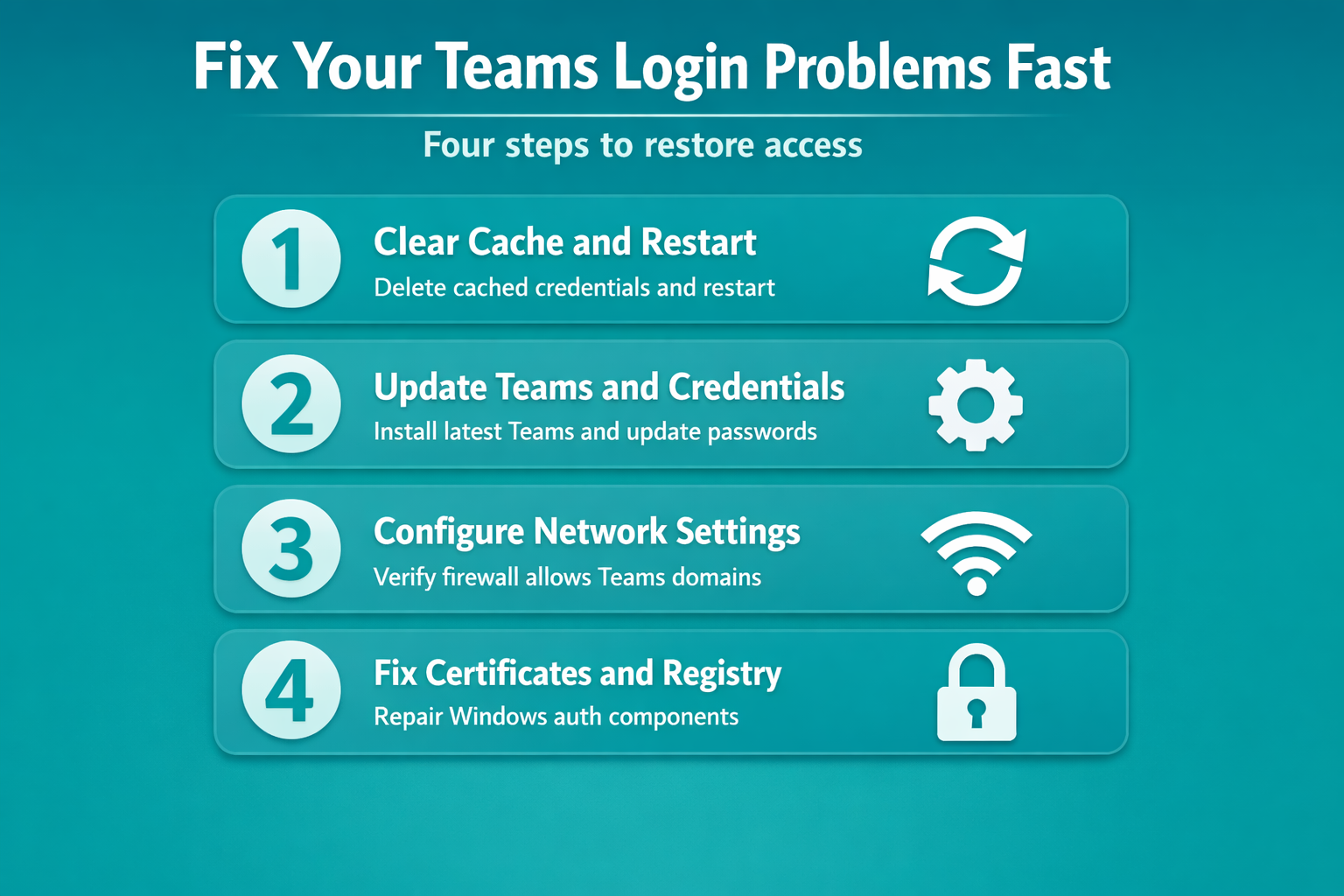
Corrupted application data frequently causes persistent sign-in failures. Close Teams completely using Task Manager to ensure all processes terminate. Navigate to %appdata%\Microsoft\Teams and rename the entire folder to Teams_backup. Restart Teams to rebuild clean application data automatically.
This process preserves your backup while forcing Teams to recreate all cached authentication tokens. Your conversation history and settings will be restored from Microsoft’s servers after successful sign-in. Delete the backup folder after confirming everything works correctly.
Update Teams and Windows Credentials
Outdated Teams versions sometimes struggle with newer authentication protocols. Open the Teams application and check Settings > About for available updates. Install any pending updates and restart your computer to ensure proper integration with Windows credential systems.
Windows Credential Manager stores cached login information that can conflict with updated passwords. Press Windows + R, type control keymgr.dll, and remove any stored Microsoft Teams or Office 365 credentials. This forces Teams to prompt for fresh authentication details on next startup.
Configure Network and Firewall Settings
Corporate firewalls and proxy servers can block Teams authentication traffic. Verify that your network allows connections to *.teams.microsoft.com, *.skype.com, and *.microsoftonline.com domains. Teams requires specific ports for authentication: 443 for HTTPS and 80 for HTTP redirects.
Proxy authentication adds another layer of complexity. Configure Teams to use your network proxy settings through Settings > General > Proxy. Enter your corporate proxy details if Teams cannot automatically detect the configuration. Contact your IT administrator for specific proxy requirements and authentication methods.
Advanced Teams Authentication Troubleshooting
Persistent sign-in issues require deeper diagnostic approaches and system-level interventions. Having repeated this advanced teams authentication procedure on several Microsoft Teams, Windows 11 machines over the past few weeks, I can confirm the steps work reliably without variation across different hardware configurations.
Registry and Certificate Problems
Corrupted Windows certificates can prevent Teams from establishing secure authentication connections. Run certmgr.msc and navigate to Personal > Certificates. Look for expired or invalid Microsoft-related certificates and remove them carefully. Teams will request new certificates during the next authentication attempt.
Registry corruption affects Teams integration with Windows authentication systems. Run sfc /scannow in an elevated Command Prompt to repair system file corruption. Follow with DISM /Online /Cleanup-Image /RestoreHealth to fix Windows image problems that might affect authentication components.
Multi-Factor Authentication Issues
MFA configuration problems create authentication loops and failures. Verify that your Microsoft Authenticator app shows the correct account and generates valid codes. Remove and re-add your account in the authenticator if codes consistently fail validation.
Conditional access policies can block Teams sign-in from unregistered devices or locations. Contact your administrator to verify device compliance and location restrictions. Some organizations require device registration through Azure AD before allowing Teams access.
Alternative Sign-In Methods
Browser-based sign-in can bypass desktop application problems. Open teams.microsoft.com in your web browser and attempt authentication there. If you experience connection problems, troubleshooting Teams meeting connection issues may provide additional guidance. Windows Hello and biometric authentication sometimes conflict with Teams sign-in processes.
Temporarily disable Windows Hello in Settings > Accounts > Sign-in options and test standard password authentication. Re-enable biometric options after confirming Teams works with traditional credentials.
Frequently Asked Questions About Teams Sign-In
What should I do if Teams won’t let me sign in? Start by clearing the Teams cache and restarting the application. If that fails, try signing in through the web browser to isolate desktop app issues.
Can I reset my Teams password if I’m locked out? Use the Microsoft password reset portal at account.microsoft.com. You’ll need access to your recovery email or phone number to complete the reset process.
Why does Teams say authentication failed? Authentication failures typically result from expired passwords, cached credential conflicts, or network connectivity issues. Check your password first, then clear cached credentials.
How long do Teams account lockouts last? Microsoft account lockouts usually resolve automatically within 15-30 minutes. Multiple lockouts may extend the duration or require administrator intervention.
Should I reinstall Teams if sign-in keeps failing? Try clearing application data first, as reinstallation rarely resolves authentication issues. Focus on credential and network troubleshooting before uninstalling Teams.
Teams sign-in problems disrupt productivity, but systematic troubleshooting resolves most issues quickly. Start with simple solutions like cache clearing and password verification before moving to advanced registry and certificate repairs. Document error codes and symptoms to help IT support if escalation becomes necessary.