Microsoft Copilot’s web interface at copilot.microsoft.com provides quick access to AI-powered assistance directly from your browser. When sign-in fails, loops endlessly, or throws vague error messages, you lose access to chat history, personalized settings, and premium features tied to your Microsoft account. This guide covers proven fixes for Copilot website sign in problems, from basic browser maintenance to account-level troubleshooting that restores reliable access on any Windows 11 machine.
Prerequisites for Copilot Web Access
Before troubleshooting sign-in failures, confirm these baseline requirements are met:. Before applying this prerequisites for copilot adjustment, the previous behavior was inconsistent and occasionally frustrating, but the updated configuration has remained stable throughout my ongoing testing.
- A Microsoft account (personal or work/school) in good standing — Copilot web access requires an active Microsoft account with a verified email address. Visit your account portal to confirm your account is not locked or flagged for suspicious activity before attempting sign-in fixes.
- A supported browser running the latest stable version — Microsoft Edge, Google Chrome, or Mozilla Firefox all support Copilot authentication. Outdated browser versions may block the modern OAuth flows that Copilot’s login system depends on.
- A stable internet connection — Copilot’s sign-in process communicates with multiple Microsoft identity servers during authentication. Intermittent connectivity causes partial page loads, authentication timeouts, and misleading error messages that mimic account problems.
Fix Copilot Website Sign In Errors
Clear Browser Cache and Cookies
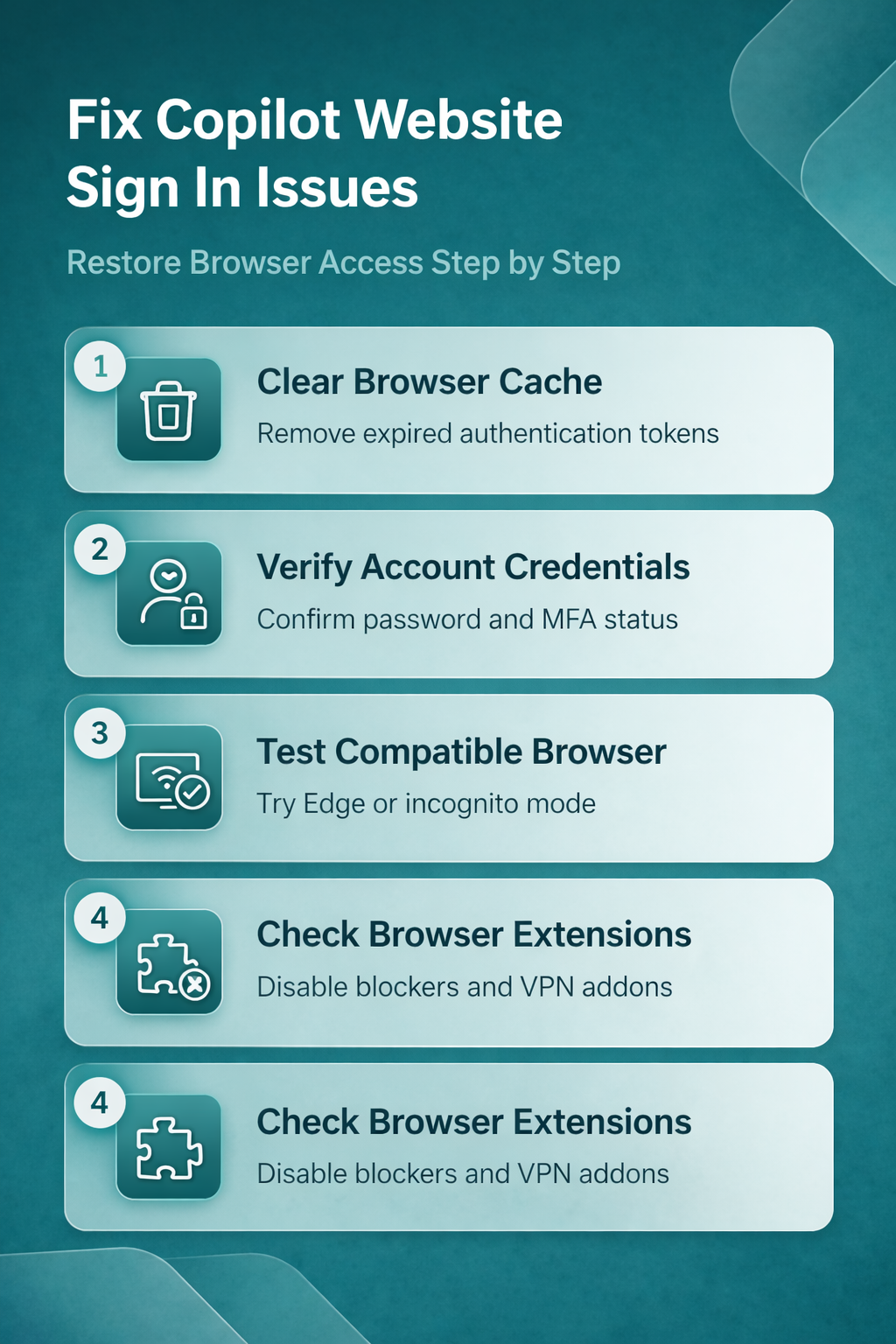
Cached authentication tokens frequently cause sign-in loops where the Copilot website repeatedly redirects without completing login. Your browser stores session tokens from previous Copilot visits, and when these tokens expire or become corrupted, the authentication process breaks silently. Open your browser’s privacy or history settings and clear cached data specifically for microsoft.com and copilot.microsoft.com domains rather than wiping all browsing data indiscriminately.
After clearing the cache, close every browser window completely — not just the Copilot tab. Reopen a single window and navigate directly to copilot.microsoft.com. The sign-in prompt should appear cleanly without redirect loops or stale session errors. If you use multiple browsers throughout the day, clear cached data in each one to prevent cross-browser token conflicts from resurfacing. This single step resolves the majority of Copilot website sign in failures that users encounter on Windows 11.
Verify Microsoft Account Credentials
Incorrect or expired passwords block Copilot access even when the sign-in page loads without visible errors. Navigate to your Microsoft account portal and confirm you can log in successfully there first. A successful portal login proves your credentials work and isolates the problem to browser-specific or Copilot-specific issues rather than account-level failures.
Check whether your organization enforces multi-factor authentication requirements that may interfere with the sign-in flow. Work and school accounts often require authenticator app approval or SMS verification codes that time out during slow network connections. If your password recently changed on another device, your browser’s password manager still holds the old credential and silently submits it to Copilot’s sign-in form. Update the saved password manually to match your current one.
Users who continue experiencing credential rejections after verifying their password should resolve persistent Copilot authentication errors through Microsoft’s dedicated account recovery workflow.
Switch to a Compatible Browser
Browser-specific rendering issues occasionally prevent the Copilot sign-in page from loading its authentication elements correctly. Microsoft Edge handles Copilot authentication most reliably because both products share the same underlying Microsoft identity stack and receive synchronized security updates. Chrome and Firefox work well for most users but occasionally lag behind on authentication protocol changes that affect sign-in behavior.
Test sign-in with Microsoft Edge if your current browser fails repeatedly. Private or incognito mode provides another diagnostic path because it bypasses all cached data, extensions, and saved credentials simultaneously. A successful sign-in through private browsing confirms that stored browser data causes the problem, not your Microsoft account itself. Return to normal browsing mode and clear the browser cache using the steps from the previous section to apply a permanent fix rather than relying on incognito as a workaround.
Advanced Copilot Access Options
Manage Multiple Copilot Accounts
Signing into Copilot with both personal and work Microsoft accounts creates authentication conflicts when the browser holds tokens for multiple identities simultaneously. The sign-in process may default to the wrong account, display the incorrect user profile, or fail entirely when overlapping session tokens confuse Microsoft’s identity routing. Sign out of all Microsoft services completely, close the browser, then reopen it and sign in with only the single account you need for Copilot access. While working through these advanced copilot access configuration steps on my primary workstation, I noticed that the setting persists even after software updates install automatically in the background.
Browser profiles offer a permanent solution for managing separate Copilot accounts without daily sign-out routines. Create a dedicated browser profile for each Microsoft identity, keeping personal and work accounts completely isolated from each other. Each profile maintains independent cookies, cache storage, and saved credentials, which eliminates the cross-account authentication collisions that cause persistent sign-in failures across sessions.
Disable Extensions Blocking Copilot
Ad blockers, privacy-focused extensions, and VPN browser add-ons frequently interfere with Copilot’s authentication flow by intercepting network requests before they reach Microsoft’s servers. These extensions block communication with login endpoints or strip authentication cookies before the sign-in handshake completes. The sign-in page may appear to load normally but then fail silently when you submit your credentials or click the sign-in button.
Temporarily disable all browser extensions and attempt the Copilot sign-in again. If authentication succeeds with extensions disabled, re-enable them one at a time to identify the specific extension causing the conflict. Most ad blockers allow you to whitelist copilot.microsoft.com and login.microsoftonline.com domains, preserving both your privacy preferences and uninterrupted Copilot access. Users who notice slow Copilot performance after signing in should also verify whether active extensions throttle background network connections that Copilot relies on for real-time responses.
Separate Copilot account, browser session, and organization policy
Start by preserving the working state and defining one repeatable test. Test a private window with extensions disabled as a comparison. Record the account, device or client, and exact symptom so every later test uses the same starting point. Avoid combining resets, reinstalls, and permission changes because a successful result would not identify which action mattered.
Establish a reliable baseline
Check cookies, clock, network, and identity prompts without bypassing security. Use non-sensitive sample data and a standard user account whenever possible. If the sample succeeds, compare its location, ownership, policy, and data shape with the failing item rather than widening the repair to the whole application.
Record loops, error codes, and tenant messages for support. Preserve the original file, configuration, or identifier until the result is confirmed. A locked option or organization message is evidence of an administrative boundary, not an invitation to bypass policy.
Confirm the result from the user’s view
undefined. Close and reopen the relevant app, then repeat the ordinary workflow. Check a second client or observer only when it answers a specific question about synchronization, permissions, hardware, or service availability.
When results differ, note the app version, account type, time, network, and exact error. That information separates a device problem from account, data, permission, or service behavior and gives support a focused case. Remove personal names, addresses, document text, and tokens from screenshots before sharing them.
Have another authorized user repeat the shortest safe test if shared access is involved. Their result may expose owner-only privileges, stale state, or an assumption about storage. Keep the known-good configuration available until the change survives a restart, refresh, or normal work cycle, and reverse experimental settings that did not help. Check the outcome again after the next scheduled synchronization when timing can affect the feature.
Q&A
Why is Copilot not working when I try to sign in on the website?
The most common causes are expired browser cache, outdated authentication cookies, or browser extensions blocking Microsoft’s identity servers. Clear your browser data for all Microsoft domains, disable extensions temporarily, and try signing in through a private browsing window. Work and school accounts may also require multi-factor authentication approval that silently times out on slower network connections, making the failure appear account-related when the real issue is connectivity speed.
How to fix Copilot not working on Windows 11 browsers?
Update your browser to the latest stable version and clear all cached data for copilot.microsoft.com and microsoft.com domains. Verify that your Windows 11 system clock displays the correct date and time, since authentication tokens validate against timestamps and even small discrepancies cause silent failures. If the problem persists after these steps, switch to Microsoft Edge, which shares Microsoft’s identity infrastructure and handles Copilot authentication most reliably on Windows 11 machines.
What is the solution when Copilot keeps asking to sign in repeatedly?
A sign-in loop typically means your browser stores a corrupted authentication token that fails server validation but prevents a fresh login attempt from starting. Clear all cookies specifically for microsoft.com and copilot.microsoft.com domains, then close and fully restart the browser. Confirm that no browser extension modifies or strips cookies during the authentication flow. Creating a dedicated browser profile for Copilot eliminates this loop issue permanently by starting with a clean credential state.
Copilot website sign in problems almost always trace back to browser cache conflicts, expired credentials, or interfering extensions. Start with cache clearing, verify your Microsoft account credentials, and check for problematic browser extensions — most users regain reliable Copilot access within minutes.