Signing out of Microsoft Copilot is necessary when switching accounts, troubleshooting authentication errors, or removing a personal account from a shared machine. The sign-out process differs depending on whether you use Copilot through the Windows app, a web browser, or a Microsoft 365 application. This guide walks you through every method so you can disconnect your account cleanly and avoid lingering session data.
Prerequisites for Copilot Sign Out
Before signing out, gather the following:
- Microsoft account credentials for the account you want to re-authenticate with later, since signing out clears your saved session
- Access to the device where Copilot is active — you cannot remotely sign out of Copilot from another machine without using your Microsoft account security dashboard
- Saved work or chat history you need to keep, because Copilot does not retain local conversation history after sign-out on most platforms
Sign Out of Microsoft Copilot on Desktop
Remove Your Account from the Copilot Windows App
Open the Microsoft Copilot app from the Start menu or taskbar. Click your profile icon in the top-right corner of the Copilot window. Select Sign out from the dropdown menu. Windows will clear your active Copilot session and return the app to its signed-out state. If the profile icon does not appear, you may be using Copilot without an account, which requires no sign-out action.
Sign Out Through Windows Account Settings
When the Copilot app does not offer a direct sign-out button, disconnect through Windows itself. Navigate to Settings >> Accounts >> Your info and look for the Microsoft account linked to Copilot. Click Sign in with a local account instead if you want to fully disconnect your Microsoft identity from the device. This approach removes Copilot access along with other Microsoft services tied to that account, so use it only when you want a complete disconnection. Revert by signing back in with your Microsoft account at any time.
Clear Copilot Data from Microsoft Edge
Copilot integrates directly into the Edge sidebar, and signing out of one does not always sign you out of the other. Open Edge, click the three-dot menu, then go to Settings >> Profiles. Select your profile and click Sign out. To remove cached Copilot data, navigate to Settings >> Privacy, search, and services >> Clear browsing data and select Cookies and other site data. This forces a fresh authentication the next time you open Copilot in Edge.
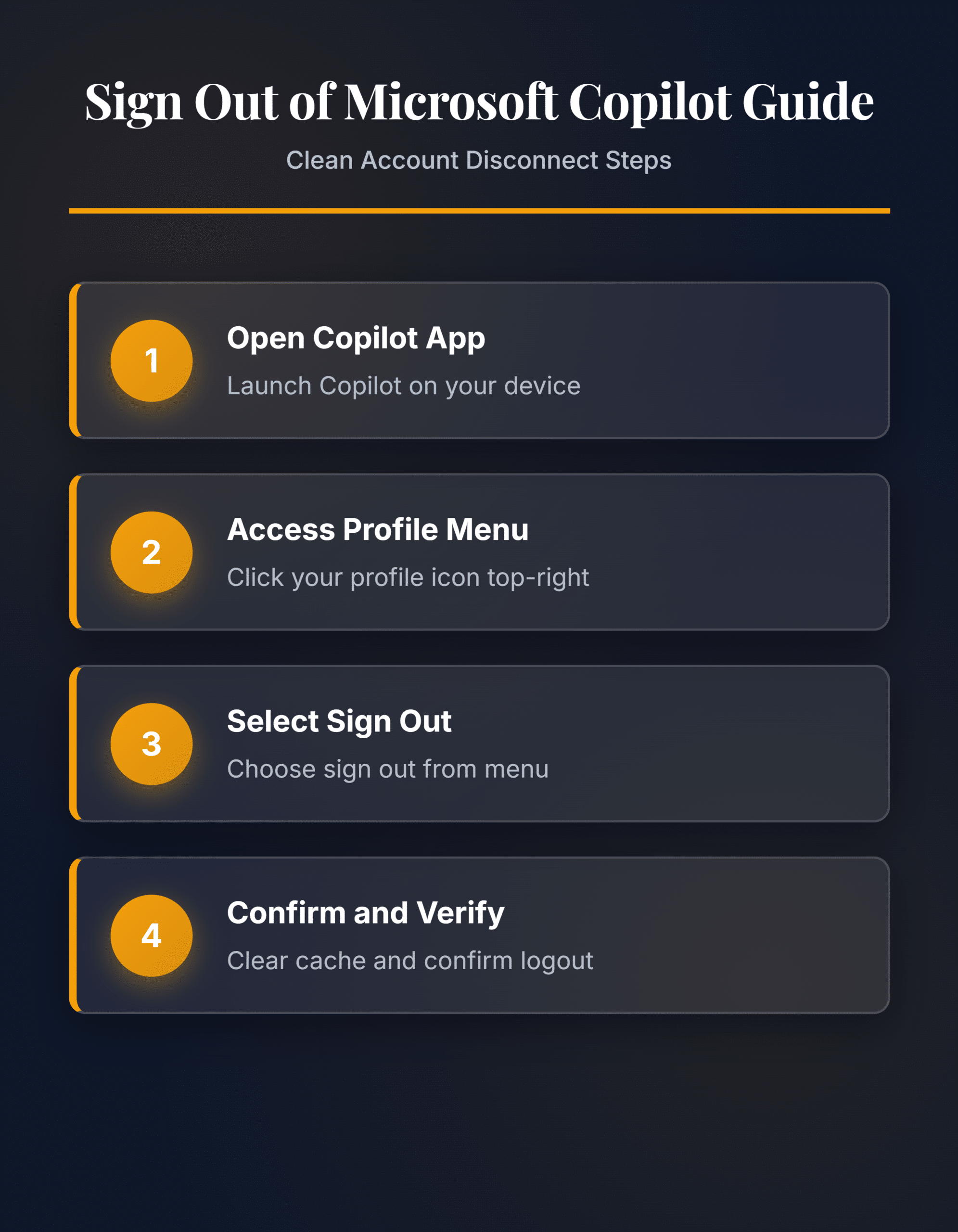
Sign out of Copilot without removing the wrong Microsoft account
Treat this as a short decision process rather than a long reset checklist. Identify whether Copilot is running in a browser, Windows app, mobile app, or Microsoft 365 app. The first result should determine the next action.
Preserve a trustworthy baseline
Confirm the account avatar and tenant before signing out. Close private or guest sessions separately because they may use different cookies. Use a disposable example when the action could alter shared data or notify other people.
Before deeper repair, avoid removing the Windows work account when the goal is only to end one Copilot session. Do not delete profiles, credentials, or source records merely to make an error disappear.
Test the reader’s real workflow
Review active sessions and revoke access only when a lost device or account risk justifies it. Test the sign-out by reopening the same surface and checking which identity appears. Repeat the test after reopening the client and, when relevant, after synchronization or refresh.
If it still fails, note the exact error, product version, account, device, and time. Compare one other supported client only when that comparison answers a specific question. Treat grayed-out organization settings as an administrator boundary.
The final check should be performed by the person or role that normally uses the feature. Their result may expose permissions or cached state that an owner cannot see. Remove private information from evidence, revert changes that did not help, and preserve the working configuration for future recovery. Recheck the result after the next sign-in or scheduled cycle when timing can affect it. Keep a concise note of the successful condition so it can be restored later. Verify that the change did not alter unrelated files, permissions, or settings. Recheck the result after the next sign-in or scheduled cycle when timing can affect it.
Troubleshooting Copilot Sign-Out Issues
Fix Persistent Sign-In After Logging Out
Some users find that Copilot automatically signs them back in after a logout. This happens because Windows caches Microsoft account tokens across apps. Open Settings >> Accounts >> Email & accounts and remove any work or school accounts that auto-authenticate Copilot. You can also open the Credential Manager from the Control Panel, select Windows Credentials, and delete any entries related to login.microsoftonline.com or copilot.microsoft.com. Clearing these stored credentials prevents the automatic re-authentication loop. If sign-in problems persist after these steps, you may need to fix Copilot authentication problems by resetting your Microsoft account connection entirely.
Sign Out of Copilot in Microsoft 365 Apps
Copilot embedded in Word, Excel, Outlook, and Teams uses your Microsoft 365 organizational account. You cannot sign out of Copilot independently within these apps — it follows your Office account session. To disconnect, open any Office app, click your profile icon in the title bar, and select Sign out. This signs you out of all Microsoft 365 apps simultaneously. Your IT administrator may also control Copilot access through Entra ID policies, meaning signing out may not fully disable Copilot features until the license is reassigned.
Advanced Copilot Account Management
Switch Between Microsoft Accounts in Copilot
Copilot supports both personal Microsoft accounts and work or school accounts, but it only uses one at a time. To switch accounts, sign out first using the profile menu, then sign back in with the alternate account. On devices where multiple accounts are registered in Windows, Copilot may prompt you to choose which account to use at sign-in. If the prompt does not appear, remove the unwanted account from Settings >> Accounts >> Email & accounts so only your preferred account remains available. When Copilot behaves unexpectedly after an account switch, try restarting the app to clear the previous session state. You can also resolve Copilot not responding errors if the app freezes during the account transition.
Revoke Copilot Access from Your Microsoft Account
For a complete disconnection, revoke Copilot permissions from your Microsoft account security page. Go to account.microsoft.com/privacy in any browser and sign in. Navigate to App permissions and find Microsoft Copilot in the list of connected apps. Click Remove access to revoke all permissions Copilot has on your account. This does not uninstall Copilot from your device, but it prevents the app from accessing your data until you re-authorize it. Use this method when you suspect unauthorized access or want to ensure no Copilot session remains active on any device.
Q&A
Why does Microsoft Copilot keep signing me back in automatically?
Windows caches authentication tokens in the Credential Manager and across linked Microsoft accounts. Copilot uses these tokens to restore sessions without prompting for a password. Remove cached credentials from Credential Manager and disconnect extra accounts under Settings to stop the automatic sign-in behavior.
How do I sign out of Copilot without affecting other Microsoft 365 apps?
The Copilot Windows app and Edge sidebar have independent sign-out options that do not affect Word, Outlook, or Teams. Use the profile icon within the Copilot app to sign out. Copilot embedded inside Microsoft 365 apps shares the Office account session, so signing out there affects all Office apps.
Can I remotely sign out of Microsoft Copilot from another device?
Yes. Visit `account.microsoft.com/devices` and sign in with your Microsoft account. Locate the device running Copilot and select Remove device. You can also change your Microsoft account password, which invalidates all active sessions across every device, including Copilot.
Signing out of Microsoft Copilot takes under a minute on any platform when you know the right path. Use the Windows app profile menu for a quick disconnect, or clear credentials and revoke app access for a thorough cleanup on shared or compromised devices.