Chrome extensions disappeared after update situations happen more frequently than most users expect, and the experience of opening your browser to find all your productivity tools and ad blockers suddenly missing feels incredibly disruptive. Browser updates sometimes disable or remove extensions due to compatibility checks, policy changes, corrupted profile data, or new security requirements that Chrome enforces automatically without providing clear warning messages to the user. This article covers the most effective methods to recover Chrome extensions after an update, starting with simple diagnostic checks and progressing through comprehensive restoration techniques that address every possible cause of the problem.
Check the Chrome extensions page first
The first step when Chrome extensions are missing after an update is to verify whether the extensions were actually removed or simply disabled by the browser during the update process automatically.
- Navigate to
chrome://extensionsin your address bar or click the three-dot menu, select Extensions, then Manage Extensions to view a complete list of all extensions currently installed in your browser profile. Compared to the previous extensions page first interface that I documented several months ago on Windows 11, the current layout places these options in a more intuitive and accessible location for users.
- Extensions that Chrome disabled during the update will still appear on this page but with their toggle switches turned off, meaning you can simply click each toggle to re-enable them individually.
- If your extensions appear on this page in a disabled state, the recovery process is straightforward because Chrome preserved the extension data and only deactivated them as a precautionary measure similar to how browsers handle startup conflicts during major version transitions.
Enable Chrome Sync to restore extensions
Google Chrome Sync is one of the most reliable methods for recovering extensions that disappeared after an update because it maintains a cloud-based backup of your installed extensions linked directly.
- Sign into Chrome with your Google account by clicking the profile icon in the top-right corner, then navigate to
chrome://settings/syncSetupto verify that the Extensions toggle is enabled. - Once sync is active and connected to your account, Chrome will automatically detect and reinstall any extensions that were previously synced before the update caused them to disappear from your browser.
- The sync process typically takes between thirty seconds and a few minutes depending on how many extensions need to be restored, and you may need to verify your browser profile settings to ensure all sync categories including extensions are properly enabled.
Reinstall extensions from Chrome Web Store
When extensions are completely removed rather than just disabled, you will need to manually reinstall them from the Chrome Web Store by searching for each extension individually using its name.
- Open the Chrome Web Store at
chrome.google.com/webstoreand search for the specific extensions you previously had installed, then click Add to Chrome to reinstall each extension to your browser. When I first attempted this reinstall extensions from configuration, a small dialog prompt appeared that was not mentioned in older documentation, but proceeding through it completed the setup without problems.
- If you cannot remember all the extensions you had installed before the update, check your Google Account activity at
myactivity.google.comwhich may show recent extension installation events in your history. - Another useful approach involves checking your Chrome sync data at
chrome.google.com/syncto view a complete list of extensions that were previously associated with your Google account before the update.
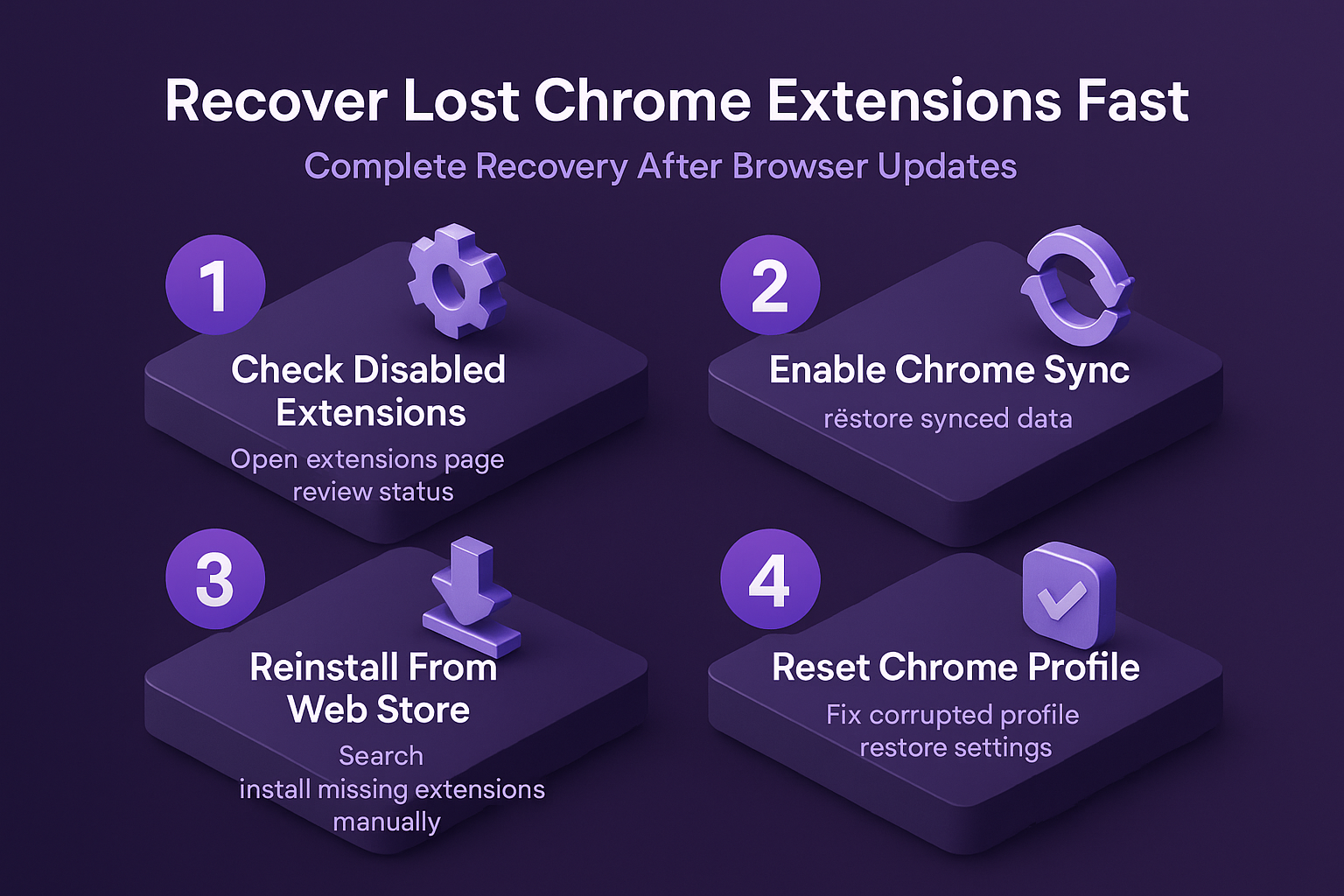
Reset Chrome settings without losing data
Sometimes Chrome extensions disappear after an update because the update process corrupted certain browser settings or configuration files that manage extension registration within the browser profile directory.
- Navigate to
chrome://settings/resetand click Restore settings to their original defaults which resets Chrome configuration without deleting your bookmarks, passwords, or browsing history stored in the profile. - This reset process re-registers the extension framework within Chrome, which can resolve situations where extensions are technically installed but not appearing in the browser interface after an update.
- After the reset completes, restart Chrome and check the extensions page again because previously invisible extensions often reappear once the browser configuration has been properly restored to a clean functional state.
Recover Chrome extensions from a corrupted profile
A corrupted Chrome profile is a common reason why extensions disappear after an update because the profile directory stores all extension data including manifests, permissions, and configuration files locally.
- Access the Chrome user data directory by typing
%LOCALAPPDATA%\Google\Chrome\User Datain Windows File Explorer, then locate the Default folder which contains your primary profile data. - Create a backup copy of the Default folder before making any changes, then look inside the Extensions subfolder to verify whether your extension files are still physically present on your system.
- If extension files exist in the folder but Chrome does not recognize them, renaming the Default folder to Default.bak forces Chrome to create a fresh profile while preserving your ability to manually recover important browser data from the backup directory afterward.
Fix Chrome extensions removed by enterprise policy
Chrome updates sometimes enforce new enterprise or organizational policies that automatically remove or disable extensions that do not meet updated compliance requirements set by network administrators or Google directly.
- Check whether policy restrictions are affecting your extensions by navigating to
chrome://policyin your address bar, which displays all active policies currently controlling your Chrome browser configuration. - If you see policies like ExtensionInstallBlocklist or ExtensionAllowedTypes listed on the policy page, your organization or a previously installed program is controlling which extensions Chrome permits you to use.
Frequently Asked Questions
Why did my Chrome extensions disappear after an update?
Chrome extensions typically disappear after an update because the new browser version includes stricter security requirements, updated Manifest V3 compatibility checks, or automatic policy enforcement that disables non-compliant extensions automatically. The update process may also corrupt the extension registry within your Chrome profile directory, causing installed extensions to become unregistered even though their files remain on your hard drive. Additionally, Google periodically removes extensions from the Chrome Web Store that violate updated developer policies, which means those extensions get automatically uninstalled from all users during subsequent browser updates.
How do I recover extensions that Chrome removed after updating?
Start by checking chrome://extensions to determine whether your extensions were disabled rather than completely removed, since re-enabling disabled extensions requires only toggling them back on individually. – If extensions are completely gone, enable Chrome Sync through your Google account settings to automatically restore previously synced extensions, or manually reinstall them from the Chrome Web Store using their names. – For persistent cases where extensions repeatedly disappear after updates, resetting Chrome settings at chrome://settings/reset or creating a new Chrome profile can resolve underlying profile corruption that causes extensions to vanish.
Can Chrome Sync restore extensions that disappeared after an update?
Chrome Sync can restore extensions that disappeared after an update provided you had sync enabled before the update occurred and the Extensions category was included in your sync configuration settings. – When sync is properly configured, Chrome maintains a server-side record of all your installed extensions and will automatically reinstall them when you sign into Chrome on any device or after a profile reset. – However, Chrome Sync cannot restore extensions that Google has removed from the Chrome Web Store for policy violations, because those extensions are no longer available for download from official sources.
Summary of recovery methods
Recovering Chrome extensions that disappeared after an update involves systematically checking whether extensions were disabled or removed, leveraging Chrome Sync for automatic restoration, and manually reinstalling from the Chrome Web Store. The most common cause is simply that Chrome disabled extensions during the update for compatibility verification, and re-enabling them through the extensions page takes only a few seconds of effort. For persistent extension loss caused by profile corruption or policy restrictions, resetting Chrome settings or addressing enterprise policies provides a permanent solution that prevents extensions from disappearing during future browser updates.