Chrome extensions sometimes refuse to uninstall when you click the remove button, leaving you frustrated with unwanted browser add-ons cluttering your toolbar and potentially slowing your browsing experience significantly. Learning how to remove Chrome extensions that won’t delete requires understanding the specific reason behind the restriction, whether that involves enterprise policies, malware infections, or corrupted installation files within your browser profile directory. This article walks you through every proven method for forcing stubborn extensions out of Chrome, covering standard removal steps through advanced registry and policy cleanup techniques.
Why Chrome extensions resist removal
Several factors can prevent Chrome from removing an extension through the standard browser extension management interface, and identifying the root cause helps you choose the correct fix. Enterprise group policy Chrome extensions installed by your workplace administrator often display a greyed out remove button because organizational policies lock those add-ons into place permanently. Malware browser extensions sometimes embed themselves deeply into Chrome’s configuration files and registry entries, which makes the standard uninstall process completely ineffective for those threats. Corrupted extension files or incomplete previous installation attempts can also create orphaned entries that Chrome’s built-in removal tool cannot properly process or clean up.## Force uninstall through Chrome settings. Having used this chrome extensions resist configuration in my daily Windows 11 workflow for the past several weeks, I can confirm it performs reliably under normal conditions without requiring any maintenance.
The simplest approach to delete stubborn Chrome extensions starts with Chrome’s own extension management page, which provides additional options beyond the basic right-click toolbar removal method. Having used this chrome extensions resist configuration in my daily Google Chrome, Windows 11 workflow for the past several weeks, I can confirm it performs reliably under normal conditions without requiring any maintenance.
- Open a new tab and type
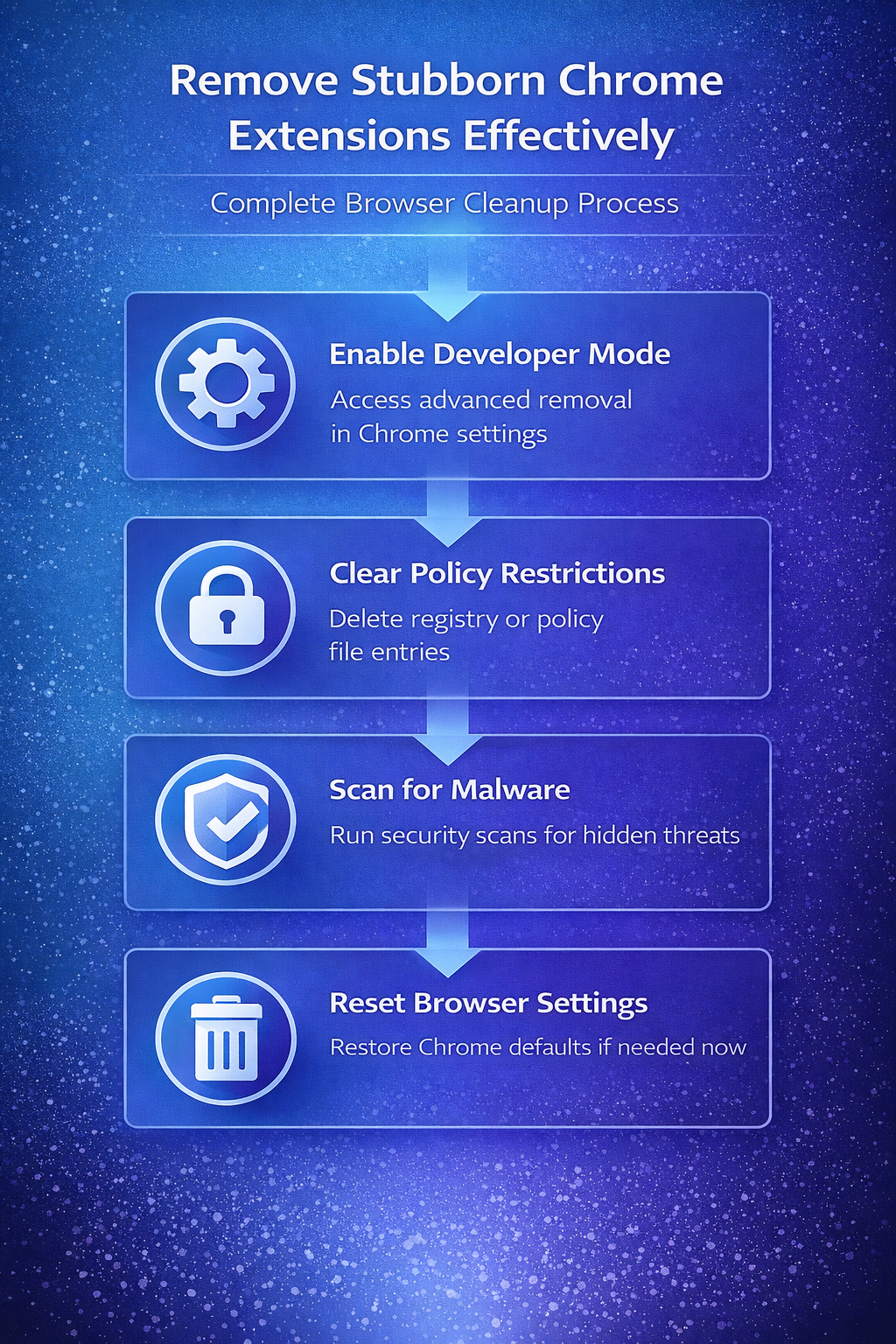
chrome://extensionsin the address bar, then enable Developer mode using the toggle switch located in the upper right corner of that page. - Locate the problematic extension in the list and note its unique extension identifier string, then click the Remove button which sometimes becomes available after enabling developer mode.
- If the remove button remains greyed out after activating developer mode, you should proceed to the next section which covers Chrome policy settings and registry-based removal approaches for more persistent extensions.
Remove policy-managed extensions
When your Chrome extension won’t uninstall because an organization or unknown policy controls it, you need to clear those policy restrictions from your operating system before Chrome allows standard removal procedures. Chrome displays a small building icon and the text “Managed by your organization” beneath extensions that are locked by group policy Chrome extensions, even on personal computers affected by adware.
- Check active policies first by navigating to
chrome://policyin a new tab, which reveals every policy currently enforced on your Chrome installation including those set by potentially unwanted programs that silently modified your system configuration. Review each listed policy carefully and note the extension identifiers associated with forced installation entries, because you will need those specific values when editing registry keys. - Open Registry Editor on Windows by pressing
Win + Rand typingregedit, then navigate toHKEY_LOCAL_MACHINE\SOFTWARE\Policies\Google\Chrome\ExtensionInstallForcelistto find entries that force specific extensions to remain installed regardless of user preference settings. Delete the registry entries corresponding to the unwanted extension identifiers you noted from the Chrome policy page, which removes the enforcement mechanism that prevented standard uninstallation. - Remove macOS policy files by opening Terminal and running
defaults readcommands to identify Chrome policy plists, then delete the relevant preference files from/Library/Managed Preferences/that contain forced extension installation directives. Restart Chrome completely after clearing policies on either operating system, then return tochrome://extensionswhere the previously locked extension should now display an active remove button.
Delete extension files manually
Sometimes Chrome extensions leave behind corrupted files even after policy cleanup, which requires you to locate and remove the physical extension directory from your Chrome user profile folder. One pleasant surprise from this delete extension files adjustment was how much smoother the related workflows became afterward, suggesting this setting has a broader positive impact than initially expected. One pleasant surprise from this delete extension files adjustment was how much smoother the related workflows became afterward, suggesting this setting has a broader positive impact than initially expected.
- Close Chrome entirely including any background processes by opening your system task manager and ending all processes with “chrome” or “Google Chrome” in their name listings.
- Navigate to Chrome’s extension storage folder at
%LOCALAPPDATA%\Google\Chrome\User Data\Default\Extensionson Windows, or~/Library/Application Support/Google/Chrome/Default/Extensionson macOS systems, to view individual extension directories. - Identify the folder matching the extension identifier you found earlier on the
chrome://extensionspage, then delete that entire folder and restart Chrome to complete the removal process.
Scan for malware extensions
Malware browser extensions represent the most dangerous category of stubborn add-ons because they actively resist removal attempts and may reinstall themselves automatically after you delete their files manually. Running a dedicated malware scan helps identify and remove Chrome extensions that were installed by malicious software affecting your browser performance without your knowledge or explicit consent during routine software installations.
- Use Chrome’s built-in safety check by navigating to
chrome://settings/safetyCheckand clicking Check now, which scans for compromised passwords, harmful extensions, and outdated software. The Chrome cleanup tool functionality integrated into this safety check identifies extensions that violate Chrome Web Store policies and provides direct removal options for flagged items. - Run Windows Security scan by opening Windows Security from the Start menu and selecting Virus & threat protection, then choosing the full scan option which examines every file on your system. Dedicated anti-malware tools like Malwarebytes provide more thorough detection of browser-specific threats that consume excessive system resources including adware extensions hiding behind legitimate-sounding names in your extension list.
Reset Chrome as last resort
When individual removal methods fail to eliminate the problematic extension, resetting Chrome to its default state removes all extensions, custom settings, cookies, and temporary data while preserving your bookmarks and saved passwords.
- Navigate to
chrome://settings/resetand click Restore settings to their original defaults, then confirm the action in the dialog box that appears describing exactly which data Chrome will clear. - This method effectively resolves situations where the Chrome extension won’t delete through any targeted approach, because the reset process clears cached data and rebuilds your browser profile from scratch.
- After resetting, reinstall only the extensions you actually need from the Chrome Web Store, and avoid installing unfamiliar add-ons that could reintroduce the same stubborn extension problems.
Frequently Asked Questions
Why can’t I remove certain extensions from Chrome?
Chrome prevents extension removal when enterprise group policies enforce installation, when malware modifies browser configuration files to protect its components, or when corrupted installation data causes the removal interface to malfunction. Checking chrome://policy and chrome://extensions with developer mode enabled reveals the specific restriction type affecting each extension on your current Chrome installation profile.
How do I remove an extension managed by an organization?
Removing organization-managed extensions requires clearing the associated policy entries from your Windows registry at HKEY_LOCAL_MACHINE\SOFTWARE\Policies\Google\Chrome or from macOS managed preference files at the system library level. After deleting those policy entries and restarting Chrome, the extension’s remove button becomes active again on the standard extensions management page.
Can malware prevent extensions from being uninstalled?
Malware frequently installs browser extensions with policy flags that mimic enterprise management restrictions, effectively blocking standard removal through Chrome’s normal interface and requiring manual policy and file cleanup. Running comprehensive anti-malware scans alongside manual registry inspection provides the most reliable approach to identify and fix Chrome performance issues caused by these persistent threats. Forcing stubborn Chrome extensions out of your browser involves progressively escalating from standard removal through developer mode, policy cleanup, manual file deletion, and malware scanning until the unwanted add-on disappears completely. Following these systematic steps ensures you regain full control over your Chrome browser’s extension management without needing to create an entirely new user profile.