“Why do links from my Outlook emails keep opening in Chrome instead of Edge (or vice verse) ?” This common question is faced by many users face when their preferred browser isn’t set as the default for handling email links. When you click on web links within Outlook emails, the system should open them in your browser of choice.
Understanding browser integration with Outlook email workflow
Microsoft Outlook 365 relies on your Windows system’s default browser settings to determine which application opens when you click links in emails. This dependency creates confusion because changing your browser’s settings alone doesn’t always resolve the issue, especially in corporate environments with specific security policies. The challenge becomes more complex when you consider that Outlook can be configured independently of system defaults in certain scenarios.
We will go through multiple methods to ensure your preferred browser (Edge, Firefox, Chrome, Safari, Comet, etc’) opens when you click email links in Outlook. We’ll cover Windows 10 and 11 system settings and Outlook-specific configurations. You’ll need administrative access to your computer for some methods, and the steps may vary slightly depending on your Windows version and Outlook installation type.
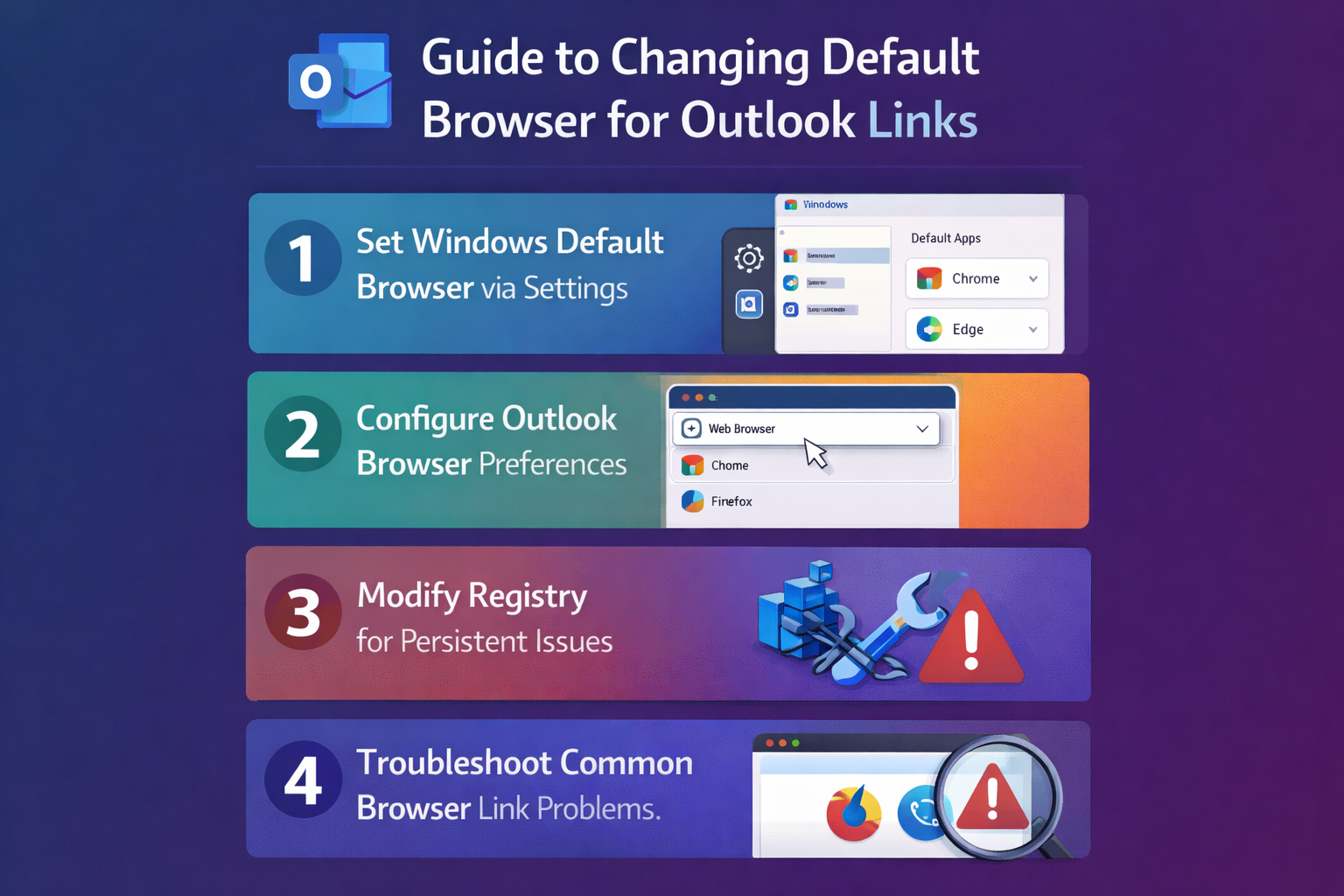
Configuring system default browser settings for Outlook
The most straightforward approach involves updating your Windows default browser settings, which Outlook typically respects for link handling.
- Navigate to Windows Settings by pressing Windows key + I, then select “Apps” from the main menu to access application management options.
- Click on “Default apps” in the left sidebar, which displays all currently assigned default applications for various file types and protocols on your system.
- Scroll down to find “Web browser” section and click on the current default browser name to open a dropdown menu with all installed browsers.
- Select your preferred browser from the list, such as Google Chrome, Mozilla Firefox, or Microsoft Edge, to set it as the new system default.
- Test the configuration by opening Outlook and clicking on any web link within an email message to verify it opens in your chosen browser.
Alternative method through browser-specific settings
Most modern browsers provide built-in options to set themselves as the default application for web content.
- Open your preferred browser and look for settings or preferences in the main menu, typically accessed through three dots or lines icon.
- Navigate to the “Default browser” or “Make default” section, which is usually found in the general or advanced settings area.
- Click the button to “Make [Browser Name] your default browser” and confirm any system prompts that appear during the process.
- Restart Outlook completely by closing all Outlook windows and reopening the application to ensure the new browser setting takes effect properly.
Advanced Outlook browser configuration methods
When standard system settings don’t resolve browser issues, Outlook-specific configurations can provide more direct control over link handling behavior.
- Open Outlook and navigate to File menu, then select “Options” to access comprehensive application settings that control various aspects of email management.
- Click on “Advanced” in the left panel of the Outlook Options dialog box to reveal additional configuration options not available in basic settings.
- Locate the “File and browser preferences” section and examine the current settings for how Outlook handles different types of content and links.
- Uncheck “Use Microsoft Edge as default browser in Outlook” if this option appears, forcing Outlook to use your system default browser instead.
Expert Tip: Some Office 365 installations include specific Edge integration settings that override system defaults, making this Outlook-specific configuration essential for consistent browser behavior.
Solving common browser integration challenges
Several issues can prevent Outlook from properly recognizing your default browser choice, requiring specific solutions based on the underlying cause.
- Links still open in wrong browser after changing defaults: Clear Outlook’s cache and restart the application completely, as cached browser associations can persist even after system changes. Navigate to File > Options > Advanced > Outlook Data File Settings to access cache management options.
- Corporate policy restrictions preventing browser changes: Contact your IT administrator about group policy settings that may override individual user preferences for default applications. Some organizations lock browser defaults for security compliance reasons that require administrative intervention.
- Registry corruption affecting browser associations: Use Windows’ built-in “Reset to Microsoft recommended defaults” option in Default Apps settings, then reconfigure your preferred browser. This approach resolves corrupted registry entries without manual editing risks.
- Office 365 web version behaving differently than desktop Outlook: Web-based Outlook uses your browser’s built-in settings rather than Windows system defaults, so ensure your browser itself is configured to handle mailto links and web protocols correctly through its internal settings menu.