“I saved an important presentation somewhere on my computer last week, but I can’t remember where I put it. I’ve been clicking through folders for twenty minutes now. There has to be a faster way to find files on this computer without wasting so much time, right?”
This scenario happens countless times every day in offices worldwide. Whether you’re hunting for a specific Excel spreadsheet, trying to locate a folder buried in your directory structure, or searching for all PDF files related to a project, File Explorer’s search capabilities can save you significant time and frustration when you know how to use them effectively. For users dealing with Windows 11 file access issues, mastering search techniques becomes even more crucial for efficient file management.
Understanding File Explorer search and what it can accomplish
Windows File Explorer includes powerful built-in search functionality that many users underutilize simply because they don’t know its full capabilities. The search feature indexes your files and folders, allowing you to locate documents, images, videos, and other content across your entire computer or within specific locations using various criteria including file names, types, dates, and even content within documents.
We will learn several methods to find files in Windows 10 and Windows 11: using File Explorer’s search tools, including basic keyword searches, advanced filtering by file type, searching within document content, and using search operators to narrow results. We will learn practical techniques for locating folders on your computer, searching File Explorer by type, and creating reusable search queries that help you work more efficiently.
Choose the narrowest useful search location
Before typing, choose between a local folder search and a broader search. In current Windows 11 builds, searching from Downloads checks that folder and its subfolders, while searching from This PC scans attached drives and usually takes longer. File Explorer Home can surface relevant items from the PC and connected cloud locations, including OneDrive. If you know the project folder, start there to reduce noise and speed up the result list. A narrower scope also makes duplicate names easier to compare in the result list.
Search scope also changes what “missing” means. A file may sit outside the selected folder, be available only through a disconnected cloud account, or not be indexed yet. Confirm the address bar path above the results before changing keywords. If Windows Search is also failing from the taskbar, use the broader repair checks before repeating the File Explorer search.
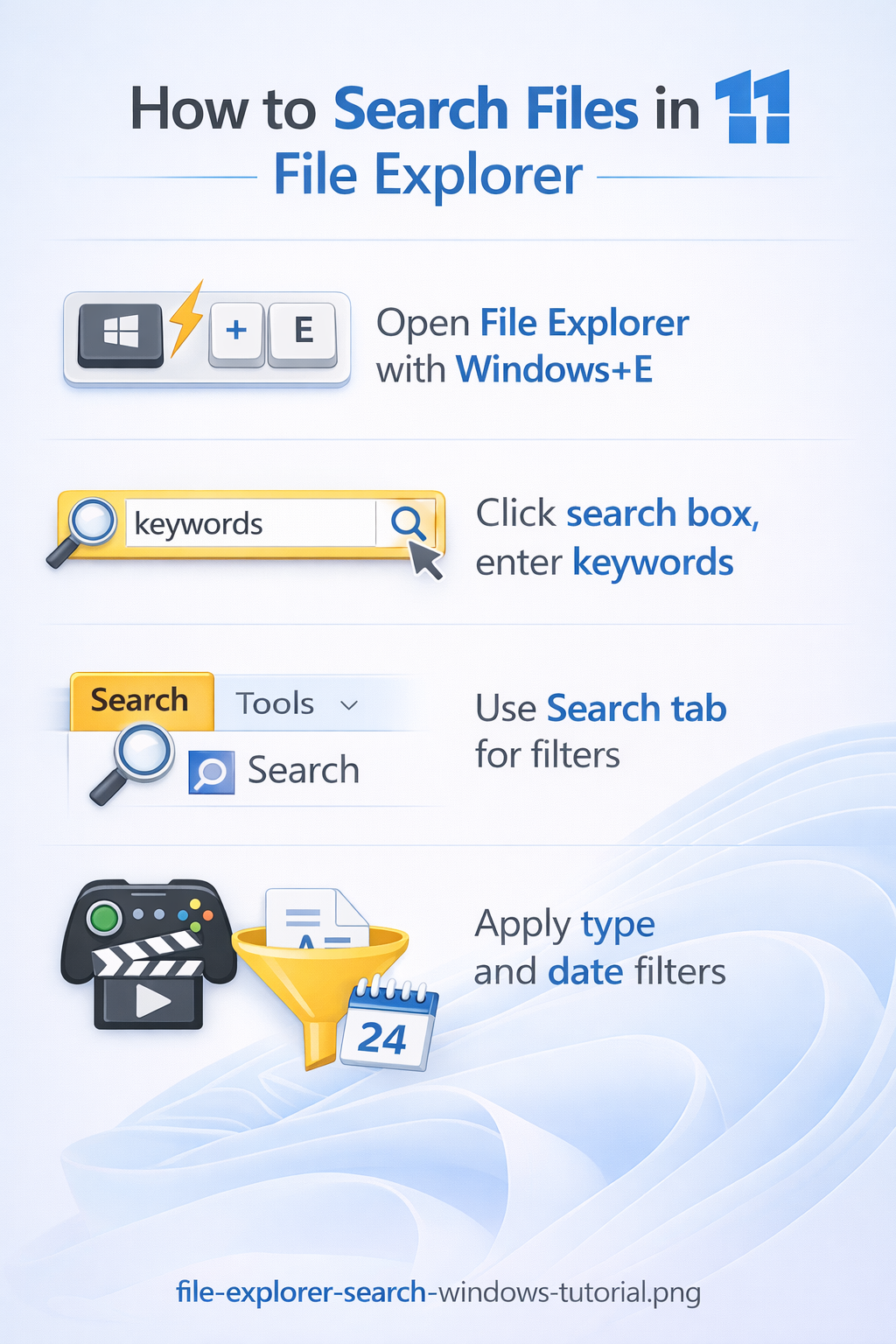
Performing basic searches to find files and folders quickly
- Open File Explorer by pressing Windows key + E on your keyboard, or click the folder icon in your taskbar to launch the application immediately.
- Navigate to the location where you want to begin your search, such as “This PC” to search your entire computer, “Documents” for your user documents folder, or any specific folder where you believe the file might be located. The search scope will include all subfolders within your selected starting location.
- Click inside the search box in the upper-right corner of the File Explorer window, which activates the search functionality and displays the Search tab in the ribbon menu.
- Type your search term directly into the search box, such as the file name, part of the file name, or keywords you remember from the document. File Explorer begins displaying results immediately as you type, updating the list dynamically with matching files and folders.
- Review the search results that appear in the main File Explorer window, which shows files and folders matching your search criteria along with their location paths, modification dates, and file types. You can click any result to open it or right-click for additional options like opening the file location.
- Use the column headers in the results view to sort your findings by Name, Date Modified, Type, or Size by clicking the respective header, which helps you identify the correct file when multiple results appear. Clicking the same header again reverses the sort order between ascending and descending.
Use search filters in current Windows 11
Windows 11 may not display the older Search ribbon shown on some PCs or screenshots. You can still filter results directly in the File Explorer search box with Advanced Query Syntax. Start with a plain name fragment, then add one or more properties:
kind:documentlimits results to documents, whilekind:folderreturns folders.ext:.pdforext:.xlsxlimits results to one file extension.modified:last weekfocuses on recently changed items."quarterly plan"searches for the exact phrase.budget NOT draftkeeps budget matches while excluding draft;NOTandORmust be uppercase.
Combine filters only when each reflects something you remember. For example, kind:document ext:.pdf modified:last week contract looks for recently changed PDFs related to contracts. If the query returns nothing, remove the least certain filter first. Search from a specific folder when you know the likely location; switch to This PC only when the narrower scope fails. This makes the first pass faster and gives you a clear way to broaden the search.
Searching File Explorer by type and using advanced filters
- After entering your initial search term in the search box, click the Search tab that appears in the File Explorer ribbon to reveal additional filtering options and search tools.
- Click the Kind dropdown button in the Search tab ribbon to filter results by file category, such as Documents, Pictures, Music, Videos, Folders, or Programs. This immediately narrows your results to show only files matching both your search term and the selected category.
- Use the Type dropdown to search File Explorer by type more specifically, selecting exact file extensions like .docx, .xlsx, .pdf, .jpg, or .mp4 from the comprehensive list. This proves especially useful when you remember the file format but not the exact name of the document you need.
- Apply date filters by clicking Date Modified in the Search tab, then selecting options like Today, Yesterday, This Week, Last Week, This Month, or custom date ranges. Combining date filters with other criteria helps you find files on your computer when you remember approximately when you worked on them.
- Click Size in the Search tab to filter by file size categories including Empty, Tiny (0-16 KB), Small (16-1 MB), Medium (1-128 MB), Large (128 MB-1 GB), Huge (1-4 GB), or Gigantic (greater than 4 GB). Size filtering works particularly well when searching for large video files or identifying small text documents among many results.
- Combine multiple filters simultaneously by selecting options from different dropdown menus, which creates an AND condition that narrows results to files meeting all specified criteria. For example, you can search for PDF documents modified last week that are larger than 1 MB.
Expert Tip: Save frequently used search queries by clicking “Save search” in the Search tab after configuring your filters. Windows creates a saved search file that you can double-click anytime to instantly repeat the same search with current results.
How to find files on this computer using content search
- Navigate to the folder or drive where you want to search, then click in the search box and type content: followed by the text you’re looking for inside documents. For example, typing “content:quarterly report” searches for files containing those words in their content, not just their file names.
- Enable content indexing for better search performance by opening Windows Settings, navigating to Search > Searching Windows, and ensuring that Enhanced mode is selected under Find My Files. This allows Windows to index file contents across all drives rather than just libraries and the desktop.
- Search within specific document types by combining content search with type filters, such as typing “content:budget” and then selecting “Microsoft Excel” from the Type dropdown. This technique helps you find a file on my computer when you remember what the document discusses but not what you named it.
- Use quotation marks around phrases in content searches to find exact matches, typing something like content:”project timeline 2026″ to locate documents containing that precise phrase. Without quotation marks, Windows searches for documents containing any of those words in any order.
- Wait for indexing to complete if you’ve recently added files or enabled Enhanced mode, as Windows needs time to catalog file contents before they appear in content searches. You can check indexing status in Settings > Search > Searching Windows > Advanced Search Indexer Settings.
Finding folders and using search operators for precision
- To find a folder on my computer specifically rather than files, type kind:folder in the search box followed by the folder name or part of it. This filter excludes all files from results and shows only matching folders and subfolders.
- Use the NOT operator to exclude certain terms from your search by typing your search term followed by NOT and the term to exclude, such as “report NOT draft” to find files with “report” in the name but exclude any containing “draft”. This helps eliminate unwanted results when searching common terms.
- Combine search operators with wildcards by using the asterisk () symbol to represent any characters, typing searches like project.docx to find all Word documents whose names start with “project”. Wildcards work in both file name and content searches for flexible matching.
- Search by file properties using operators like author:, tag:, or title: followed by the property value you’re looking for, such as “author:Smith” to find documents created by someone with Smith in the author field. These property searches work best with Office documents and files with embedded metadata.
- Create complex queries by combining multiple operators and filters in a single search, such as kind:document type:.pdf datemodified:thisweek content:contract to find PDF documents modified this week containing the word “contract”. File Explorer processes all criteria together to deliver precisely targeted results.
Remember: File Explorer search is not case-sensitive, so searching for “Budget,” “budget,” or “BUDGET” returns identical results. This applies to both file name searches and content searches within documents.
Account for cloud-only and non-indexed files
File Explorer search depends on where the file lives and whether Windows can index it. OneDrive files that are cloud-only may appear in folders but not have full local content available until they are opened or marked to stay on the device. If a content search misses a cloud file, open the OneDrive folder, confirm sync is healthy, and make the needed folder available offline before searching again.
Network shares and removable drives can also behave differently from local indexed folders. For those locations, search from the narrowest folder possible and use filename, extension, and modified-date filters first. If the folder is business-critical, add it to indexed locations only when the device has reliable access; indexing disconnected paths can slow search and create stale results.
Resolving common search challenges and improving results
- Search returns no results even though you know the file exists on your computer: Open Windows Settings, navigate to Search > Searching Windows, click Advanced Search Indexer Settings, then click Modify and ensure the locations containing your files are checked in the indexed locations list. After adding locations, click Advanced, then Rebuild to force Windows to reindex those areas completely.
- File Explorer search is extremely slow or appears to hang indefinitely: Check if Windows Search service is running by pressing Windows key + R, typing “services.msc”, finding “Windows Search” in the list, and ensuring its status shows “Running” with Startup Type set to “Automatic (Delayed Start)”. If the service stopped, right-click it and select Start to restore search functionality immediately.
- Content searches don’t find text you know exists inside your documents: Verify that the file type is included in Windows indexing by opening Indexing Options from Control Panel, clicking Advanced, selecting the File Types tab, and confirming your document extensions appear with “Index Properties and File Contents” selected. Some file types default to indexing properties only, which prevents content searching from working properly.
- Search results include too many irrelevant files from system folders or program directories: Modify indexed locations to exclude system areas by opening Indexing Options, clicking Modify, and unchecking locations like Program Files, Windows folder, and AppData directories. Limiting indexing to user folders like Documents, Desktop, Downloads, and Pictures significantly improves result relevance and reduces clutter in search results.