You open File Explorer expecting to see your documents, but folders appear empty or certain files have vanished without explanation. This situation creates immediate concern about data loss and disrupts your ability to access critical work materials stored on your computer.
Understanding why File Explorer fails to display your files
File Explorer serves as the primary navigation tool for accessing folders and documents across your Windows operating system. When files appear missing, the underlying cause typically involves hidden file settings, indexing problems, or corrupted system configurations rather than actual data deletion. This tutorial demonstrates how to restore visibility of missing files through systematic troubleshooting methods that address common Windows 11 configuration issues. You will learn to adjust folder options, rebuild search indexes, and verify system file integrity to ensure File Explorer displays all your stored content correctly. The solutions apply whether File Explorer itself is missing from your taskbar or specific files fail to appear in expected locations.
Restoring File Explorer visibility and accessing hidden files
The most frequent cause of apparently missing files involves Windows hiding certain file types by default for system protection purposes. Windows Explorer maintains separate visibility settings for system files, hidden items, and file extensions that users must manually configure. Follow these methods to systematically restore missing content and ensure File Explorer functions properly on your Windows 11 system.
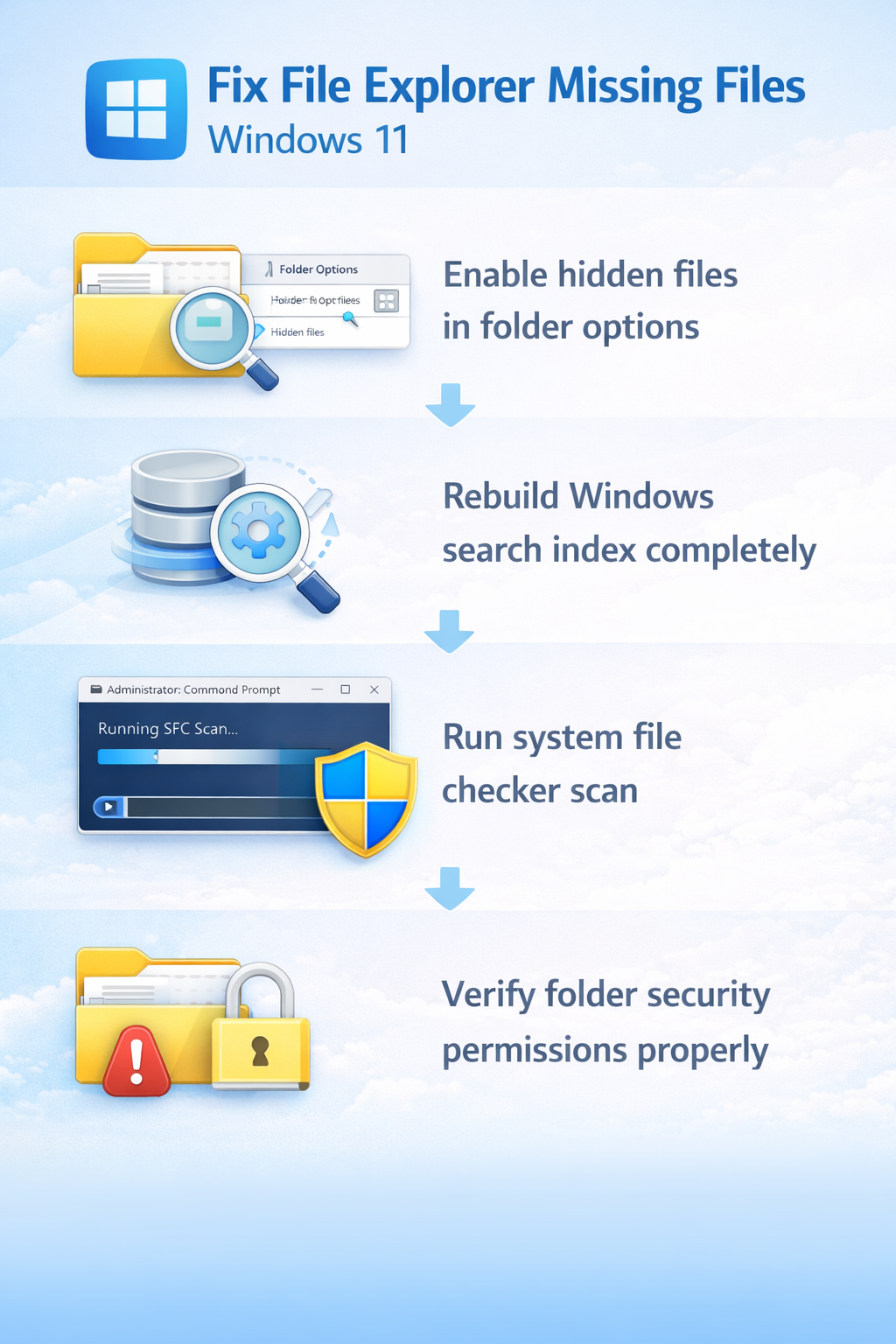
Enable hidden files and folders through Folder Options
- Open File Explorer by pressing Windows key plus E, or right-click the Start button and select File Explorer from the context menu that appears.
- Click the three-dot menu icon in the toolbar, select Options to open Folder Options, then navigate to the View tab where visibility settings are configured.
- Scroll through the Advanced settings list until you locate the Hidden files and folders section, then select the radio button labeled Show hidden files folders and drives.
- Remove the checkmark from Hide extensions for known file types to display complete filenames, which helps identify file types and prevents confusion about missing documents.
- Remove the checkmark from Hide protected operating system files if you need to access system-level content, though Windows will display a warning about potential risks.
- Click Apply to save your changes, then click OK to close the dialog and immediately refresh File Explorer to display previously hidden content.
Expert Tip: After enabling hidden file visibility, look for items with dimmed icons in your folders, as these represent previously hidden files that Windows was concealing from view.
Restore File Explorer to the taskbar when missing
- Right-click an empty area of your taskbar to open the context menu, then select Taskbar settings to access Windows 11 taskbar configuration options.
- Scroll down to the Taskbar items section and verify that File Explorer is toggled to the On position for visibility on your taskbar.
- If File Explorer remains missing after enabling it, press Windows key plus R to open the Run dialog, type explorer.exe and press Enter to launch a new instance.
- Once File Explorer opens, right-click its taskbar icon and select Pin to taskbar to ensure it remains accessible even after closing the window.
- Alternatively, open the Start menu, type File Explorer in the search box, right-click the File Explorer result, and select Pin to taskbar from the options.
Rebuild the Windows Search index for missing files
- Press Windows key plus I to open Settings, navigate to Privacy and security, then scroll down and click on Searching Windows in the right panel.
- Click Advanced indexing options near the bottom of the page to open the classic Indexing Options control panel window that manages search database configuration.
- Click the Advanced button in the Indexing Options window, then click Rebuild under the Troubleshooting section to completely reconstruct the search index database.
- Confirm the rebuild operation when Windows warns that this process may take considerable time, then allow the system to complete indexing without interruption.
- During the rebuild process, File Explorer search functionality may be temporarily limited, but previously missing files should appear once indexing completes successfully.
Verify system file integrity using Windows tools
- Right-click the Start button and select Terminal Admin or Windows PowerShell Admin to open a command-line interface with elevated privileges for system maintenance.
- Type the command
sfc /scannowand press Enter to initiate the System File Checker utility that scans for and repairs corrupted Windows system files. - Wait for the scan to complete, which typically requires fifteen to thirty minutes depending on your system speed and the number of files requiring verification.
- If the scan reports that it found and repaired corrupted files, restart your computer to ensure all repairs take effect and File Explorer functions properly.
- After restarting, open File Explorer and navigate to locations where files were previously missing to verify that content now displays correctly in all folders.
Remember: The System File Checker only repairs Windows system files and does not recover deleted personal documents, so missing user files require different recovery approaches.
Check folder properties and security permissions
- Navigate to the folder where files appear missing, right-click the folder icon, and select Properties from the context menu to access configuration settings.
- Click the Security tab to view permissions, then click Advanced to open detailed security settings that control which users can access folder contents.
- Verify that your user account appears in the permission entries list with Full control or at minimum Read and execute permissions enabled.
- If your account is missing or has insufficient permissions, click Add to create a new permission entry, then type your username and grant appropriate access levels.
- Click Apply to save permission changes, then click OK to close all dialog windows and refresh File Explorer to check if files now appear.
- If you continue experiencing access issues, consider reviewing our guide on fixing Windows eleven file access denied problems.
Resolving common File Explorer display problems
When File Explorer continues to hide files despite adjusting visibility settings, these targeted solutions address specific configuration conflicts and system issues that prevent proper file display.
- File Explorer crashes when accessing specific folders. Navigate to Settings, select Apps, click Installed apps, locate Microsoft Windows Desktop Experience, click the three-dot menu, and select Advanced options. Scroll down and click Reset to restore File Explorer to default settings without affecting your personal files or other applications.
- Search function fails to locate files you know exist. Open Services by pressing Windows key plus R, typing services.msc, and pressing Enter, then locate Windows Search in the services list. Right-click Windows Search, select Restart to refresh the search service, and verify the Startup type is set to Automatic to ensure search functionality persists after system restarts.
- New File Explorer interface missing in Windows 11. Press Windows key plus I to open Settings, navigate to Windows Update, click Advanced options, then enable Get the latest updates as soon as they are available. Install all pending updates and restart your computer to ensure you have the latest File Explorer version with all current features and improvements.