Smudged prints from a laser printer usually point to a worn toner cartridge, dirty fuser unit, or contaminated transfer roller. Toner particles that fail to bond to the paper leave black streaks, gray smears, or fingerprint-like marks across your pages. Most smudge problems resolve in under 15 minutes with basic cleaning or a straightforward part swap, and you rarely need a service technician to get clean output again.
Fix Laser Printer Smudge Causes
Replace a Worn Toner Cartridge
A toner cartridge past its rated page yield is the most common source of smudged laser prints. The sealing blade inside the cartridge degrades over time, allowing loose toner powder to escape onto the drum and contaminate every page that passes through. Pull the cartridge out and check for visible toner spills around the drum area or along the edges.
- Open the front panel of your printer and release the cartridge latch.
- Slide the old cartridge out and inspect the drum surface for scratches or toner buildup.
- Rock the new cartridge gently side to side five or six times to distribute toner evenly before inserting it.
- Print a test page from Settings >> Printers & Scanners >> [Your Printer] >> Print Test Page to confirm the smudging stopped.
Third-party cartridges sometimes ship with a protective seal strip still attached. Forgetting to remove that strip causes immediate smudging because toner cannot flow properly to the drum.
Clean the Printer Fuser Assembly
The fuser uses heat and pressure to melt toner onto paper. When the fuser roller collects residue, it transfers smudge marks onto every printed page at regular intervals that match the roller circumference. You will notice repeating smudge patterns spaced evenly down the page if the fuser is the culprit.
- Power off the printer and wait at least 10 minutes for the fuser to cool. Fuser rollers reach temperatures above 200°C during operation and cause burns if handled immediately.
- Remove the fuser unit according to your printer’s service manual. Most models have a release lever at the rear of the printer housing.
- Wipe the fuser roller with a dry, lint-free cloth. Avoid water or alcohol-based cleaners because moisture damages the non-stick coating on the roller surface.
- Reinstall the fuser and run a blank page through the printer to verify the smudges are gone.
Fusers have a rated lifespan, typically between 50,000 and 200,000 pages. If cleaning does not resolve the smudging, the roller coating has worn through and the entire fuser unit needs replacement.
Wipe the Transfer Rollers
Transfer rollers carry an electrical charge that pulls toner from the drum onto paper. Dust, paper debris, or toner residue on the roller surface disrupts this charge and creates faint smudges or uneven print density across the page. This issue appears more often in dusty environments or when using low-quality paper that sheds fibers.
- Remove the transfer roller assembly. On most HP and Brother laser printers, the roller sits below the toner cartridge bay and lifts out with two side tabs.
- Wipe the roller surface with a clean, dry microfiber cloth. Roll the cloth along the full length of the roller rather than scrubbing back and forth, which can deposit lint.
- Check that the metal contact points on both ends of the roller are clean. Corroded contacts reduce the electrical charge and cause faded or smudged output.
Avoid touching the roller surface with bare fingers. Skin oils create spots that attract toner particles and produce visible marks on every printed page.
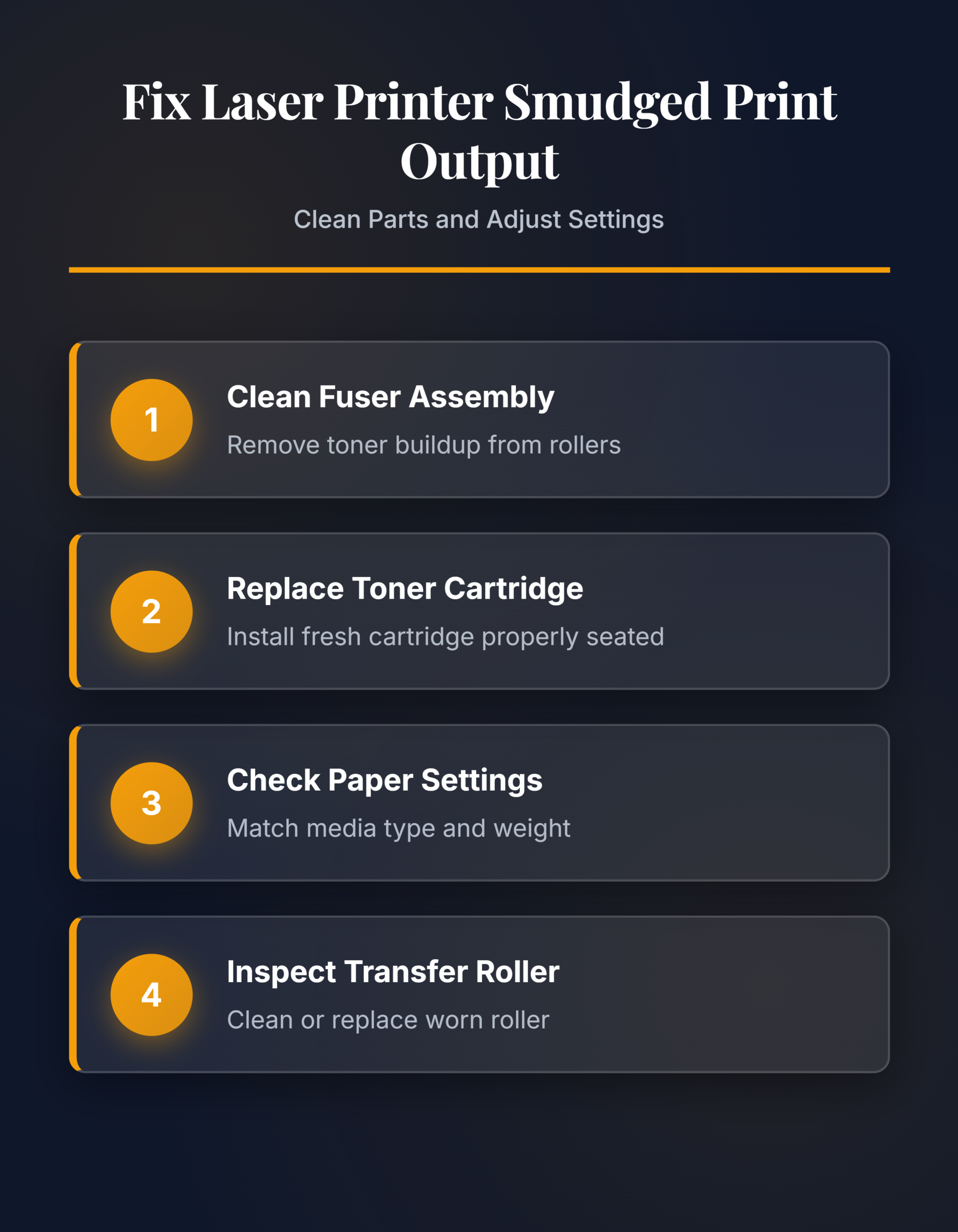
Troubleshoot Persistent Printer Smudges
Fix Printer Smudges After Toner Swap
New toner cartridges sometimes produce smudged pages during the first 10 to 20 prints. Excess toner inside a fresh cartridge needs a few print cycles to distribute evenly through the mechanism. Print several test pages and check whether the smudging gradually clears on its own.
If smudging persists beyond 20 pages, remove the cartridge and inspect the drum for shipping damage. A scratched or dented drum produces consistent vertical streaks that will not improve over time. You should also confirm that you installed the correct cartridge model for your specific printer. Similar-looking cartridges from the same manufacturer often differ in drum size or toner formulation, and using the wrong one causes poor adhesion. When you need to access printer properties through Windows settings, you may first need to fix an unresponsive File Explorer in Windows 11 before you can navigate to the printer driver configuration panel.
Resolve Streaks on One Side
Smudges that appear only on the left or right edge of the page point to a misaligned cartridge or a damaged drum blade. Open the cartridge bay and reseat the toner cartridge firmly until it clicks into place. A cartridge that sits even slightly off-center creates uneven contact between the drum and paper.
If reseating does not help, examine the wiper blade attached to the cartridge housing. This thin rubber strip cleans excess toner from the drum after each rotation. A nicked or curled blade allows toner to escape on one side. Replacement wiper blades are available for most cartridge models, though swapping the entire cartridge is often more practical since the blade is integrated into the housing on most consumer laser printers.
Clear Printer Ghosting and Repeats
Ghost images are faint copies of previously printed content that appear further down the same page. This happens when the fuser or drum fails to fully release residual toner from the prior print cycle. Ghost marks repeat at fixed intervals that match the circumference of the fuser roller or the photoconductor drum.
Run the printer’s built-in cleaning cycle first. Access it through Settings >> Printers & Scanners >> [Your Printer] >> Manage >> Printer Maintenance or the printer’s front panel menu. The cleaning cycle feeds a blank page through at a slower speed to scrub residue from internal components. Users who handle heavy print volumes, such as printing Copilot chat conversations or lengthy reports daily, should run this maintenance routine weekly to prevent ghost images from building up. If the cleaning cycle does not fix ghosting, the drum unit has reached end of life and needs replacement.
Frequently Asked Questions
Why do my laser prints smudge when I touch them?
Toner did not fuse properly to the paper surface, usually because the fuser temperature is too low or the fuser roller coating is worn. Check your printer’s fuser settings and increase the temperature if your model allows manual adjustment. Printing on thicker paper stocks often requires a higher fuser temperature to bond toner correctly to the sheet.
How often should I clean my laser printer to prevent smudges?
Clean the interior every time you replace a toner cartridge, roughly every 2,000 to 10,000 pages depending on your model. Wipe the transfer roller and check for loose toner around the drum area during each swap. Running the built-in cleaning cycle monthly is a reliable preventive habit for printers handling daily workloads.
Can paper quality cause smudged laser prints?
Yes. Paper that is too thin, damp, or heavily textured does not accept toner adhesion well and produces smudged output. Store paper in a dry location and use stock rated for laser printers, typically 75 to 90 g/m² weight. Recycled paper with rough fibers sheds more dust inside the printer, which contaminates rollers and increases smudge frequency over time.
Most laser printer smudging traces back to three components: the toner cartridge, fuser assembly, or transfer roller. Start with the cheapest fix first — replacing toner — and work inward toward the fuser. Regular cleaning after each cartridge swap keeps smudge problems from returning.