Your Windows 11 PC refuses to recognize a USB printer you just plugged in — no notification, no new device in Settings, nothing. This problem usually traces back to outdated drivers, a faulty USB connection, or a stalled print spooler service. Most USB printer recognition failures on Windows 11 resolve in under ten minutes with the right troubleshooting sequence.
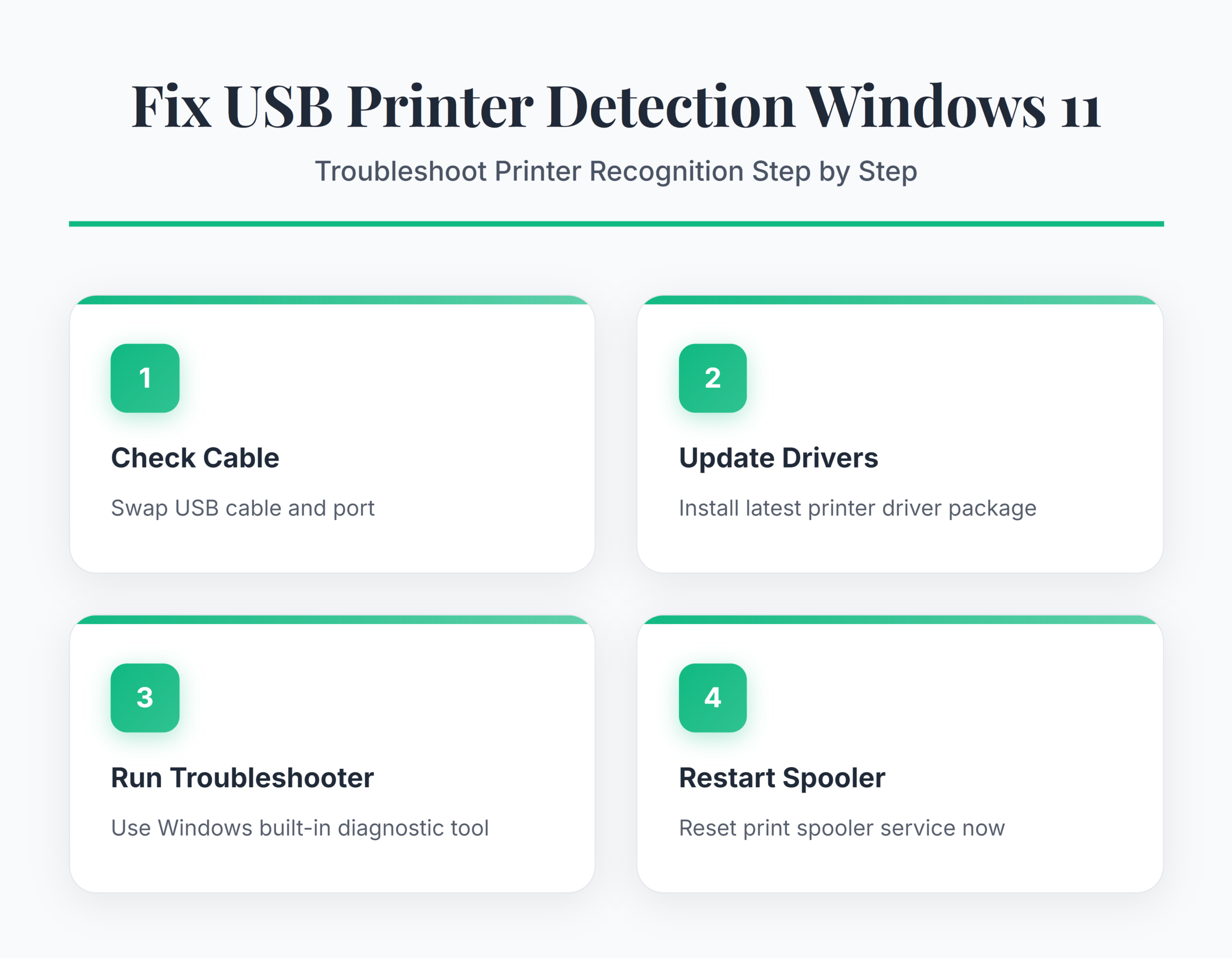
Fix USB Printer Detection in Windows 11
Check USB Cable and Port Connection
Start with the physical layer before touching any software settings. Unplug the USB cable from both the printer and your PC, wait ten seconds, then reconnect firmly on both ends. Try a different USB port on the computer — front-panel ports sometimes lack sufficient power for printers.
- Swap the USB cable entirely if you have a spare; cables develop internal breaks that cause intermittent detection failures
- Avoid USB hubs and plug directly into a port on the PC chassis
- Confirm the printer powers on independently and shows a ready state on its display panel
A loose or damaged connection accounts for roughly a third of USB not working Windows 11 reports. If the printer appears briefly in your device list then vanishes, the cable is almost certainly the culprit. Replacing a five-dollar cable saves hours of software troubleshooting.
Update Windows 11 Printer Drivers
Outdated or generic drivers cause Windows 11 to misidentify USB printers or ignore them entirely. Open Settings >> Windows Update >> Advanced options >> Optional updates and check for any pending printer driver packages. Install every available update and restart your PC.
If no optional updates appear, visit the printer manufacturer’s support page and download the latest Windows 11 driver for your specific model. Run the installer and follow the on-screen prompts. Avoid using universal or generic drivers unless the manufacturer explicitly recommends them for your model — they often miss critical features and can conflict with the native Windows 11 driver stack.
After installing fresh drivers, unplug the printer, restart your PC, and reconnect the USB cable. Windows should detect the printer and configure it automatically. If your printer connects but produces no output, check our guide to fix a printer that doesn’t print for additional steps.
Run Windows Printer Troubleshooter
Windows 11 includes a built-in diagnostic that scans for common printer configuration problems. Open Settings >> System >> Troubleshoot >> Other troubleshooters and select Run next to Printer. The tool checks driver integrity, spooler status, and port assignments automatically.
- Follow any on-screen recommendations the troubleshooter presents
- Restart your PC after the troubleshooter applies a fix before testing the printer again
- The tool occasionally reports “no issues found” when a problem exists — treat this as confirmation to continue with the manual fixes below
This automated troubleshooter resolves roughly half of USB printer detection issues without extra effort. Run it early in your troubleshooting process so you can skip manual steps if the tool catches the root cause on its own.
Restart the Print Spooler Service
The print spooler manages every print job and device connection in Windows 11. When it stalls or crashes, USB printers stop appearing entirely. Press Win + R, type services.msc, and press Enter to open the Services console.
- Scroll to Print Spooler, right-click it, and select Restart
- If the service shows a Stopped status, click Start instead
- Set the startup type to Automatic so the spooler launches with every boot
After restarting the spooler, unplug your USB printer and reconnect it. A fresh spooler session forces Windows 11 to re-enumerate all USB devices and detect printers that were previously invisible. If the spooler refuses to start, open Command Prompt as Administrator and run net start spooler to force-launch it. Persistent spooler crashes often indicate corrupted print queue files in C:\Windows\System32\spool\PRINTERS — clearing that folder while the spooler is stopped typically breaks the crash loop.
USB Printer Edge Cases on Windows
Printer Works on Another PC Only
When the same USB printer works fine on a different computer but fails on yours, the issue sits in your Windows 11 USB controller configuration rather than the printer hardware. Open Device Manager, expand Universal Serial Bus controllers, and look for any entries marked with a yellow warning triangle. Right-click each flagged device and select Update driver to search for current software.
If your printer is not showing in Devices and Printers even after updating USB controller drivers, check whether your PC’s BIOS has USB legacy support enabled. Some newer motherboards ship with legacy USB disabled by default, which blocks older printer chipsets from communicating with the operating system. Access your BIOS settings by restarting and pressing F2 or Delete during the boot sequence.
USB Printer Disappears After Sleep Mode
Windows 11 aggressively manages USB power to extend battery life, and this power management frequently disconnects printers after your PC enters sleep mode. Open Device Manager, expand Universal Serial Bus controllers, double-click each USB Root Hub entry, navigate to the Power Management tab, and uncheck Allow the computer to turn off this device to save power.
You should also adjust your power plan to configure USB suspend settings at the system level. Go to Control Panel >> Power Options >> Change plan settings >> Change advanced power settings. Expand USB settings >> USB selective suspend setting and set it to Disabled for both battery and plugged-in modes. This prevents Windows 11 from suspending USB ports during idle periods, keeping your printer connection alive through every sleep and wake cycle. Apply the change to both power states so the fix holds whether your laptop is docked or running on battery.
Q&A
Why is my USB printer not recognized on Windows 11?
The most common causes are outdated printer drivers, a faulty USB cable or port, a stalled print spooler service, or USB power management settings that disconnect the printer during idle periods. Start by swapping the USB cable and port, then update drivers through Windows Update or the manufacturer’s website.
How do I fix USB printer not working permanently?
Update the printer driver to the latest manufacturer version, disable USB selective suspend in your power plan settings, and set the print spooler service to start automatically. These three configuration changes address the most frequent recurring causes and prevent the printer from dropping off after restarts or sleep cycles.
What should I do if Windows 11 detects USB but not the printer?
Open Device Manager and check whether the printer appears under Other devices with a generic name. If it does, Windows recognizes the USB connection but lacks the correct driver software. Download the model-specific driver from your printer manufacturer’s support page, install it, and the printer should appear under Settings >> Bluetooth & devices >> Printers & scanners within seconds.
Most USB printer recognition problems on Windows 11 trace back to three fixable causes: damaged cables, stale drivers, or a crashed spooler service. Work through the physical connection first, update drivers second, and reset the spooler third — your printer will reappear.