Teams meeting login problems block access when you need it most. Authentication errors typically stem from account type conflicts, browser issues, or credential synchronization problems. These specific troubleshooting steps resolve the most common access barriers.
Resolve Account Authentication Issues
Account type mismatches cause most Teams meeting login failures. Your meeting invitation determines which account credentials Teams expects.
Check Meeting Invitation Details
Look for the Join Microsoft Teams Meeting link in your email invitation. The URL structure reveals account requirements:
- Links containing “teams.microsoft.com” require a Microsoft account
- Links with your organization’s domain need corporate credentials
- Guest meeting links work with any account type or no account
Match your sign-in credentials to the meeting type. Corporate meetings need your work account, while external meetings typically accept personal Microsoft accounts.
Clear Browser Authentication Cache
Browser-stored credentials conflict with new account types. Clear Teams-specific authentication data to reset login state.
- Open your browser settings and navigate to Privacy >> Clear browsing data >> Cookies and site data.
- Select only Microsoft Teams domains or clear all data for the past hour.
- This removes conflicting authentication tokens without affecting other sites.
- Restart your browser completely before attempting to join the meeting again.
Switch Between Account Types
Teams often defaults to your last-used account type, creating access conflicts. Sign out completely to choose different credentials.
- In the Teams web app, click your profile picture in the top right corner.
- Select Sign out from the dropdown menu.
- Close all browser tabs related to Microsoft services, then rejoin the meeting with appropriate account credentials.
Fix Browser and App Access Problems
Browser compatibility and app conflicts prevent successful meeting joins even with correct credentials.
Use Supported Browser Versions
Teams meeting login works best in Microsoft Edge, Chrome 58+, and Firefox 57+. Safari on Mac requires version 13+ for full functionality.
Check your browser version in settings. Update to the latest version if you’re running an older release. Older browsers lack required authentication protocols for secure meeting access.
Try Alternative Join Methods
- Browser backup: If the desktop app fails, use the web version by clicking Join on the web instead
- Phone dial-in: Use the conference number and ID from the meeting invitation
- Mobile app: Download the Teams mobile app as a secondary option
Each method uses different authentication paths. Browser-based joining bypasses app-specific credential issues.
Disable Browser Extensions
Ad blockers and privacy extensions interfere with Teams authentication processes. Temporarily disable extensions to test meeting access.
Open your browser’s extension manager and turn off ad blockers, VPNs, and privacy tools. Try joining the meeting in an incognito or private browsing window, which automatically disables most extensions.
Troubleshoot Guest Access Scenarios
Guest users face unique authentication challenges when joining Teams meetings without organizational accounts.
Join as Anonymous Guest
Many Teams meetings allow anonymous participation without any account. Look for the Join on the web instead option below the main sign-in prompt.
Enter your name in the guest field and click Join now. This bypasses authentication entirely while still providing meeting access with limited features like chat and screen sharing.
Create Microsoft Account for Better Access
Guest access limits functionality compared to authenticated users. Create a free Microsoft account using your email address for enhanced meeting features.
Visit account.microsoft.com and select Create account. Use your existing email address rather than creating a new one. This account works for all Teams meetings and provides full participant features.
Quick answers to common questions
Why can’t I login to my Teams meeting?
Account type mismatches cause most login failures. Check if the meeting requires corporate credentials (work account) versus personal Microsoft account. Clear your browser cache and try signing in with the correct account type for the specific meeting.
How do I join a Teams meeting as a guest?
Look for Join on the web instead below the main sign-in screen. Enter your name as a guest participant to join without any account. Guest access provides basic meeting functionality without requiring authentication.
What to do when Teams meeting login fails repeatedly?
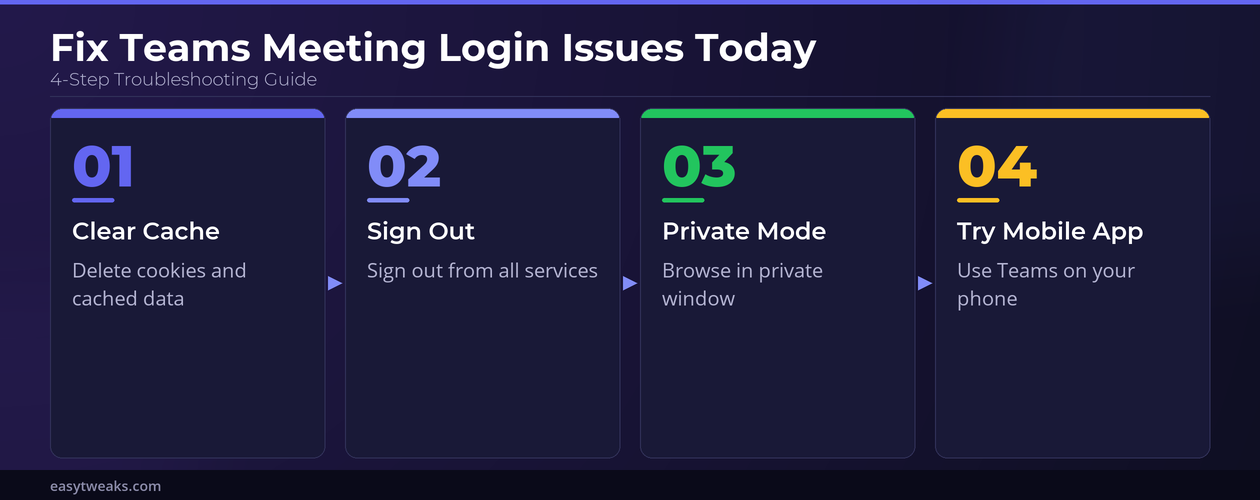
Try these steps in order: clear browser cache and cookies, sign out of all Microsoft services, use incognito browsing mode, or switch to the mobile app. Different join methods use separate authentication systems.
Most Teams meeting login problems resolve with the right account type and browser troubleshooting. Keep both personal and work Microsoft account credentials available for different meeting types.