Microsoft Copilot integrates AI writing assistance directly into Word, offering inline suggestions, rewriting tools, and draft generation powered by large language models. Not every user wants these AI features active during their workflow. Whether you need to stop Copilot in Word for compliance reasons, personal preference, or to reduce distractions while writing, several methods give you full control over the feature at both the individual and organizational level.
Configure Copilot Settings in Word
The Copilot 365 sidebar pane appears on the right side of the Word window and provides AI-powered drafting, rewriting, and summarization tools. After making configuration changes, confirm that Copilot features are actually off.
Note: IT administrators in enterprise environments can deploy group policy settings to control Copilot behavior across all managed devices.
However, for this tutorial, we’ll provide three practical methods let you disable Copilot features directly within the Word application without needing administrator privileges or organizational policy changes.
Turn Off Copilot Suggestions in Word
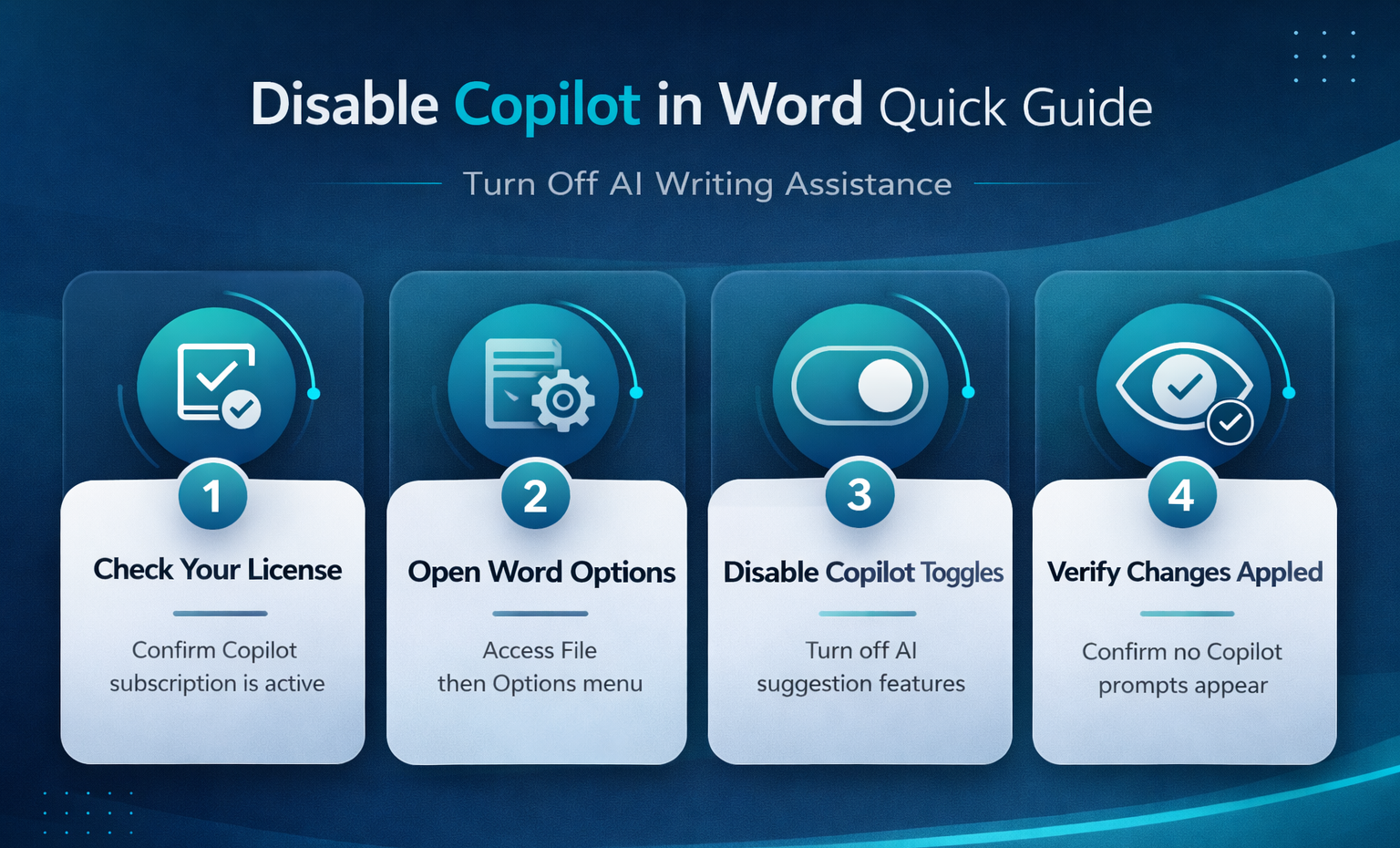
Word displays Copilot suggestions through the ribbon toolbar and an inline draft assistant that proposes completions as you type. To stop these features, open Word and navigate to File >> Options. Look for Copilot-related settings under the General or dedicated Copilot tab, depending on your Office version. Disable the toggles for automatic suggestions and inline AI completions.
This change applies only to your local Word installation, so other Microsoft 365 applications like Outlook and Excel retain their own Copilot configuration independently. Keep in mind that Microsoft updates may occasionally reset these preferences after major Office feature rollouts, so verify your settings after each update cycle. If you also want to stop Copilot from starting automatically on your Windows machine, that requires a separate system-level change outside of the Word application itself.
Disable the Copilot Sidebar Pane
The Copilot sidebar pane appears on the right side of the Word window and provides AI-powered drafting, rewriting, and summarization tools. To close this pane during your current session, click the Copilot button in the Home tab of the ribbon. This toggles the pane off immediately.
For a more permanent approach, remove the Copilot button from your ribbon entirely:
- Right-click anywhere on the ribbon toolbar area
- Select Customize the Ribbon from the context menu
- Locate the Copilot command group and uncheck it
- Click OK to apply your changes
Removing the button from the ribbon prevents accidental activation and keeps your workspace focused on the writing tools you actually use. The underlying Copilot service remains accessible through File >> Options if you decide to restore it later. This ribbon customization persists across all document types including templates and shared files.
Verify Copilot Is Fully Disabled
After making configuration changes, confirm that Copilot features are actually off. Create a new blank document and start typing several sentences. Watch for the Copilot icon in the ribbon toolbar and any inline AI suggestion popups appearing near your cursor. Neither should appear if your settings took effect correctly.
Open File >> Options again and confirm your Copilot toggles remain in the disabled position. Some users report that toggles revert after restarting Word, which usually indicates a group policy conflict pushing settings back to their defaults.
If Copilot still activates despite your changes, your organization’s IT policies may be overriding local application settings. Enterprise environments often push Copilot configuration through group policy or the Microsoft 365 admin center, and those policies take precedence over individual preferences. Contact your IT department to verify whether an organizational policy is re-enabling the feature. On Windows 11, also check that the standalone Copilot application is not triggering AI-related features system-wide.
Advanced Copilot Management Options
When individual application settings are not sufficient, administrators have two powerful tools for managing Copilot deployment and permissions across an entire organization. Before applying this advanced copilot management change, my default configuration caused noticeable friction during daily use, but the new setting resolved that annoyance within seconds of saving.
Remove Copilot Through Admin Center
Organizations that need to stop Copilot in Word across multiple users can manage this through the Microsoft 365 admin center. Administrators access the license management section and remove the Copilot for Microsoft 365 add-on from specific user accounts or security groups. Without this license assignment, Copilot features do not appear in Word, Outlook, or other Microsoft 365 applications at all.
This approach is the most reliable method for permanently disabling Copilot because it prevents the feature at the service level rather than relying on local application settings that users might change. Users cannot re-enable a feature they are not licensed to use. If you also need to disable Copilot in Outlook 365, removing the license handles both applications in a single action without any additional configuration steps.
Manage Copilot With Group Policy
IT administrators in enterprise environments can deploy group policy settings to control Copilot behavior across all managed devices. The Microsoft 365 Apps administrative templates include policy entries for enabling or disabling Copilot features within each individual Office application. Download the latest ADMX templates from Microsoft and import them into your Group Policy Management Console.
Group policy overrides take precedence over any local Word settings a user might change, making this the preferred approach for organizations that need consistent Copilot configuration across hundreds or thousands of machines. Policies propagate during the next group policy refresh cycle, which typically occurs every 90 minutes on domain-joined devices. To force an immediate update on a specific machine, run gpupdate /force from an elevated command prompt and restart Word to confirm the policy applied.
Distinguish hiding Copilot from disabling connected experiences
Start this Word Copilot controls check with one reproducible example and preserve the current configuration. The goal is to identify the affected layer before applying a broad reset, so change one material factor at a time and repeat the same test.
Isolate the affected layer
Closing the Copilot pane or removing a ribbon control changes the interface but may not disable the licensed service. User controls, Microsoft 365 privacy settings, licensing, and administrator policy operate at different scopes.
Test the intended Word experience after restart and with a new document saved in OneDrive or SharePoint. Record whether Copilot is hidden, unavailable, or blocked by policy, and whether other connected features such as Editor or cloud collaboration are affected.
Verify the result safely
For organization-wide restrictions, use approved Microsoft 365 administration and communicate the impact before deployment. Do not remove Office components or edit unsupported registry locations simply to hide an icon.
On a managed work device or tenant, a missing or reverting control may be intentional policy. Do not bypass it locally; test with non-sensitive content and ask the responsible administrator to confirm the assigned configuration.
When escalation is necessary, provide versions, timestamps, exact error text, and the smallest reproducible example, with confidential values removed. This lets support focus on the correct layer.
Use a before-and-after check that covers the primary task and its nearest dependency. For shared work, verify permissions and ownership as well as the visible result. A fix is incomplete when the original symptom disappears but synchronization, notifications, sorting, recovery, or another required function silently stops.
Keep temporary workarounds clearly labeled and time-limited. Remove permissions, overrides, test accounts, files, and settings that are no longer needed after the supported solution is confirmed, then repeat the standard workflow once more.
Before closing the case, repeat the test with the normal extensions, peripherals, network, and data source restored one at a time. Stop if the symptom returns; that boundary is stronger evidence than a broad reset.
FAQ
Why is Copilot not turning off in Word?
Organization-level policies frequently override local application settings. If your IT department deployed Copilot through the Microsoft 365 admin center or group policy, toggling individual settings within Word has no effect. Contact your administrator to request a policy exception, or ask them to remove the Copilot for Microsoft 365 license from your user account to resolve the conflict permanently.
How do I fix Copilot reappearing after I disabled it?
Restart Word completely rather than just closing and reopening a document. Office applications cache configuration settings during active sessions, so a full application restart loads the updated preferences. If the problem persists on Windows 11, check for pending Office updates that may have reset your Copilot configuration back to default values during a recent installation.
Can I stop Copilot in Word without affecting other Office apps?
Yes. Disabling Copilot through Word’s File > Options menu only affects the Word application. Each Microsoft 365 app maintains independent Copilot settings. However, if an administrator removes your Copilot for Microsoft 365 license entirely, that action disables the feature across all Office applications including Outlook, Excel, PowerPoint, and Teams simultaneously.
Disabling Copilot in Word takes just a few minutes whether you manage a single workstation or an entire organization. Start with application-level settings for immediate results, and escalate to admin center or group policy controls when you need consistent enforcement across multiple users and devices.