Teams chat files disappear into the cloud, but they’re not gone forever. Microsoft stores your conversations and shared files across multiple locations — OneDrive, SharePoint, and sometimes locally. Finding them requires knowing where to look.
Your Teams chat file location depends on the type of conversation and your organization’s settings. Private chats store files in your personal OneDrive, while channel conversations save to SharePoint team sites. Local cache files exist temporarily on your device but aren’t permanent storage.
Teams Chat File Storage Overview
Microsoft Teams stores chat files in three primary locations based on conversation type and organizational policies. Understanding this structure helps you locate specific files and configure backup strategies.
OneDrive Storage for Private Chats
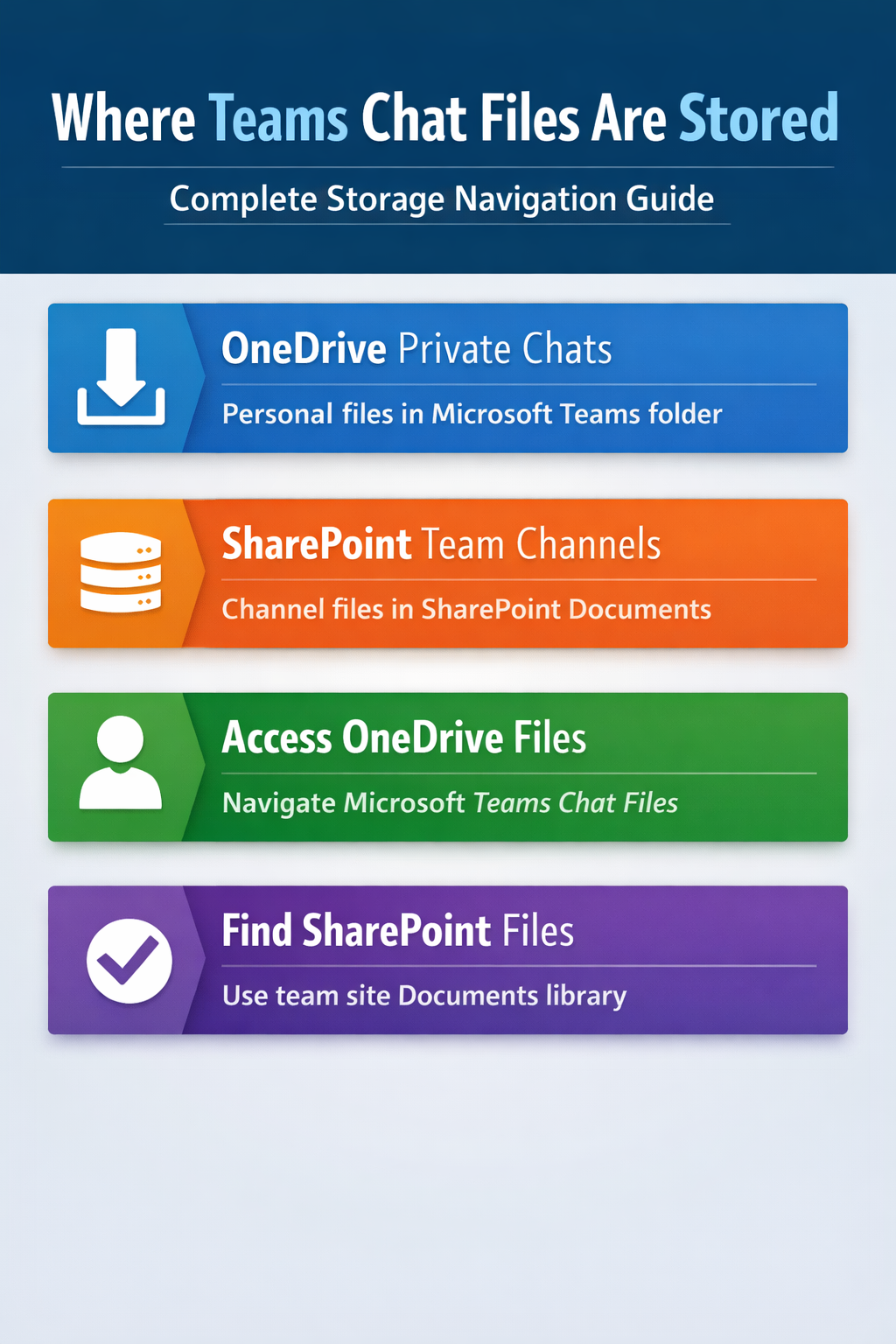
Private Teams conversations store shared files in Teams chat and OneDrive directly in your personal OneDrive account under the Microsoft Teams Chat Files folder. This folder appears automatically when you first share a file in a private chat.
Files shared in one-on-one or group chats (not channels) sync to this location within minutes. You retain full ownership and control over these files, even if other chat participants leave the organization.
SharePoint Storage for Team Channels
Channel conversations in Teams save shared files to the associated SharePoint team site. Each team gets its own SharePoint site with a Documents library containing channel-specific folders.
Files shared in General channels go to the root Documents folder, while files shared in other channels create dedicated subfolders. Team owners control access permissions and retention policies for these SharePoint locations.
Local Cache and Temporary Files
Teams stores temporary cache files locally on your device for offline access and faster loading. These aren’t permanent storage — they help the app function when your connection is slow or interrupted.
Cache files live in your Windows user profile under AppData\Local\Microsoft\Teams. These files are encrypted and not meant for direct access or backup purposes.
Finding Teams Chat Files
Locating specific Teams files requires checking the right storage location based on where the conversation happened. Private chats point to OneDrive, while team conversations lead to SharePoint.
Accessing OneDrive Teams Files
Open OneDrive through your web browser or desktop app and navigate to the Microsoft Teams Chat Files folder. Files organize by conversation date and participant names, making recent shares easy to find.
For faster access, learn about uploading files to Teams and pin the Teams Chat Files folder to your OneDrive favorites. This creates a shortcut that appears in the left sidebar of OneDrive and File Explorer when OneDrive syncing is enabled.
Locating SharePoint Channel Files
Find channel files by opening Teams and clicking the Files tab within the specific channel. This view shows all shared documents and provides direct access to the underlying SharePoint library.
Alternatively, visit your team’s SharePoint site directly through your organization’s SharePoint home page. Each team site includes a Documents library with channel folders clearly labeled for easy navigation.
Using Teams Search Functions
Teams includes powerful search that scans both messages and file names across all your conversations. Use the search bar at the top of Teams and filter results by Files to find specific documents quickly.
Search works across OneDrive and SharePoint locations simultaneously, so you don’t need to remember which conversation type contained your file. Include file names, participant names, or content keywords for better results.
Teams File Storage Locations
Different Teams features store files in specific Microsoft 365 locations, each with distinct access patterns and administrative controls. Knowing these locations helps with file management and troubleshooting. For more details, check out our comprehensive Teams file management guide.
Meeting Recordings and Transcripts
Teams meeting recordings automatically save to OneDrive or SharePoint depending on the meeting type. Personal meetings (scheduled by individuals) save to the organizer’s OneDrive, while channel meetings save to the team’s SharePoint site.
Recordings appear in a Recordings folder and include automatic transcripts when available. Meeting organizers can change default storage locations through Teams admin settings if organizational policies allow.
Shared Screens and Whiteboards
Screenshots taken during Teams calls save to the Microsoft Teams Chat Files folder in OneDrive for private conversations. Channel screenshots go to the appropriate SharePoint team site under a Meeting Assets folder.
Whiteboard files created in Teams meetings sync to your Microsoft Whiteboard app and store in OneDrive as separate files. These remain accessible through the Whiteboard app even after meetings end.
Manage chat-file ownership before it becomes a problem
A file uploaded to a one-to-one or group chat is stored in the uploader’s OneDrive for Business and shared with the conversation participants. A channel upload is stored in the team’s SharePoint site. This ownership difference matters when someone changes roles, deletes the source file, leaves the organization, or removes a sharing permission.
Identify the authoritative copy
Open the chat and select its Shared tab to locate the item. Then open the file location in OneDrive and review Manage access. Confirm the owner, link scope, and whether recipients can view or edit. Sending a new message with the same filename does not automatically transfer ownership or replace an older shared copy.
If the file is an ongoing team record, move or copy the approved version into the appropriate channel’s SharePoint-backed Files area. Share that team-owned link in the chat and clearly mark it as the current version. Do not delete the personal OneDrive copy until collaborators have confirmed the new link and any automation or workbook connections have been updated.
Prepare for employee departure and permission failures
Before the uploader’s account is disabled, identify business-critical chat files and transfer them to a durable team location. Preserve version history where possible, and have the site owner confirm access for members and guests. A chat message can remain visible even when its linked file is no longer available.
For an Access denied error, do not repeatedly upload duplicates. Ask the owner to inspect the sharing entry, recipient account, link type, and expiration. External users may be signed into the wrong tenant or email identity. Test the link in a private browser window and record the exact account used.
Use chat storage for short-lived collaboration and channel storage for material that belongs to a group. That simple rule reduces broken links, unclear ownership, and urgent recovery work.
File Version History and Backups
Both OneDrive and SharePoint maintain automatic version history for Teams files, allowing recovery of previous file versions or deleted items. Version limits depend on your Microsoft 365 subscription and organizational settings.
Deleted files move to respective recycle bins (OneDrive Recycle Bin for private chats, SharePoint Site Recycle Bin for channels) where they remain recoverable for 30-93 days depending on admin configuration.
Frequently Asked Questions
How long does Teams store chat files?
Teams stores chat files indefinitely in OneDrive and SharePoint until you or your admin deletes them. There’s no automatic expiration, but organizations can set retention policies that delete files after specific periods for compliance reasons.
Can I recover deleted Teams chat files?
Yes, deleted files go to OneDrive or SharePoint recycle bins where they remain recoverable for 30-93 days. Check your OneDrive recycle bin for private chat files or ask your team owner to check the SharePoint site recycle bin for channel files.
Are Teams chat files stored on my computer?
Teams keeps temporary cache files locally for performance, but permanent storage happens in OneDrive or SharePoint cloud locations. Local files aren’t reliable for backup — always check OneDrive or SharePoint for the authoritative file versions.
Understanding where Teams stores your chat files removes the mystery from file management and recovery. Private conversations flow to OneDrive, team channels connect to SharePoint, and search bridges both locations seamlessly. Check the right location based on your conversation type, and remember that deleted files remain recoverable through recycle bins for several weeks.