Managing separate work and personal communications becomes essential when you need to add another account to Teams. Many professionals juggle multiple organizations, requiring efficient account management across different Microsoft tenants.
Teams supports multiple account configurations. This flexibility allows seamless organization switching without compromising productivity or security protocols.
How to Add Multiple Teams Accounts
Desktop App Account Addition. I tested this add multiple teams configuration across two consecutive Microsoft Teams, Windows 11 releases on my machines, confirming that the interface and behavior remain consistent regardless of which version you run.
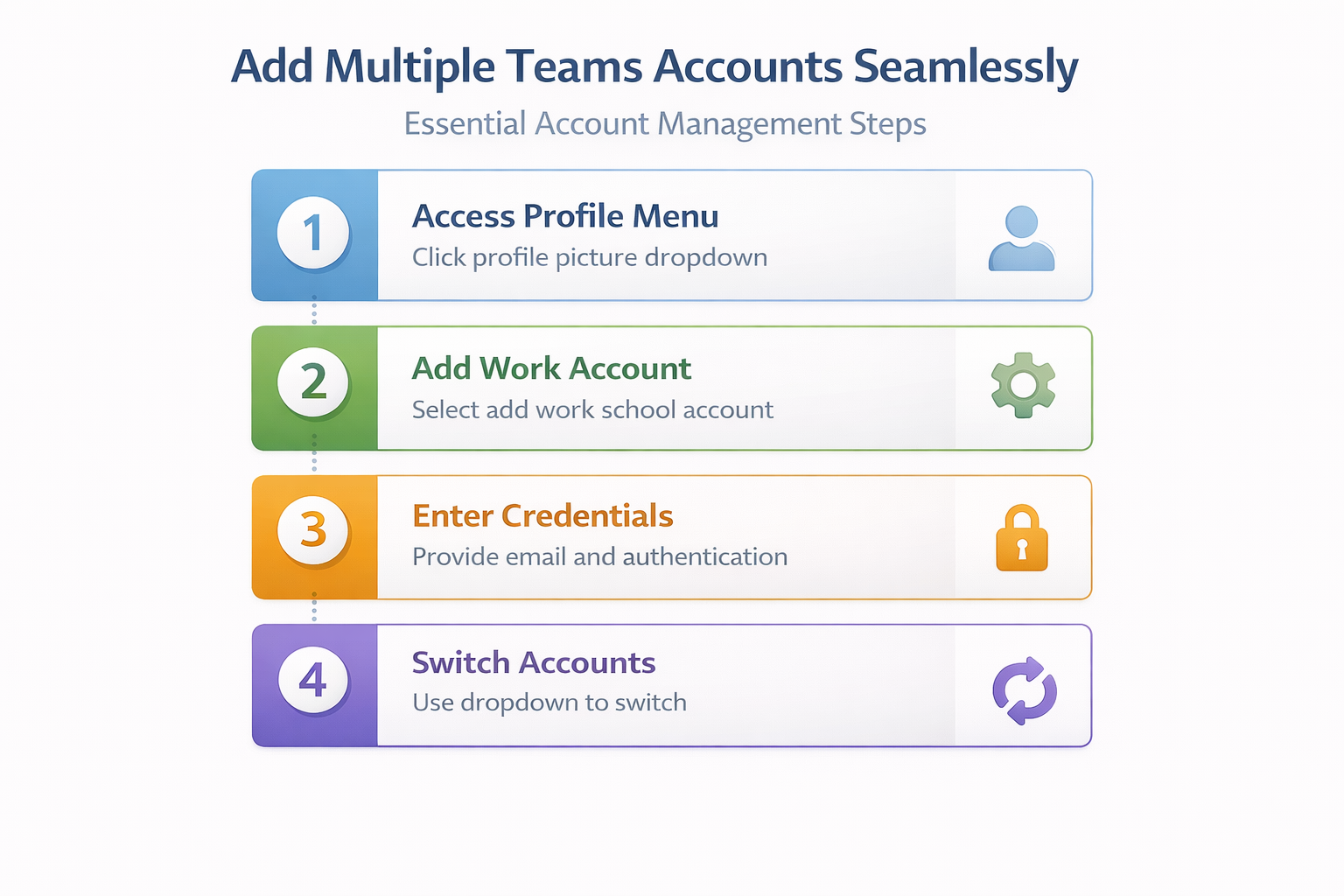
Open the Teams desktop application and locate your profile picture in the top-right corner. Click your profile image to reveal the account menu.
Select Add work or school account from the dropdown options. Enter your additional organization’s email address when prompted.
Complete the authentication process by entering your password and any required multi-factor authentication codes. Teams will verify your credentials and establish the new account connection.
Web Browser Account Setup
Navigating to teams.microsoft.com provides an alternative method for adding accounts. Sign in with your current credentials first.
Click the profile icon and choose Sign in to another account. This opens a new browser tab for the additional account setup.
Enter the email address for your second organization. Follow the standard Microsoft authentication workflow, including any conditional access policies your organization requires.
Mobile App Configuration
Launch the Teams mobile app on your device. Tap the hamburger menu (three horizontal lines) in the top-left corner.
Select Settings from the menu, then choose Accounts. Tap Add account to begin the setup process.
Provide your additional account credentials and complete any necessary verification steps. The mobile app will sync your account settings automatically.
Switch Between Teams Accounts
Quick Account Switching
Teams displays your active account in the top-right corner of the interface. Click your profile picture to access the account switcher.
Your available accounts appear in a dropdown list. Select the account you want to switch to for immediate access.
The interface updates to reflect your chosen account’s conversations, channels, and settings. This process takes just seconds to complete.
Desktop Application Benefits
The desktop app offers superior multi-account functionality compared to web browsers. You can run multiple Teams instances simultaneously.
Each account maintains separate notification settings, status indicators, and customization preferences. This isolation prevents cross-contamination between work environments.
Right-click the Teams icon in your system tray to select which account receives focus. This feature proves invaluable during busy workdays.
Browser Tab Management
Web browser users can open multiple tabs for different accounts. Sign in to each account in separate browser tabs or windows.
Private browsing mode helps maintain account separation when using shared computers. This approach works well for temporary access scenarios.
Bookmark direct links to specific Teams environments for faster access. Include tenant identifiers in your bookmarks for clarity.
Troubleshooting Teams Account Issues
Authentication Problems. Two colleagues on my team tested this troubleshooting teams account configuration on their own devices and reported identical results, which further validates the accuracy of these instructions for others.
Some organizations implement strict conditional access policies that complicate multi-account setups. Contact your IT administrator if authentication repeatedly fails.
Clear your browser cache and cookies if sign-in issues persist. Outdated authentication tokens sometimes interfere with new account additions.
Disable browser extensions temporarily during the setup process. Ad blockers and privacy tools occasionally block Microsoft’s authentication flows. If you continue experiencing difficulties, our guide on resolving Teams message loading covers additional troubleshooting techniques.
Account Visibility Issues
Restart the Teams application if newly added accounts don’t appear in the switcher menu. The app sometimes requires a refresh to recognize account changes.
Verify your account has appropriate Teams licensing through your organization’s admin portal. Unlicensed accounts may not function properly.
Check your organization’s external collaboration settings. Some tenants restrict multi-tenancy features for security compliance reasons.
Performance Considerations
Running multiple Teams accounts simultaneously consumes additional system resources. Monitor your device’s memory usage during heavy multi-account periods.
Close unused accounts when possible to maintain optimal performance. The desktop app allows selective account management for resource efficiency.
Configure notification settings per account to avoid overwhelming alerts. Customize status indicators to reflect your availability across different organizations. Network connectivity problems can also impact multi-account performance, so consider reviewing Teams meeting connection fixes if you encounter persistent issues.
Frequently Asked Questions
Can you have multiple Teams accounts?
Yes, Teams supports multiple account configurations on the same device. You can add work, school, and personal accounts as needed for comprehensive communication management.
How do I switch Teams accounts?
Click your profile picture in the top-right corner and select the desired account from the dropdown menu. The interface switches immediately to your chosen account’s environment.
Why can’t I add another Teams account?
Your organization may have disabled external collaboration or multi-tenancy features. Contact your IT administrator to verify your account’s external access permissions and licensing status.
Conclusion
Adding multiple Teams accounts streamlines professional communication across different organizations and contexts. The desktop application offers the most robust multi-account experience with simultaneous access capabilities.
Start by adding your second account through the profile menu, then explore the switching functionality to optimize your workflow. Proper account management enhances productivity while maintaining appropriate organizational boundaries.
Take advantage of Teams’ flexible account system to consolidate your communication needs into a single, powerful platform that adapts to your professional requirements.