Moving from Gmail to New Outlook workspace
“I’ve been using Gmail for years, but my organization is switching to Microsoft 365, and I need to import my Gmail account into New Outlook. How can I set this up so I can manage both my personal Gmail and work emails in one place?”
This need for unified email management comes up as organizations adopt Microsoft 365 while employees maintain personal Gmail accounts and want to access all their emails from one place.
Email account integration solution overview
Importing a Gmail account into New Outlook involves configuring IMAP settings to enable seamless email synchronization between Google’s servers and Microsoft’s email client. This integration allows you to manage multiple email accounts from a single interface while maintaining separate folder structures and organizational systems. The process requires enabling specific Gmail security settings and configuring authentication protocols to establish a secure connection.
We will show the complete Gmail import process, including prerequisite Google account configurations, step-by-step Outlook setup procedures, and post-import email management strategies. You will need an active Gmail account, New Outlook installed on your device, and administrative access to modify Google account security settings. The process typically takes 10-15 minutes and requires a stable internet connection for initial email synchronization.
Gmail account preparation and Outlook configuration
Before importing your Gmail account into New Outlook, you must configure specific Google security settings to allow external email client access and enable proper authentication protocols.
- Navigate to your Google Account settings by visiting myaccount.google.com and signing in with your Gmail credentials that you want to import into Outlook.
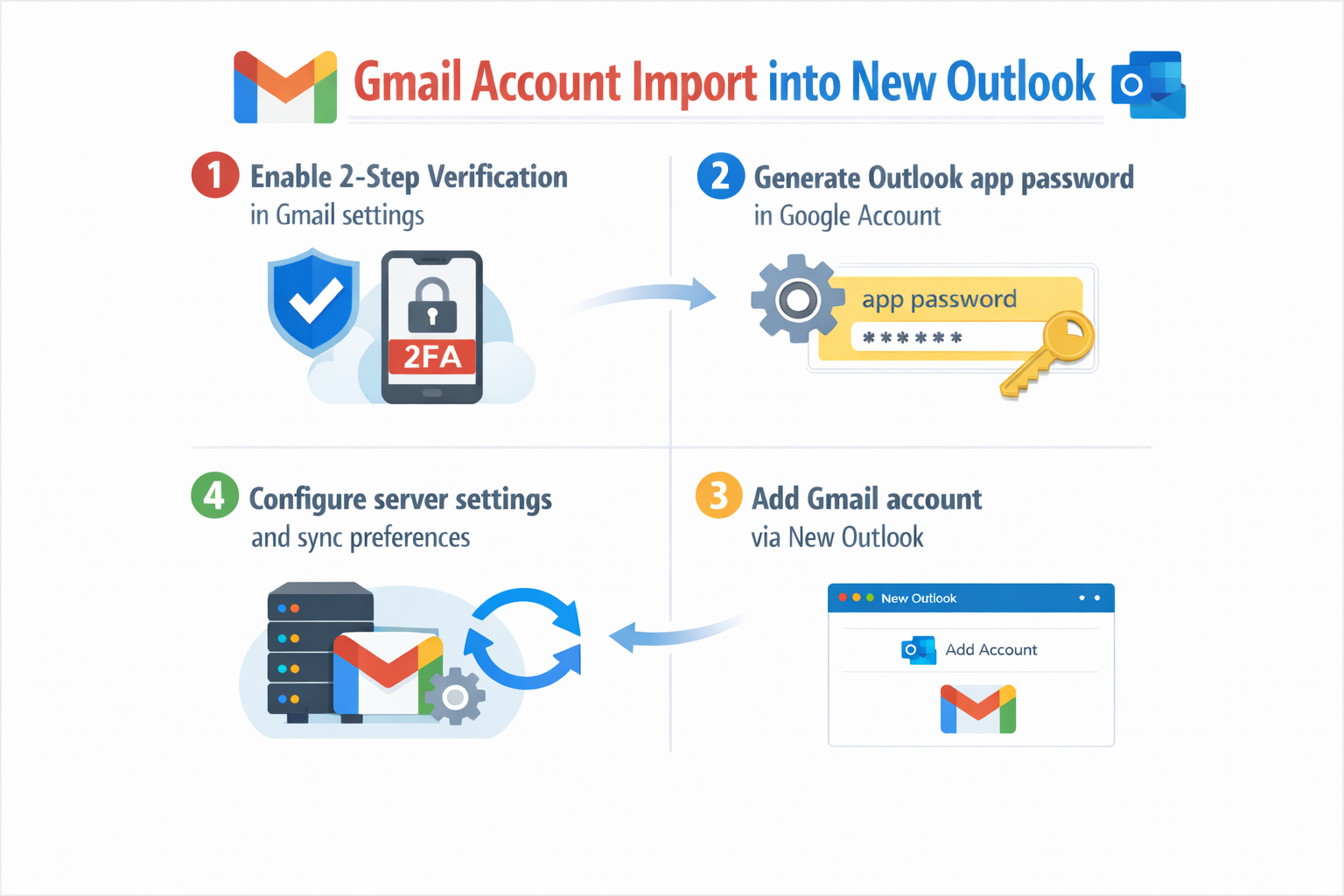
- Click on the Security tab in the left navigation panel and locate the “2-Step Verification” section to ensure your account has proper security measures enabled before proceeding.
- Scroll down to find “App passwords” and click on it to generate a unique 16-character password specifically for Outlook access, which bypasses standard 2FA requirements.
- Select “Mail” from the dropdown menu when prompted to choose the app type, then select “Windows Computer” or your specific device type from the second dropdown menu.
- Copy the generated app password immediately and store it securely, as Google will not display this password again once you close the generation window.
- Open New Outlook on your Windows computer and click the “Add account” button located in the left sidebar or navigate to File menu and select “Add Account” option.
- Enter your complete Gmail email address in the email field and click “Connect” to initiate the automated account detection process that identifies Gmail’s server settings.
Server settings and authentication setup
- When prompted for password authentication, enter the 16-character app password you generated earlier rather than your regular Gmail password to ensure proper IMAP connection establishment.
- Allow Outlook to automatically configure the incoming mail server settings, which should populate with imap.gmail.com on port 993 with SSL encryption enabled by default.
- Verify that the outgoing mail server settings show smtp.gmail.com on port 587 with STARTTLS encryption, and ensure your Gmail address appears in the authentication username field.
- Click “Test Account Settings” if available to verify that both incoming and outgoing server connections establish successfully before proceeding with the final account setup.
- Select your preferred synchronization timeframe from the dropdown menu, choosing between “All,” “Last 12 months,” “Last 6 months,” or “Last month” depending on your email history requirements.
- Choose whether to download email attachments automatically or on-demand based on your storage preferences and internet connection capabilities, then click “Done” to complete the import process.
Post-import email management and organization
Once your Gmail account successfully imports into New Outlook, you can customize folder synchronization, notification settings, and email organization features to optimize your workflow efficiency. For advanced synchronization troubleshooting, see email synchronization problems.
- Access the Account Settings by right-clicking on your Gmail account name in the folder pane and selecting “Account Settings” to modify synchronization and storage preferences.
- Configure which Gmail folders synchronize with Outlook by clicking on “Change Folder” and selecting or deselecting specific labels like “Sent,” “Drafts,” “Spam,” and custom labels you’ve created.
- Set up email rules and filters by navigating to Home tab, clicking “Rules” dropdown, and selecting “Manage Rules & Alerts” to automatically organize incoming Gmail messages.
- Customize notification preferences for your Gmail account separately from other email accounts by accessing File menu, selecting “Options,” then “Mail” to configure sound alerts and desktop notifications.
Expert Tip: Enable “Download shared folders” in your account settings if you use Gmail’s sharing features or have delegated access to other Gmail accounts, ensuring all accessible emails appear in your Outlook interface.
Common import challenges and solutions
Several technical issues can occur during the Gmail import process, ranging from authentication failures to incomplete email synchronization problems that require specific troubleshooting approaches.
- Authentication errors often occur when users enter their regular Gmail password instead of the generated app password, resulting in “Login failed” or “Invalid credentials” messages appearing during setup. Solution: Return to Google Account settings, generate a new app password, and ensure you’re copying the complete 16-character string without spaces when entering it in Outlook’s password field.
- Incomplete email synchronization happens when Outlook only downloads recent messages while older emails remain inaccessible, typically caused by restrictive synchronization timeframe settings or IMAP folder limitations in Gmail configuration. Solution: Navigate to Account Settings in Outlook, select “Change” next to your Gmail account, click “More Settings,” then “Advanced” tab and increase the “Download email for the past” setting to include your desired timeframe.
- Missing Gmail labels or folders in Outlook occur because not all Gmail labels automatically synchronize as Outlook folders, particularly custom labels or nested label structures that don’t translate directly. Solution: Access Gmail’s web interface, click the Settings gear icon, select “Labels” tab, and ensure important labels have “Show in IMAP” enabled, then restart Outlook to refresh the folder synchronization.
- Slow email loading or timeout errors during initial synchronization typically result from large Gmail accounts with extensive email histories overwhelming the import process or network connectivity issues. Solution: Temporarily reduce the synchronization timeframe to “Last month,” allow the initial sync to complete, then gradually extend the timeframe in Account Settings while monitoring the import progress through Outlook’s status indicators.