Many professionals ask how they can manage their Gmail messages alongside their work email without constantly switching between applications. This scenario becomes particularly common when employees use personal Gmail accounts for business communications or need to monitor multiple email accounts from different providers. Adding your Gmail account to Microsoft Outlook creates a unified inbox experience that streamlines your email workflow and increases productivity.
Gmail sync challenges and Outlook setup benefits
Managing multiple email accounts across different platforms creates inefficiencies and increases the risk of missing important messages. Gmail users often struggle with context switching between web browsers and desktop applications, leading to decreased productivity and fragmented communication workflows.
We will configure your Gmail account within Microsoft Outlook using the current authentication process (Gmail’s OAuth authentication system). You will learn to establish a secure connection between Gmail and Outlook that maintains full functionality for sending, receiving, and organizing messages. The process requires an active Gmail account, Microsoft Outlook installed on your computer, and internet connectivity for initial authentication setup.
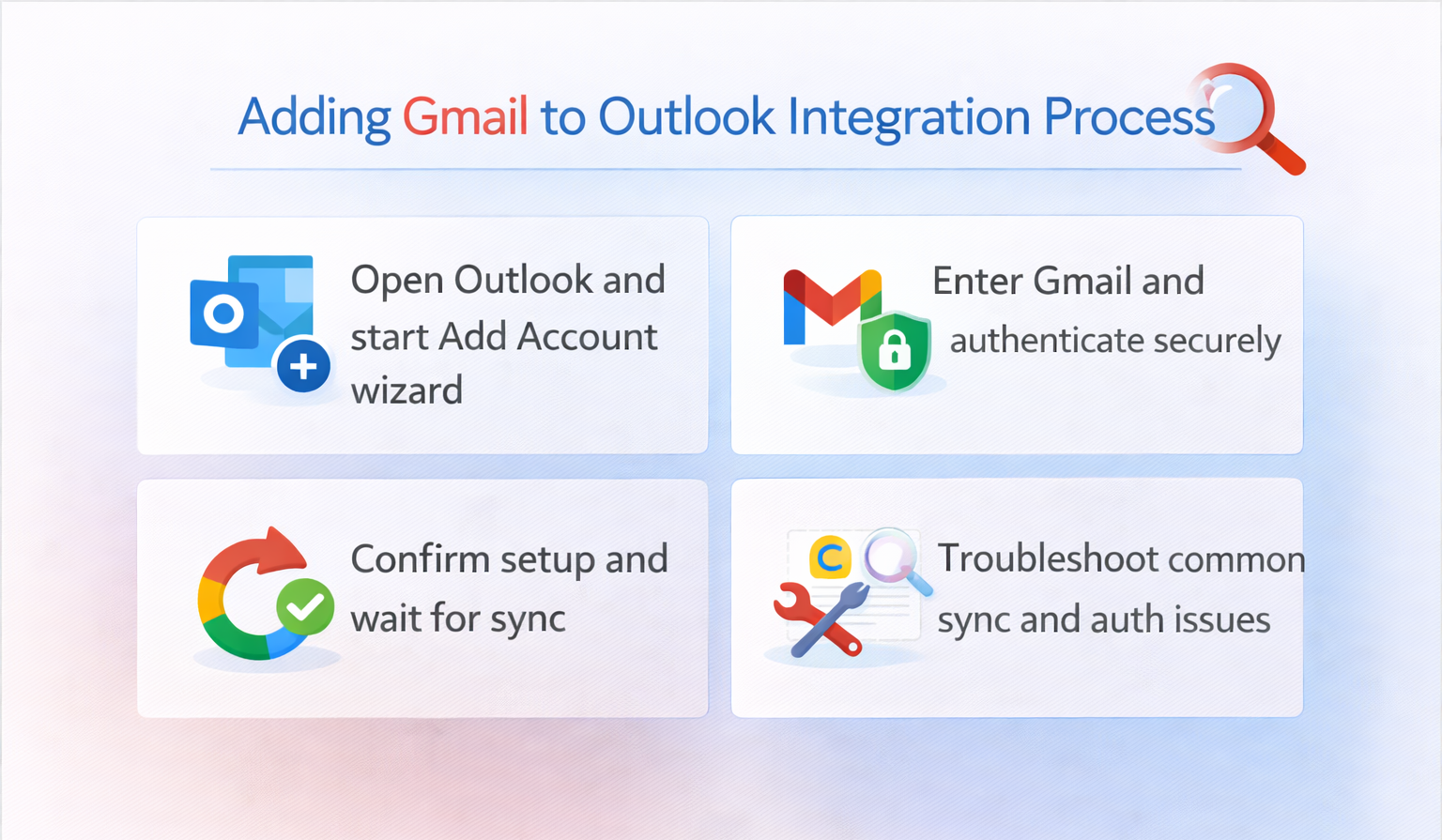
Setting up Gmail account connection in Outlook
The Gmail integration process begins with opening Microsoft Outlook and accessing the account management interface to initiate the connection setup.
Expert Tip: Before starting, ensure you have your Gmail credentials readily available and consider enabling two-factor authentication on your Gmail account for enhanced security during the setup process.
- Open Microsoft Outlook on your computer and navigate to the File tab located in the upper-left corner of the ribbon interface.
- Click on “Add Account” from the Account Information section, which will launch the automatic account setup wizard for new email configurations.
- Enter your complete Gmail email address in the email field when prompted, then click “Connect” to initiate the authentication process with Google’s servers.
- Outlook will automatically detect that you are adding a Gmail account and redirect you to Google’s secure authentication page in your default web browser.
- Sign in to your Gmail account using your standard username and password credentials, then complete any additional security verification if two-factor authentication is enabled.
- Review the permission request from Microsoft Outlook and click “Allow” to grant access to your Gmail messages, contacts, and calendar information as needed.
Completing the authentication and sync process
- Return to the Outlook application where you should see a confirmation message indicating that your Gmail account has been successfully connected and is being configured.
- Wait for Outlook to complete the initial synchronization process, which downloads your recent Gmail messages, folder structure, and contact information to your local Outlook installation.
- Verify that your Gmail account appears in the left navigation pane under your existing email accounts, with the Gmail folder structure now visible within Outlook.
- Test the integration by sending a test email from your Gmail account through Outlook to confirm that both sending and receiving functionalities work correctly.
- Configure your preferred sync settings by right-clicking on your Gmail account name and selecting “Account Settings” to adjust how much email history Outlook should download and maintain locally.
- Set your Gmail account as the default sending account if desired by navigating to File, Account Settings, and modifying the default account selection in the email accounts list.
Common Gmail and Outlook integration issues
Several technical challenges can prevent successful Gmail account integration with Outlook, requiring specific troubleshooting approaches to resolve authentication and synchronization problems.
- Authentication failures often occur when two-factor authentication is enabled on Gmail without generating an app-specific password, which requires creating a dedicated password through your Google account security settings for Outlook to use instead of your regular login credentials.
- Synchronization delays may happen due to large mailbox sizes or network connectivity issues, and you can resolve this by limiting the initial sync period to recent months through Outlook’s account settings and gradually expanding the sync range after the initial setup completes successfully. See sync problems solutions for details.
- Missing emails or folders typically result from Gmail’s label system not translating perfectly to Outlook’s folder structure, so you should verify that important Gmail labels are configured to show in IMAP settings within your Gmail web interface before expecting them to appear in Outlook.
- Connection timeout errors during setup often indicate firewall or antivirus software blocking Outlook’s communication with Gmail servers, requiring you to temporarily disable security software or configure exceptions for Outlook and related Microsoft Office applications during the initial setup process.