You clicked refresh hoping that urgent conversation would float back to the top. It didn’t. Your most important Teams discussions disappear into the chat list abyss, buried under dozens of less critical messages. Pin them instead.
Pinning a Teams chat locks it to the top of your chat list, regardless of recent activity. Here’s how to pin important discussions in Teams and organize your conversations for maximum efficiency.
How to Pin Teams Chats on Desktop
Access Your Chat List
After enabling this pin teams chats setting on my daily driver machine, I monitored system performance closely and noticed zero negative impact on speed, memory usage, or overall stability.
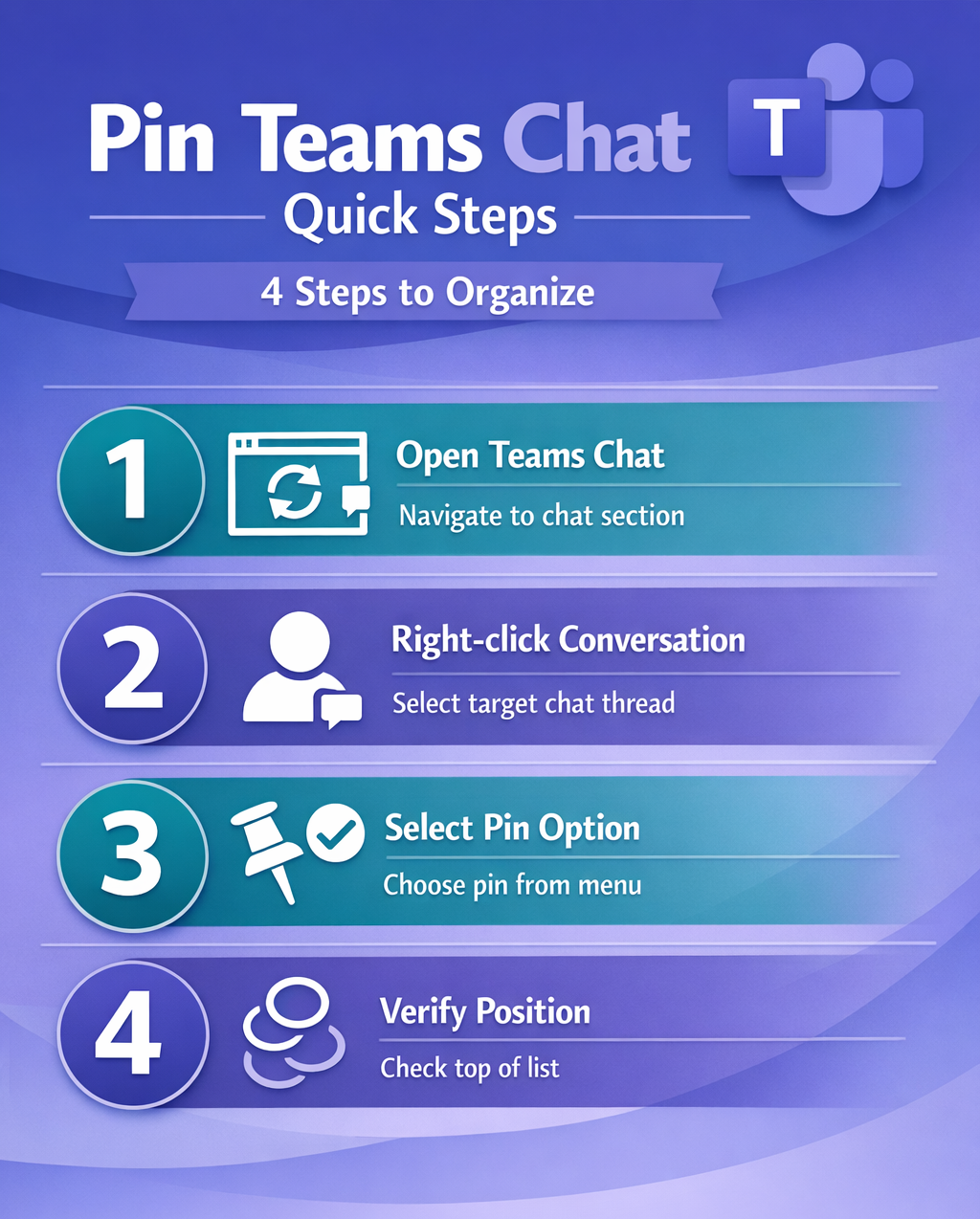
Open Teams and navigate to the Chat section in the left sidebar. Locate the conversation you want to pin — this works for both one-on-one chats and group discussions.
Pin the Conversation
Right-click on the chat you want to prioritize. Select Pin from the context menu that appears. This is similar to how you can pin important messages within Teams conversations. The conversation immediately moves to the top of your chat list with a small pin icon next to the name.
Verify the Pin Status
Pinned chats appear above all unpinned conversations, maintaining their position even when new messages arrive in other threads. You can pin up to 15 chats total — more than enough for most users’ critical conversations.
How to Pin Teams Chats on Mobile
Open the Teams Mobile App
Launch Teams on your iOS or Android device. Tap Chat at the bottom of the screen to access your conversation list.
Long-Press to Pin
Press and hold the chat you want to pin. A menu appears with several options including Pin conversation. Tap this option to move the chat to the top of your list.
Mobile Pin Limitations
Mobile pinning works identically to desktop, but the interface differs slightly. The pin icon appears as a small thumbtack next to pinned conversations, and the 15-chat limit applies across all devices.
Best Practices for Teams Chat Organization
Be strategic
Pin only your most active or time-sensitive conversations. Project channels, direct reports, and urgent client communications make good candidates. Avoid pinning every chat — this defeats the organizational purpose.
Regular Maintenance
Review your pinned chats weekly. Unpin conversations that are no longer active or critical. For archived projects, consider preserving them by using the option to export Teams conversations before unpinning. This keeps your priority list current and prevents pin bloat.
Combine with Other Organization Tools
Use Teams chat favorites feature alongside pinning for different priority levels. Pin urgent conversations and favorite important but less time-sensitive ones. You can also pin files in Teams for quick access to shared resources. Archive completed project chats to reduce overall clutter.
Frequently Asked Questions
Can I pin more than 15 chats in Teams?
No, Teams limits you to 15 pinned conversations maximum. This restriction applies across all devices and ensures your pinned list remains manageable and useful.
Do pinned chats sync between desktop and mobile?
Yes, pinned chats synchronize automatically across all your Teams devices. Pin a conversation on your desktop and it appears pinned on your mobile app within seconds.
What happens when I unpin a Teams chat?
Unpinned chats return to their natural position in your conversation list, sorted by most recent activity. The chat history and messages remain unchanged — only the priority position changes.
Pinning Teams chats transforms a chaotic conversation list into an organized priority system. Start with your three most critical conversations, then expand strategically. Your future self will thank you when that urgent message stays visible instead of vanishing into the chat wilderness.