Can you actually print or export your Microsoft Copilot conversations?
Yes. You can print a Copilot conversation or save it as a PDF from your browser, even when the Copilot screen does not show a dedicated export command. In supported Copilot experiences, you can also share a full conversation or an individual response by link. For a portable offline copy with a page layout you control, the browser print dialog remains the simplest option.
Printing from Copilot and converting chat to PDF
The available controls vary between the Copilot website, Microsoft 365 apps, account types, and administrator settings. Use Share when a link is sufficient; when you need a file, open your browser’s print dialog and select Save as PDF, or copy selected responses into Word or OneNote before exporting. Review the conversation first and remove confidential or sensitive work data before printing or sharing it.
This tutorial will show you how to print a Copilot conversation, convert Copilot chat to PDF, export chat from Copilot, and share Copilot chat with colleagues using browser-based methods and Microsoft 365 integration tools. You’ll need access to Microsoft Copilot (either the web version at copilot.microsoft.com or Copilot integrated within Microsoft 365 apps) and a modern web browser like Microsoft Edge, Chrome, or Firefox.
How to print a full Copilot page and save as PDF?
The most straightforward method to print Copilot answers involves using your browser’s built-in print functionality, which allows you to either send the conversation to a physical printer or save it as a PDF document for digital archiving and sharing.
Print a Copilot conversation using browser print function
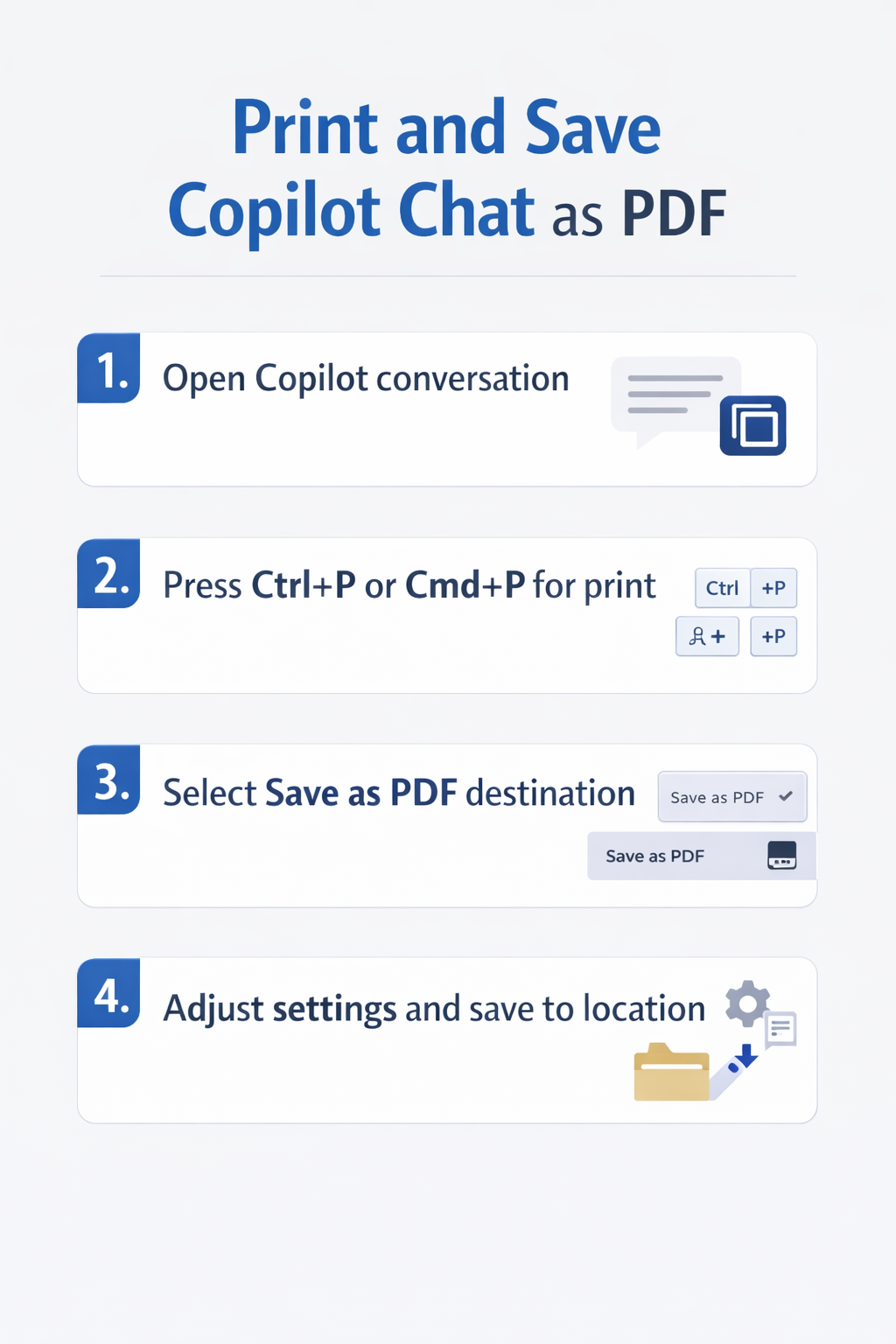
- Navigate to your Copilot chat session at copilot.microsoft.com or within your Microsoft 365 application where you’ve been working with Copilot, ensuring the entire conversation you want to capture is visible on screen.
- Press Ctrl + P on Windows or Cmd + P on Mac to open the browser’s print dialog, which will generate a print preview of the current Copilot page including all visible chat messages and responses.
- In the print dialog destination dropdown, select Save as PDF instead of a physical printer to create a digital document that preserves your Copilot chat in a universally accessible format.
- Adjust the print settings to optimize your output by selecting appropriate page orientation (portrait typically works best for chat conversations), margins, and whether to include backgrounds and images for better readability.
- Click the Save or Print button, choose your desired file location, provide a descriptive filename that includes the date and topic of your Copilot conversation, and save the PDF to your local drive or OneDrive.
Expert Tip: Before printing, scroll through the entire Copilot conversation to ensure all messages are loaded, as some chat interfaces use lazy loading that only displays visible content in the print preview.
Convert Copilot chat to PDF using browser extensions
- Install a browser extension designed for webpage capture such as “Print Friendly & PDF” or “FireShot” from your browser’s extension store, which often provides more control over formatting and content selection than native print functions.
- Open your Copilot chat session and click the extension icon in your browser toolbar to activate the capture tool, which will analyze the page content and present formatting options.
- Use the extension’s editing features to remove unnecessary elements like navigation bars, sidebars, or advertisements that might clutter your exported Copilot conversation, focusing only on the actual chat content.
- Select the PDF export option within the extension interface, configure any additional settings like page size or image quality, and generate the PDF file containing your complete Copilot chat history.
- Download the generated PDF to your preferred location, and consider uploading it to a SharePoint document library or Teams channel if you need to share the Copilot answers with your team members.
Remember: Some browser extensions may have limitations on the length of content they can capture, so for very long Copilot conversations, you might need to export in multiple sections.
Export chat from Copilot using copy and paste method
- Select the specific Copilot answers or the entire conversation you want to preserve by clicking at the start of the content, holding down the mouse button, and dragging to the end of the desired text.
- Right-click the highlighted content and choose Copy, or use the keyboard shortcut Ctrl + C (Windows) or Cmd + C (Mac) to copy the selected Copilot chat to your clipboard.
- Open Microsoft Word, OneNote, or any text editor where you want to preserve the conversation, and paste the content using Ctrl + V or Cmd + V to transfer the Copilot chat into an editable document format.
- Format the pasted content as needed by adding headings, adjusting fonts, or organizing the conversation into sections that make it easier to reference specific Copilot answers or recommendations later.
- Save your document and then use the File > Save As menu to select PDF as the output format, creating a polished document that preserves your Copilot conversation with better formatting control than direct browser printing.
Share Copilot chat and collaborate on AI-generated content
Beyond simply printing or converting to PDF, you may want to share your Copilot conversations with colleagues in a way that enables collaboration and discussion around the AI-generated insights.
Share Copilot chat via Microsoft Teams
- Copy the relevant portions of your Copilot conversation using the selection and copy method described earlier, ensuring you capture all the context necessary for your team members to understand the discussion.
- Open Microsoft Teams and navigate to the appropriate channel or chat where you want to share the Copilot answers, considering whether the content is relevant for a broad team channel or a specific private conversation.
- Paste the Copilot chat content directly into the Teams message composer, and add your own commentary or questions to provide context about why you’re sharing this particular AI-generated content with the team.
- Alternatively, create a new Word document containing the formatted Copilot conversation, save it to SharePoint or OneDrive, and share the document link in Teams to enable collaborative editing and commenting on the content.
Important Tip: When sharing Copilot chat that contains sensitive business information or proprietary data, verify that your Teams channel or chat participants have appropriate permissions and that you’re complying with your organization’s data governance policies.
Create a permanent record using OneNote
- Open Microsoft OneNote and navigate to the notebook section where you want to archive your Copilot conversations, creating a dedicated section for AI-generated content if you frequently reference Copilot answers.
- Create a new page with a descriptive title that includes the date and topic of your Copilot chat session, making it easier to locate specific conversations when you need to reference them in the future.
- Paste your copied Copilot conversation into the OneNote page, and use OneNote’s formatting tools to add tags, highlights, or annotations that emphasize key insights or action items generated during your Copilot session.
- OneNote automatically syncs to the cloud and makes your Copilot chat searchable across all your devices, allowing you to quickly find specific AI-generated recommendations or code snippets whenever you need them.
- Share the OneNote page or entire section with colleagues by clicking the Share button and entering their email addresses, enabling team members to view and contribute additional notes about the Copilot conversation.
Prepare a Copilot conversation before printing
A browser print captures the visible conversation, not necessarily every item associated with the account. Scroll to the beginning of the required thread and allow older messages to load. Expand citations, code, or collapsed sections that must appear, then open Print Preview before saving the PDF.
Check whether the page includes navigation, account details, or unrelated side panels. Use the browser’s simplified layout or copy the approved content into Word when the native preview is cluttered. Keep the prompt and response together so the saved answer retains its context.
Verify the resulting PDF
Open the new PDF independently and inspect the first page, final page, page breaks, links, tables, and code blocks. Search for a distinctive phrase to confirm that text is selectable when accessibility or later review matters. A screenshot-based PDF may look correct but be difficult to search.
Add the conversation date, Copilot surface, signed-in account type, and project context to the filename or a cover note. Do not claim that the PDF is a complete account export unless it came from the appropriate data-export process.
Protect sensitive content
Copilot conversations can include company information, personal data, and text from connected sources. Remove confidential material only in a working copy, and follow the organization’s records and sharing rules. Do not install an unapproved full-page capture extension, because browser extensions can read the conversation content.
Before sharing, verify Copilot’s factual claims and open important citations. Saving a response does not turn AI output into an approved business record.
If the preview cuts off content, reduce scale slightly, switch orientation, or copy smaller sections into a document with clear headings. If a long thread cannot be loaded consistently, save several labeled parts and record their order. For recurring work, store reviewed outputs in an approved SharePoint or OneDrive folder with controlled permissions rather than relying on browser history as the only copy.
Troubleshooting when printing Copilot conversations
- If your print preview shows a blank page or missing content, try refreshing the Copilot chat page and waiting a few seconds for all dynamic content to fully load before attempting to print again, as some elements may require additional rendering time.
- When the printed or PDF version of your Copilot chat appears cut off or truncated, check your browser’s print settings and ensure that “Print backgrounds” or “Background graphics” is enabled, which often resolves issues with missing content or formatting.
- If code blocks or formatted text from Copilot answers appear garbled in your PDF export, consider using the copy-paste method to transfer content into Word first, where you can apply proper code formatting before converting to PDF.
- When browser extensions fail to capture the full Copilot page, try using the native browser print function instead, or break your conversation into smaller sections and export each portion separately before combining them into a single document.