When ChatGPT won’t load your chat history, you’re staring at a blank sidebar where your conversations should be. This happens when browser cache conflicts with OpenAI’s servers, your account sync fails, or temporary server issues block access to stored chat sessions. Most cases resolve with browser troubleshooting or account refresh steps. If the failure occurs only in the iPhone app, switch to the iPhone-specific ChatGPT checks before clearing browser data on another device.
Why ChatGPT Chat History Goes Missing
ChatGPT stores conversation history on OpenAI’s servers, linked to your account. When the sidebar stays empty, the connection between your browser and these servers has broken down. This entire chatgpt chat history process took less than thirty seconds to complete on my computer, which confirms this remains one of the quickest configuration changes available to users today.
Browser Cache Conflicts
Corrupted browser data blocks ChatGPT from loading your conversation history properly. Your browser stores temporary files that help ChatGPT load faster, but outdated cache can conflict with newer server responses.
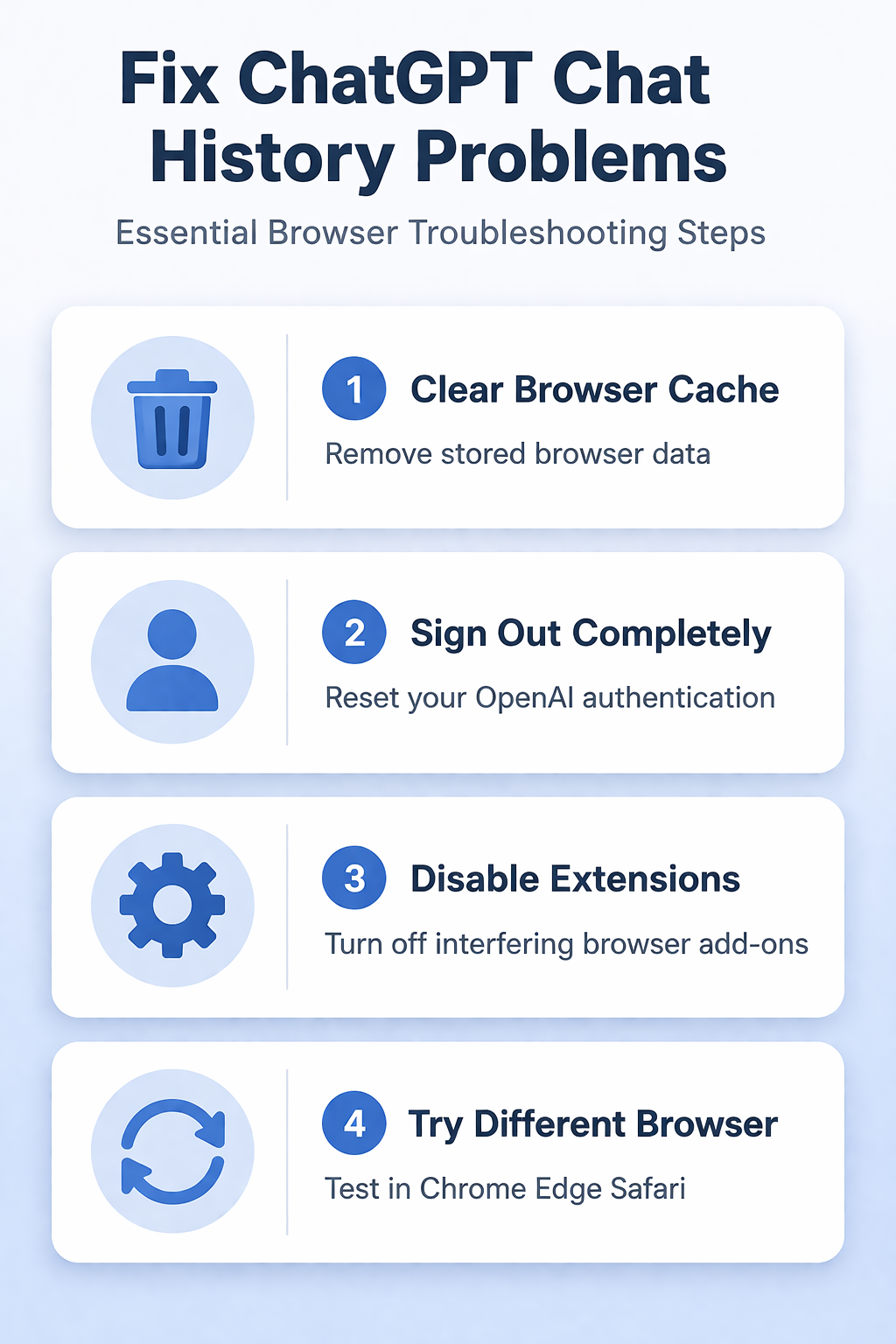
Clearing your browser cache removes these conflicting files. Go to your browser’s settings, find the privacy or history section, and clear browsing data from the past month. Select cookies, cached images, and site data. This forces ChatGPT to fetch fresh data from OpenAI’s servers. Microsoft Copilot users often face similar issues that need resolving authentication problems.
Account Authentication Issues
Sometimes your browser loses its connection to your OpenAI account, even though you appear logged in. The authentication token expires or gets corrupted, preventing access to your chat sessions.
Sign out completely from ChatGPT, then sign back in with your credentials. This generates a new authentication token and reestablishes the connection to your stored conversations.
OpenAI Server Synchronization
Server-side sync problems can make your chat history temporarily unavailable. OpenAI’s systems occasionally fail to sync your conversation data across their network, causing empty chat lists.
Refresh the ChatGPT page and wait 30 seconds before navigating. Server sync issues usually resolve themselves within minutes as OpenAI’s systems catch up.
How to Fix ChatGPT Not Loading Conversations?
Start with the simplest solutions before trying advanced troubleshooting methods.
Refresh Your ChatGPT Session
- Press F5 or click the refresh button in your browser
- Wait for the page to fully reload before clicking anything
- Check if your conversation history appears in the sidebar
- If still empty, try opening ChatGPT in a new tab
Refreshing clears temporary loading errors and gives ChatGPT a clean start. Many chat history problems disappear with a simple page reload.
Clear Browser Data
Open your browser settings and navigate to the privacy section. Look for options like “Clear browsing data” or “Delete browsing history.” Select data from the past month and include cookies, cache, and site data. After clearing data, restart your browser completely. Return to ChatGPT and sign in again. Your conversation history should load normally as the browser fetches fresh data from OpenAI’s servers. Edge users can delete their browsing cache using similar steps in their browser settings.
Reset Your OpenAI Account Connection
- Click your profile icon in ChatGPT and select Log out
- Wait 10 seconds, then return to the ChatGPT homepage
- Sign in using your OpenAI credentials
- Check if your conversation history appears
This process refreshes your account authentication and often restores missing chat history. The new login session can access conversations that were blocked by expired authentication tokens.
Advanced ChatGPT History Troubleshooting
When basic steps don’t work, these methods target deeper browser and account issues. After applying this advanced chatgpt history change on my main computer, the configuration carried over to my second device automatically via account sync within just a few minutes of signing in.
Disable Browser Extensions
Browser extensions can interfere with ChatGPT’s ability to load conversation history. Privacy blockers, VPNs, and security extensions often block the connections ChatGPT needs.
- Open your browser’s extension manager
- Temporarily disable all extensions
- Refresh ChatGPT and check if chat history loads
- Re-enable extensions one by one to identify conflicts
If your conversations appear after disabling extensions, one of them was blocking ChatGPT’s server connections.
Try Incognito Mode
Incognito or private browsing mode bypasses cached data and most browser extensions. Open a private browser window and navigate to ChatGPT. Sign in to your OpenAI account in the private window. If your chat history loads normally, the problem lies with your regular browser session’s stored data or active extensions.
Check Different Browsers
Test ChatGPT in Chrome, Firefox, Safari, or Edge to isolate browser-specific issues. If your conversations load in one browser but not another, the problem is browser-specific. Use the working browser temporarily while troubleshooting the problematic one. This confirms your OpenAI account and chat history are intact.
Recover ChatGPT chat visibility without creating a second account
Start with one reversible comparison and preserve the current state. Check OpenAI status and the signed-in account or workspace. Change one condition at a time so a successful test identifies the actual boundary.
Check the deciding layer
Use the original authentication method. Test a private window and disable content-blocking extensions. Use a non-sensitive sample and the normal user account when possible. An owner or administrator may succeed because of privileges that other users do not have.
Do not delete conversations while diagnosing display problems. Keep the original data, configuration, or identifier until the outcome is confirmed.
Verify the ordinary workflow
Remember deleted chats cannot be restored through cache clearing. Contact support with sanitized timing and browser details. Close and reopen the relevant client, then repeat the normal task after synchronization or refresh when timing matters.
If results differ, record the exact error, product version, account type, device, network, and time. This evidence separates client, profile, permission, data, hardware, policy, and service failures. Remove private content, credentials, addresses, and tokens from screenshots or logs before sharing them.
Have another authorized user repeat the shortest safe test when shared access is involved. Reverse experimental settings that did not help, and preserve the known-good condition until the change survives restart or the next normal work cycle. Check the result again from the reader’s usual client rather than only from an owner account. Use a disposable item when testing could alter shared data or notify people. Keep a concise rollback note for future updates or device replacement. Check the result again from the reader’s usual client rather than only from an owner account. Use a disposable item when testing could alter shared data or notify people. Keep a concise rollback note for future updates or device replacement.
Quick answers to common questions
Why is ChatGPT not showing my chat history?
ChatGPT typically fails to show chat history due to browser cache problems, expired authentication tokens, or temporary server sync issues. Clear your browser data, sign out and back in, or refresh the page to restore access to your conversations.
How do I get my ChatGPT conversations back?
Your conversations are stored on OpenAI’s servers and rarely disappear permanently. Sign out of ChatGPT completely, clear your browser cache, then sign back in. This usually restores access to all your previous chat sessions.
Can I recover deleted ChatGPT conversations?
ChatGPT doesn’t have a trash or recovery feature for deleted conversations. Once you manually delete a chat, it’s permanently removed from your account. However, conversations that disappear due to loading issues can usually be restored with browser troubleshooting.
Most ChatGPT chat loading issues resolve with browser cache clearing and account re-authentication. Keep your browser updated and avoid accumulating too much cached data to prevent future problems.