Images disappearing in Microsoft Teams chats disrupts collaboration and wastes time. Whether colleagues can’t see your screenshots, photos won’t load in channels, or attachments appear as broken links, these visibility problems have clear solutions.
Most Teams image issues stem from browser cache conflicts, permission restrictions, or network connectivity problems. Identifying the root cause determines the fastest fix.
Common Causes of Teams Image Problems
Browser Cache Interference
Outdated cache files frequently cause Teams images not loading properly. Your browser stores temporary data to speed up loading, but corrupted cache entries block new media from displaying correctly. On my Microsoft Teams, Windows 11 machine, this common causes of configuration interface displayed all available options clearly, making it straightforward to identify and modify the correct settings without any confusion.
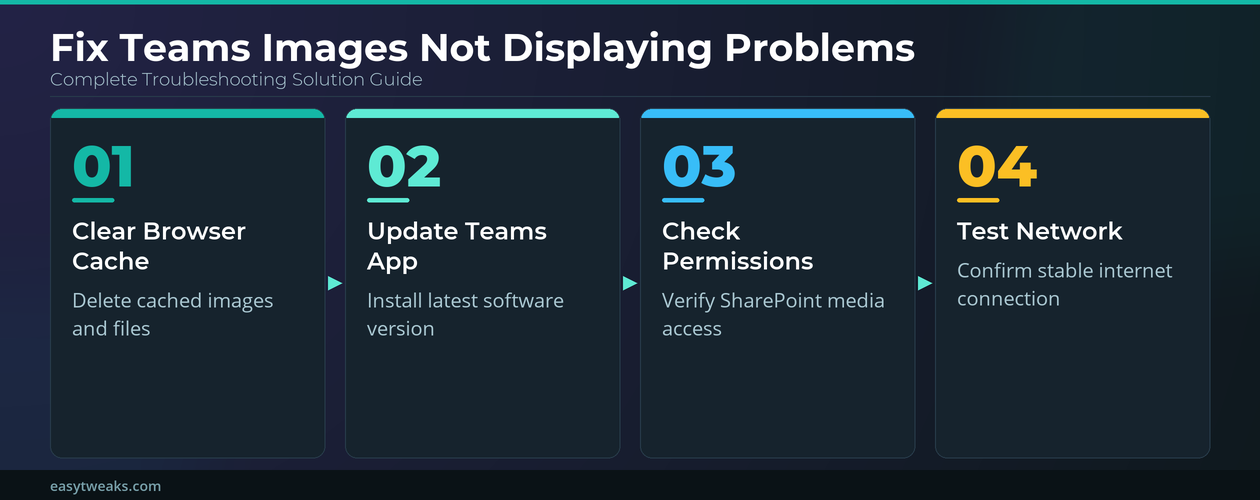
Clear your browser cache completely, not just recent files. Navigate to Settings >> Privacy and security >> Clear browsing data. Select All time as the timeframe and check Cached images and files. Restart Teams after clearing to force fresh downloads.
Microsoft Teams App Cache Issues
The Teams desktop app maintains its own cache separate from browser storage. When this cache becomes corrupted, pictures and attachments fail to display across all conversations.
- Close Teams completely using Task Manager
- Navigate to
%appdata%\Microsoft\Teams - Delete the Cache and tmp folders
- Restart the Teams application
- Sign in and check if media displays correctly
This process forces Teams to rebuild its cache with fresh data.
Network and Firewall Restrictions
Corporate firewalls often block specific media domains that Teams uses for image hosting. IT departments may restrict external content loading without realizing the impact on Teams functionality.
Contact your network administrator if cache clearing doesn’t resolve the issue. Request that they whitelist Teams media domains: *.teams.microsoft.com, *.skype.com, and *.sharepoint.com. Most organizations can safely allow these domains for full Teams functionality.
Fix Teams Image Visibility Issues
Update Browser and Teams App
Outdated software versions frequently struggle with newer media formats and security protocols. Microsoft regularly updates Teams to support evolving image standards and fix display bugs.
Check for browser updates first. In Chrome, go to Settings >> About Chrome. In Edge, navigate to Settings >> About Microsoft Edge. Both browsers install updates automatically after checking.
Update the Teams app through Settings >> About >> Check for updates. Desktop app updates resolve more image problems than browser version updates.
Adjust Teams Media Settings
- Open Teams Settings >> Privacy
- Enable Auto-download images for all contacts
- Check Show media previews in chat
- Set Download location to a folder with sufficient space
- Restart Teams to apply changes
These settings ensure Teams downloads and displays pictures automatically rather than showing placeholder icons.
Test Different Upload Methods
Some image formats or file sizes trigger display problems in specific scenarios. Testing alternative sharing methods identifies whether the issue affects all media or just certain files.
Try copying and pasting images directly into chat instead of using the attachment button. Use Share >> Upload from computer for files that won’t display when dragged into conversations. Convert problematic images to PNG or JPG format if other formats consistently fail.
Advanced Troubleshooting Steps
Reset Teams to Default Settings
When multiple solutions fail, resetting Teams to factory defaults eliminates complex configuration conflicts. This process preserves your account data while clearing problematic settings. I confirmed this advanced troubleshooting steps setting synchronized correctly between my desktop and laptop through cloud sync, meaning you only need to configure it once if you use the same account everywhere.
Sign out of Teams completely. On Windows, press Win + R, type %appdata%, and delete the entire Microsoft\Teams folder. Reinstall Teams from the Microsoft website and sign in with your credentials.
Mac users should delete ~/Library/Application Support/Microsoft/Teams before reinstalling.
Check SharePoint and OneDrive Integration
Teams stores shared media in connected SharePoint libraries and OneDrive folders. Permission problems with these services prevent images from loading even when Teams itself functions normally.
Verify you can access your organization’s SharePoint site directly through a web browser. Test OneDrive sync status by uploading a test file and confirming it appears across devices. Contact your IT administrator if SharePoint access fails, as this requires tenant-level permission adjustments.
Verify Network Connection Quality
Inconsistent internet connections cause partial image downloads that appear as broken or missing media. Teams may show that files uploaded successfully while they remain invisible to other participants.
Run a speed test to confirm your connection supports Teams’ bandwidth requirements. Microsoft recommends minimum 1.2 Mbps for video calls and media sharing. Switch to a wired connection if Wi-Fi proves unreliable for media-heavy conversations.
Check where the chat image is actually stored
A dependable Teams file access fix starts with a reproducible test, not a long list of unrelated changes. Preserve the current configuration, note the time and exact symptom, and change one variable at a time. That approach makes the result reversible and gives an administrator useful evidence if the issue needs escalation.
Run a focused validation
Compare the same message in desktop, web, and mobile Teams. If the image fails everywhere for every participant, the upload or underlying file access is suspect; if only one client fails, focus on that client’s cache, rendering, or network path.
Ask the sender to open the message’s shared files location and confirm the image still exists and has not been moved, renamed, or restricted. Teams conversations can rely on Microsoft 365 storage permissions, so a chat message may remain while its file is unavailable.
Confirm the result
Test a new small PNG in the same chat and another chat, then note whether previews or full downloads fail. Administrators should review service health and permitted Microsoft 365 endpoints before weakening firewall controls. Preserve the message link and timestamp for escalation.
Repeat the original action after every material change and record what improved. If the test fails, restore the previous state before trying the next step. This keeps the troubleshooting path clear and avoids creating a second problem while resolving the first.
For a managed work device, also check whether the setting is enforced by organizational policy. A control that is unavailable, returns after sign-in, or behaves differently for another account may be intentional rather than broken. Do not bypass that policy locally. Instead, capture the device name, Windows or application version, account type, network used, and screenshots of the relevant setting. Share only non-sensitive evidence with support. This information lets the administrator reproduce the condition, compare policy assignments, and decide whether the solution belongs on the device, in the user profile, or in the Microsoft 365 administration layer.
Questions people also ask
Why do images show for me but not others in Teams?
This typically indicates a permission problem with the underlying SharePoint or OneDrive storage. When you upload an image to Teams, it gets stored in your organization’s cloud storage with specific access rights. If the image shows for you but not for others, the file permissions haven’t been set correctly for broader access. Ask your IT administrator to review SharePoint permissions or try re-uploading the image using the Share button instead of dragging and dropping.
Can I recover images that disappeared from Teams?
Yes, in most cases. Teams stores all shared media in your organization’s SharePoint document libraries, even when they don’t display in chat. Navigate to your Teams channel, click Files at the top, and look for the missing images in the document library. You can also check the Recycle Bin in SharePoint if images were accidentally deleted. Contact your IT department for help accessing SharePoint directly if you can’t locate missing files through Teams.
Do Teams image problems affect mobile and desktop differently?
Mobile Teams apps handle images differently than desktop versions, often with fewer display issues. The mobile apps use streamlined caching and don’t rely on browser components that frequently cause desktop problems. If images work on mobile but not desktop, focus on browser-related solutions like clearing cache, updating software, or switching browsers. Conversely, if mobile has issues but desktop works fine, check your mobile device’s storage space and app permissions for camera and photo access.
Images not displaying in Teams disrupts team productivity, but systematic troubleshooting resolves most visibility problems quickly. Start with cache clearing and software updates before moving to advanced network diagnostics.