Microsoft Copilot stores your chat interactions to help you pick up where you left off across sessions and devices. Without proper configuration, those conversations can disappear after closing the application, switching accounts, or receiving a Windows update. Many users discover their copilot chat history vanished without warning after routine system changes. This copilot configure guide walks you through enabling persistent history, verifying it works, and troubleshooting the most common issues that cause conversations to disappear on Windows 11.
Copilot Setup Requirements for Chat
Before adjusting any configuration, confirm these requirements are met:
- Microsoft account sign-in: Chat history only syncs for authenticated users. Sign in with your personal Microsoft account or Microsoft 365 work account before enabling any settings. Guest sessions and anonymous browsing do not retain conversation logs regardless of your configuration choices.
- Updated Copilot application: Open Microsoft Store and update the Copilot app to the latest version. Older builds may lack the chat history toggle entirely or contain bugs that prevent conversations from persisting between sessions. Edge browser users should update Edge to the latest stable channel as well.
- Windows 11 22H2 or later: Earlier Windows versions run Copilot in a limited preview mode without persistent chat storage. Open Settings >> System >> About to verify your OS build number meets this requirement before proceeding.
Configure Copilot Chat Settings
Access Copilot Privacy Settings
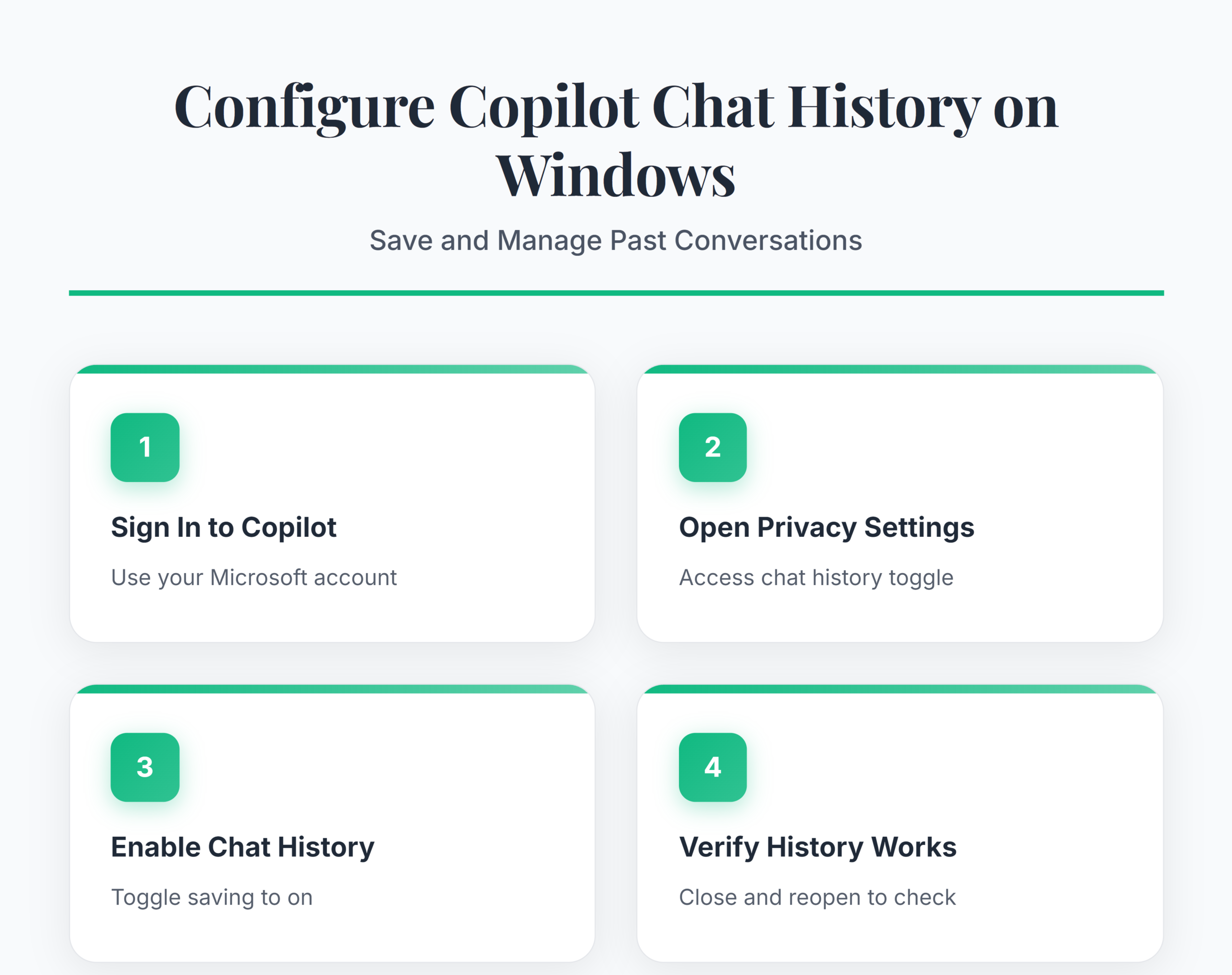
Open the Copilot app from the taskbar or press Win + C to launch the sidebar panel. Click your profile icon in the top-right corner and select Settings from the dropdown menu. Scroll to the Privacy and permissions section where the chat history toggle appears. If you do not see this option, sign out completely and sign back in with your Microsoft account to refresh the configuration page. This step resolves most cases where copilot chat is not working because the settings page loads account-specific options only after a fresh authentication. Verify the toggle is visible before proceeding to the next step.
Enable Persistent Chat Storage
Toggle Chat history to the on position under the privacy section. This setting instructs Copilot to save all future conversations to your Microsoft account cloud storage. Each chat session appears as a separate entry in the history panel, organized by date and labeled with the opening prompt. Previous conversations from before enabling the toggle are not recoverable, so enable this setting as early as possible.
If the toggle appears grayed out, your organization likely manages this setting through Microsoft 365 admin center policies or Intune configuration profiles. Contact your IT administrator to configure copilot permission at the tenant level so the toggle becomes available on your device.
Verify Saved Conversations Work
Start a new chat session with any prompt and wait for the full response. Close the Copilot panel completely, then reopen it and click the Recent tab or clock icon in the top navigation bar. Your previous conversation should appear with the complete prompt and response intact.
If the conversation does not appear, confirm you remained signed in during the test. Switching between Microsoft accounts mid-session causes the application to discard unsaved interactions without warning. You can also export and save Copilot conversations for long-term reference outside the application. Run this verification test after any major Windows update to confirm your settings persist correctly.
Troubleshoot Copilot Chat History Issues
Fix Copilot Not Saving Conversations
The most common reason copilot chat is not working with history involves outdated application software or corrupted cache data. Open Settings > Windows Update and install all pending updates, then open Microsoft Store to check for Copilot app updates specifically.
If updates alone do not resolve the problem, clear the app cache by navigating to Settings >> Apps >> Installed apps, finding Microsoft Copilot, clicking Advanced options, and selecting Reset. This forces the application to rebuild its local data store from scratch. After resetting, sign back in with your Microsoft account and re-enable chat history using the configuration steps above. This approach will fix copilot not working permanently in most cases.
Resolve Copilot Not Working on Windows 11
When copilot is not working on Windows 11 entirely, the issue often traces back to regional availability restrictions or disabled system features. Open Settings >> Privacy & security >> General and confirm the diagnostic data sharing setting allows optional data collection, which Copilot requires to function. Check your Windows region under Settings >> Time & language >> Language & region and set it to a supported market like United States or United Kingdom.
Organizations using Microsoft 365 admin policies can restrict Copilot access at the tenant level, which overrides any local device settings you change. If you also need to manage Teams chat history settings, those controls live in the Teams admin center and operate independently from Copilot’s own configuration.