How to Send an Email with Attachments Using Power Automate sounds simple until the recipient gets an empty message, a corrupt file, or only the first attachment. The safe pattern is to get the file content, build the attachment object correctly, send through the Office 365 Outlook connector, and test with the same file type users will receive.
Use file content output, not file metadata
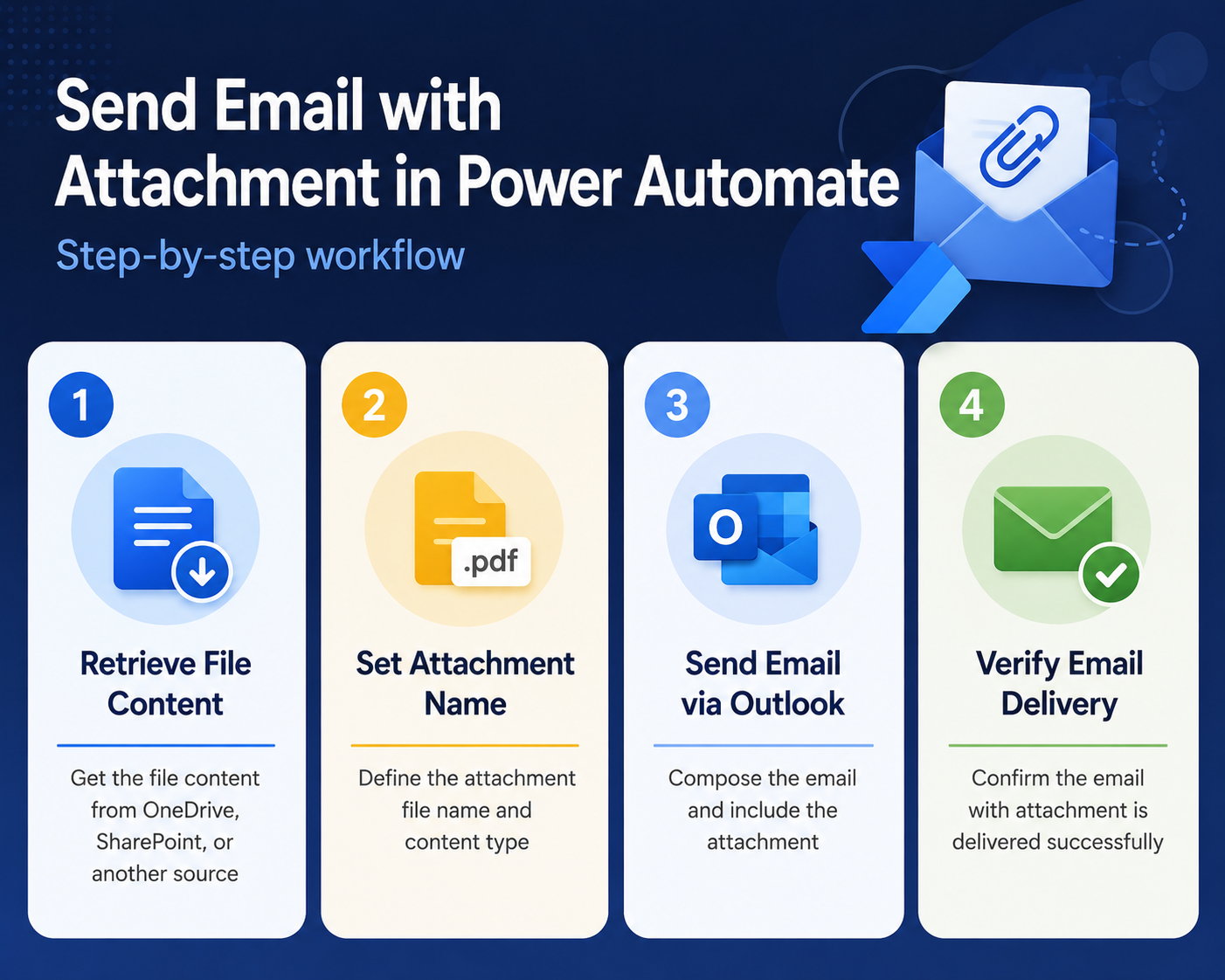
An attachment action needs the binary file content, not only the file name, identifier, or link. In Power Automate, actions such as Get file content or Get attachment content return the body that should be passed into the email attachment content field. If you map an ID, path, or display name into that field, recipients can receive a tiny, unreadable, or empty file.
For multiple attachments, build an array where every item has a clear name and matching content bytes. Keep the file extension aligned with the actual content type, and test with PDF, Office, and image files because each exposes problems differently. When files are large, consider sending a OneDrive or SharePoint link instead of attaching the binary content to every email.
Prepare the attachment source
Decide where files will come from
Start by identifying the source of the file. Common sources are SharePoint document libraries, OneDrive for Business folders, email attachments from an incoming Outlook message, Forms uploads, or files created earlier in the same flow. The source matters because each connector exposes file content in a different shape.
I avoid building the email action first because it hides the real problem. Attachments fail when the flow has a filename but not the file content bytes, or when it has content from the wrong file version. If you need the wider cloud-flow structure first, use this build a starter flow guide, then return to the attachment details.
Get file content before sending
For a SharePoint or OneDrive file, add the connector action that retrieves file content by identifier or path. Do not pass only the file link into the email attachment field unless your goal is to share a link. An attached file needs a name and actual content.
Microsoft’s Outlook connector documentation distinguishes file attachments from item attachments and notes connector-specific limitations around certain message or calendar item attachments. Keep the first version focused on normal file attachments such as PDF, Excel, Word, text, image, or ZIP files.
Use clear file names
Make sure to use a clear attachment name deliberately. Use the original file name when it is trustworthy, or compose a name that includes the request ID, customer, date, or report type. Avoid names that rely on dynamic fields that may be blank.
- Keep the file extension, such as .pdf, .xlsx, or .docx.
- Remove characters that are risky in file names, including slashes and control characters.
- Test names with spaces and non-Latin characters if your users send international files.
Configure the Outlook email action
Add Send an email action
Use the Office 365 Outlook Send an email action for Microsoft 365 mailboxes. Fill in To, Subject, and Body first, then expand the attachment section. If the flow sends one fixed file, add one attachment entry with the file name and file content.
Power Automate desktop documentation describes the same underlying Office 365 Outlook connector pattern: attachment entries need a name and content bytes. In cloud flows, the designer may show dynamic content tokens rather than raw fields, but the concept is the same.
Handle multiple attachments safely
If the number of attachments can vary, build an array of attachment objects before the email action or use the connector’s dynamic attachment support where available. Do not add a fixed first attachment and assume the rest will follow automatically. For incoming mail scenarios, loop through the incoming attachments and append each allowed file to the attachment array.
My practical rule is to test zero, one, and several attachments before calling the flow complete. The zero-file path matters because some business requests legitimately have no files, and the flow should either send a clean message or stop with a controlled note.
Keep large emails under limits
Attachments make flows slower and more likely to hit connector or mailbox limits. Compress large files where appropriate, send links for very large SharePoint files, and avoid attaching the same file to many recipients when a shared link would be safer. Microsoft connector limits can also vary by operation, tenant policy, and mailbox behavior.
If the flow sends SharePoint files as attachments, decide whether the recipient needs a copy or only access. For repeatable document routing, this save mail files pattern can be paired with an email that links to the stored file instead of attaching it again.
Test attachment delivery properly
Send to a controlled mailbox
Test with your own mailbox or a shared testing mailbox before sending to customers or a distribution list. Open the received attachment, do not only confirm that the email arrived. A corrupt attachment usually means the wrong content token was used.
Check the sent message as well as the recipient inbox. If the attachment appears in sent mail but not in the recipient mailbox, filtering, transport rules, file type restrictions, or size limits may be involved. If it is missing from both, the flow configuration is the first place to inspect.
Check file type behavior
Different file types expose different problems. PDF and text files are easy to verify. Excel files show whether the content is current. ZIP files may be blocked by mail policies. Images can reveal whether the flow is sending the original file or a thumbnail.
- Test one small PDF to prove the basic attachment object.
- Test the largest normal file users expect to send.
- Test the most common Office file type used in the process.
- Test a blocked or risky extension if your organization has mail filtering rules.
Troubleshoot empty or corrupt files
If recipients get an empty attachment, inspect the dynamic content used for the attachment body. It should come from a file content action or an attachment content field, not from display name, link, identifier, or path. If the wrong file is attached, confirm whether the flow is using the current item in the loop rather than a static file from an earlier step.
For repeated failures, open run history and compare the output of the file-content step with the input of the email step. The mistake is usually visible there.
Attachment email questions answered
Why is my attachment empty?
The email action probably received a file name or link instead of file content. Add the correct get-file-content action, then map that content into the attachment body field.
Can Power Automate send multiple files?
Yes. Use multiple attachment entries for a known number of files, or build an attachment array when the number varies. Test with several files before sending to a real distribution list.
Should I attach or link files?
Attach files when recipients need an offline copy or external delivery is allowed. Use SharePoint or OneDrive links when files are large, frequently updated, permission-sensitive, or shared with an internal team.
Once the attachment object is correct, the rest of the flow is routine. Get the content, preserve the filename, send one controlled test, and only then expand the logic for multiple files or real recipients.