Microsoft Teams screenshots refusing to appear can derail meetings and slow collaboration. Missing image previews often stem from browser permissions, cache conflicts, or display settings that need adjustment.
Most Teams image display problems resolve through systematic troubleshooting of browser settings, cache clearing, and permission adjustments.
Fix Teams Screenshot Display Settings
Reset Teams Media Permissions
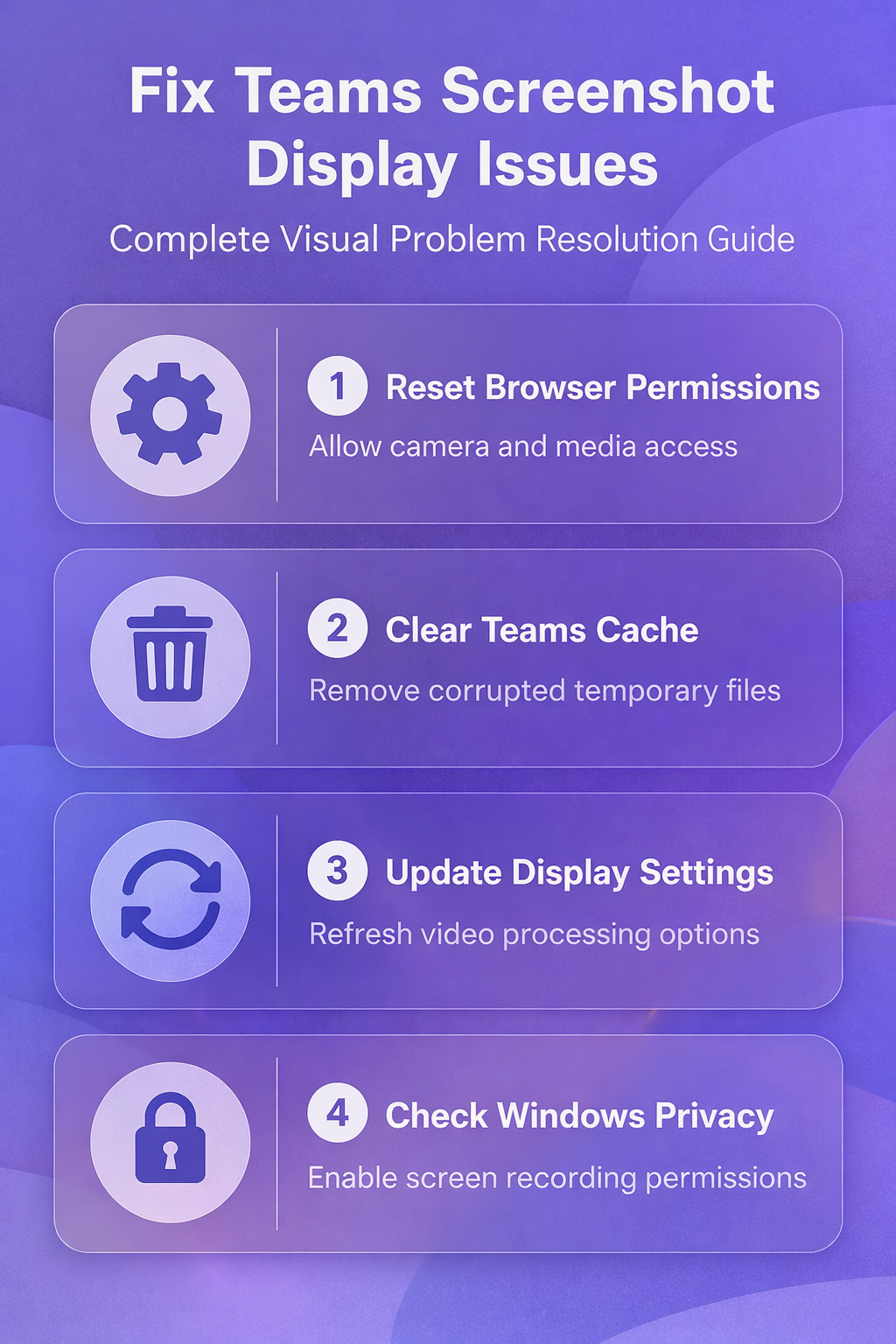
Browser restrictions commonly block Teams from accessing and displaying screenshots properly. Open your browser settings and navigate to Site Settings >> Camera >> teams.microsoft.com. Select Allow for both camera and microphone access. Teams requires these permissions to process and display visual content during meetings. Clear any blocked permissions by clicking Reset permissions if the option appears. Browser security updates sometimes revoke previously granted access without warning. From start to finish, this screenshot display settings configuration required minimal effort on my part and the entire process felt intuitive enough that even less technical users should find it manageable.
Clear Teams Browser Cache
Corrupted cache files prevent Teams from loading image previews correctly:
- Press Ctrl + Shift + Delete to open browser clearing options
- Select Cached images and files with time range set to All time
- Click Clear data and restart your browser completely
- Sign back into Teams and test screenshot sharing functionality
Cache corruption affects Teams more than other applications because it stores temporary visual data differently than standard web content.
Update Teams Display Settings
Teams may disable image previews when bandwidth appears limited:
- Navigate to Settings >> Devices >> Camera within Teams
- Toggle Mirror my video off and on again to refresh processing
- Check your Background effects settings for interference
- Complex backgrounds sometimes cause images to appear blank
Troubleshoot Teams Screenshot Sharing
Fix Screen Sharing Permission Issues
Windows 11 introduced stricter screen capture controls that affect Teams screenshot functionality. Access Settings >> Privacy & security >> Screen recording in Windows. Ensure Microsoft Teams appears in the allowed apps list. Toggle the permission off, wait 10 seconds, then enable it again. Some Windows updates reset these permissions without notification, particularly after major feature updates or security patches.
Resolve Teams App Cache Problems
The desktop Teams app maintains separate cache files from browser versions:
- Press Windows + R and type
%appdata%\Microsoft\Teams - Delete the contents of the Cache folder
- Restart Teams completely after clearing app cache
- The application rebuilds necessary files during startup
This often resolves persistent image display issues that browser cache clearing doesn’t fix.
Check Teams Meeting Settings
Meeting organizers control screenshot capabilities through admin policies. If screenshots work in some meetings but not others, the issue stems from organizational restrictions rather than technical problems. Contact your Teams administrator if screenshot sharing fails consistently across different meetings with external participants.
Advanced Teams Image Troubleshooting
Disable Hardware Acceleration
GPU conflicts sometimes prevent Teams from rendering screenshots correctly, especially on systems with integrated and dedicated graphics cards. In Teams settings, navigate to General and toggle off GPU hardware acceleration. Restart Teams and test screenshot functionality. This change reduces performance slightly but eliminates graphics driver conflicts. Hardware acceleration problems appear more frequently on laptops switching between battery and AC power, as Windows adjusts GPU usage automatically. This entire advanced teams image process took less than thirty seconds to complete on my computer, which confirms this remains one of the quickest configuration changes available to users today.
Reset Teams Network Settings
Network firewall rules occasionally block the specific ports Teams uses for image transmission:
- Press Windows + X and select Windows PowerShell (Admin)
- Run
netsh winsock resetfollowed bynetsh int ip reset - Restart your computer after both commands complete
- These steps clear network configuration issues
Update Graphics Drivers
Outdated display drivers cause Teams screenshots to appear as black screens or fail to load entirely. Visit your graphics card manufacturer’s website and download the latest drivers for your specific model. Driver updates resolve compatibility issues between Teams and newer Windows security features that affect screen capture functionality.
Separate preview problems from upload failures
A dependable Teams image pipeline fix starts with a reproducible test, not a long list of unrelated changes. Preserve the current configuration, note the time and exact symptom, and change one variable at a time. That approach makes the result reversible and gives an administrator useful evidence if the issue needs escalation.
Run a focused validation
Send a small PNG in a new one-to-one chat and open the same message in Teams on the web. If the web client displays it, the file and permissions are sound and the desktop cache or rendering path is the likely cause.
Confirm the image actually finished uploading and is not merely a local clipboard preview. Try Insert image instead of paste, avoid unusually large captures, and verify that the sender and recipient can open the chat’s Files or Shared tab.
Confirm the result
Record whether the failure affects old images, new uploads, or only pasted screenshots. That distinction helps an administrator check Teams service health, network filtering, and OneDrive or SharePoint access without resetting unrelated settings.
Repeat the original action after every material change and record what improved. If the test fails, restore the previous state before trying the next step. This keeps the troubleshooting path clear and avoids creating a second problem while resolving the first.
For a managed work device, also check whether the setting is enforced by organizational policy. A control that is unavailable, returns after sign-in, or behaves differently for another account may be intentional rather than broken. Do not bypass that policy locally. Instead, capture the device name, Windows or application version, account type, network used, and screenshots of the relevant setting. Share only non-sensitive evidence with support. This information lets the administrator reproduce the condition, compare policy assignments, and decide whether the solution belongs on the device, in the user profile, or in the Microsoft 365 administration layer.
Common Questions Answered
Why are my Teams screenshots not showing up?
Teams screenshots typically disappear due to browser permission restrictions, corrupted cache files, or Windows privacy settings blocking screen capture access. The most common fix involves clearing Teams cache and resetting browser permissions for the Teams website.
How do I enable image previews in Microsoft Teams?
Enable Teams image previews by checking browser camera permissions, clearing application cache, and ensuring Windows screen recording permissions allow Teams access. Navigate to Teams settings and verify GPU hardware acceleration isn’t causing display conflicts.
Can firewall settings block Teams screenshots?
Yes, corporate firewalls and Windows Defender sometimes block the network ports Teams uses for image transmission. Check with your IT administrator about Teams-specific firewall rules if screenshots work on personal devices but fail on company networks.
Teams screenshot problems usually resolve through permission adjustments and cache clearing. Start with browser settings before moving to advanced troubleshooting steps.