How to Automatically Save Email Attachments to SharePoint with Power Automate is one of the most useful Outlook automations because it turns inbox files into a searchable team library. The reliable version checks the incoming message, loops through only real file attachments, creates the file in the right SharePoint folder, and handles duplicate names before users depend on it.
Build the incoming email trigger
Choose mailbox and folder scope
Create an automated cloud flow with the Office 365 Outlook trigger for new email. Pick the mailbox and folder deliberately. If the process uses a shared mailbox, configure the trigger for that mailbox rather than testing in your personal Inbox and moving the flow later.
I prefer a dedicated folder or mailbox rule for attachment intake because it lowers noise. A trigger watching the whole Inbox can react to newsletters, signatures, calendar messages, and unrelated files. If you need to create the basic cloud flow first, this start a cloud flow guide gives the base pattern before the SharePoint file work.
Filter messages before saving
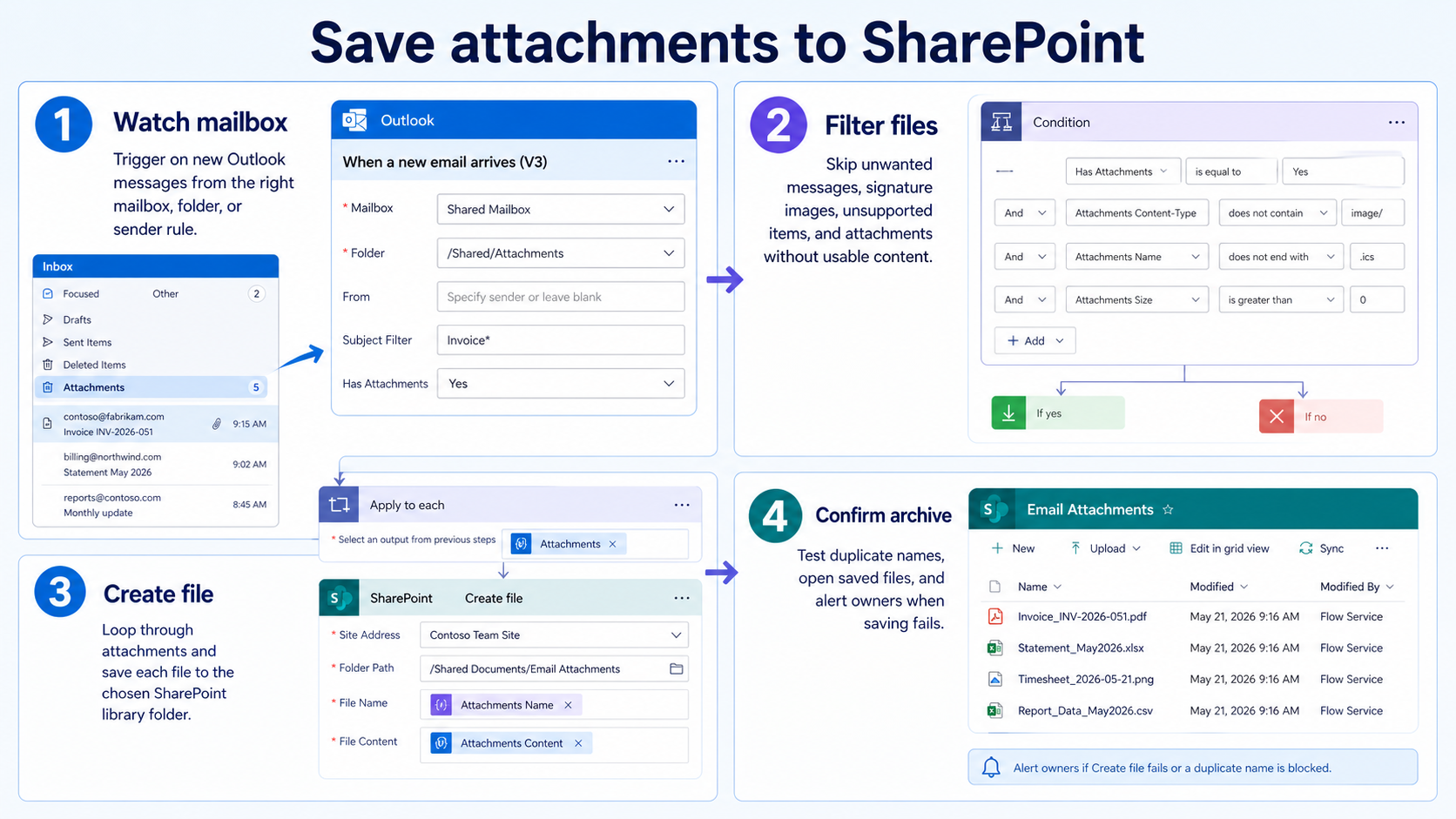
Add trigger conditions or early checks so the flow processes only the messages you want. You can filter by sender, subject prefix, importance, attachment presence, or target folder. Keep the first condition simple and visible in run history.
Do not save every attachment from every message by default. Logos in signatures, inline images, and calendar-related files can clutter the SharePoint library quickly. Decide whether the flow should ignore tiny image files, only accept certain extensions, or require a subject marker such as “Invoice” or “Timesheet.”
Confirm attachment content is available
The Outlook connector exposes attachment metadata and content differently depending on the trigger and action. Make sure the flow has both the file name and the attachment content before creating the SharePoint file. If the trigger only gives attachment metadata, add the action that gets the attachment content.
Microsoft connector documentation distinguishes file attachments from item attachments such as attached messages or calendar items. Treat the first version as a file-attachment flow, then decide whether you need a separate path for unsupported or special attachment types.
Create files in SharePoint
Pick the document library folder
Add the SharePoint Create file action and choose the site address, document library, folder path, file name, and file content. Use a stable library path rather than a personal test folder. If the files support a team process, choose a folder where the owners already have permissions.
When a SharePoint list or library is part of the wider automation, confirm the site, library, and connector setup before you map attachment content. The important detail here is that the email attachment content becomes the SharePoint file content.
Loop through each attachment
Use an Apply to each loop around the create-file action when a message may contain more than one attachment. Inside the loop, use the current attachment name and current attachment content. A common mistake is using a single attachment token outside the loop, which saves only the first file or repeats the wrong one.
My quick check is to send one email with three clearly named test files. If SharePoint receives exactly three files with the expected names and sizes, the loop is probably mapped correctly. If only one file appears, inspect the loop input.
Prevent duplicate file names
SharePoint can reject duplicate file names or overwrite files depending on how the action is configured and which connector path you use. Avoid ambiguity by adding a timestamp, message received date, sender prefix, or request ID to the saved file name. Keep the original extension at the end.
- Use a folder structure by sender, month, customer, or request type when volume is high.
- Add a date stamp before the extension, not after it.
- Store the original email subject in metadata or a companion list when auditability matters.
Test and maintain the library
Test normal and edge messages
Send controlled test messages before turning the flow loose. Test one PDF, several files, a message with no attachment, a message with an inline image signature, and a message from a sender that should be ignored. Open the saved SharePoint files to confirm they are not corrupt.
If the flow also needs to notify someone, add the notification after the create-file step. For workflows that send files out again, this send attachments by email tutorial pairs well with the save-to-library pattern.
Handle failures without losing files
Use run history to find whether a failed run stopped at Outlook, the loop, or SharePoint. Outlook failures usually involve trigger scope or attachment content. SharePoint failures usually involve permissions, duplicate names, invalid characters, or the folder path. Fix the first failing action rather than rebuilding the flow.
Add a notification when a file cannot be saved. The alert should include the email subject, sender, attachment name, and run link. That gives the owner enough context to recover the file from the original mailbox.
Keep the SharePoint folder usable
An attachment archive can become messy if nobody owns naming, retention, and folder structure. Review the library after the first week. If users cannot find files quickly, adjust folder paths or metadata before thousands of attachments accumulate.
Do not turn an inbox problem into a SharePoint problem. The flow should save the right files, in the right folder, with names that still make sense months later.
Add production safeguards to the attachment flow
A dependable attachment automation fix starts with a reproducible test, not a long list of unrelated changes. Preserve the current configuration, note the time and exact symptom, and change one variable at a time. That approach makes the result reversible and gives an administrator useful evidence if the issue needs escalation.
Run a focused validation
Use the Outlook trigger’s attachment metadata to reject inline signature graphics and unwanted extensions before the Apply to each loop. For larger messages, retrieve each attachment’s content explicitly instead of assuming the trigger always supplies complete binary data.
Build a deterministic file name from the received timestamp, message ID fragment, and original name. Before Create file, either check whether that name exists or route duplicates to a review folder so retries do not overwrite evidence.
Confirm the result
Test a normal document, a message with two attachments, an inline logo, and a duplicate delivery. Then inspect run history and the SharePoint library. Add a failure branch that alerts the owner with the run URL and message subject, but never includes sensitive attachment content.
Repeat the original action after every material change and record what improved. If the test fails, restore the previous state before trying the next step. This keeps the troubleshooting path clear and avoids creating a second problem while resolving the first.
For a managed work device, also check whether the setting is enforced by organizational policy. A control that is unavailable, returns after sign-in, or behaves differently for another account may be intentional rather than broken. Do not bypass that policy locally. Instead, capture the device name, Windows or application version, account type, network used, and screenshots of the relevant setting. Share only non-sensitive evidence with support. This information lets the administrator reproduce the condition, compare policy assignments, and decide whether the solution belongs on the device, in the user profile, or in the Microsoft 365 administration layer.
Attachment saving questions answered
Can Power Automate save every attachment?
It can save normal file attachments when the trigger and attachment-content mapping are configured correctly. Special item attachments, blocked file types, or very large files may need a different path or admin review.
Why are signature images being saved?
The flow is probably processing every attachment-like object from the message. Add conditions to skip small image files, inline content, or unwanted extensions before the SharePoint create-file action.
How do I avoid duplicate names?
Add a timestamp, sender code, request ID, or message received date to the filename before the extension. Then test two messages with the same attachment name to confirm SharePoint receives both files.
A good attachment archive flow is selective, not greedy. Filter the mailbox input, save real file content, protect filenames, and verify the SharePoint library before users depend on it.